

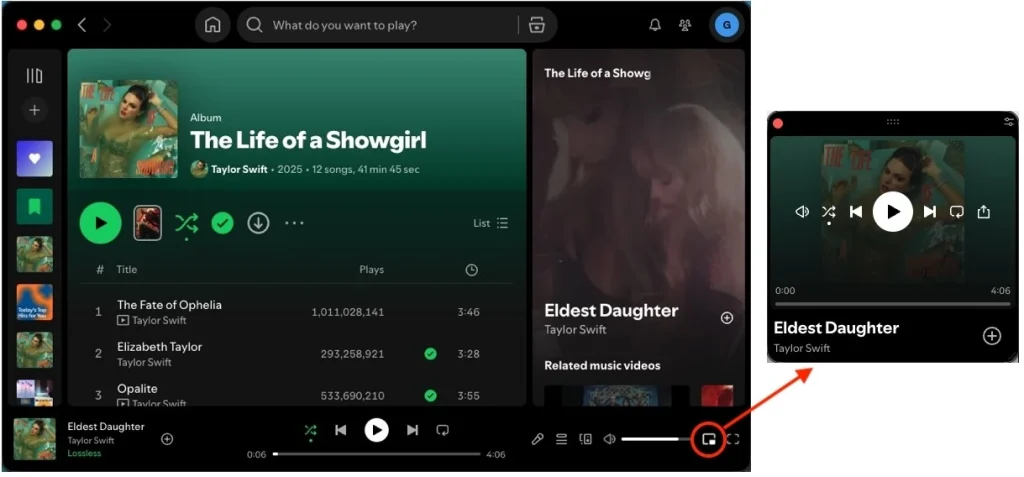
The mini player takes up very little space on your screen, but still lets you adjust the volume, search for songs, select the next song to play, and more. The mini player displays the album artwork of the song being played. When you move the pointer over the artwork, the controls appear. This fantastic feature was introduced to Spotify for desktop (Windows, Mac, Web) in March 2024. Unfortunately, this feature is currently only available to Premium users. Don’t worry, here we will show you 4 ways to get a Spotify mini player, for both Free and Premium users.
The Miniplayer feature is available to Premium users on the Spotify desktop app for Windows and Mac, as well as the web player. You can use it for both music and podcasts. Spotify Miniplayer floats over other applications and includes all playback controls. When it’s on, you can change the size, and it doesn’t replace the main Spotify window.
Here’s how you can turn Spotify Miniplayer on or off:
MiniPlay for Spotify & iTunes is a Mac app that shows you what’s currently playing in Spotify or the Music app. With it, you can control music playback, play the next song, play the previous song, control volume, and get full-sized album artworks.
How to use MiniPlay for Spotify & iTunes?

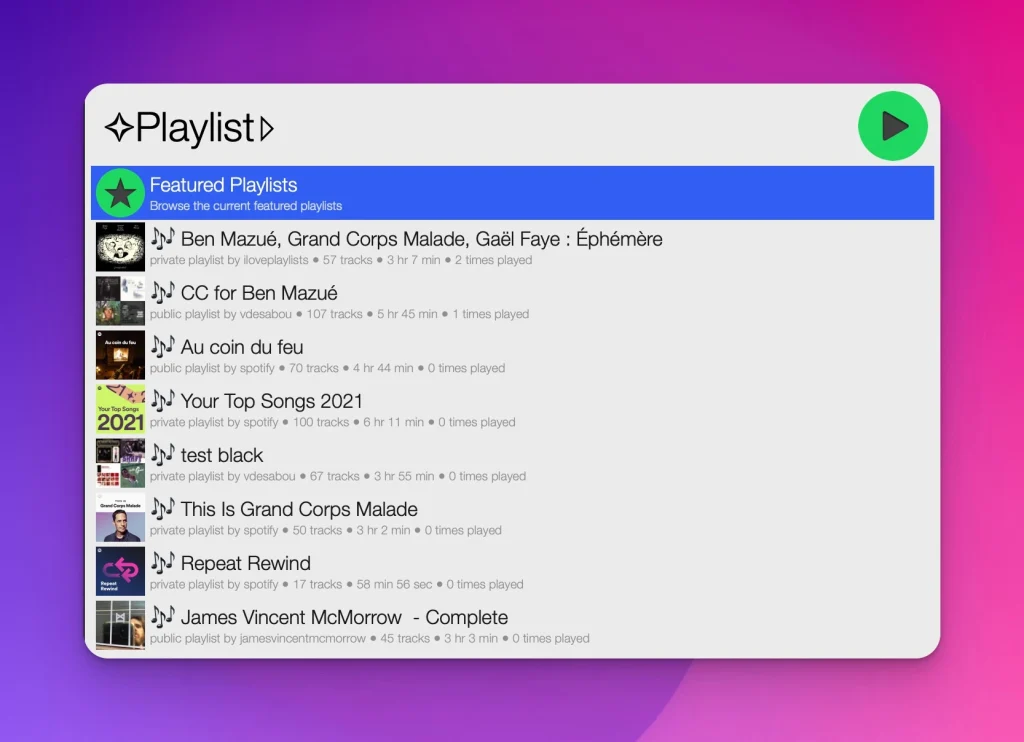
Alfred Spotify Mini Player allows you to browse, launch, follow or even remove any of your playlists. Add tracks, albums, or even playlists to any of your playlists, or Your Music right from the workflow. You can also remove tracks.
Lofi Spotify Mini Player is a mini Spotify player with visualizations. Lofi works alongside Spotify Desktop app to provide a more intuitive and pleasant access to common features. Lofi also displays cover art and track info stylishly and it facilitates WebGL-powered audio visualizations for both Windows, MacOS and Linux. In other words, it’s a “tiny Spotify player” or a “mini mode” to enhance the Spotify desktop app.

The above mentioned Spotify mini player is available with some limitations. The Spotify mini player on Chrome can only stream songs at 128kbps with free account, and local files on Spotify cannot be played on the web player. All third-party Spotify mini players require a premium account to get unlimited song skipping.
The best method is to play Spotify music with your favorite music players that support Mini Player, such as iTunes, Music, Groove Music, etc. Before that, you need to download Spotify music to MP3 first. Here we will recommend Pazu Spotify Converter.
Pazu Spotify Converter is a professional Spotify music downloader for you to download Spotify songs, albums, playlists and podcasts to common formats including MP3, M4A, AAC, FLAC, WAV and AIFF with the 100% original quality kept. Then you can play the songs with any music player and get Spotify premium for free: high quality, ad-free, on-demand offline playback and unlimited skips. After downloading, all ID3 Tags and metadata, including title, artwork, artist, album, and track number, will be preserved. To learn how to download Spotify music to computer with free account, here is a quick and short tutorial that you need to follow.
Key features of Pazu Spotify Converter:
Download, install and run Pazu Spotify Converter on your Mac or Windows. Log in your Spotify account with the built-in web player.

Click the ” Options ” button on the top right corner. Here you can select output format (MP3/M4A/AAC/FLAC/WAV/AIFF), output quality, customize the output path, organize the output files in various ways, rename output files and more.

Select the songs, album or playlist you want to download. Spotify Converter will detect and display all songs. Uncheck the songs you don’t want to download if there are any. Click “Show All” icon to toggle “Hide Converted” on in case some songs have been downloaded before.
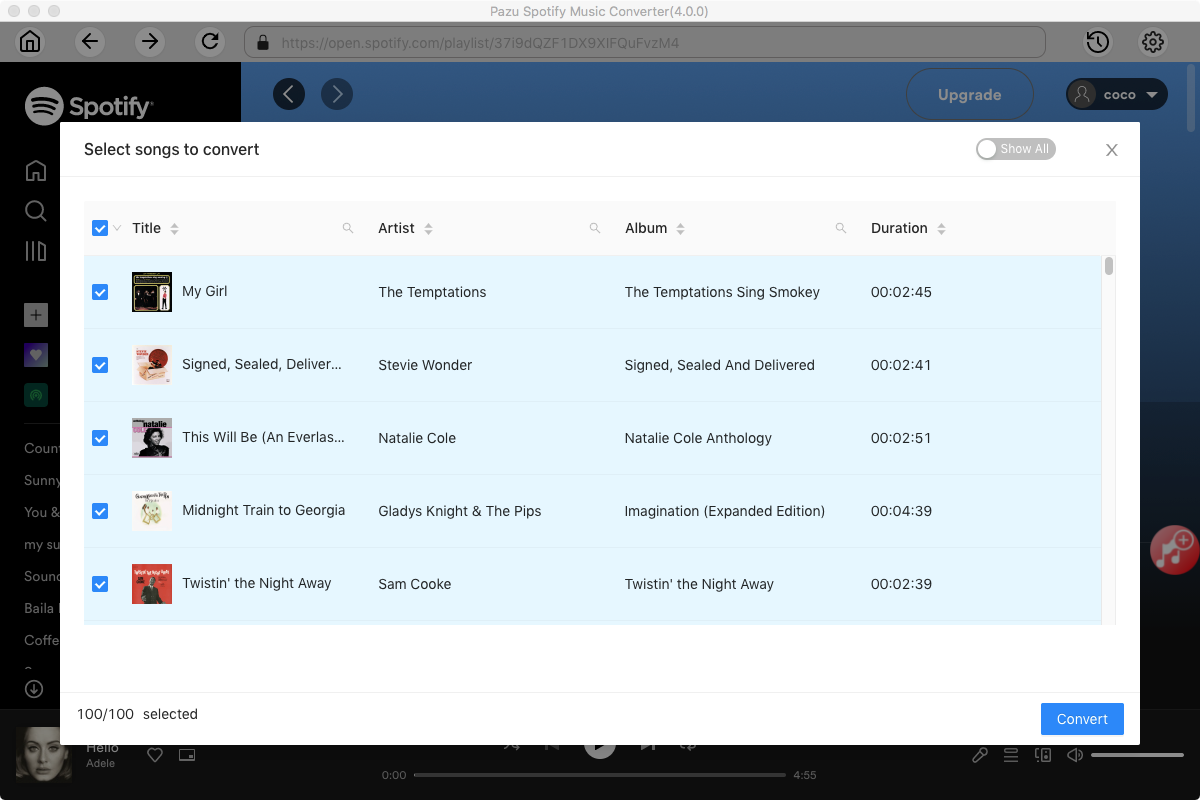
Click Convert button to start downloading the Spotify songs to your local computer.

iTunes and the Apple Music app both support mini player. Use them to play the downloaded Spotify songs and enjoy in the mini player mode.


Download and convert any Spotify songs, albums, playlists to MP3/M4A etc.