

How do you organize your Spotify playlists? Perhaps by occasion: energetic songs for work, slower tunes for leisure? Sometimes, you might find a song suitable for different moods or activities, and you want to put it into several playlists. Spotify offered this feature for both free and Premium users. Follow this guide to discover how simple it is to add a song to multiple Spotify playlists at once, both on mobile or desktop.
Read Also: How to Copy a Spotify Playlist in 4 Ways
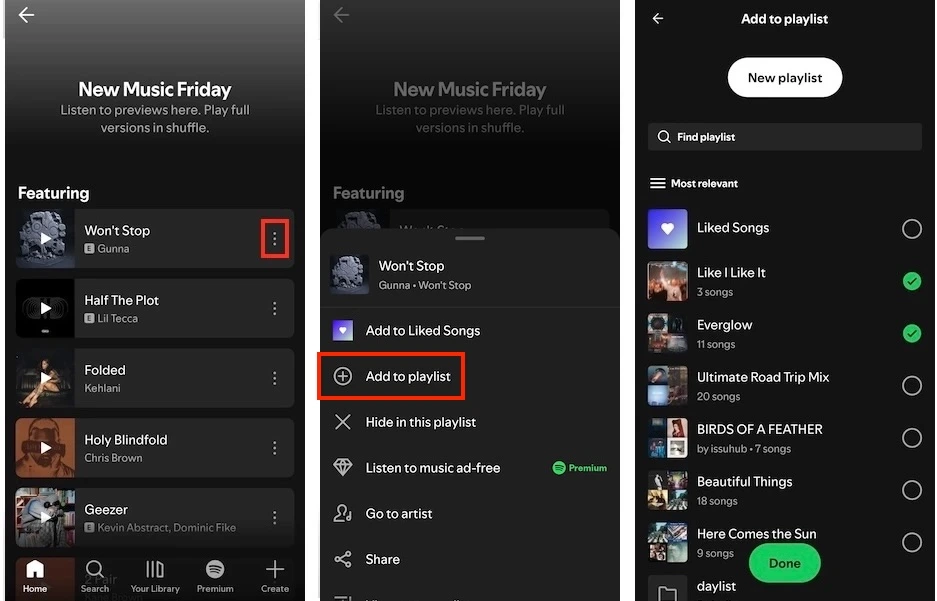
This method allows you to add a song to multiple Spotify playlists at once on your mobile device. For the desktop app and web player, you still need to add the song to each playlist one by one.
On Mobile:
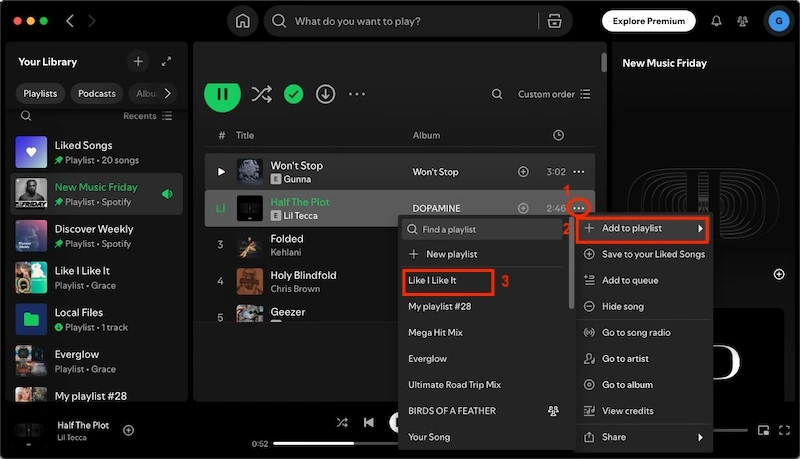
On Desktop:
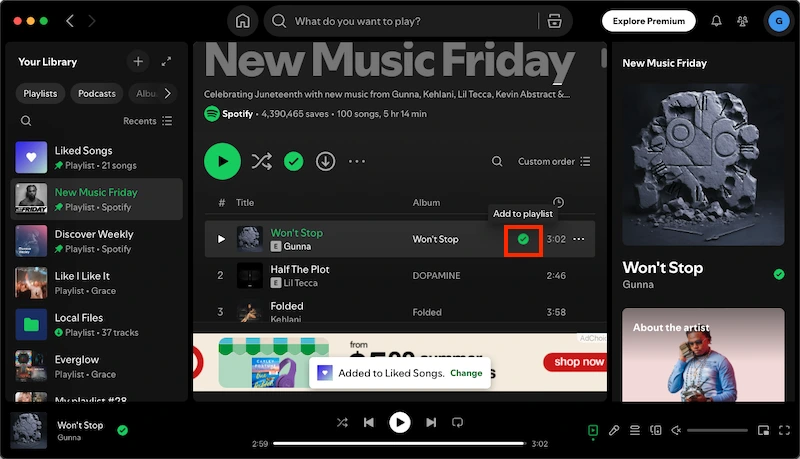
This method allows you to add a Spotify song to multiple playlists at once on both your mobile and desktop devices. Here’s how:
Step 1. Go to the song on your Spotify mobile app, desktop app, or web player. Tap or click the “Add to Liked Songs” icon (a circled plus icon) next to the song. The icon will turn into a Checkmark sign.

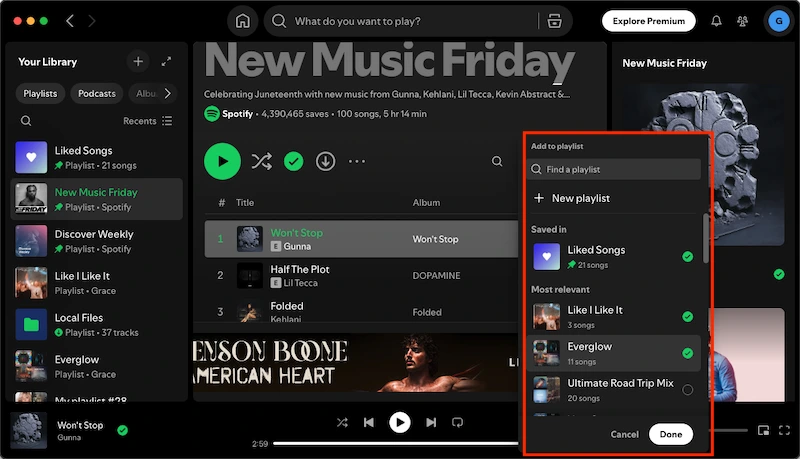
Step 2. Click the Checkmark again. Spotify will then display all available playlists in your Library.
Step 3. Select all the playlists you want to add the song to and click the “Done” button.
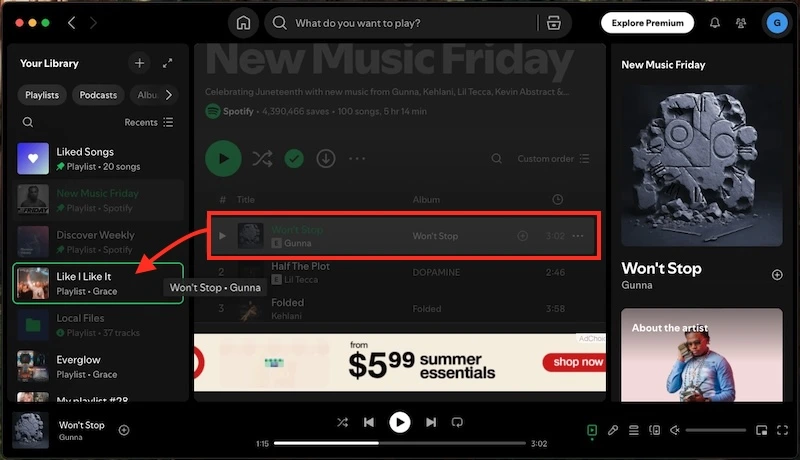
This method only works on the Spotify desktop app or web player. It allows you to quickly add single tracks or multiple songs to a playlist at once. You can repeat the easy drag-and-drop process to add your songs to as many playlists as needed.
When there is no internet connection, you may need to download Spotify songs and playlists for offline listening. However, this feature is exclusive to Premium subscribers, who can download albums and playlists with the Spotify app. If you want to download Spotify music with a Free account, use a smart tool such as Pazu Spotify Converter.
With Pazu Spotify Converter, you can download songs, playlists, albums, and podcasts for offline listening with both Spotify Free and Premium. It converts music to various high-quality formats, including WAV, MP3, M4A, AIFF, FLAC, and AAC. After downloading, you can freely transfer the downloaded files to any compatible device or media player for offline enjoyment.
Here is how you can use Pazu Spotify Music Converter to download Spotify songs with a free subscription.
Download, install, and run Pazu Spotify Converter on your Mac or Windows. Log in to your Spotify account with the built-in web player.

Click the gear icon in the top right corner. Here you can select the output format, choose output audio quality, customize the output path, organize the output files in various ways, rename output files, and more.

Use the integrated Spotify web player to search the songs, albums, or playlists you want to download. Click the Add to List button to load all songs in the album or playlist.

You can download individual songs or batch-convert the entire playlist. To download individual songs or specific songs of your choice, simply uncheck the ones you don’t want.
Click the Convert button to start downloading the Spotify songs to your local computer.

Once the conversion is done, find downloaded songs by clicking the Folder button or directly going to the output folder you customized in the previous step.

Note: The free trial version of Pazu Spotify Converter enables you to convert the first three minutes of each song. You can remove the trial limitation by purchasing the full version.

Download and convert any Spotify songs, albums, playlists to MP3/M4A etc.