

Spotube is a free, open-source Spotify client for desktop and mobile designed to offer an ad-free music experience without a Premium subscription. It uses Spotify API for metadata but sources audio from platforms like YouTube Piped.video and JioSaavn, allowing users to stream or download songs for offline use. Howevre, now it is banned from using “Spotify™ API. So many users have to seek alternatives. Here we will list some popular alternatives to Spotube for your reference.
Contents
spotube is an open source, cross-platform Spotify client for Mac, Windows, Android and iOS which utilizes Spotify’s data API and YouTube, Piped.video or JioSaavn as an audio source to get Spotify premium free.
Features of spotube:
How to download Spotify songs with spotube?
However, songs are matched and downloaded from YouTube with lower quality – M4A in 128kbps. If you want to download Spotify music in higher quality 320kbps MP3 or 256kbps M4A, we strongly recommend Pazu Spotify Converter.

For iOS
EeveeSpotify is a Spotify mod for iOS that tricks Spotify into thinking you have a Premium subscription, so you can get free ad‑free listening and unlimited skips. You can install EeveeSpotify via tools like Sideloadly, SideStore, or AltStore.
Cons: can’t download Spotify songs.
Read more: How to install and use Spotify mod EeveeSpotify on iOS?
For Android
Always download from trusted sources like xManager, F‑Droid or the official GitHub repo, and be cautious of APKs from unknown sites. xManager is an Android application or tool that lets you manage and install different versions of the Spotify mod apk. The mods offered on xManager APK are safe and secure for download, ensuring that whichever version you choose is free from malware and viruses.

Cons: can’t download Spotify songs.
For Windows, macOS, Linux
If you often use Spotify desktop app, then Spicetify is a perfect option. Spicetify is a powerful CLI tool that allows you to customize the official Spotify client. After installing Spicetify and Spicetify’s Marketplace, you can use it to customize your Spotify desktop client with all the available extensions and themes found in the Marketplace.
How to install Spicetify on Mac/Linux?
Now open Spotify app and you will find a cart icon on Spotify interface. Click it and enter ads in the Search Extensions enter field. Click on the adblockify extension and click Install. Once installed you can stream Spotify songs ad-free even without Premium.

How to install Spicetify on Windows?
Cons: doesn’t work on mobile.
For Android
Kreate is multilingual YouTube Music frontend for Android, prioritize performance. It is a fork of RiMusic, which turns into an extensible offline player now and app is not available.

Update: Currently you can’t import Spotify playlists with it, we will keep this updated.
Fildo app is an mp3 downloader and streaming application that lets you stream top-quality mp3 from around the world. One of the major advantages of Fildo compared to other similar applications is that it allows you to import and download Spotify and NetEase playlists. Fildo does not host any mp3 files, it’s just an interface to third party mp3 search engines. It matches your Spotify songs with MP3 songs from third party mp3 search engines and allows you to download songs. However, the download speed is very slow.
How to download MP3 songs from Spotify on Android with Fildo?
Step 1. Install Fildo from the official website and launch it on your Android mobile.
Step 2. Tap More – IMPORT SPOTIFY.

Step 3. Sign in to your Spotify account, select Spotify playlists you want to import.

Step 4. Choose high matching or normal. Fildo does not host any mp3 files, it matches the Spotify songs from third party mp3 search engines.
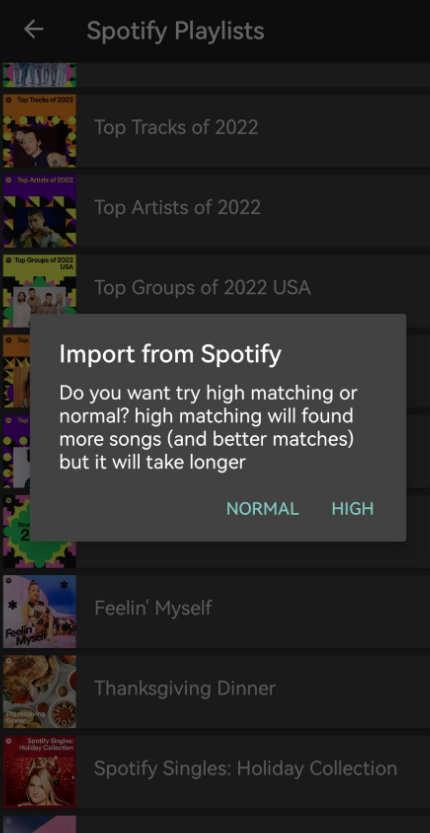
Step 5. Once your playlists or songs are successfully imported into Fildo, you can tap the three dots icon and start to download music from Spotify.

Cons: Many ads.
Some songs are not matched.
Load times are long.
Another way to get Spotify mod is to download Spotify playlists to MP3, M4A, etc. and play them with offline music player.
Pazu Spotify Converter is a professional Spotify Playlist Downloader that allows you to convert Spotify songs, playlists, or albums to MP3 at up to 10X faster speed. With the built-in Spotify web player, you can easily download single songs or whole playlist/album to MP3 music directly from Spotify. This means that you are able to, for example, listen to Spotify music with your MP3 player and preserve the songs even after cancelling Spotify subscription. Besides, Pazu Spotify to MP3 Converter is also well-known for its lossless quality. The MP3 files are encoded at a top-quality bitrate of 320 Kbps.
Pros:
Download, install and launch Pazu Spotify Playlist Converter on your Mac or Windows. Log in Spotify account in the built-in Spotify web player.

The default output format is M4A. Pazu Spotify Playlist Converter also supports MP3, AAC, FLAC, WAV, and AIFF. Click the gear icon on the top right corner to change output format or output quality. You can also change output folder and following:

Browse or search playlists you want to download from the built-in Spotify web player.
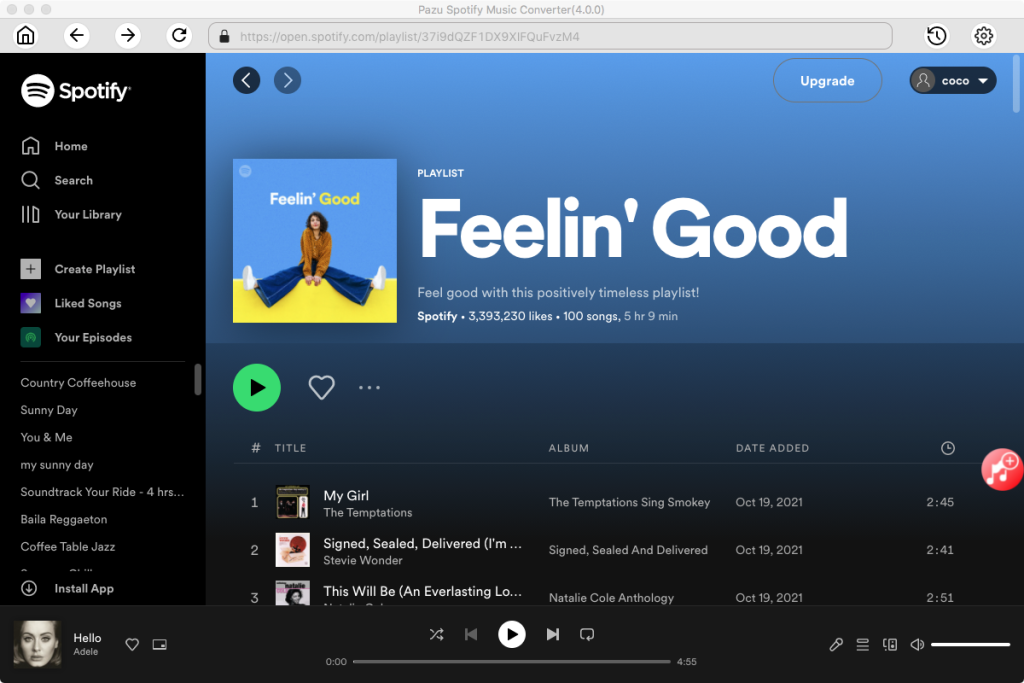
Click the Add to list button to load all songs in the playlist, uncheck the songs you don’t want to download if there are any. Click “Show All” to toggle “Hide Converted” in case you have converted some songs in the past. Songs you have converted in the past will disappear in the list.

Click Convert button to start downloading Spotify playlists to MP3 for offline playback on any device.


Download and convert any Spotify songs, albums, playlists to MP3/M4A etc.