

As the leading music streaming platform, Spotify has a massive library of music, but also runs a notable number of commercials for those who use the free version. The most recent data on the Spotify website shows that Spotify has over 761 million active users, and over 61% (468 million) are ad-supported. We all know how pesky ads can be, especially when you want to relax with some soothing music after a long day. Fortunately, we have several ways to help you block Spotify ads and enjoy your favorite songs without interruption.
Useful Tools to Block Spotify Ads
Spotify ad blockers are available on various platforms, including web browsers, Android, iOS, Windows, Mac, and Linux. Some ad blockers work across multiple operating systems.
Work on: Web Browser
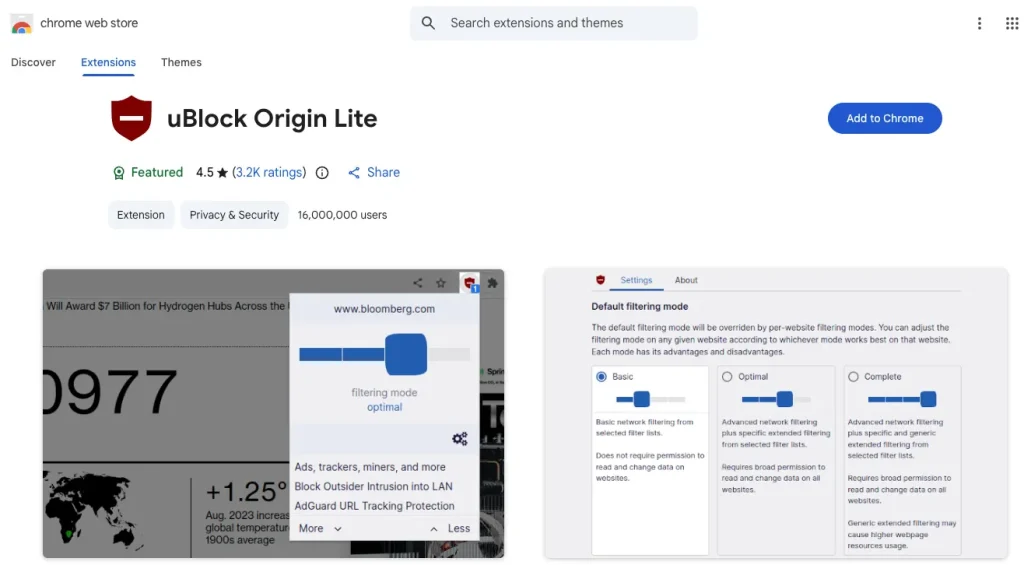
uBlock Origin is a free and open-source, cross-platform ad-blocking extension for the most widely used browsers, including Chrome, MS Edge, Opera, and Firefox. It not only blocks ads from Spotify but also commercials on all other websites. The extension was first created in 2014. It has over 5 million active users for the Firefox version and over 10 million for its Chrome extension.
Update: With Google migrating to the Manifest V3 extension system, which no longer allows extensions to inspect live traffic, Chrome users must now rely on a separate, less powerful version called uBlock Origin Lite. The Lite version blocks fewer ads, offers fewer advanced features, and may leave blank screens or broken site layouts when blocking ads from loading. The full version of uBlock Origin is still supported on Firefox, Edge, and Opera.
Work on: Web Browser
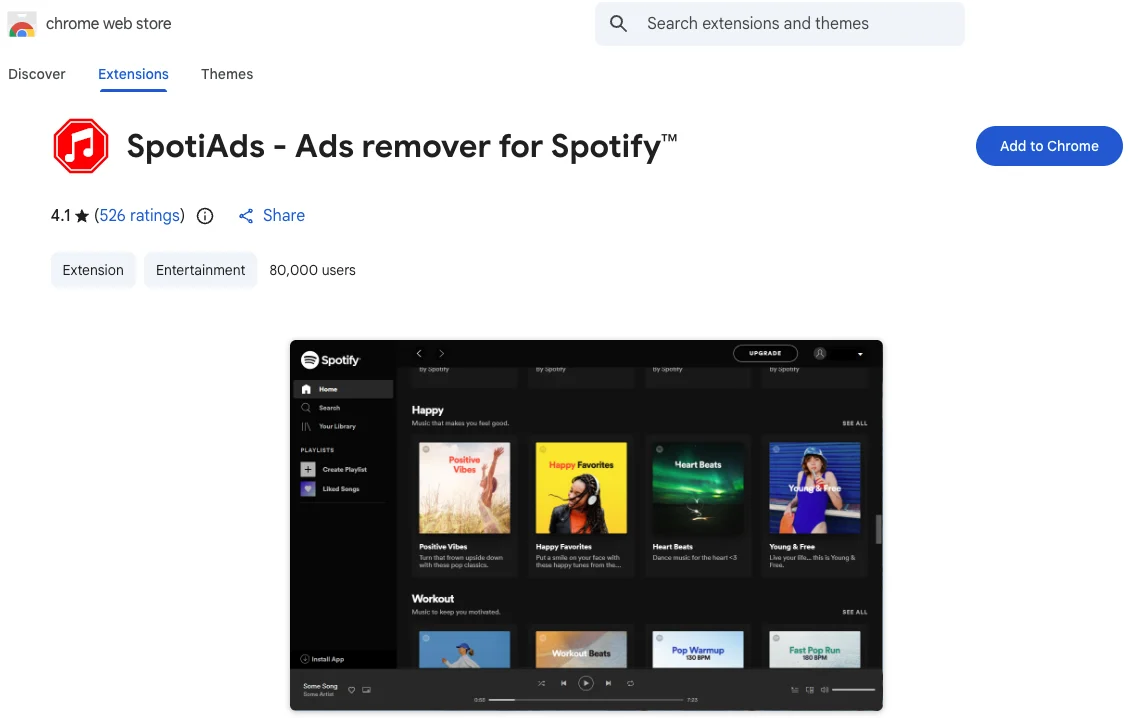
SpotiAds is an extension that especially removes audio ads on the Spotify web player. If you don’t want to block commercials on the entire internet, you may turn to this extension instead.
Work on: Web Browser, Android, iOS
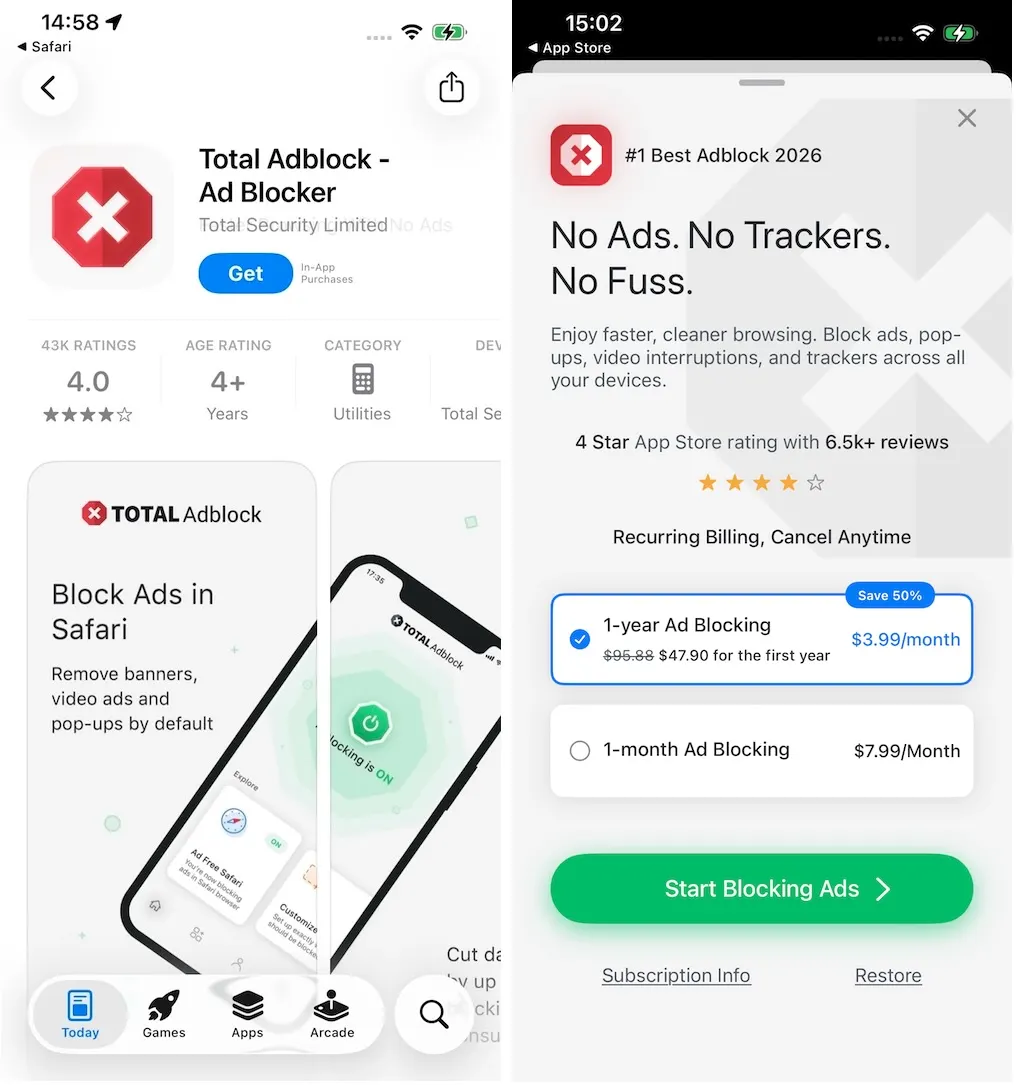
Total Adblock is more than a browser extension since it also supports Android and iOS in addition to Chrome, Firefox, Edge, and Opera. It eliminates pop-ups, banners, and video ads by blocking requests made by web pages and mobile apps. Besides, the application also emphasizes a faster web browsing experience and blocks third-party trackers to protect privacy.
You need a subscription to use the full features of Total Adblock. It offers monthly and annual subscription plans that automatically renew unless canceled.
Work on: Windows, Mac, iOS, Android, Android TV, Web Browser
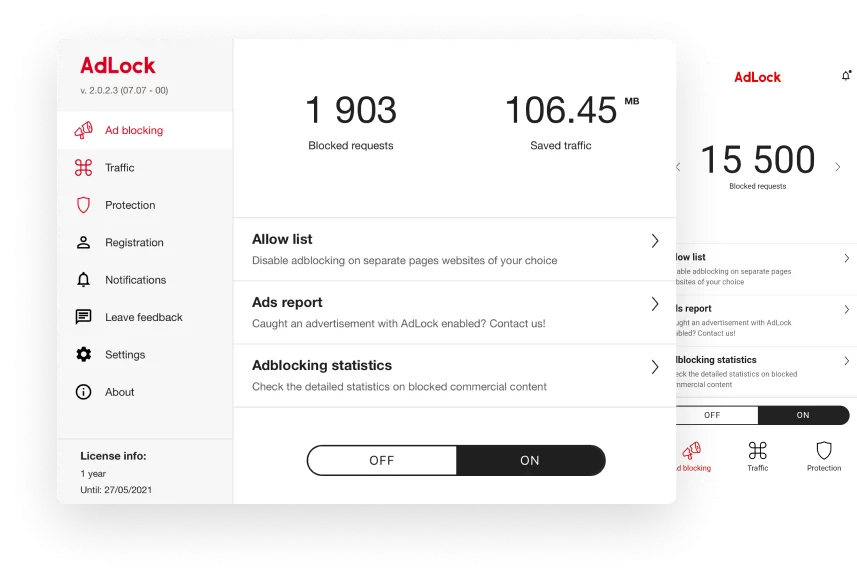
AdLock is an ad blocker available on multiple platforms, including Android, Windows, macOS, iOS, and Android TV. AdLock blocks all types of ads by default in web browsers, games, instant messengers, and other applications. The allow list lets you disable ad blocking on specific pages and websites.
To block ads across your entire operating system, you will need to buy a Premium license, which protects up to 5 devices per account and offers a 14-day free trial. If you don’t want to pay, AdLock offers a free browser extension available for popular browsers like Chrome and Safari.
Work on: Windows, Mac, Android, iOS, Android TV, Web Browser
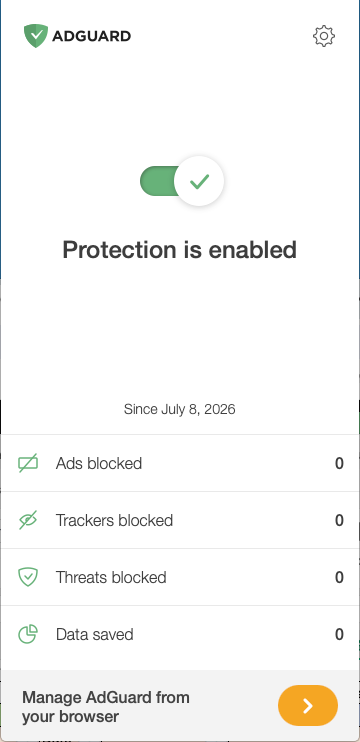
AdGuard blocks all kinds of ads on both browsers and apps on Mac, Windows, Android, and iOS. It can also speed up page loading, prevent websites and companies from collecting your personal data, and alert you to malicious or dangerous websites. The paid subscription offers personal and family plans for up to 3 and 9 devices, respectively. You can pay by the year or make a payment for a lifetime. The free versions only block ads in browsers.
Work on: Windows, Mac, Linux
SpotX is a Spotify ad blocker that works on Windows, and its sister script, SpotX-Bash, for Mac and Linux. It can block all banner, video, and audio ads in the desktop application for free. Users may also choose to hide podcasts, episodes, and audiobooks from the homepage, block Spotify automatic updates, and clear the audio cache automatically. The blocker also offers several functions to enhance playlists, lyrics, and other listening experiences.

If you don’t mind waiting a little for the next Spotify track to be played while your device is showing the ad silently, you may also try the ad muters. Some of them are simpler to install and easier to use.
EZBlocker is a portable, simple-to-use app that serves as both an ad blocker and a muter for Spotify. It attempts to block ads from loading. If it fails, the Spotify ad will be muted till the end, and other sounds will not be affected.
To use the app is quite simple – just drag it into any folder and run. It is for Windows users and free as well.

Mutify is one of the best Spotify ad-silencing apps for Android phones. It is completely free and turns down the volume of the ads automatically whenever detecting a Spotify ad is playing.
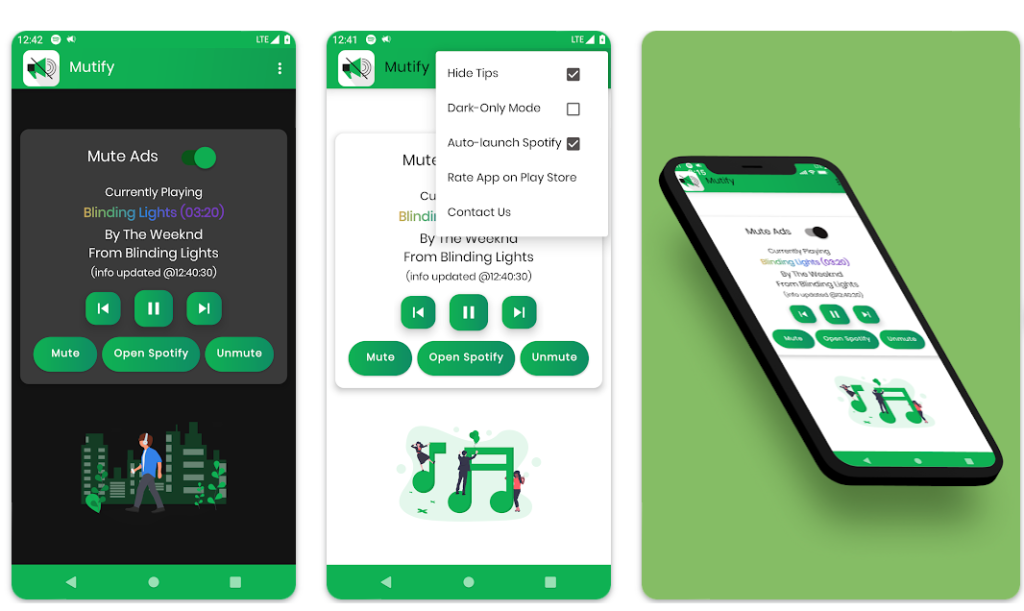
Spotify Mutify monitors the Spotify application and mutes it when ads are playing. The muter is free and can be used on Windows 10 and MacOS.
By using a VPN, a virtual private network, you can set your device’s location to a country with significantly fewer Spotify ads, like Switzerland or Singapore. Some VPNs even make ad blocking a featured function. That is, the VPN could work as an ad blocker as well.
VPN can also help people who live in countries where Spotify is unavailable.
Usually, VPN apps support all platforms including Windows, Mac, Linux, Android, and iOS. But you may need to choose the compatible installation package for your device.
Another benefit of using a VPN is that it can make your information safer and more private online since it encrypts your internet connection and hides your IP address and location.
The Threat Protection of NordVPN is another choice to block Spotify ads. Besides ad blocking, it also offers protection from malware, malicious websites, and trackers. Threat Protection has already been included in all NordVPN plans. The application supports Windows, macOS, iOS, Android, Linux, and Android TV. With one account, NordVPN users can secure up to 10 devices at the same time.

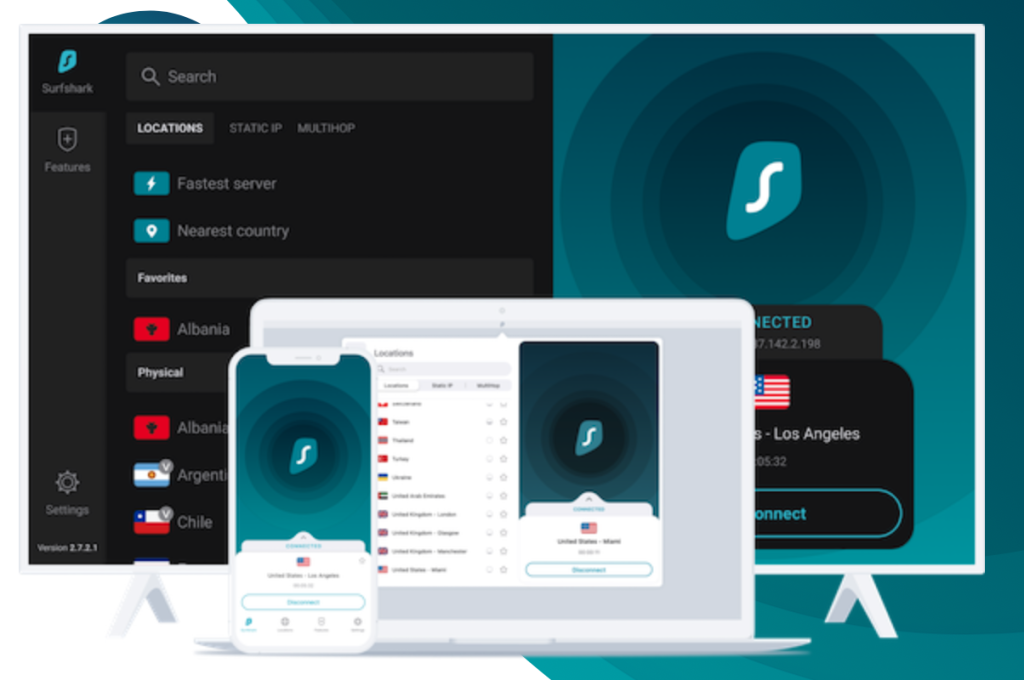
Surfshark has been listed as the best VPN for Unlimited Connections since you can use one Surfshark account for an unlimited number of devices. It features the CleanWeb function, which actually is an Ad & malware blocker. Spotify listeners can also take advantage of the app and use it as an ad blocker.
There is another option, and the best one, to block Spotify ads. That is to download Spotify music to MP3 files on your device and listen to them in your favorite ways. Here we recommend a smart Spotify music downloader — Pazu Spotify Converter for you.
It is specially designed for both Spotify Free and Premium users. With Pazu Spotify Converter, you can download pretty much anything on Spotify for offline listening, including specific songs, full albums, playlists, and podcasts even with Spotify free. It’s able to extract Spotify music and convert it to MP3, M4A, AIFF, WAV, FLAC, and AAC, and you can easily enjoy any Spotify Premium feature within a free account forever.
Key features of Pazu Spotify Converter:
Now, let’s learn how to use Pazu Spotify Music Converter to download and convert Spotify songs with a free subscription from the following tutorial.
Download, install and run Pazu Spotify Converter on your Mac or Windows. Log in your Spotify account with the built-in web player.

Click the gear icon in the top right corner. Here you can select the output format (AUTO(M4A)/MP3/AAC/FLAC/WAV/AIFF), choose output audio quality, customize the output path, organize the output files in various ways, rename output files, and more.

Use the integrated Spotify web player to search for the songs, albums, playlists, or podcasts you want to download. Click the Add to List button to load all songs in the album or playlist, and uncheck the songs you don’t want to download if there are any.
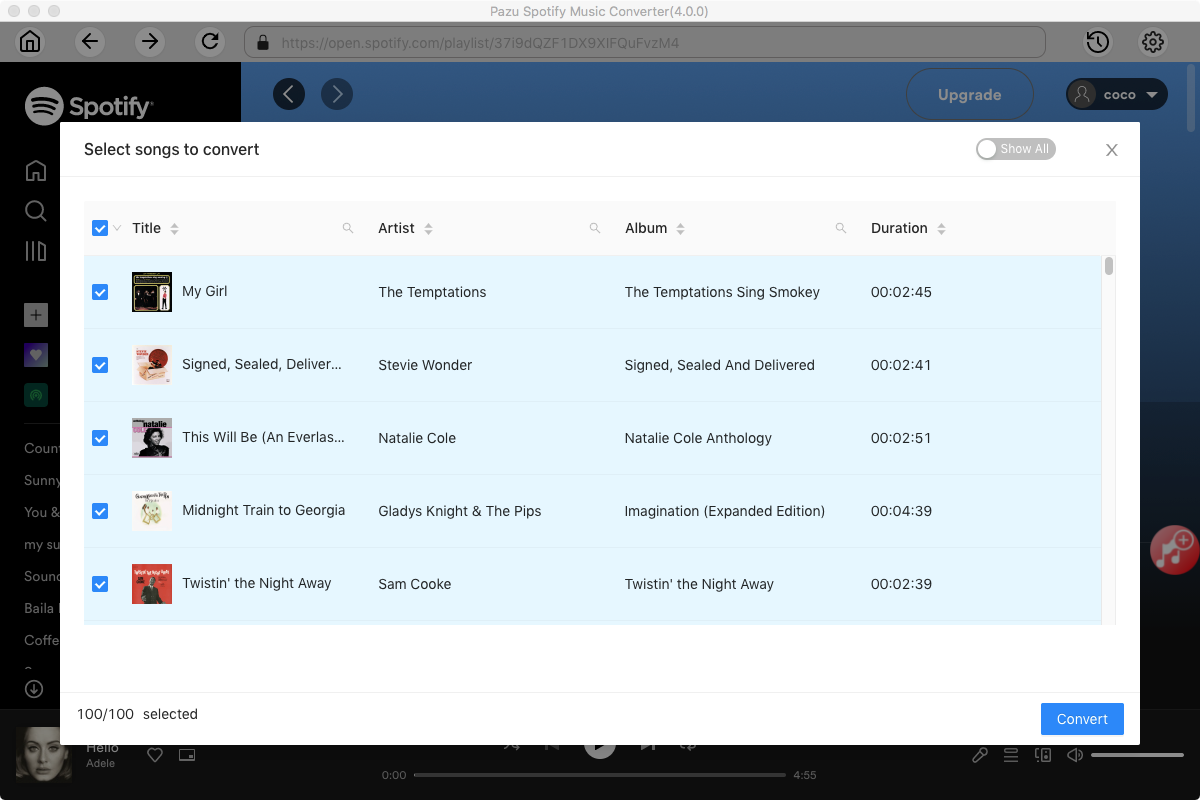
Click the Convert button to start downloading the Spotify songs to your local computer.
Once the conversion is done, you can find your Spotify songs downloaded as local files by clicking the folder button or directly going to the output folder you customized in the previous step.

Note: The free trial version of Pazu Spotify Converter enables you to convert the first three minutes of each song. You can remove the trial limitation by purchasing the full version.

Download and convert any Spotify songs, albums, playlists to MP3/M4A etc.