

Spotify offers both free and Premium tiers, including Individual, Duo, Family, and Student plans. If you want to end your Premium subscription and switch back to Spotify Free, the exact steps depend on how you pay for your subscription.
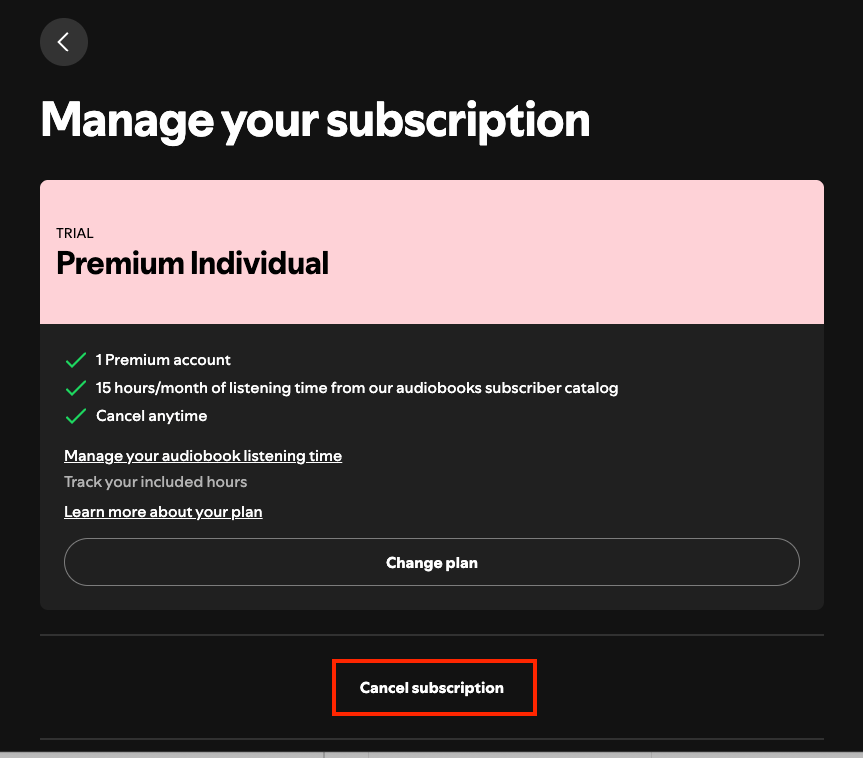
If your account is billed directly by Spotify, you can cancel in a web browser or in the Spotify mobile app. If you’re billed through third parties such as the Apple App Store or Google Play, you’ll need to manage and cancel your subscription directly in Apple or Google settings.
Before canceling your Spotify Premium, here’re several points you may need to note:
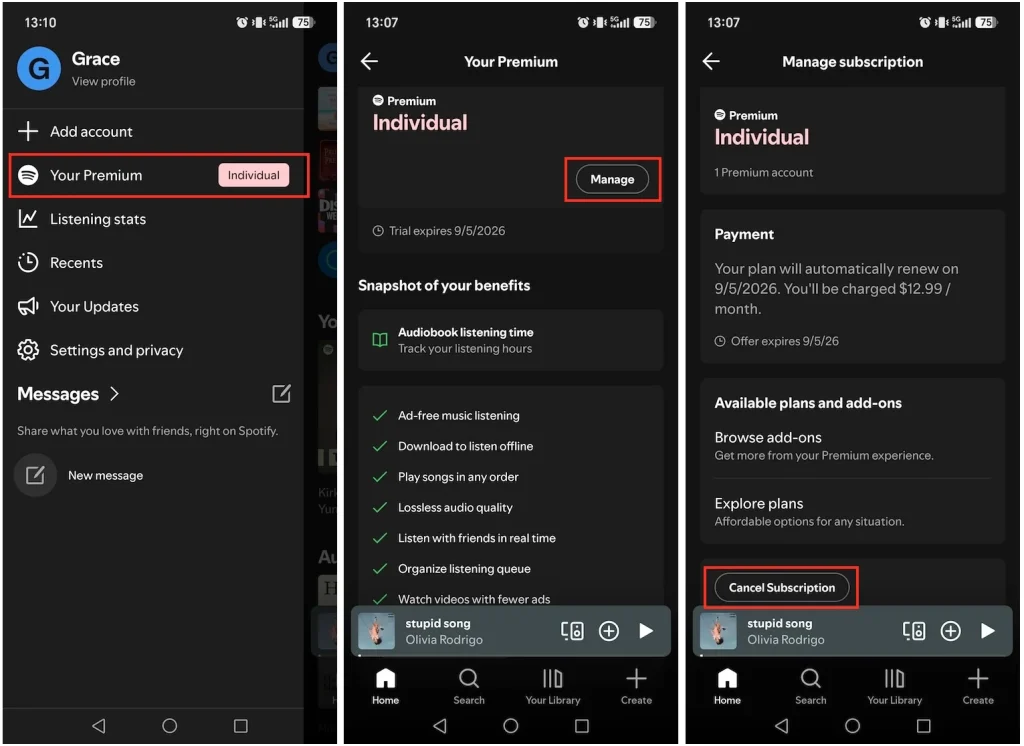
If your Spotify is billed through the Apple Store, here’s how to cancel:
If you subscribe to Spotify through Google Play, follow these steps to cancel:
Note: If you only want to stop paying for Premium, you do not need to delete your account. Canceling Premium automatically downgrades you to a free account. Proceed below only if you want to permanently delete your data and account history.
Go to the Spotify close account page in your browser:
If you have Spotify Free:
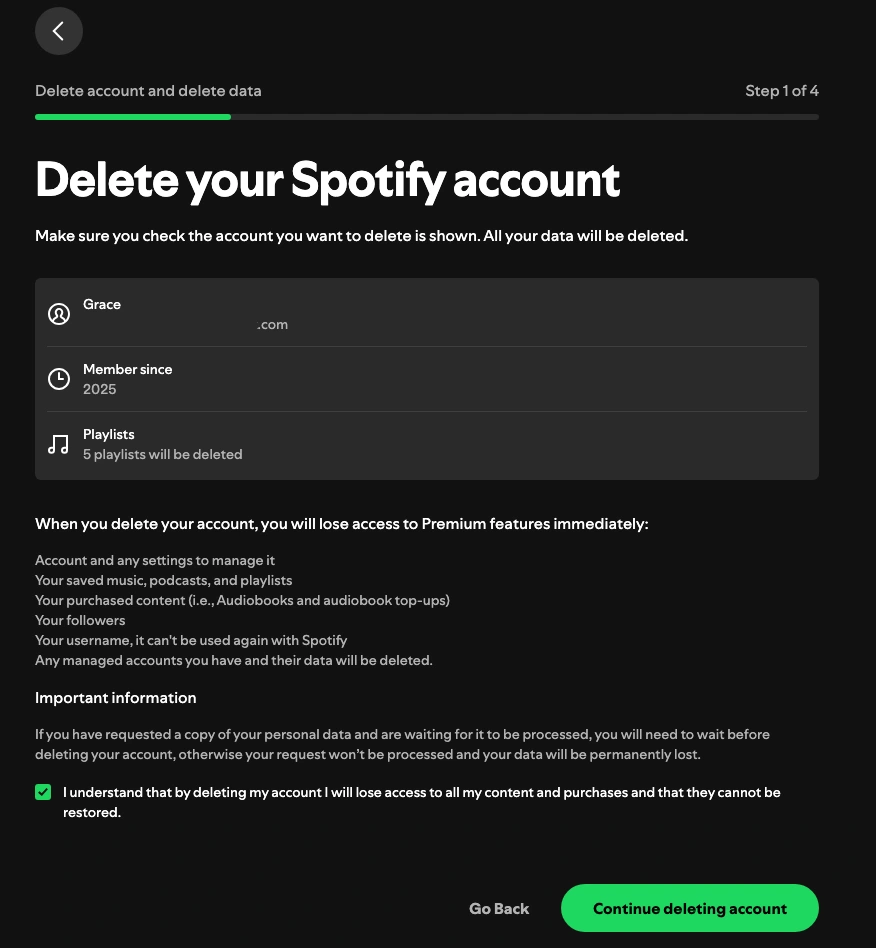
If you have Spotify Premium:
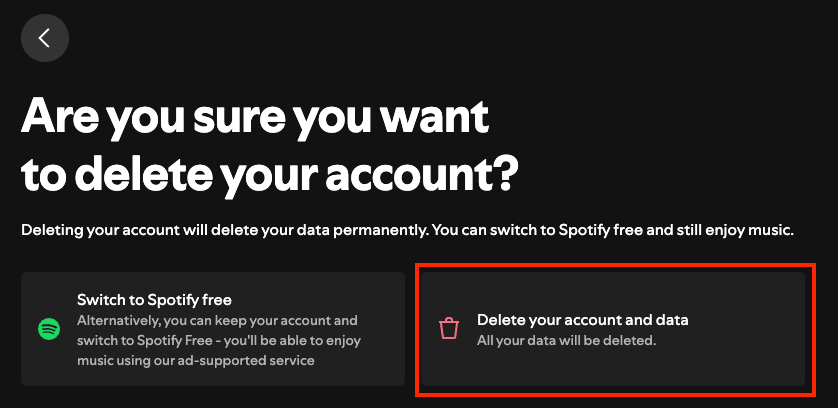
Spotify will send a confirmation link to your registered email address. Click Close My Account within 7 days to complete the deletion.
One of the best benefits of Spotify Premium is to download Spotify songs, albums and playlists for offline playback. However, once you cancel Spotify Premium, your downloaded music is no longer available offline. If you want to listen to Spotify offline after canceling Spotify Premium, the best way is to download your favorite songs, albums, and playlists to MP3 with Pazu Spotify Converter.
Pazu Spotify Converter is designed to download Spotify music with either a free or premium account on Mac/Windows. It allows you to convert Spotify songs to the most popular audio formats, such as MP3, M4A, WAV, FLAC, AAC, and AIFF. With the adoption of advanced encryption technology, it’s able to keep all the converted audio files with 100% lossless audio quality and the original ID3 tags and metadata information.
Key features of Pazu Spotify Converter:
Download, install, and run Pazu Spotify Converter on your Mac or Windows. Log in to your Spotify account with the built-in web player.

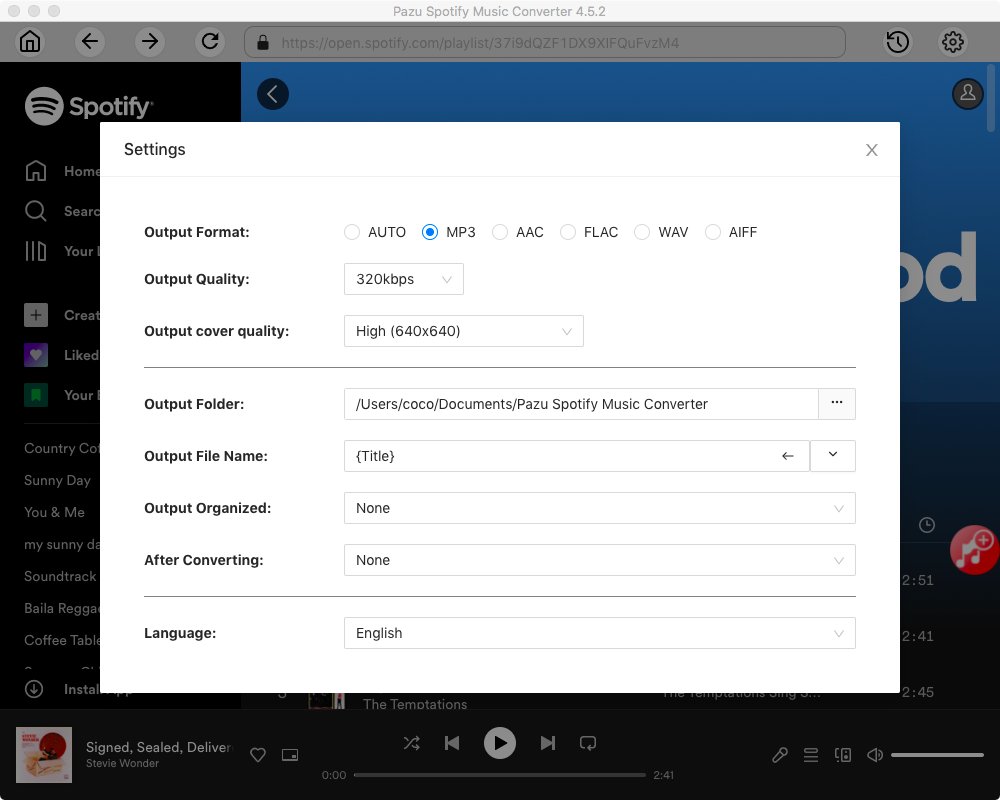
Click the gear icon in the top right corner to open the Settings window. Here you can choose:
Select the songs, album, or playlist you want to convert to MP3. Spotify Converter will detect and select all songs in the playlist or album by default. Uncheck the songs you don’t want to download if there are any. Click “Show All” icon to toggle “Hide Converted” on in case some songs have been downloaded before.
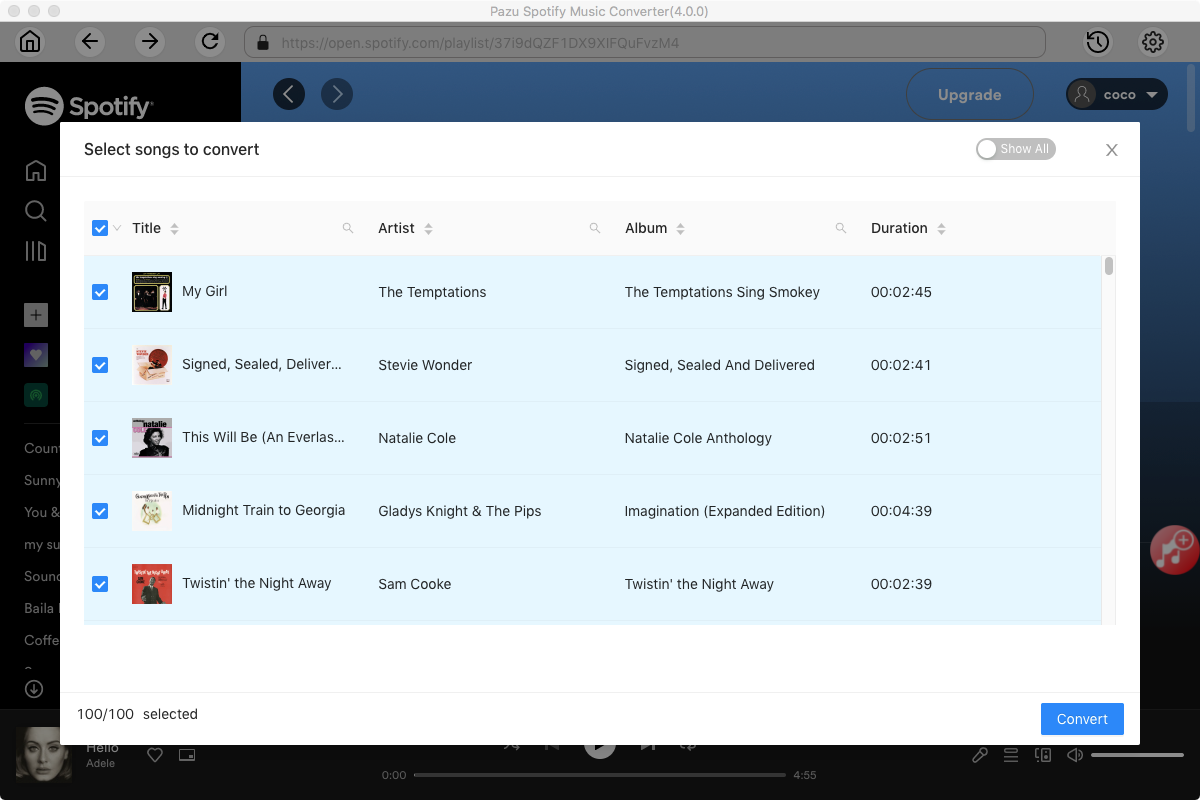
Click the Convert button to download Spotify songs to MP3.
Once the conversion is done, click the folder icon to find the downloaded songs. You can then play them with any supported music player or device.

Note: The free trial version of Pazu Spotify Converter enables you to convert the first three minutes of each song. You can remove the trial limitation by purchasing the full version.

Download and convert any Spotify songs, albums, playlists to MP3/M4A etc.