

Spotify offers both free and premium subscription tiers. The free version allows you to enjoy music without entering a payment method. However, if you subscribe to Spotify Premium, you’ll need a payment method on your account.
Here’s the key point to remember: you can’t update your payment method directly through the Spotify mobile or desktop app. You’ll need to use a web browser on your computer or mobile device. If you signed up for Spotify through a third-party partner, you may need to update your payment method through them, such as the Google Play Store or the Apple Store.
When you update the payment method on Spotify, changes will take effect from your next billing date. Now let’s look at how to change your payment method on the Spotify website and Google Play Store.
Step 1. Visit https://www.spotify.com/account and log in to your account.
Step 2. Select Update card at the top next to your plan details.
If you don’t see this option, go to “Manage your subscription” under Subscription, and select “Update” next to your payment method.
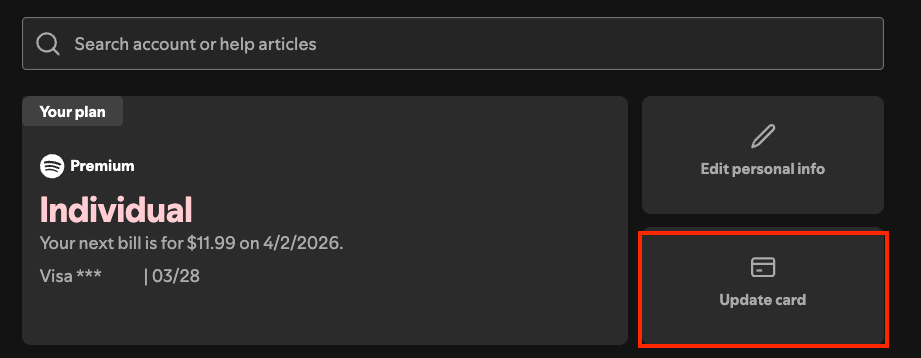
Step 3. Click Change next to your payment method.
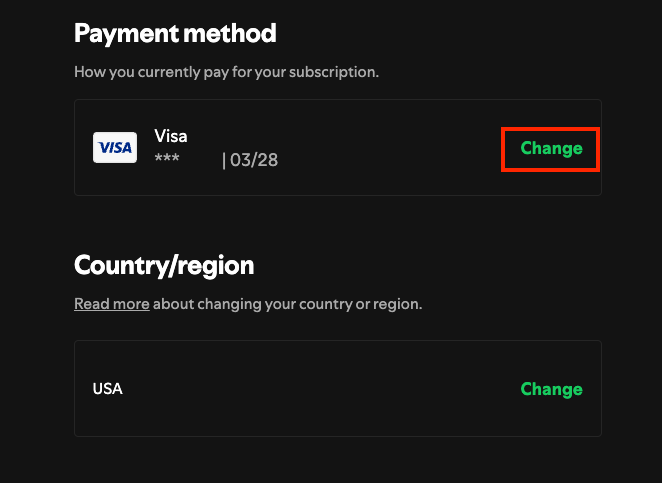
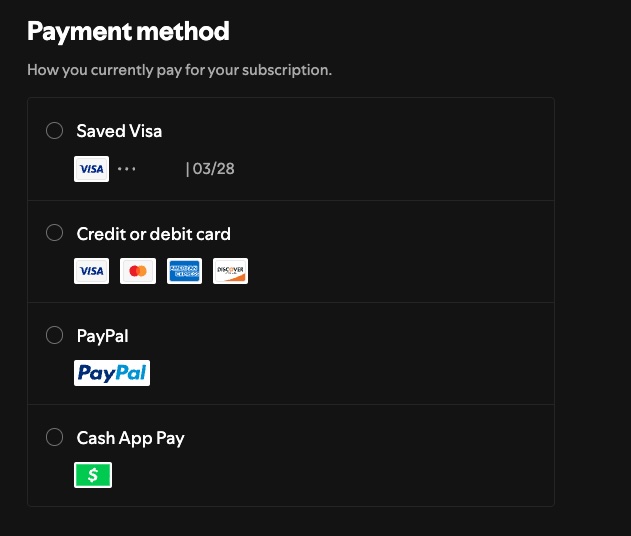
Step 4. Select a new payment method and enter your billing information. Save your changes to update your Spotify payment.
Step 1. Open the Google Play Store app and tap your profile icon in the top right corner.
Step 2. Go to Payments & subscriptions > Subscriptions > Spotify.


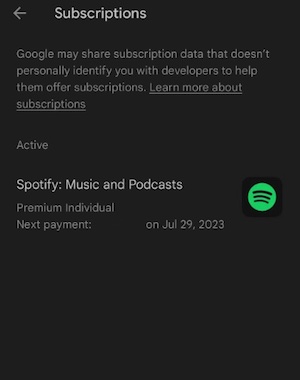
Step 3. Tap Update under Primary payment method.
Step 4. Tap Add credit or debit card to enter a new payment method. Set the new payment method as your primary payment method on Spotify.


Spotify provides a download feature for Premium subscribers to download albums and playlists. Spotify Free users can only download podcasts. When downloading, keep in mind that Spotify does not support individual song downloads. Instead, you’ll need to add songs to a playlist and download the entire playlist. In addition, downloaded content can only be accessed through the Spotify app. Reinstalling the app will result in losing your downloads.
To download your Spotify songs without Premium, try this intelligent Spotify music downloader — Pazu Spotify Converter. It is specially designed for both Spotify Free and Premium users to download all Spotify songs/playlists/albums for offline listening. This tool can extract Spotify music and convert it to MP3, M4A, AIFF, WAV, FLAC, and AAC. With Pazu Spotify Music Converter, you can easily enjoy any Spotify Premium feature within a free account forever.
Key features of Pazu Spotify Converter:
Now, let’s learn how to use Pazu Spotify Music Converter to download and convert Spotify songs with a free subscription from the following tutorial.
1. Run Pazu Spotify Converter
Download, install, and run Pazu Spotify Converter on your Mac or Windows. Log in to your Spotify account with the built-in web player.

2. Choose the output format
Click the gear icon in the top right corner. Here you can select the output format (AUTO(M4A)/MP3/AAC/FLAC/WAV/AIFF), choose audio quality, customize the output path, organize and rename the downloaded files in various ways, and more.

3. Download Spotify music
Use the integrated Spotify web player to search for songs, albums, playlists,s or podcasts you want to download. Click the “Add to List” button to load all songs in the album or playlist.

Uncheck the songs you don’t want to download if there are any. Click the Convert button to start downloading the Spotify songs to your local computer.

4. Find downloaded music
Once the download is complete, find your Spotify songs as local files by clicking the folder button or going directly to the output folder you customized in the previous step.

Note: The free trial version of Pazu Spotify Converter enables you to convert the first three minutes of each song. You can remove the trial limitation by purchasing a license.

Download and convert any Spotify songs, albums, playlists to MP3/M4A etc.