

By connecting your Spotify account to Alexa, you can control your music playback with voice commands. If you’re a Spotify Premium subscriber, you can ask Alexa to play a specific song, artist, or playlist, skip a track, or adjust the volume. You can also ask Alexa to play music based on your mood, genre, or activity. If you have a Spotify Free account, you can still enjoy music through Alexa, but with the same free-account playback restrictions and ad interruptions.
To set up Spotify on Alexa, you need to link your Spotify account within the Amazon Alexa mobile app. Once the accounts are linked, you can use voice commands to control your music playback on Alexa-enabled devices such as the Amazon Echo, Echo Dot, or Echo Show.
Related:
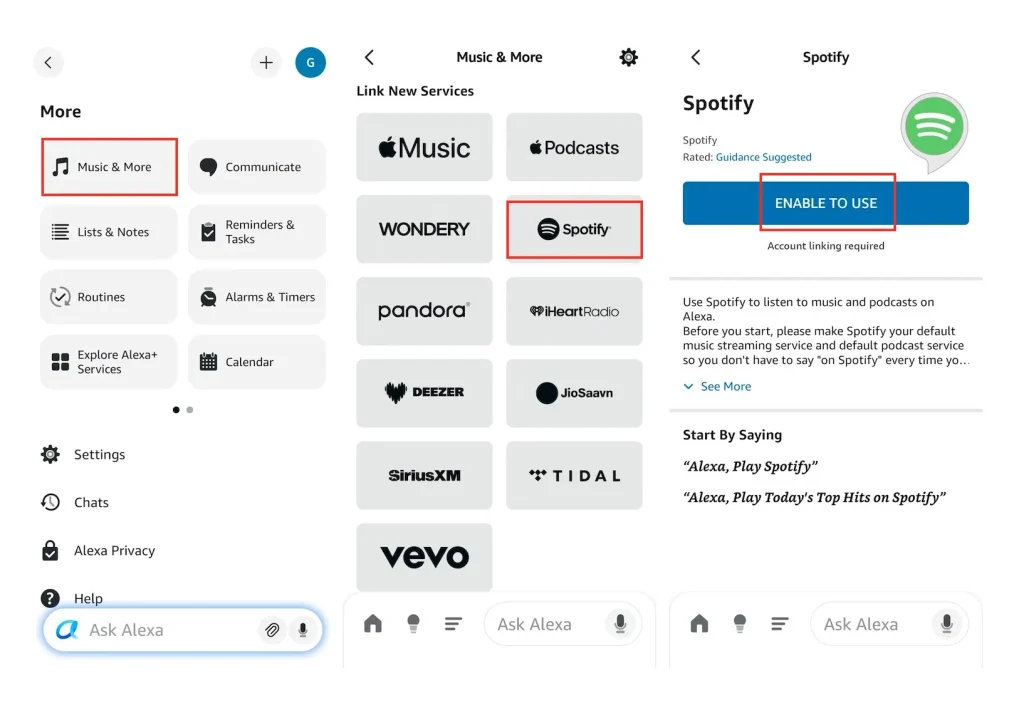
Spotify on Alexa is not available in all countries.
Free users in Australia, Austria, Brazil, Canada, France, Germany, India, Ireland, Italy, Japan, Mexico, New Zealand, Spain, the UK, and the US can stream Spotify through Amazon Alexa. Spotify users in other countries and regions will need a Premium account to link Alexa. Check the country list and features on the Spotify website.
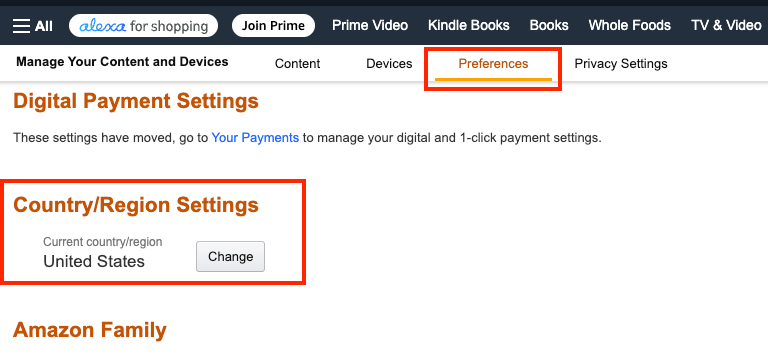
As a workaround, you could try changing your country setting on the Alexa device by following the steps below.
Though Alexa is probably the most reliable product of its type, there is always the potential for something to go wrong. So we’re going to show you what to do if you can’t get your Alexa to play Spotify on command.
1. Restart your Echo device
Unplug the power adapter from the device or the outlet and wait for 10 seconds. Plug it back in to restart it.
2. Update Alexa and Spotify
Playback issues may occur if you’re not running the latest versions of the Alexa and Spotify apps.
If you’re using an iOS device, ensure you’re on the latest iOS version and check the App Store for any updates to the Alexa app. And if you’re using an Android device, check the Google Play Store to see if there are updates for the Amazon Alexa app and Spotify app.
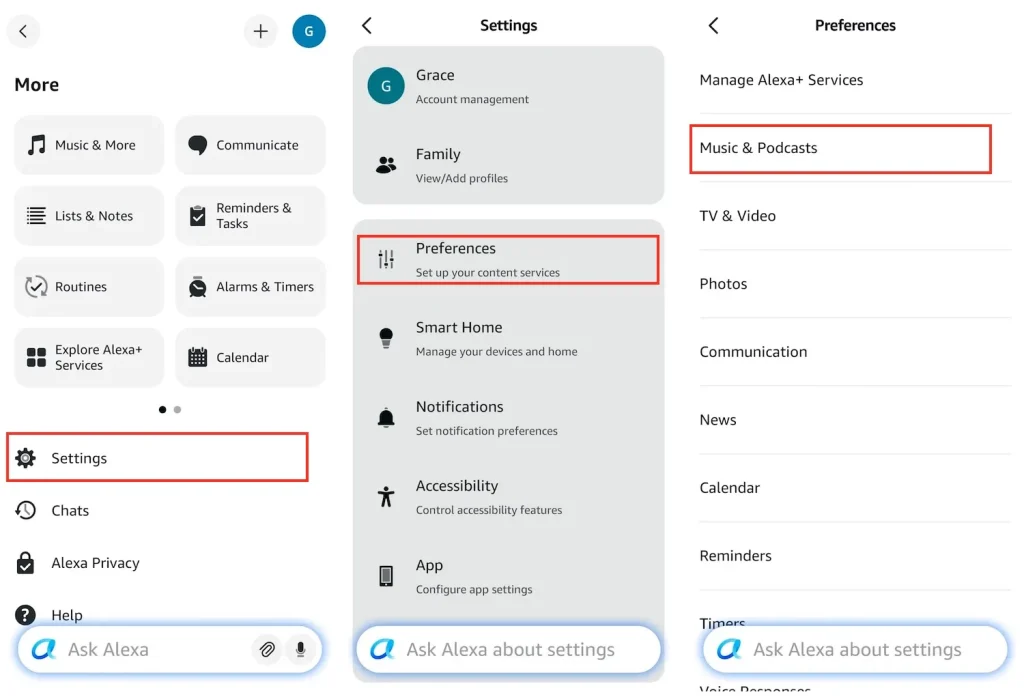
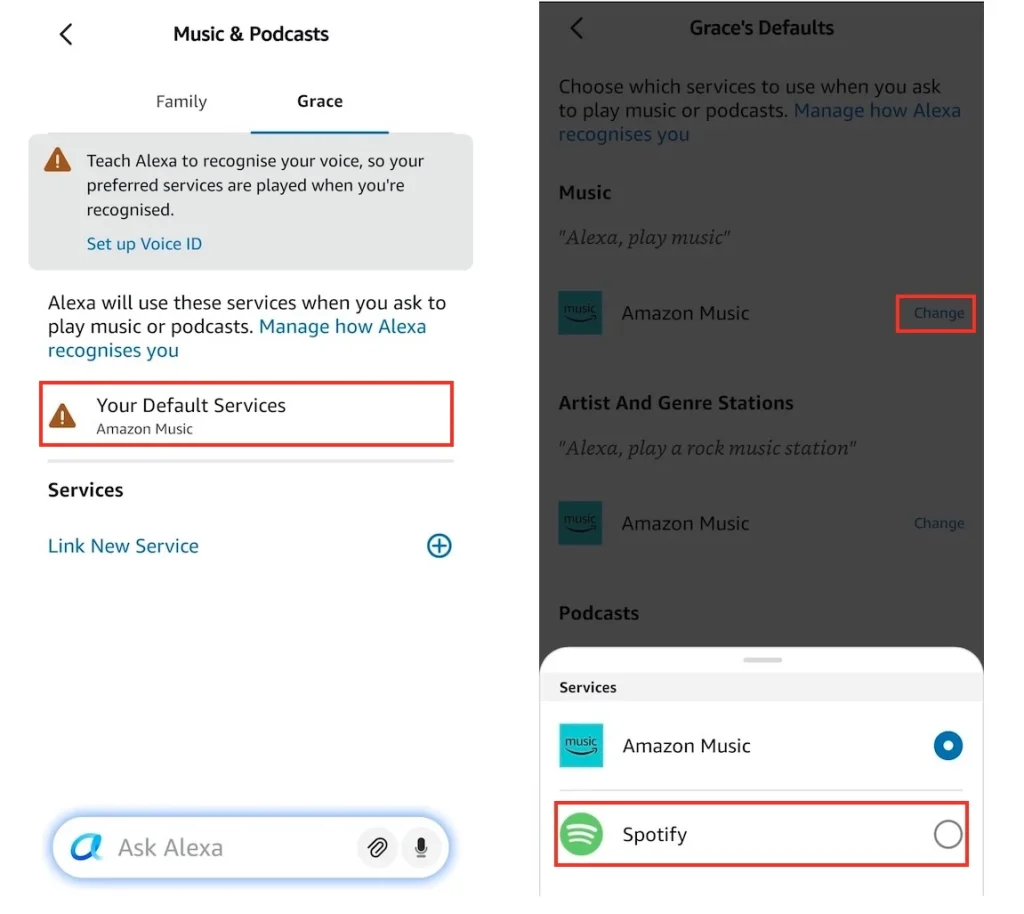
Next, launch the Alexa app on your phone and check that Spotify is set as your default music service.
3. Unlink and Relink Spotify to Alexa
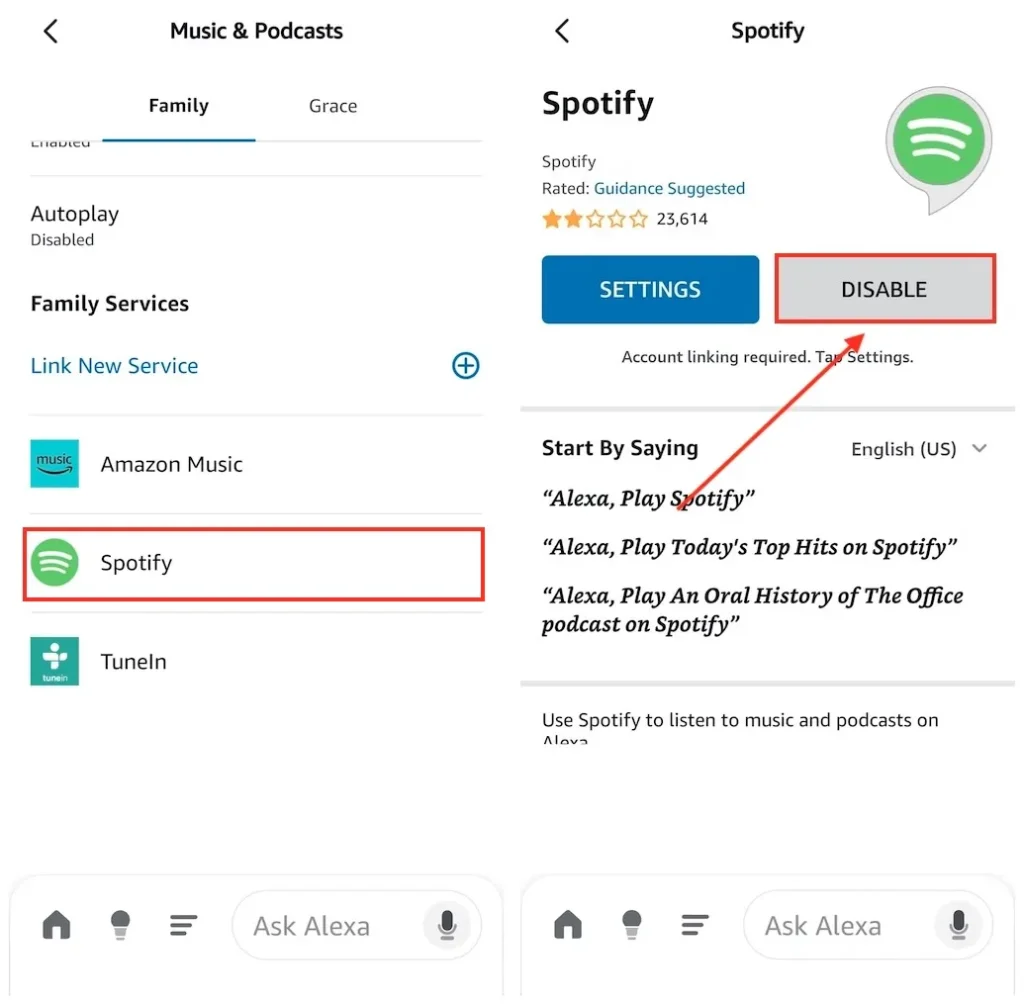
4. Reset Your Echo
Press and hold the Volume Down (—) and Microphone Off (Ø) buttons at the same time on your Echo Devices (3rd, 4th, 5th Gen, Pop & Studio) for about 20 to 25 seconds.
For some Echo Dots & Inputs, press and hold the Action Button (the button with a single dot or circle icon) for about 25 seconds.
After your device enters setup mode, set it up again.
While all the voice-activated stuff is great, there are times when you just need to connect to a regular Bluetooth speaker. Sometimes this method is more convenient, especially if you want to play files from your phone. Thankfully, the Echo can do the same. In this guide, we’ll show you how to connect to it from your phone to use it as a Bluetooth speaker.
Once you’ve done this, the Echo should appear on the list on your phone screen. Tap its name in the list and confirm pairing. Now you’re connected, and any music or audio from your phone will now play through the Echo as if it was a standard Bluetooth speaker.
In this way, you can listen to Spotify on Echo without ads even if you only have Spotify free, as you can download Spotify music to MP3 with Pazu Spotify Converter.
With Pazu Spotify Converter, you can download pretty much anything on Spotify for offline listening, including specific songs, full albums, playlists, and podcasts even with Spotify free.
To download Spotify songs without Premium, try a smart Spotify music downloader – Pazu Spotify Converter. It is specially designed for both Spotify Free and Premium users to download all Spotify songs/playlists/albums for offline listening. It can extract Spotify music and convert it to MP3, M4A, AIFF, WAV, FLAC, and AAC. With Pazu Spotify Music Converter, you can easily enjoy any Spotify Premium feature within a free account forever. Now, let’s learn how to use Pazu Spotify Music Converter to download and convert Spotify songs with a free subscription, following the tutorial below.
Key features of Pazu Spotify Converter:
Download, install and run Pazu Spotify Converter on your Mac or Windows. Log in your Spotify account with the built-in web player.

Click the gear icon in the top right corner. Here you can select output format (AUTO(M4A)/MP3/AAC/FLAC/WAV/AIFF), choose output audio quality, customize the output path, organize the output files in various ways, rename output files and more.

Use the integrated Spotify web player to search for the songs, albums, playlists, or podcasts you want to download. Click the Add to list button to load all songs in the album or playlist, and uncheck the songs you don’t want to download if there are any.
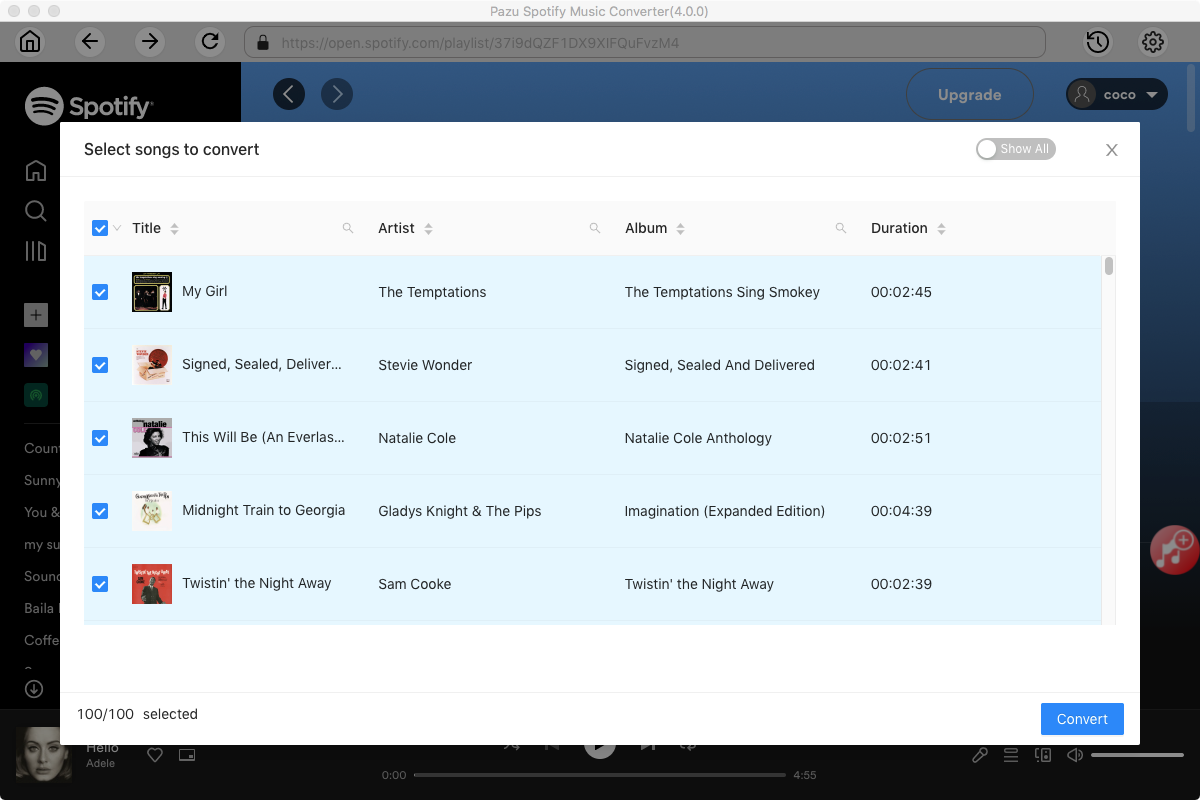
Click Convert button to start downloading the Spotify songs to your local computer.
Once the conversion is done, you can find your Spotify songs downloaded as local files by clicking the folder button or directly going to the output folder you customized in the previous step.

Note: The free trial version of Pazu Spotify Converter enables you to convert the first three minutes of each song. You can remove the trial limitation by purchasing the full version.
Download and convert any Spotify songs, albums, playlists to MP3/M4A etc.