

Spotify is a great way to discover and listen to music. It offers numerous playlists, but not every song might be for you. If you don’t like one song in a Spotify curated playlist, there is no way to remove it from the playlist. The alternative option is to hide it and thus block it from your Spotify listening. You can hide the song using the Spotify mobile or desktop app to prevent Spotify from playing it. Whenever you’re ready to hear a song again, you can simply unhide it. It’s really easy to do and takes just a few seconds!
It is helpful to hide songs on Spotify if there are certain songs that you don’t like as there is no option to remove songs from Spotify created playlists. Hiding these songs will prevent them from appearing in this Spotify playlist or album, allowing you to enhance your listening experience. Please note that songs will be played in other playlists where you haven’t hidden them.
Follow below steps to hide and unhide songs on Spotify quickly and easily.
As above mentioned, the option to hide a song is currently available on the Spotify mobile and desktop apps. Here’s a step-by-step guide on how to hide a song using the mobile app:
Method 1
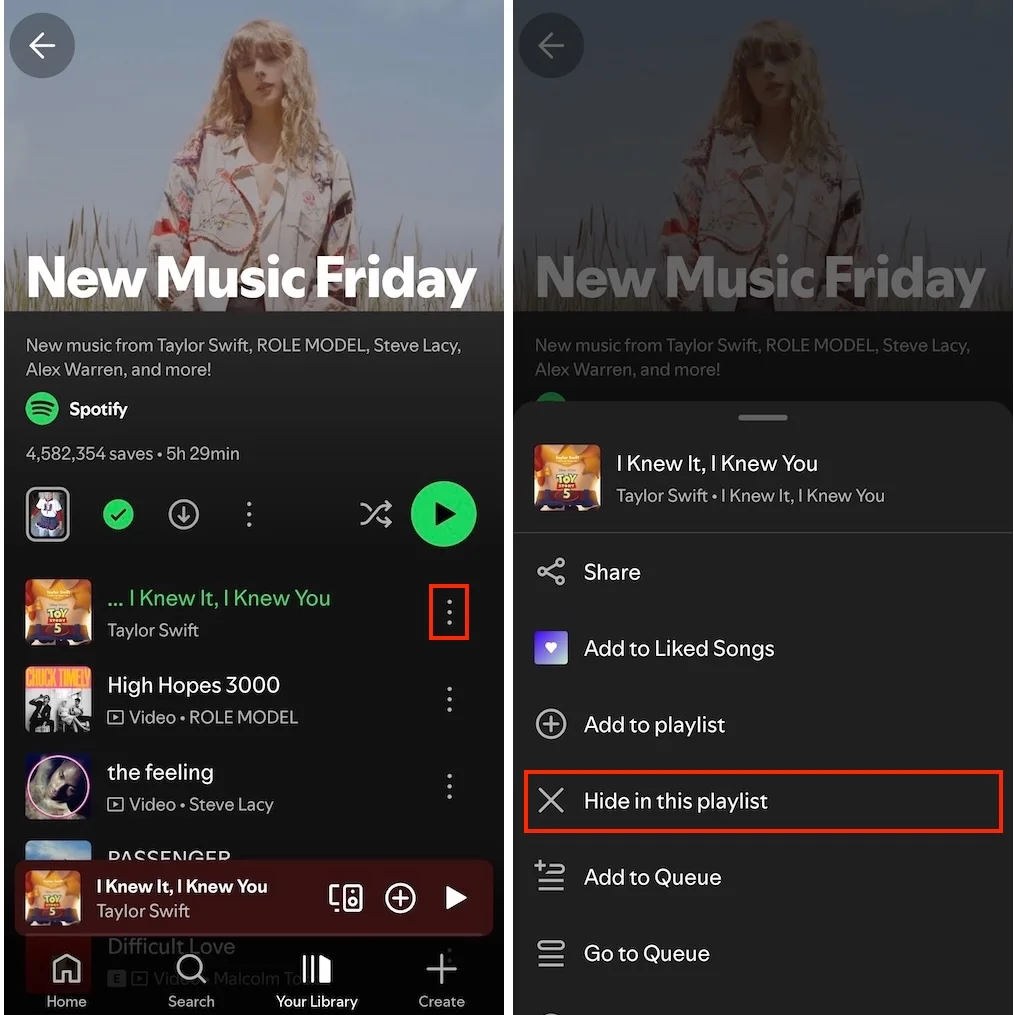
Return to the playlist, and you will notice that the song you wanted to hide is now grayed out with a hidden icon. The hidden song cannot be played by tapping on it, and Spotify will automatically skip it when you playing it in the current playlist or album on any device.
Method 2
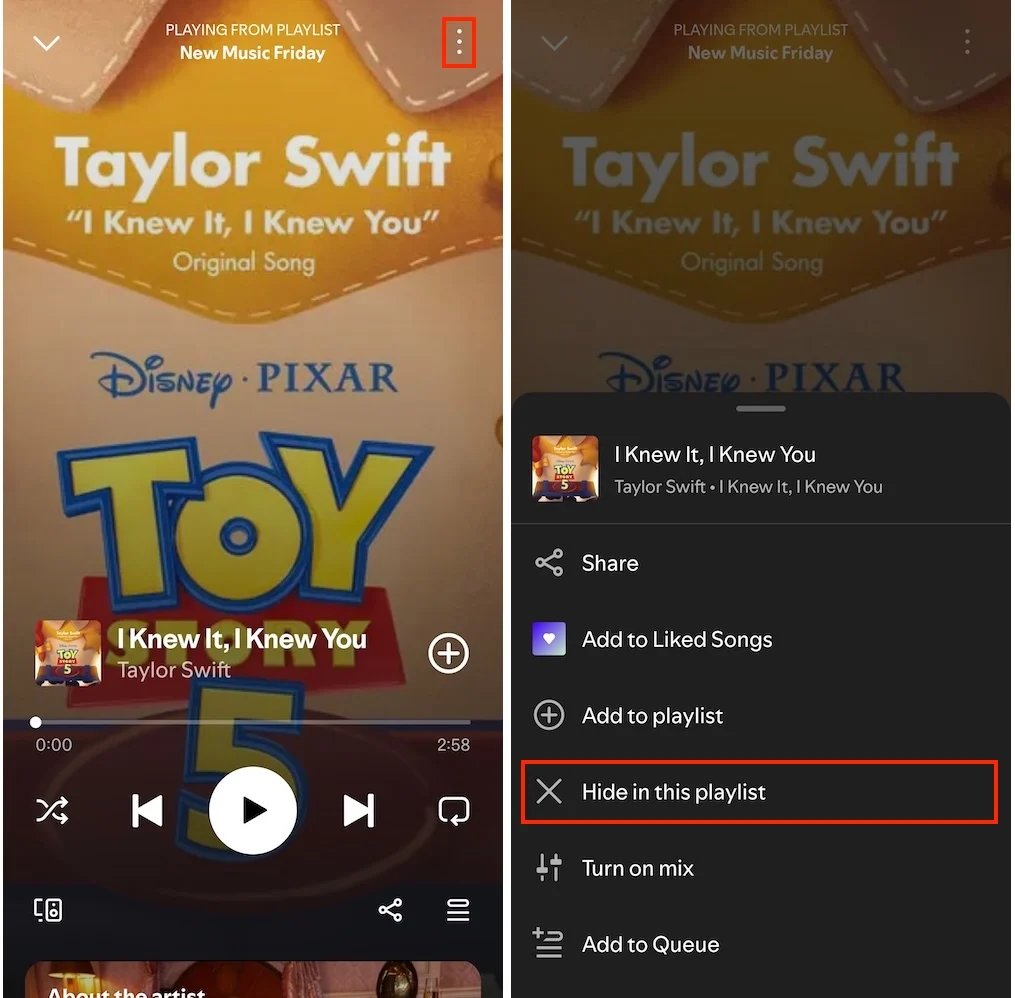
The songs hidden on this device will also be synced to other devices connected to your Spotify account. When you listen to the playlist on another device, this songs is hidden too.
If you really dislike some songs you can block their artist from your mobile device. Blocked artist are synched across devices and if you encounter a song by them on another device it will be automatically skipped.
You can block artists by opening their profile pages on Mobile > click the 3-dot menu > Select Don’t Play this artist.
Open a playlist, all hidden songs are geared out and with a circle icon.
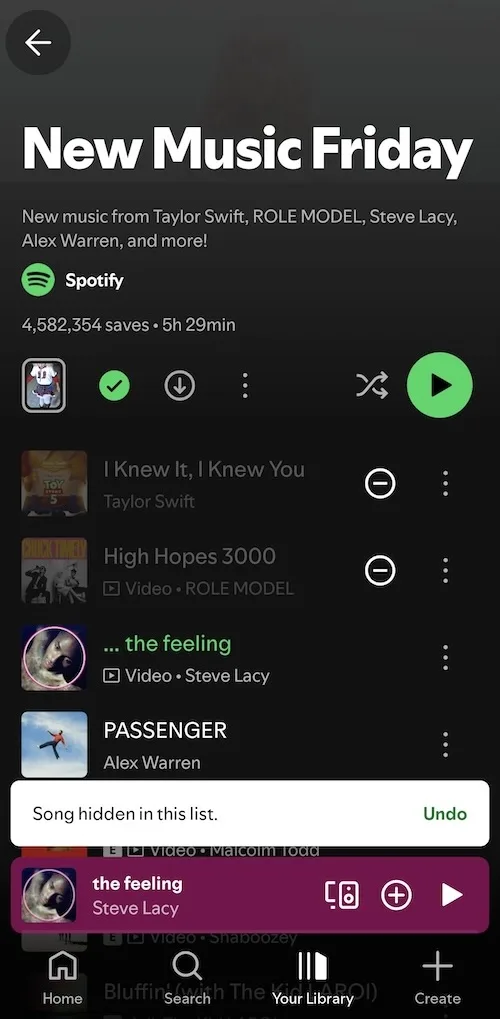
To unhide a song with the Spotify mobile app is also a straightforward process. You can choose either of the following methods to undo the hiding of a song:
Method 1. Tap the Hidden icon to unhide the song.
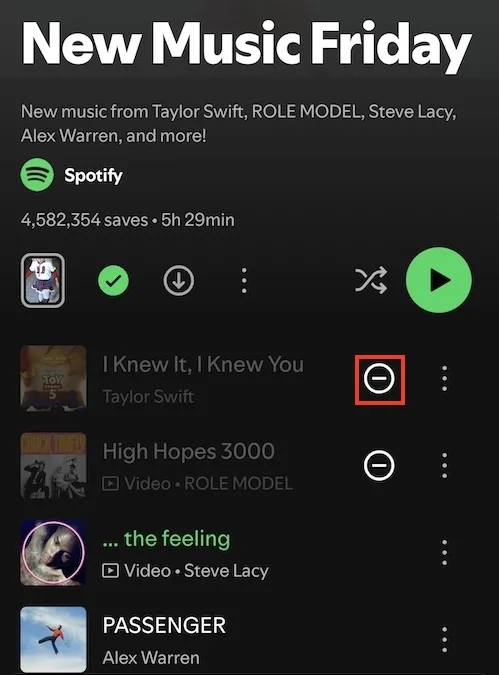
Method 2. Tap the three dots by the song and select Show in this playlist in the menu.
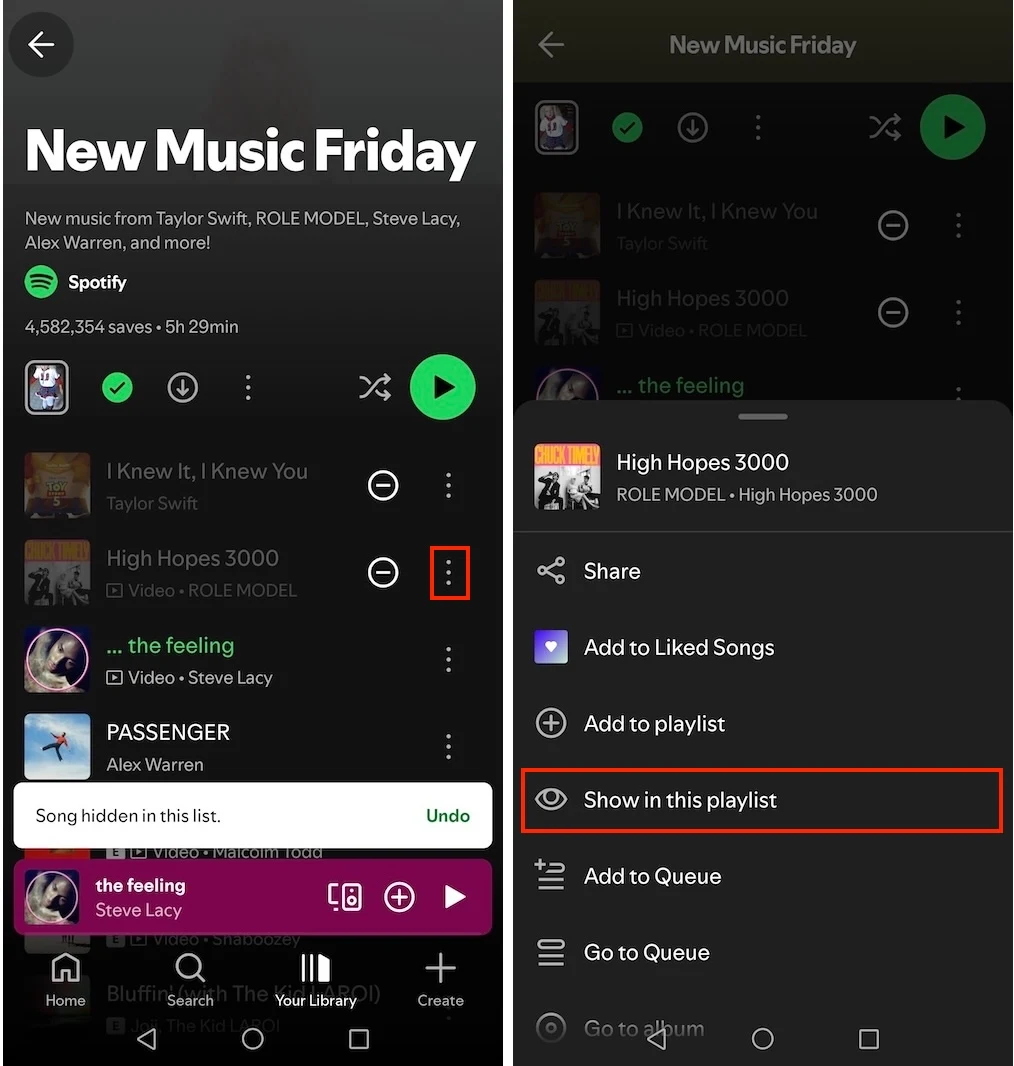
By using either of the methods, the hidden song will be restored and can be played again. As this feature is synced to your account, you won’t need to repeat these steps to play hidden songs on a PC or Mac.
The steps used to hide a song on the mobile app apply directly to the Spotify desktop app. However, the Spotify web player does not support hiding songs, but it won’t play the hidden tracks in the playlist you have previously hidden with other devices.
If you want to hide Spotify songs you don’t like on desktop, one alternative is to download songs you like and play them offline. Spotify doesn’t support downloading individual songs, so you need to add all songs you like to a new playlist and download the whole playlist. It’s frustrating when you have many songs in a playlist.
The best way to download your favorite songs conveniently is to use Spotify music downloader – Pazu Spotify Converter. It is specially designed for both Spotify Free and Premium users to download any Spotify songs/playlists/albums for offline listening. It can extract Spotify music and convert it to MP3, M4A, AIFF, WAV, FLAC, and AAC. With Pazu Spotify Music Converter, you can easily download any Spotify songs with ease.
Key features of Pazu Spotify Converter:
Now, let’s learn how to use Pazu Spotify Music Converter to download your favorite songs and leave songs you don’t like behind.
Download, install, and run Pazu Spotify Converter on your Mac or Windows. Log in to your Spotify account with the built-in web player.

Click the gear icon on the top right corner. Here you can select the output format (AUTO(M4A)/MP3/AAC/FLAC/WAV/AIFF), choose output audio quality, customize the output path, organize the output files in various ways, rename output files, and more.

Use the integrated Spotify web player to search the songs, albums, playlists,s or podcasts you want to download. Click the Add to List button to load all songs in the album or playlist.
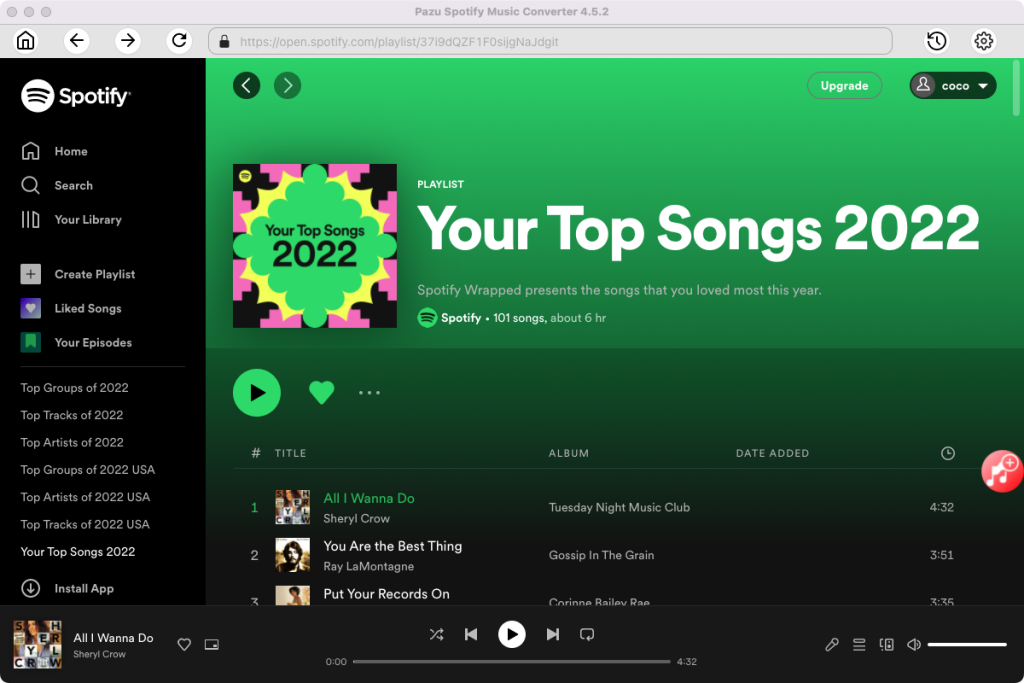
Uncheck the songs you want to hide in the playlist.

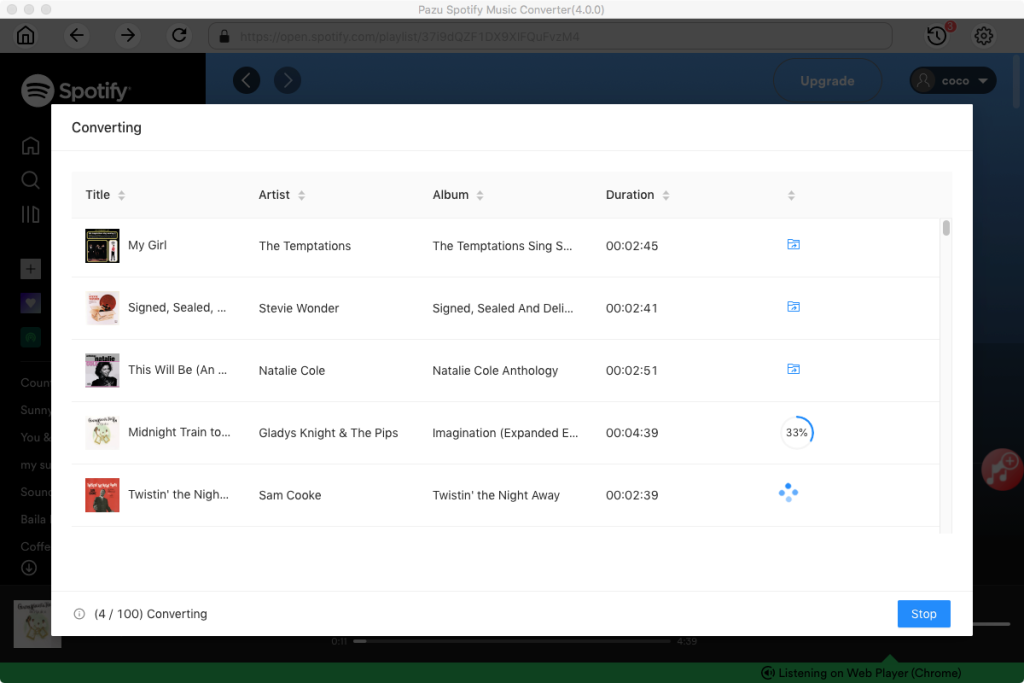
Click the Convert button to start downloading the Spotify songs to your local computer.
Once the conversion is done, you can find your Spotify songs downloaded as local files by clicking the below folder button or directly going to the output folder you customized in the previous step.
Note: The free trial version of Pazu Spotify Converter enables you to convert the first three minutes of each song. You can remove the trial limitation by purchasing the full version.

Download and convert any Spotify songs, albums, playlists to MP3/M4A etc.