

Can I play Spotify in the background on Android, iPhone, Xbox, or PlayStation? Some of you may ask this question. Playing music in the background is a great way to add entertainment or make your gaming experience more fun. Although there are many music channels on Xbox or PlayStation consoles, you may prefer your own music library instead.
As one of the largest and most popular streaming music services worldwide, you may already subscribe to a Spotify membership. However, here is a frustratingly common issue. When you open Spotify, start playing tunes, and then switch to other apps. But all of a sudden, Spotify stops playing in the background until you move back to the app.
If you are not yet familiar with the methods on how to play Spotify in the background, this guide will provide an all-around solution by introducing the most popular ways to make Spotify play in the background with ease. Plus, in the following part, I will show you how to fix the issue that Spotify won’t play in background.
To get Spotify playing in the background on a PC, you’ll need to make the following changes in the settings of Spotify.
Return to the main interface and select a playlist or album to play. And then, you can close the Spotify app to play Spotify music in the background.

In addition, you need to allow Spotify to ignore the Power optimized restriction and run in the background:
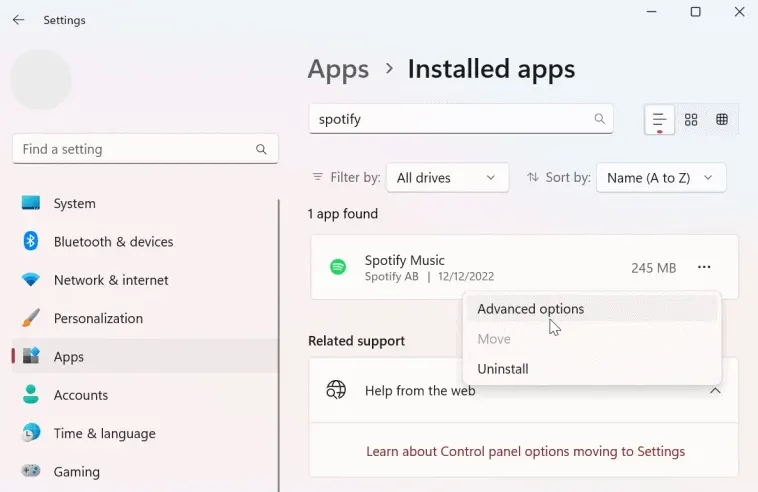
macOS also has a feature that allows apps to run in the background when they are hidden behind another window.
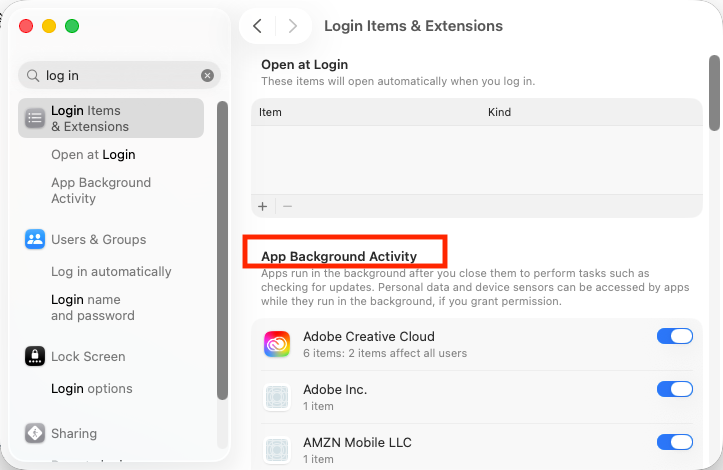
Turning on Background App Refresh allows apps to refresh their content when on Wi-Fi or cellular in the background. Turning off apps may help preserve battery life.
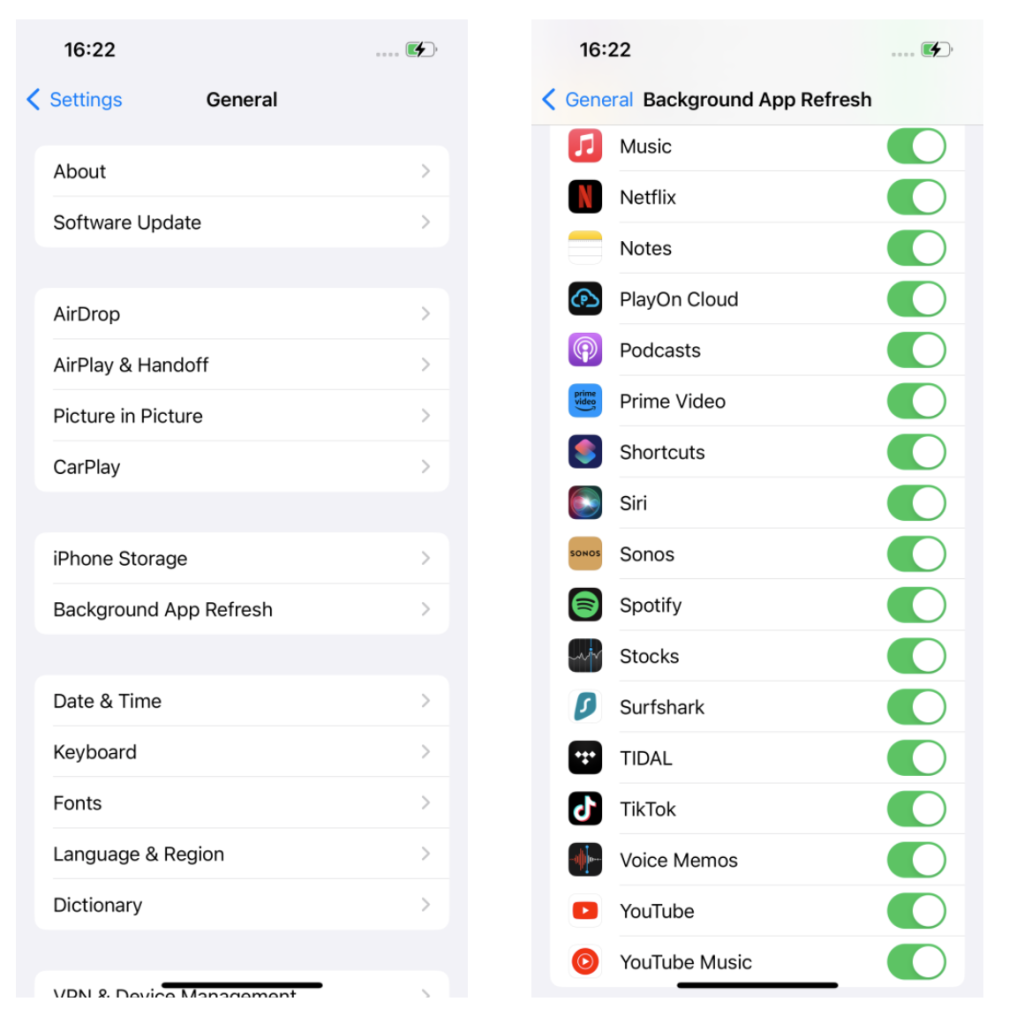
Making Spotify run in the background on your mobile phone is very easy and effective. You just need to make changes in your mobile device settings to allow Spotify music to run in the background.
Now open the Spotify app on your device and select your favorite song or playlist to play. Spotify will keep running in the background on your device.
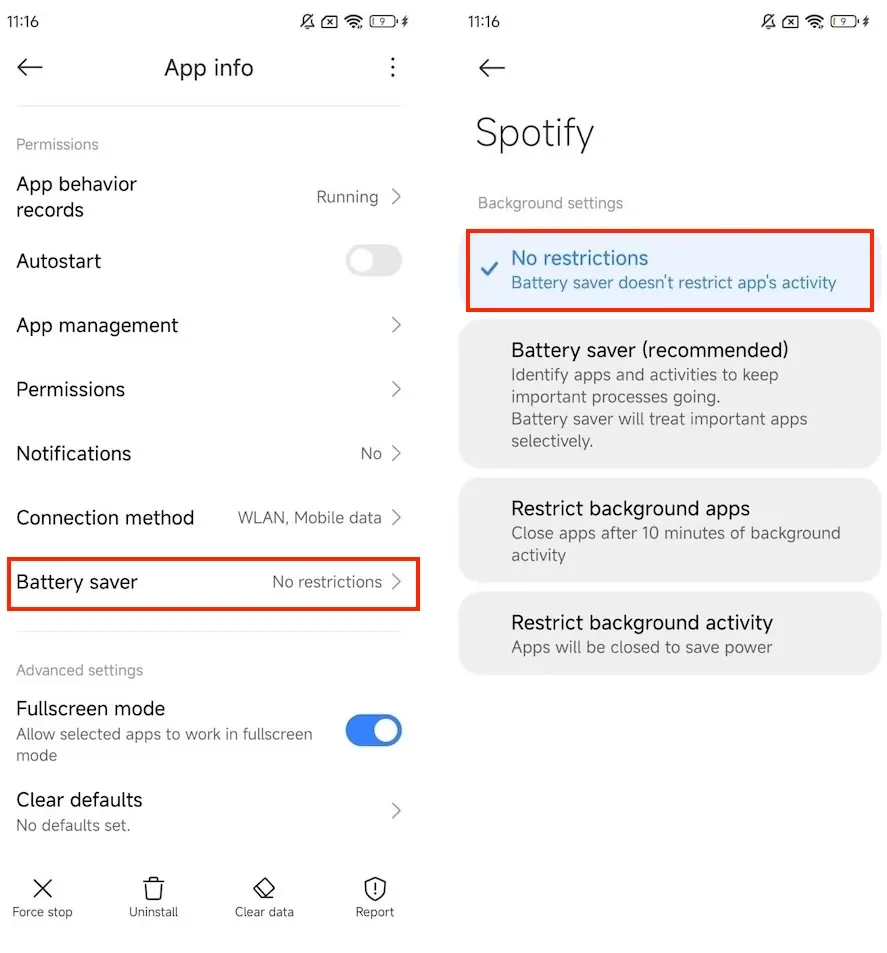
Playing music while playing games makes it more appealing and enjoyable. You can easily play Spotify music in the background while playing games on the Xbox Series X, Series S, and Xbox One. We are here to show you how to get Spotify to play in the background.
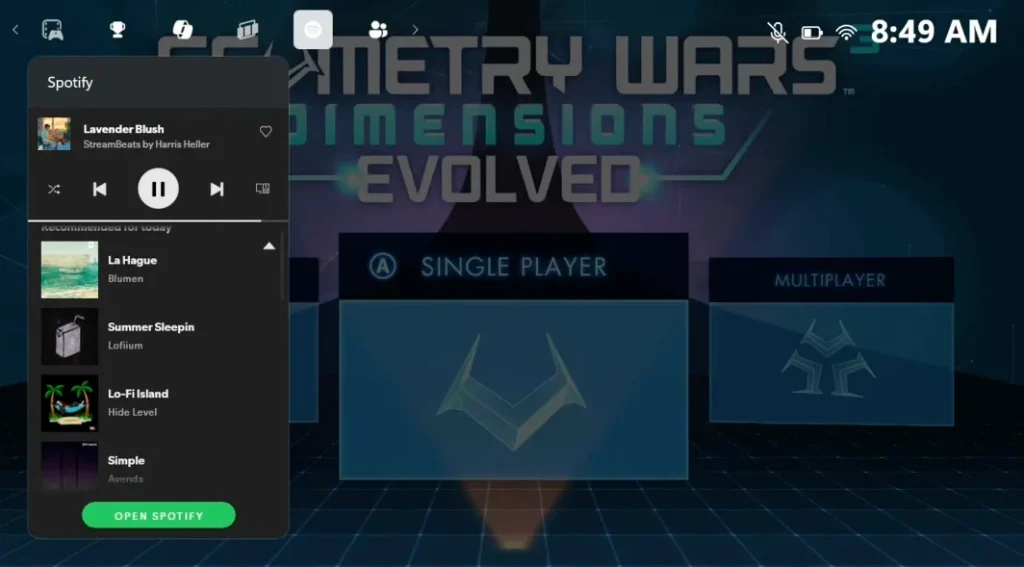
If you’re using a PS4/PS5 and want to listen to Spotify in the background, the simple and effective guide is here to help you out. Follow the following steps to play background Spotify on PS5 while playing.
We’ve gathered some possible reasons that cause Spotify not playing in the background. Take a look at the given reasons.
Try the following troubleshooting steps:
If you’re encountering a stopping issue while listening to music online, check your internet. Try reconnecting your device to your internet or rebooting your router and modem.
If your internet is working fine and you’re getting the required speed to use Spotify, try downloading the music. Download some music, then turn off your internet and play the downloaded songs. Check if you’re still getting the issue. Please note that the Spotify offline feature is exclusive to Premium users.
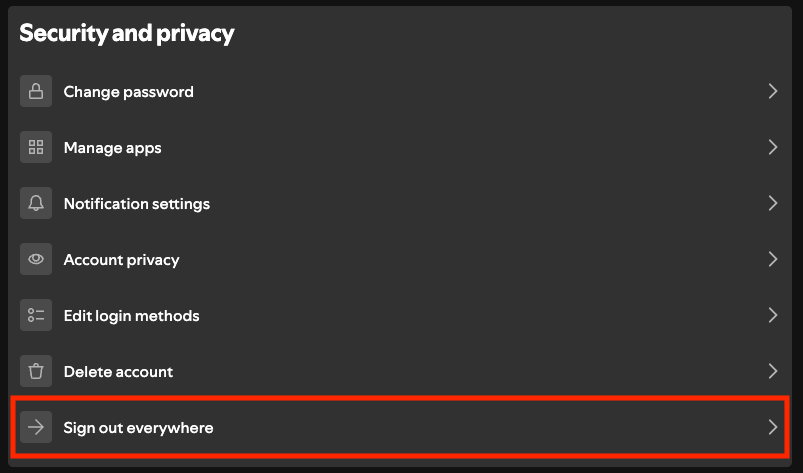
When apps stop playing in the background, this is usually due to power-saving settings. Go to your device settings and find an option such as “Battery/Power Saving Mode”. On the computer, you will find the power-saving mode on the Status bar, and you can turn it off. On iPhone, you can do this by going to Settings > Battery and turning off the Low Power Mode.
An outdated version of any app is prone to bugs and glitches, such as random pauses on Spotify. So, it’s always best to fix these by updating Spotify to its latest version. Go to the App Store and click on any available updates.
For better performance, you can also try reinstalling Spotify. Uninstall the app and install it again from the app store. If you’re still having issues playing Spotify after a quick reinstall, try a clean reinstall.
If you are still not able to play Spotify in the background due to some reasons or errors, we do recommend a third-party tool, Pazu Spotify Music Converter, that can help you play Spotify in the background easily.
With the help of Pazu Spotify Converter, you can get rid of glitches and restrictions to play Spotify songs in the background while you’re using other apps. Pazu Spotify Music Converter allows you to download Spotify songs to MP3, WAV, M4A, FLAC, and other audio formats with Spotify Free or Premium. Then you can load these songs to any device and play them in the background with other media players.
Pazu Spotify Music Converter features a high conversion speed. Here is the easy step-by-step guide for using this smart tool:
Download, install and run Pazu Spotify Converter on your Mac or Windows. Log in your Spotify account with the built-in web player. The steps are the same whether you have the Mac or Windows version of Pazu Spotify Converter. Here we will take Mac version as example.

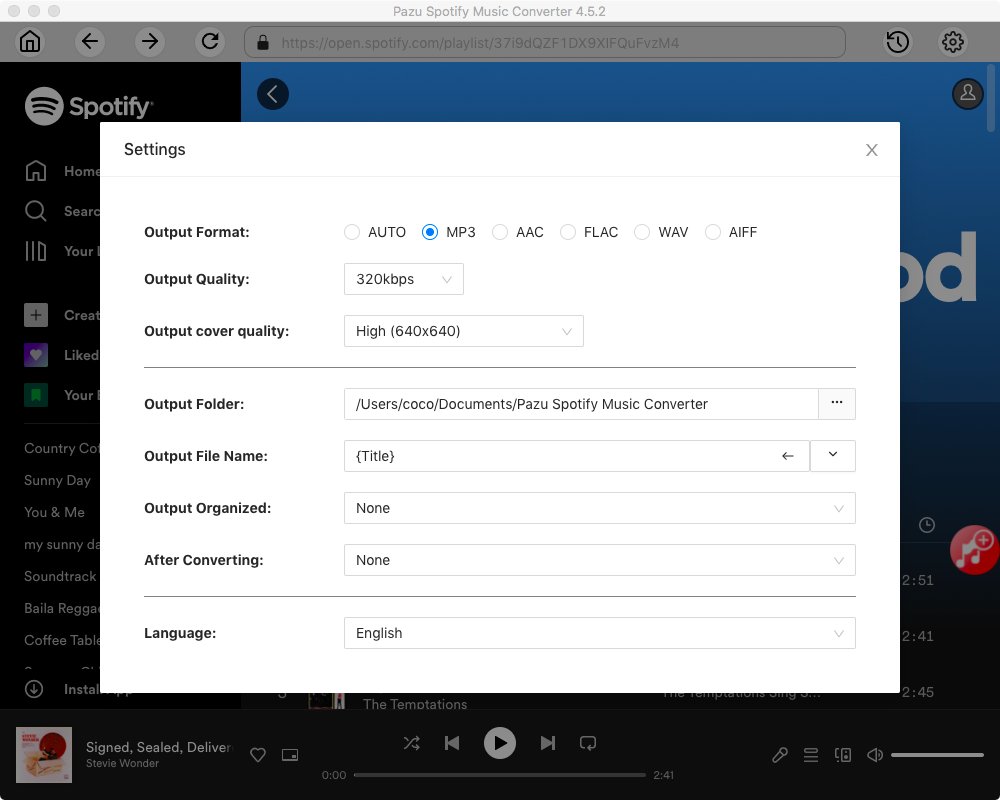
Click the gear icon in the top right corner. Here you can select output format (AUTO(M4A)/MP3/AAC/FLAC/WAV/AIFF), choose output audio quality, customize the output path, organize the output files in various ways, rename output files and more.
Use the integrated Spotify web player to search for the songs, albums, playlists, or podcasts you want to download. Click the Add to list button to load all songs in the album or playlist, and uncheck the songs you don’t want to download if there are any.
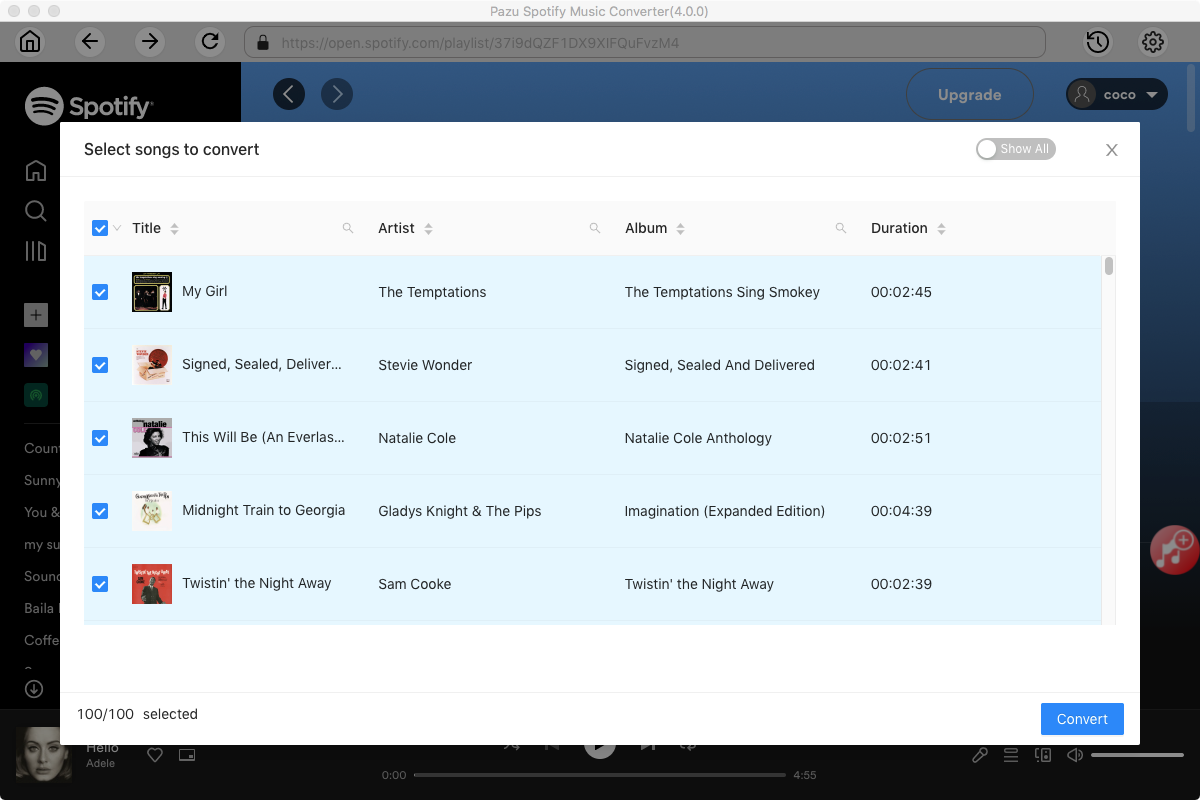
Click the Convert button to start downloading the Spotify songs to your local computer.
Once the conversion is done, you can find your Spotify songs downloaded as local files by clicking the folder button below or directly going to the output folder you customized in the previous step.

Note: The free trial version of Pazu Spotify Converter enables you to convert the first three minutes of each song. You can remove the trial limitation by purchasing the full version.

Download and convert any Spotify songs, albums, playlists to MP3/M4A etc.