

After five years of cutting off support for almost all third-party DJ software, Spotify has finally returned to digital DJing. The rekordbox integration was back in late 2025, alongside Serato and Algoriddim djay, marking the end of a five-year “dark age” for DJs who wanted to use their Spotify playlists.
On September 24, 2025, AlphaTheta announced that rekordbox for Mac/Windows supports direct Spotify playback, followed by compatibility for rekordbox iOS and Android apps in December 2025.
However, you’ll need a Spotify subscription to use the service in rekordbox. Also, an internet connection is needed to play tracks from Spotify. Here’s the step-by-step guide on linking your Spotify Premium account to rekordbox on both desktop and mobile devices. If those requirements are an issue, don’t worry, we also included a special tip for how to use Spotify in rekordbox offline or with Spotify Free.
Contents
To use Spotify in rekordbox, a Spotify Premium subscription is required. Furthermore, you’ll need an internet connection to stream Spotify. This means that you cannot play Spotify tracks with rekordbox offline, even if Spotify Premium supports downloads.
In addition, to use Spotify on rekordbox (and other DJ apps such as Serato and Djay), you’ll need to be in these countries and regions (Availability is subject to change, check the Spotify website):
Rekordbox 7 supports Windows 11 and Windows 10 (latest service pack), as well as macOS Tahoe 26, Sequoia 15, Sonoma 14, and Ventura 13, all of which need to be updated to their latest versions. Follow the steps below to log into your Spotify Premium account on rekordbox for Mac and Windows.
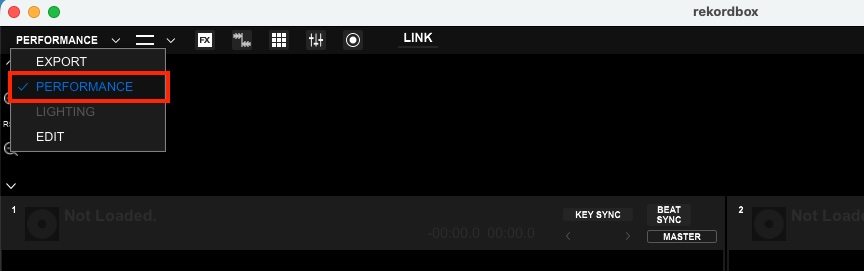
Step 1. Make sure you’re on rekordbox Performance mode. If not, click the mode in the top left corner and select “Performance.”
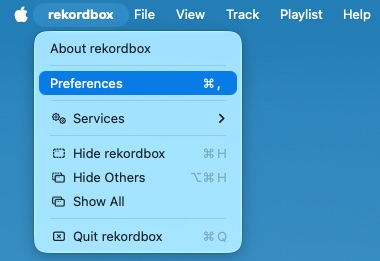
Step 2. Go to Preferences:
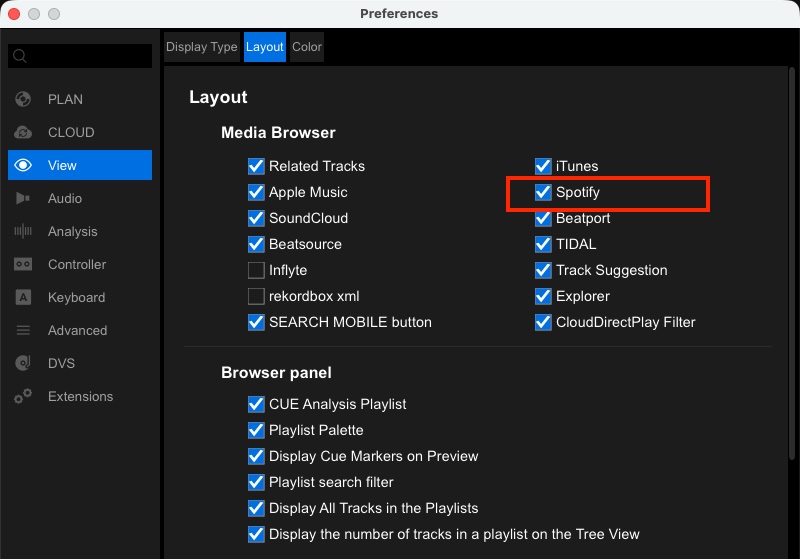
Step 3. In the Preferences window, select “View” from the left side menu and then “Layout” at the top. Then Check “Spotify.”
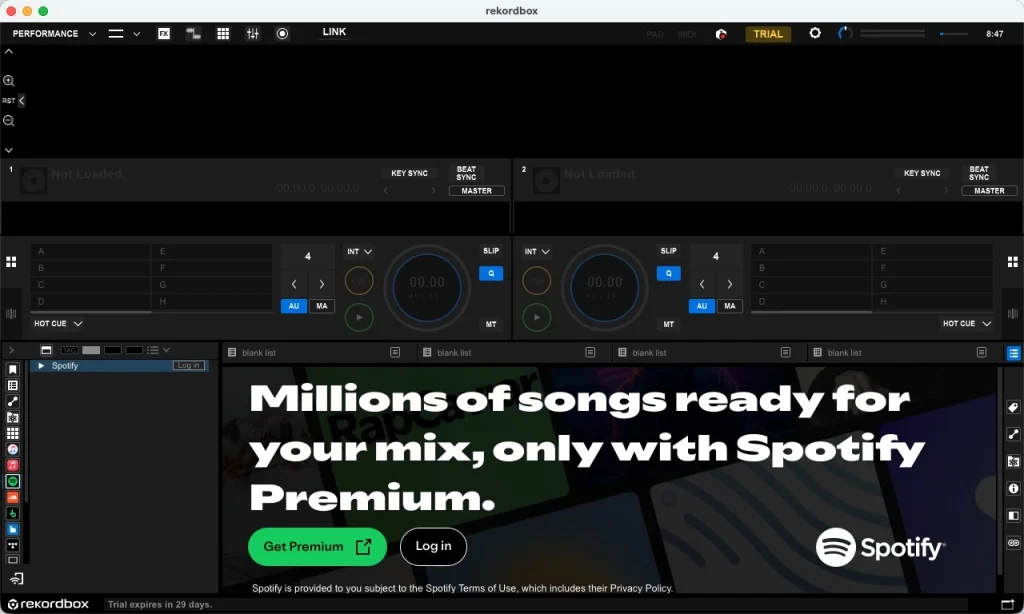
Step 4. Close the “Preferences” window and find the Spotify logo in the left browser menu. Now you can sign in with your Spotify Premium account and start DJing with your favorite tracks and playlists.
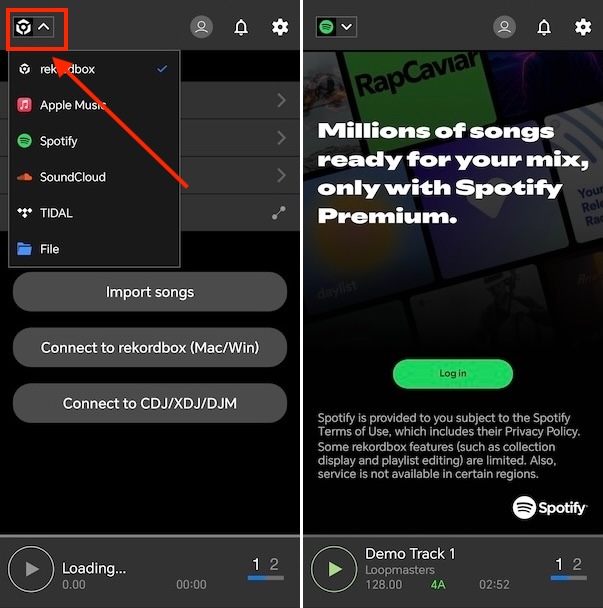
The rekordbox mobile app requires iOS/iPadOS 26, 18, 17, 16, or Android OS 16, 15, 14, 13. With a Spotify Premium account, you can access Spotify’s vast catalog directly from rekordbox. Perform with your smartphone or tablet alone, or level up your setup by connecting compatible DJ equipment such as the DDJ-FLX2, DDJ-FLX4, or DDJ-GRV6.
Here’s how to connect your Spotify account to rekordbox:
Note: If Spotify is not shown or greyed out, tap the gear icon, select “Streaming services,” and enable Spotify.
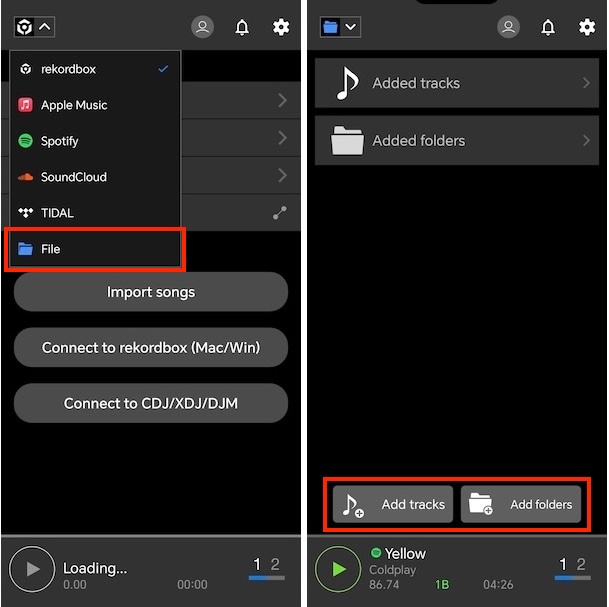
Rekordbox supports direct import of tracks or music folders, both on the desktop and mobile apps. It supports lossy and lossless formats, including MP3, AAC, WAV, AIFF, FLAC, and Apple Lossless (ALAC). If you can download Spotify songs to one of these formats and import them to rekordbox, you can DJ with them even when offline.
For this purpose, you can try Pazu Spotify Converter, a powerful desktop software that helps both Spotify Free and Premium users download songs, playlists, albums, and podcasts. Unlike the official Spotify app, you can pick individual tracks from any playlist or album and download them in high-quality formats, including WAV, MP3, M4A, AIFF, FLAC, and AAC. Once downloaded, you can freely transfer the audio to any compatible device, media player, or DJ tool for offline listening.
Here is how you can use Pazu Spotify Music Converter to download Spotify songs with a free subscription and import them to rekordbox.
Download, install, and run Pazu Spotify Converter on your Mac or Windows. Log in to your Spotify account.

Click the gear icon in the top right corner. Here you can select the output format, choose output audio quality, customize the output path, organize the output files in various ways, rename output files, and more.

Use the built-in Spotify web player to find the songs, albums, or playlists you want to download. Click the Add to List button to load all songs in the album or playlist.

You can download individual songs or batch-convert the entire playlist. To download individual songs or specific songs, simply uncheck the ones you don’t want.
Click the Convert button to start downloading the Spotify songs to your local computer.

Once the conversion is done, find the downloaded songs by clicking the Folder icon or by going directly to the output folder you customized in the previous step.

You can import the downloaded Spotify songs to rekordbox or allow the software to access your local folders directly. Here’s how to do it with the desktop and mobile apps. Ensure you have transferred your music files to your mobile device before starting the mobile steps.
Option 1. Import Music to Rekordbox
Simply drag a song or folder to rekordbox, or import music with the following steps:
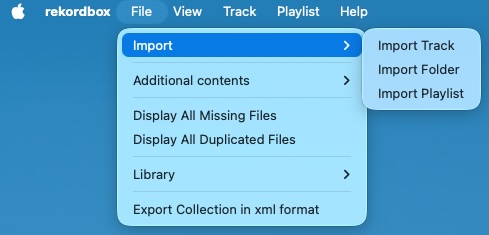
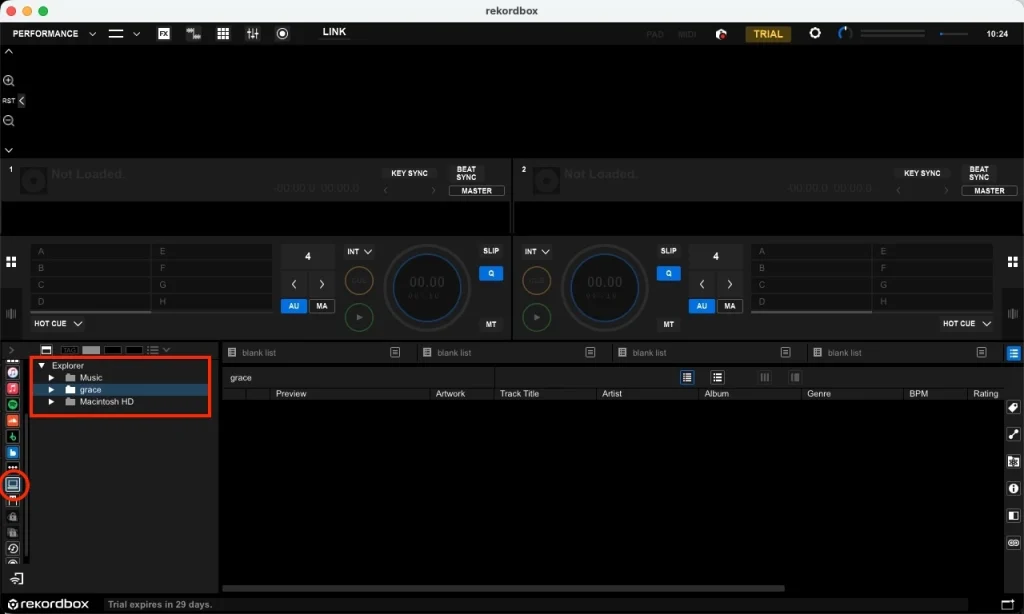
Option 2. Access Music in Your Desktop Folders
By allowing rekordbox to access files in your desktop folders, you can easily reach any music on your Mac or Windows. Here’s how:
Note: The free trial version of Pazu Spotify Converter enables you to convert the first three minutes of each song. You can remove this limitation by purchasing the full version.

Download and convert any Spotify songs, albums, playlists to MP3/M4A etc.