

One of the enjoyable aspects of using Spotify is exploring interesting add-ons that analyze and visualize your listening habits. If you’re fine with sharing your Spotify activity with other websites, there is a wide range of fun apps and online tools available that can provide unique visualizations of your music preferences. For instance, Instafest transforms your listening data into a personalized music festival lineup, while Zodiac Affinity matches songs to your star sign.
Now, let’s explore Receiptify. What exactly is Receiptify, and how can you use it on Spotify?

Receiptify is an online tool made by Michelle Liu that offers an interesting display of a user’s most-played tracks and artists in a receipt-like format. It can present the user’s top 10 or 50 tracks and artists from the last month, the last six months, and all time.
Additionally, Receiptify can generate receipts with your Spotify top genres and stats, too. Moreover, if you provide a Spotify album, Receiptify can also create a receipt that lists all the songs from it.
The website also allows you to easily download your Spotify receipts and save your top tracks as playlists on Spotify. It’s a fun and creative way to visualize and share your Spotify listening history and preferences.
Here’s how you can create your own Spotify receipt with Receiptify:

The wrinkled receipt paper with an order number and a fake card number gives your Spotify Receipt an authentic appearance, as if you’d printed a real receipt from your Spotify. Such a unique and fun way to share your music journey.

Once you’ve get your personalized receipt, simply click the “Download Image” button to save it to your device. Then you can share your Spotify receipts with your friends, family, followers, or on social media.
Receiptify also allows users to save their top tracks directly as a Spotify playlist. Just click the “Save as Playlist” button below your Spotify receipt.

You’ll be directed to the Spotify web player with your top track playlist, which is already added to your Spotify Library for easy access in the future.

While you’ve got your top track playlist in Spotify, how can you enjoy it offline? Spotify offers a download feature exclusively for Premium subscribers to download albums and playlists (Free users can only download podcasts). For an individual song, you’ll need to add it to a playlist and download the entire playlist. In addition, downloads can only be played through the Spotify app. They cannot be transferred to another app or device. You’ll lose downloaded content when reinstalling the app or when your subscription ends.
To download your Spotify songs without Premium, you can try this smart music downloader — Pazu Spotify Converter. You can use it with both Spotify Free and Premium accounts. It can extract Spotify songs/playlists/albums and convert them to MP3, M4A, and other popular formats. With Pazu Spotify Music Converter, you can easily enjoy Spotify Premium features within a free account forever.
Key features of Pazu Spotify Converter:
Now, let’s learn how to use Pazu Spotify Music Converter to download and convert Spotify songs with a free subscription from the following tutorial.
Download, install, and run Pazu Spotify Converter on your Mac or Windows. Log in to your Spotify account with the built-in web player.

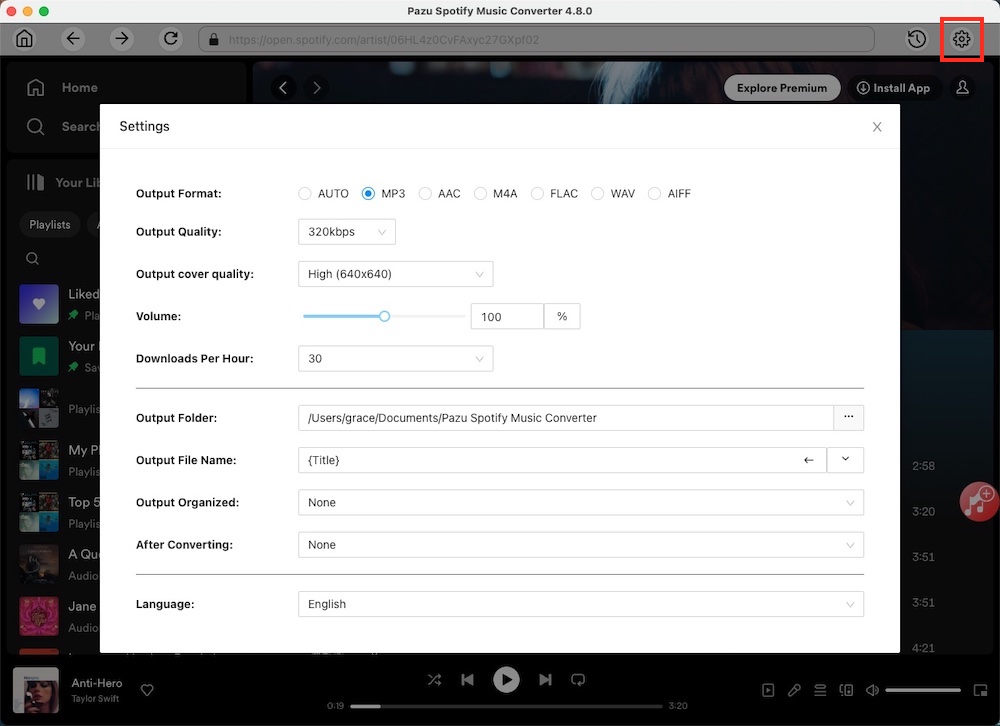
Click the gear icon in the top right corner. Here you can select the output format (AUTO(M4A)/MP3/AAC/FLAC/WAV/AIFF), choose output audio quality, customize the output path, organize the output files in various ways, rename output files, and more.
Use the integrated Spotify web player to search for songs, albums, playlists, or podcasts you want to download. Click the Add to List button to load all songs in the album or playlist, and uncheck the songs you don’t want to download if there are any.

Click the Convert button to start downloading the Spotify songs to your local computer.

Once the conversion is done, you can find your Spotify songs downloaded as local files by clicking the below folder button or directly going to the output folder you customized in the previous step.

Note: The free trial version of Pazu Spotify Converter enables you to convert the first three minutes of each song. You can remove the trial limitation by purchasing the full version.

Download and convert any Spotify songs, albums, playlists to MP3/M4A etc.