

OBS Studio is a highly regarded open-source software for video recording and live streaming. This free tool offers powerful features, allowing users to capture and mix high-performance real-time video and audio. You can also set up an unlimited number of scenes with seamless transitions.
OBS Studio is popular among YouTubers, TikTok creators, and other live streamers, as it is easy to use and compatible with Windows, Mac, and Linux operating systems. If you’re a live streamer or broadcaster interested in integrating music from Spotify into your OBS live streams, this guide will explore two quick methods for importing Spotify Music into OBS and enhance your streaming experience.
To add the Spotify app Window to OBS, you can use the Window Capture feature to create a Spotify overlay. This will allow you to stream what is currently playing from your Spotify app on OBS Studio. Here are the steps to achieve this:
Step 1. Open the Spotify app on your Mac or PC desktop and start playing the music you want to display.
Step 2. Launch OBS and click the Add symbol (the plus symbol) under the Sources section, then select Window Capture.

Step 3. Select Create New, enter a name for your window capture such as Spotify, and click OK.

Step 4. From the pop-up properties window, click the selection arrows at the right end of the Window column, and choose [Spotify]. Then click OK.
If you don’t see [Spotify], check the box next to “Show windows with empty names”.

Step 5. The Spotify window should appear in your OBS. You can use the red border lines to adjust the size of Spotify’s interface. Additionally, you can use the “Alt” key on your keyboard to crop the Spotify interface as needed.

The method using Window Capture in OBS, as previously discussed, can only add Spotify music as an audio source and display the Spotify window. It doesn’t directly play Spotify music on OBS. To seamlessly stream Spotify songs on OBS, you can use another OBS feature: import downloaded music or local files as Media Sources.
However, there are some limitations to consider: Free Spotify users can’t download music, only podcasts. Spotify Premium subscribers can download albums and playlists for offline listening, but the downloaded content is encrypted. This means you can’t transfer it to other streaming apps like OBS; it’s only accessible within the Spotify app.
Fortunately, there’s an alternative solution. You can use Pazu Spotify Converter to download Spotify content, including individual songs, albums, and playlists for offline playback, with both Free and Premium accounts. This software is capable of extracting Spotify music and converting it into MP3, WAV, FLAC, and AAC formats supported by OBS. With Pazu Spotify Converter, you can easily import the downloaded Spotify music as a media source into OBS.
Now, let’s learn how to use Pazu Spotify Music Converter to download Spotify songs and import them to OBS Studios as Media Sources.
Download, install, and run Pazu Spotify Converter on your Mac or Windows. Log in to your Spotify account with the built-in web player.

Click the gear icon on the top right corner to choose the output format (AUTO[M4A], MP3, AAC, FLAC, WAV, or AIFF), select output audio quality, customize the output path, organize the output files in various ways, rename output files, and more.

Use the integrated Spotify web player to search the songs, albums, playlists,s or podcasts you want to download. Click the Add to List button to load all songs in the album or playlist, and uncheck the songs you don’t want to download if there are any.

Click the Convert button to start downloading the Spotify songs to your local computer.
Once the conversion is done, you can find your Spotify songs downloaded as local files by clicking the Folder button or directly going to the output folder you customized in the previous step.
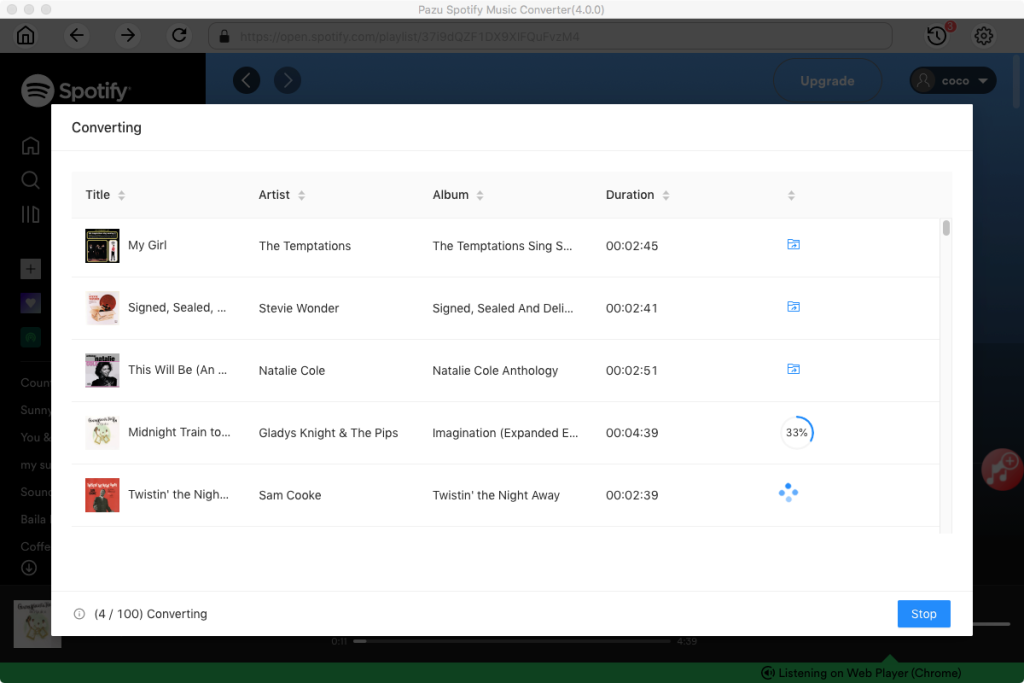
Note: The free trial version of Pazu Spotify Converter enables you to convert the first three minutes of each song. You can remove the trial limitation by purchasing the full version.
Go to the OBS app on your desktop and click the Add symbol (+ symbol) under the Sources section, then select Media Source.

Select Create New, give your media source a name like Spotify, and click OK.
In the pop-up properties window, click Browse at the right end of the Local File column, and choose the track from the previously mentioned Spotify output folder. Then click OK.


Now, the Spotify song should be visible as a media source on OBS. You can use it as background music, for recording, or for further editing in your OBS stream.
With the two options in this guide, you can seamlessly integrate Spotify music into OBS Studio. The first method allows you to screencast what you’re currently playing on Spotify during a live stream. However, for greater flexibility with your music selection, consider downloading Spotify music as local files and importing them as media sources in OBS. To achieve this, you can use the Pazu Spotify Converter to convert Spotify tracks into a format OBS supports. This approach gives you more control over your music choices and enhances the overall streaming experience.

Download and convert any Spotify songs, albums, playlists to MP3/M4A etc.