

Unlike purchased iTunes tracks that are yours to keep, Apple Music’s streaming library is encrypted with strict DRM protections, preventing you from directly saving or converting songs with standard media converters. Once your subscription ends, your offline downloads expire too. To bypass these limits, you need a reliable and dedicated downloader. We tested the top free Apple Music to MP3 converters, evaluating audio quality, download speed, and true “free” limitations to help you choose the best tool.
Related: Convert DRM-Free Apple Music to MP3
Contents
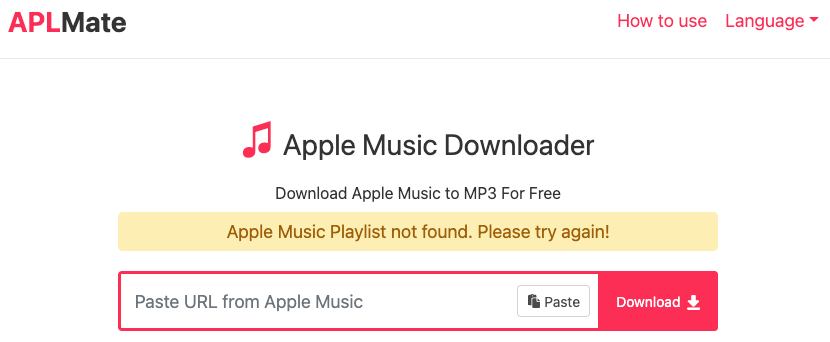
APLMate is a free online Apple Music downloader that can convert songs up to 320 kbps MP3s. While easy to use, it does not support batch downloads. Even if you paste an album or playlist link, you still have to download each song individually. In addition, download quality varies, with some songs only downloaded at 108 kbps.
Pros
Cons
How to Use APLMate to Download Apple Music Tracks:
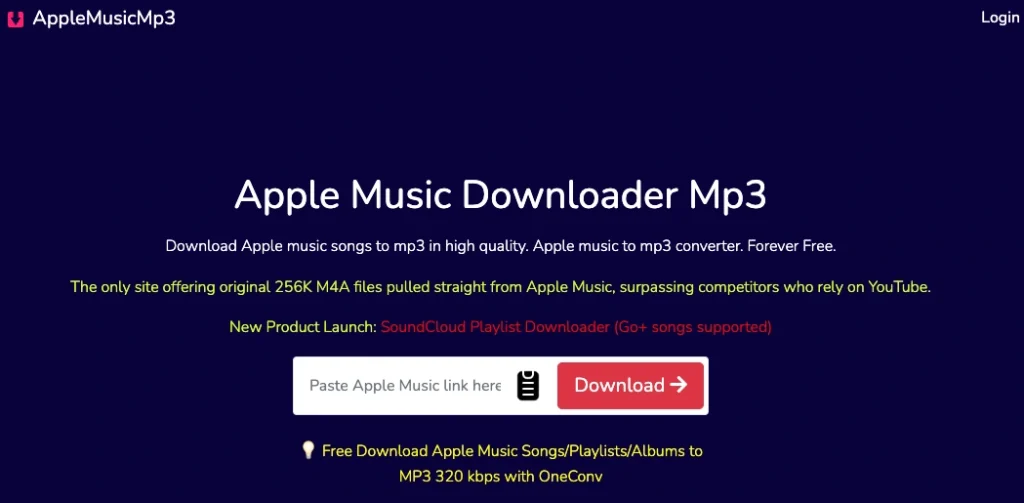
AppleMusicMp3 supports downloading Apple Music as MP3s up to 320 kbps or original-quality M4As. However, the free version comes with strict limits: 3 downloads per day, and a 2-track cap on batch playlist downloads. Subscribing to a paid plan unlocks unlimited daily downloads and full-playlist bulk ZIP downloads.
Pros
Cons
How to Use AppleMusicMp3 to Download Apple Music Songs:
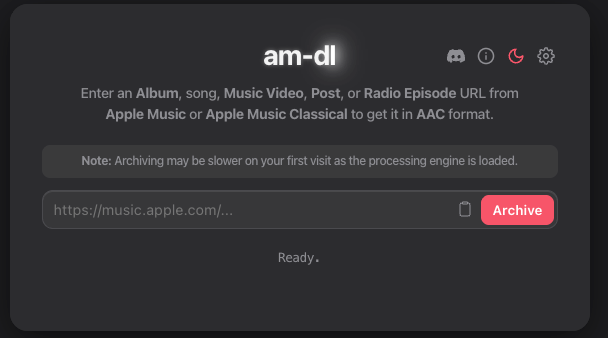
am-dl is a free online tool designed to save Apple Music tracks and full albums in DRM-free M4A format. If you prefer MP3 files, you can easily re-encode the downloaded M4A tracks using media players like VLC or the Apple Music desktop app.
am-dl stands out for its free album batch downloading and embedded lyrics. It can also attach cover art to your downloads, customize file-naming rules, and generate a log report for any tracks that fail to process.
However, the tool cannot process playlist links. Additionally, loading times can be sluggish, and downloads sometimes fail.
Pros
Cons
How to Use am-dl to Download Apple Music Songs and Albums:
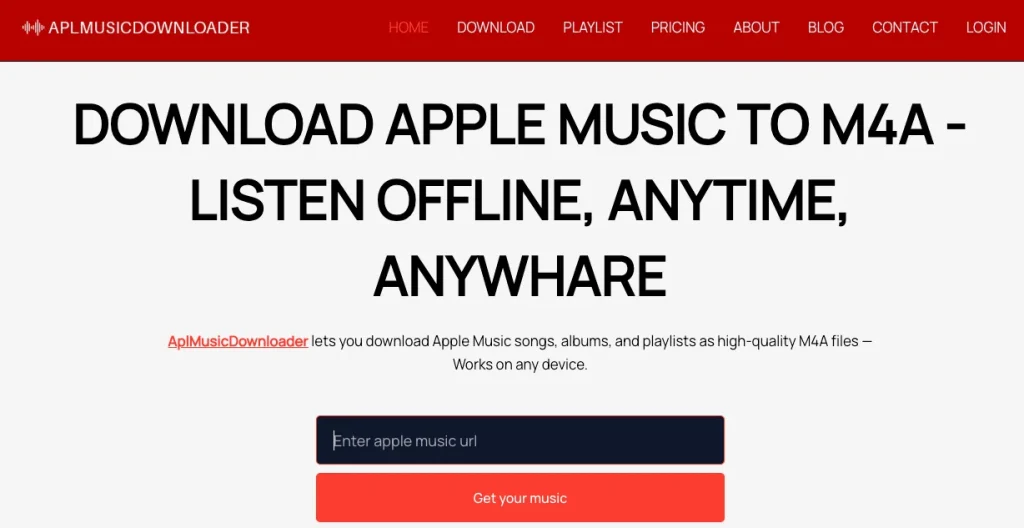
AplMusicDownloader is a web-based tool for downloading Apple Music in M4A format. It operates on a freemium model and requires user registration, even for its free plan. The free tier comes with significant restrictions: you are limited to downloading 3 songs per month, downloads are in standard quality (256 kbps), and it lacks playlist batch support.
Pros
Cons
How to Use AplMusicDownloader:
Audacity is a free, open-source, cross-platform audio recorder and editor available for Windows, macOS, and Linux. Because it captures direct system audio, it can record any track played on your device, including Apple Music, and export it into popular formats like MP3, WAV, and FLAC.
However, recording desktop audio with Audacity is a 1:1 real-time process; saving a 4-minute song requires 4 minutes of active recording. Additionally, system alerts or improper volume settings can lead to audio distortion, and ID3 tags (song title, artist, album art) must be added manually after recording.

Pros
Cons
How to Use Audacity to Record Apple Music Songs:
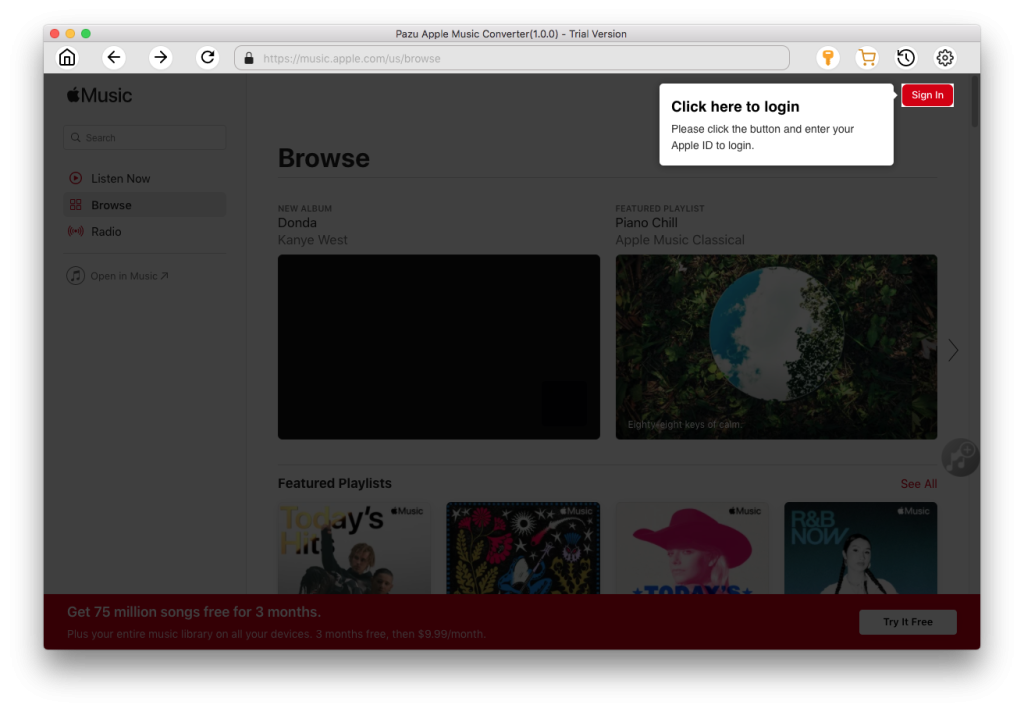
Pazu Apple Music Converter is a professional tool for downloading songs, albums, and playlists in MP3 and other 5 popular audio formats at original quality. It works on both Mac and Windows computers, with high download speeds – nearly 10 times faster than similar software.
Unlike basic web-based tools, Pazu features an integrated Apple Music web player. So you can directly find the music and add it to the download list. It supports full-batch downloading for playlists and albums, or you can pick specific tracks for bulk export. You can also customize output settings, including audio quality, file-naming rules, and output folder.
The free version of Pazu Apple Music Converter allows you to download the first three minutes of each song. It doesn’t limit how many songs you can convert.
Cons
How to Use Pazu Apple Music Converter to download playlists, albums, or tracks:
1. Download, install, and run Pazu Apple Music Converter on your Mac or Windows.
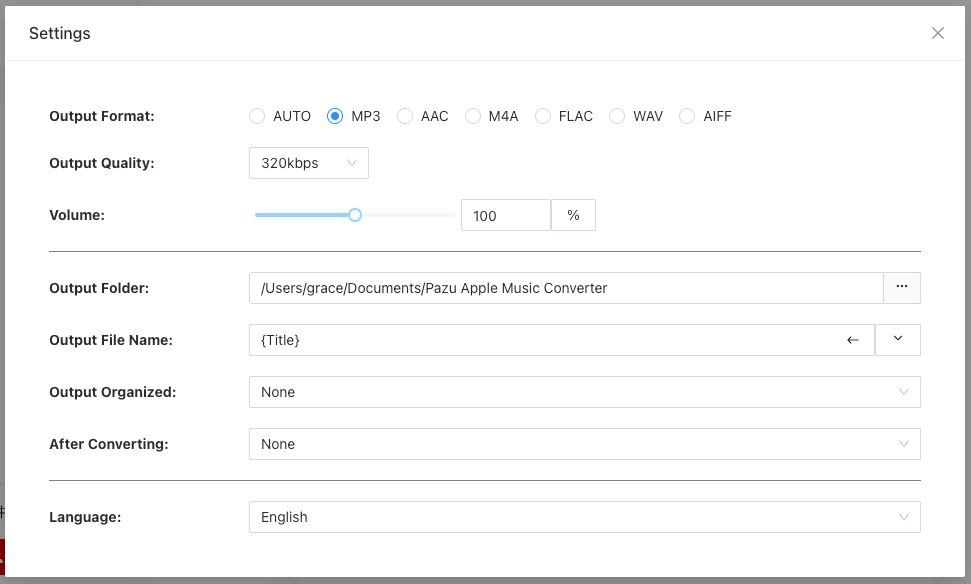
2. Click the gear icon to select the output format as MP3. You can also change the output folder and other settings here.
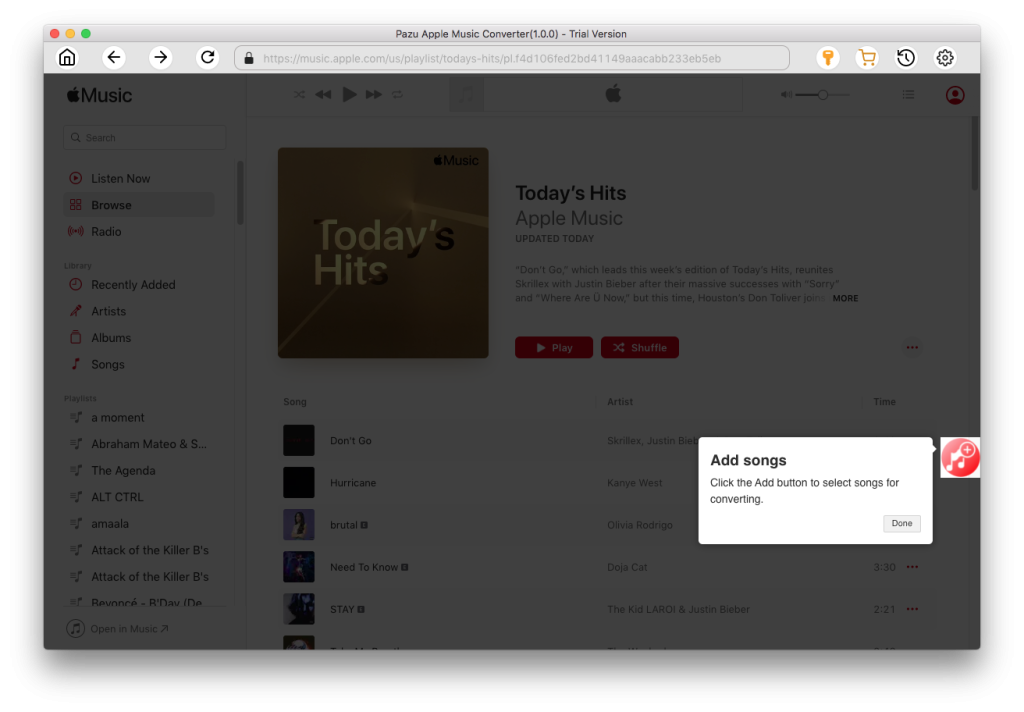
3. Find and choose a playlist, artist, or album to download. Click the red “Add songs” button to load the tracks.
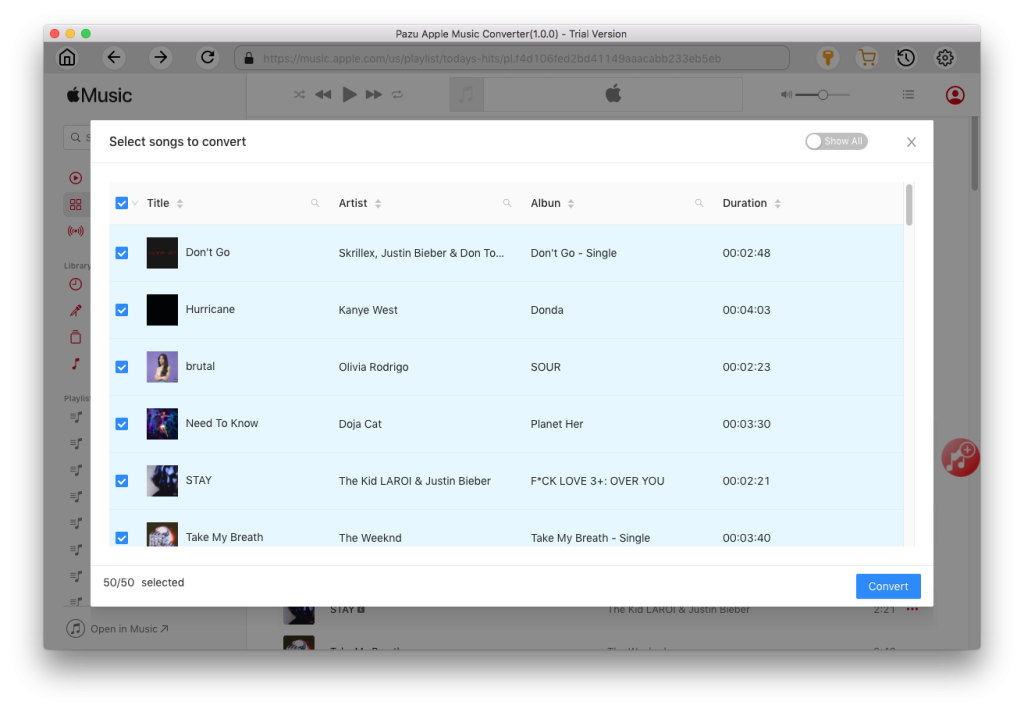
4. Uncheck any songs you don’t want to download and click the “Convert” button. Once done, you can play them anywhere you want, even after canceling your Apple Music subscription.
Here’s a comparison of the top Apple Music to MP3 converters. For full playlist/album backups, use Pazu Apple Music Converter for high-speed, reliable batch downloads with complete metadata. For grabbing just a couple of individual tracks, online downloaders provide a quick, lightweight solution. If you only need to record audio clips or live streams, a free audio recorder is all you need.
| Downloader | Platform | Output Formats | Audio Quality | Batch Download | Ad-Free | Download Speed |
| Pazu Apple Music Converter | Windows, Mac | MP3, M4A, AAC, FLAC, WAV, and AIFF | 320 kbps | Yes | Yes | 10X |
| APLMate Apple Music Downloader | Online | MP3 | 320 kbps, sometimes drops to 108kbps | No | No | 5X |
| AppleMusicMp3 | Online | M4A, MP3 | 320 kbps | Yes, 2 tracks capped for free | Yes | 3X |
| am-dl | Online | M4A | 320 kbps | Yes | Yes | 3X |
| AplMusicDownloader | Online | M4A | 256 kbps | No | Yes | 5X |
| Audacity Audio Recorder | Windows, macOS, Linux | MP3, WAV, FLAC, etc. | Depends on device and system settings | No | Yes | 1X |
1. Can I download Apple Music songs as MP3 files in the official app?
No. While you can download music for offline listening with the Apple Music app, the files are saved as DRM-protected ALAC or AAC files (.m4p). These can only be played inside the Apple Music app during an active subscription and cannot be transferred as MP3s.
2. What is the difference between iTunes purchases and Apple Music streams?
Songs bought from the iTunes Store can typically be saved as DRM-free 256 kbps AAC files (.m4a). You own them and can easily convert them to MP3 using iTunes, the Apple Music app, or VLC.
Apple Music streams can be downloaded via subscription. But they are DRM-protected and cannot be directly converted using Apple or an audio format converter.
3. Is it legal to convert Apple Music to MP3?
The legal status depends on your jurisdiction and how you use the converted files:
In many regions, converting media for personal offline playback falls under fair use, provided you have a valid subscription or license. However, sharing, selling, or distributing converted tracks is illegal and violates copyright laws and Apple’s terms of service.

Download and convert any Spotify songs, albums, playlists to MP3/M4A etc.