

As a music fan, M4A and MP3 are the formats you can often encounter, especially when you are an Apple device user. M4A is an audio format commonly used to purchase and download music from the iTunes Store. It typically offers higher sound quality and smaller file sizes compared to MP3. On the other hand, MP3 is a more popular audio format known for its compatibility with a wide range of devices.
In this article, we will explore the differences between M4A and MP3, discuss which is better, and how to convert M4A to MP3 or vice versa.
MP3, which stands for MPEG-1 Audio Layer 3, is the most commonly used audio compression format worldwide. With a lossy compression method known as Perceptual coding, MP3 files remove audio information not easily perceivable by human ears, aiming to maintain satisfactory audio quality while minimizing file size.
Introduced earlier in the industry, MP3 enjoys superior compatibility compared to M4A. It is supported across various operating systems, media players, and music systems, making it a standard in digital audio.
M4A, short for MPEG-4 Audio, is often considered the successor to MP3. It is typically encoded with the Advanced Audio Coding (AAC) codec, a superior lossy compression algorithm, resulting in smaller file sizes while maintaining higher audio quality than MP3 at the same bit rates. Additionally, M4A files can also be encoded with the Apple Lossless Audio Codec (ALAC) in certain cases.
As M4A files don’t have digital rights management (DRM) restrictions, they can be used for music distribution and playback. They are preferred by audio apps on the Mac and iOS App Stores and supported by Nintendo and PlayStation products. Apple also uses M4A as the primary format for music purchases from the iTunes Store. DRM-protected iTunes music uses the M4P file extension.
M4A and MP3 share many similarities. They both use compression algorithms to balance audio quality and file size. On the other hand, they also differ in ways that set them apart.
MP3 files generally use lossy data compression, while M4A can be encoded with both lossy (AAC) and Lossless (ALAC) compression.
M4A files with the ALAC codec offer superior original sound quality. As the successor to MP3, M4A with AAC employs an advanced compression algorithm, resulting in better audio quality than MP3 at the same bit rate. Generally, a 256 kbps MP3 will have similar sound quality to a 192 kbps M4A.
Because of its superior encoding method, M4A can achieve smaller compressed file sizes at the same bit rate as MP3.
MP3 has been an industry standard for a long time and is supported by most platforms and devices. However, M4A adoption has been slower, but it has the potential to keep up with the trend.
Here’s a table summarizing the differences between MP3 and M4A, helping you decide which format suits your needs best:
| Format | MP3 | M4A |
| Compression | Lossy | Lossy (AAC) or Lossless (ALAC) |
| Quality | Compromised | Better |
| File Size at the Same Bit Rate | Larger | Smaller |
| Compatibility | More compatible | Less compatible |
If you’re using Apple devices, M4A is a great choice because it’s natively supported and offers excellent compatibility with macOS applications such as iMovie, QuickTime Player, and Final Cut Pro. M4A files can also be played on Android and Windows devices. However, if you encounter compatibility issues with certain devices or applications, MP3 might be a better option due to its wider support.
If your device supports both MP3 and M4A formats, and you prioritize sound quality, M4A is recommended as it often delivers better audio quality compared to MP3.
If the device or app you’re using doesn’t support M4A, you can convert M4A to MP3 using several methods, such as Music/iTunes on your computer, online converters, third-party tools available on Google Drive, or media players like VLC.
Here is how to convert M4A files to MP3 with VLC, a free and open-source media player.


If you need to convert MP3 to M4A, you can use the Apple Music app. You don’t need an Apple Music subscription to use the convert feature.
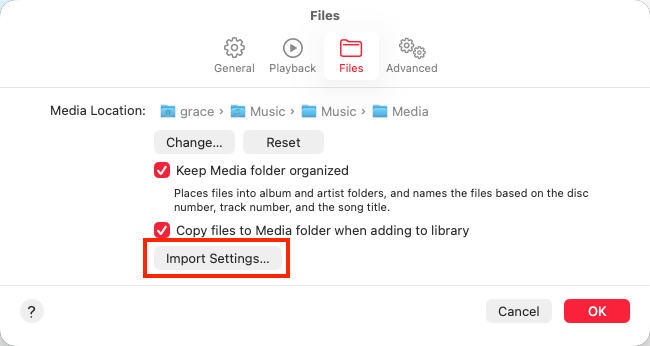
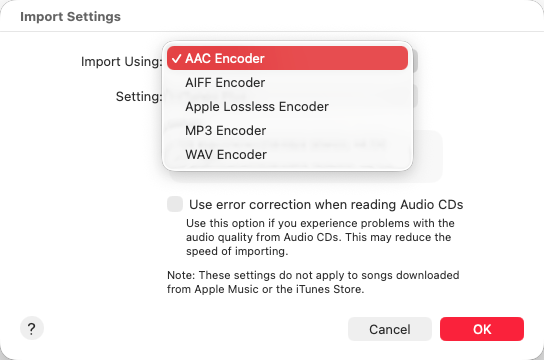
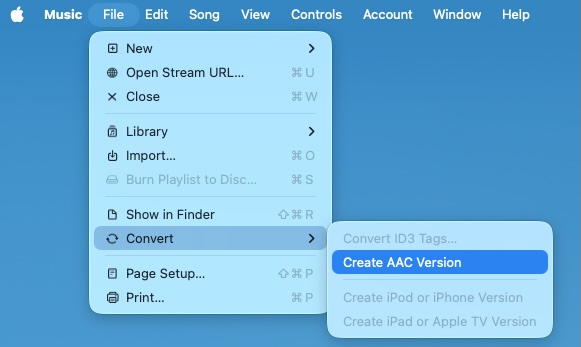
Apple Music uses a specific audio format called M4P. Unlike M4A, M4P contains audio content protected by digital rights management (DRM). This means you can only play M4P files within the Apple Music app or iTunes on the device where they were downloaded.
To enjoy Apple Music songs offline on other devices and media players, you’ll need a dedicated tool like Pazu Apple Music Converter to convert M4P files to more common formats like M4A, MP3, or others. Once converted, you can transfer these files to any device and listen to your music offline, without restrictions.
Follow the tutorial below to download Apple Music to M4A.
Download, install and run Pazu Apple Music Converter on your Mac or Windows.
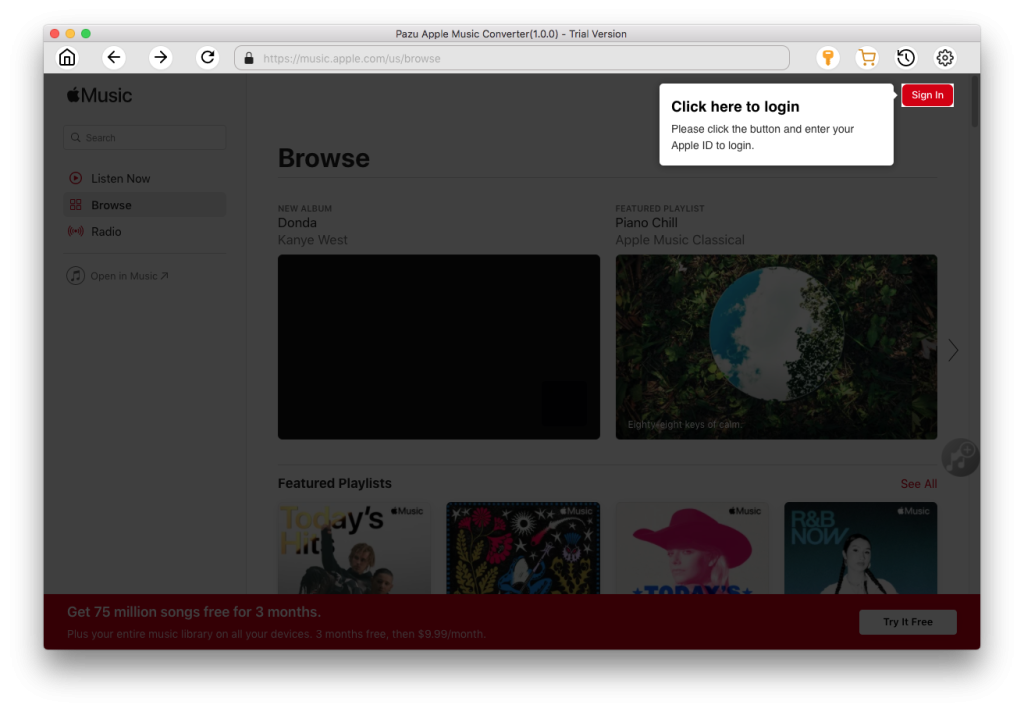
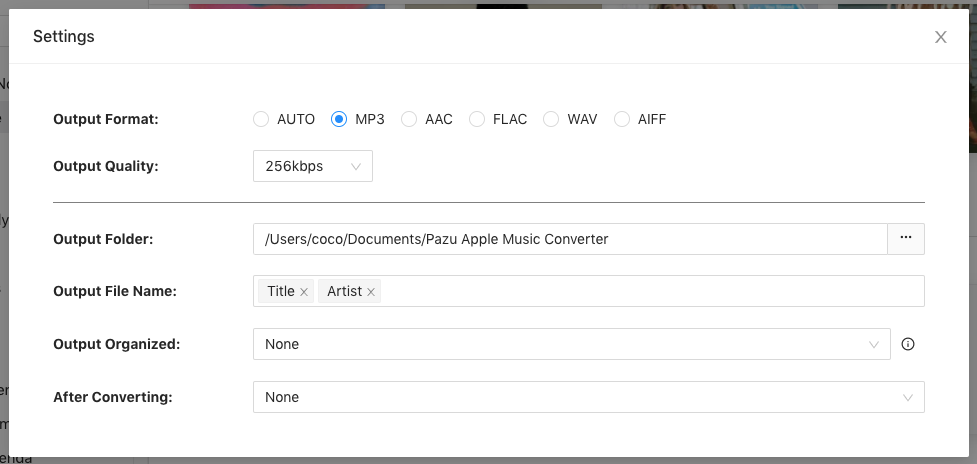
The default format is M4A in 256kbps. Apple Music Converter also supports MP3, AAC, FLAC, WAV, and AIFF. Click the gear icon to change the output format, folder, and more.
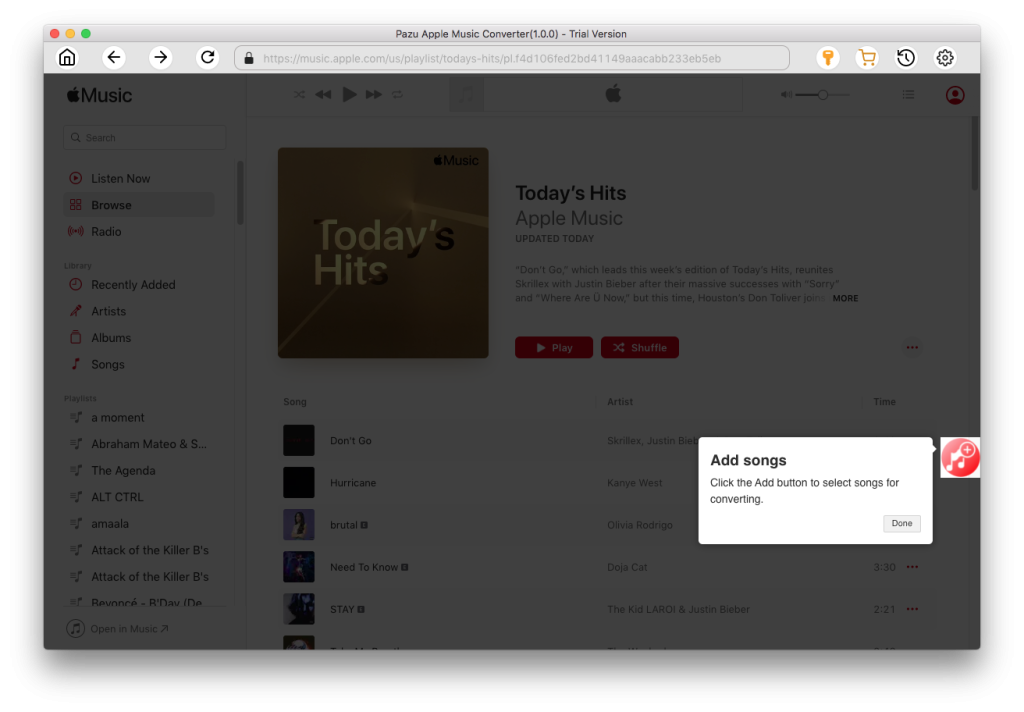
Follow the on-screen instructions to choose a playlist, artist, or album you want to download.
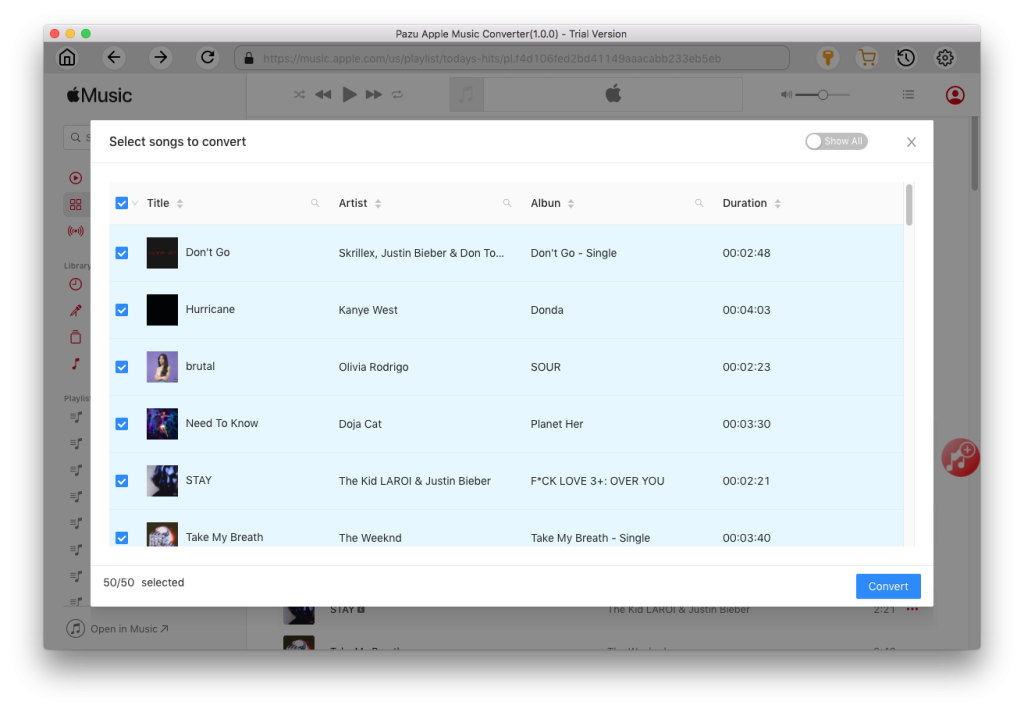
Click the “Convert” button to download Apple Music songs, albums, and playlists to MP3. After downloading, you can play them anywhere you want, even after canceling your Apple Music subscription.
After the download is complete, click on the clock icon in the upper right corner to view the converted Apple Music songs. To locate the downloaded Apple Music songs:

M4A and MP3 are both popular audio file formats. M4A is preferred for its better quality in a smaller size, while MP3 offers broader support across devices and platforms. Choose the format that suits your needs best. You can also convert M4P files to MP3 or vice versa with several online and local tools. Moreover, if you want to download DRM-protected Apple Music M4P files to MP3, use the Pazu Apple Music Converter to permanently save your favorite songs and playlists on your device.

Download Apple Music to MP3, M4A, etc.