
How to Log Out of Apple Music on Any Device: Step-by-Step Guide

Grace's user avatar
Grace
October 9, 2026

Whether you are upgrading to a new phone, sharing a public device, or troubleshooting sync issues, you may need to log out of Apple Music. However, signing out isn’t always as simple as hitting a button inside the app. The process varies by device. In this post, we’ll show you how to log out of Apple Music on iPhone/iPad, Android, Mac, Windows, web browsers, and smart TVs.

CONTENTS

  1. Sign Out of Apple Music on iPhone and iPad
  2. Sign Out of Apple Music on Android
  3. Log Out of Apple Music from the Web Player
  4. Log Out from Apple Music on Mac
  5. Sign Out of iTunes on Windows
  6. Sign Out from the Apple Music App on Windows
  7. Log out of Apple Music on TVs
  8. Log Out of Apple Music Everywhere
  9. Download Your Favorite Apple Music Songs to MP3

1. Sign Out of Apple Music on iPhone and iPad

To log out of Apple Music on your iPhone or iPad, go to Settings instead of signing out from the app. Here’s how:
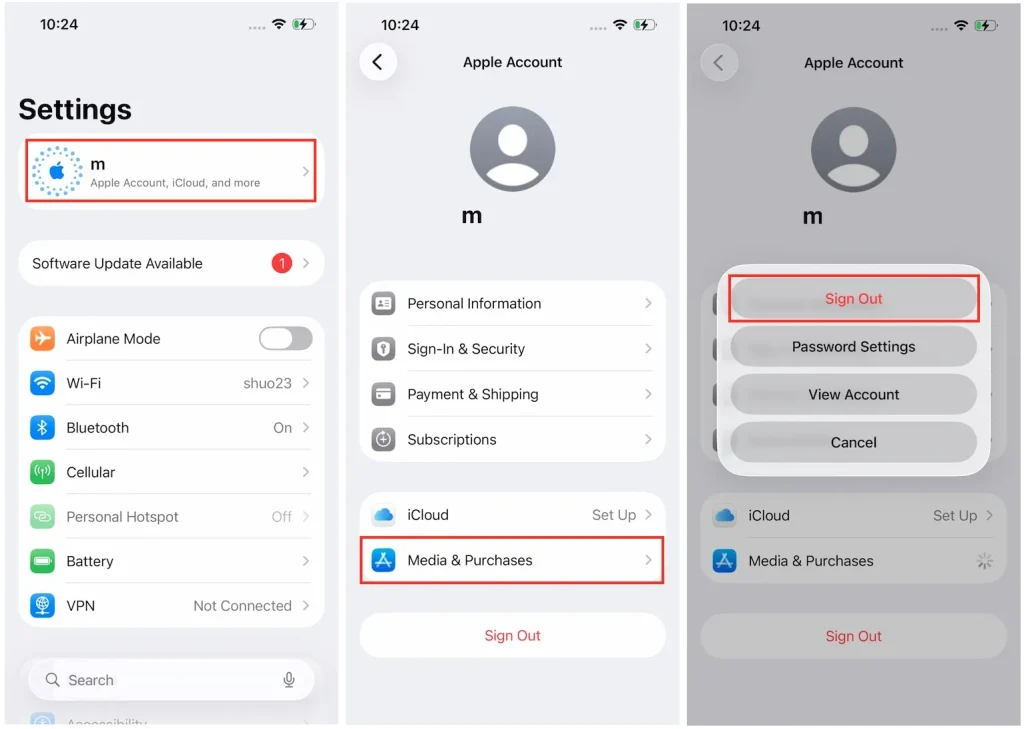
  1. Go to Settings on your iPhone or iPad.
  2. Tap your name at the top.
  3. Select Media & Purchases.
  4. Tap Sign Out.
Sign out of Apple Music iPhone

2. Sign Out of Apple Music on Android

On an Android device, you can log out of Apple Music directly within the app.
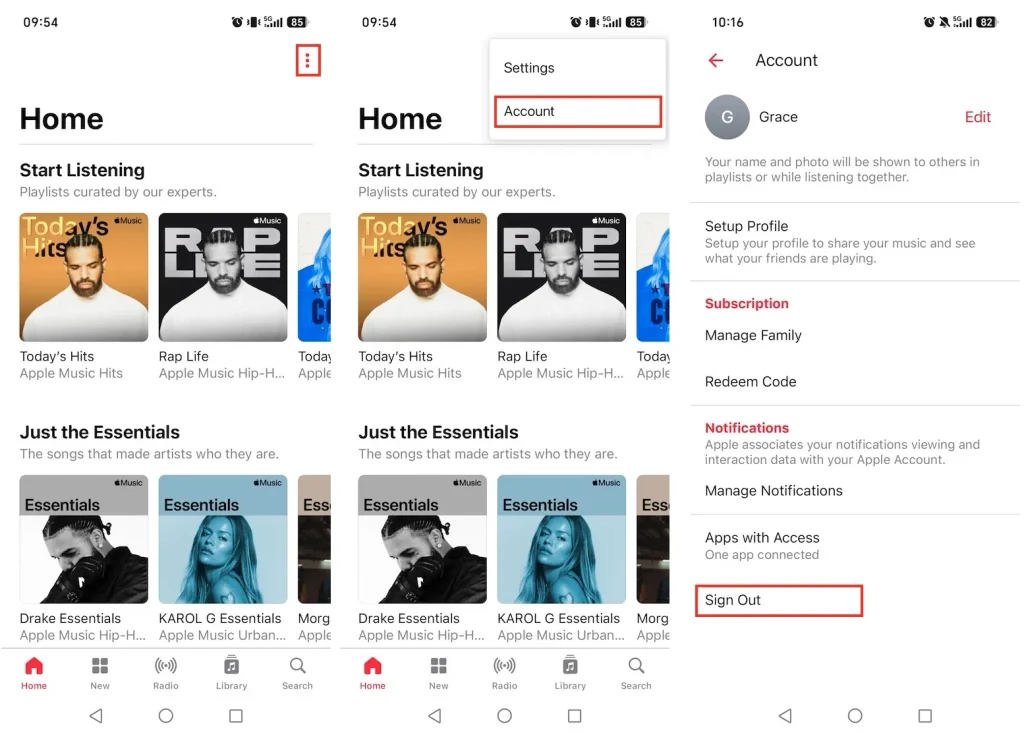
  1. Open the Apple Music app on your Android phone or tablet.
  2. Tap the three dots in the top-right corner.
  3. Select Account.
  4. Tap Sign Out.
Sign out of Apple Music Android

3. Log Out of Apple Music from the Web Player

Logging out from the Apple Music web player (music.apple.com) only takes two steps:
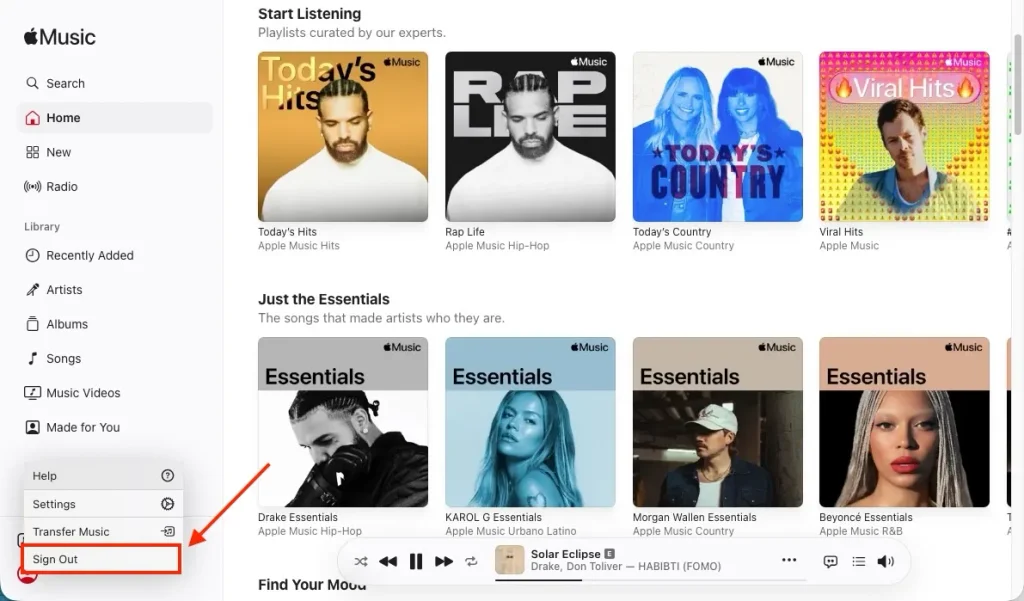
  1. Click your profile icon.
  2. Select Sign Out.
log out of Apple Music web player

4. Log Out from Apple Music on Mac

Signing out from Apple Music on Mac is straightforward. Follow the steps below:
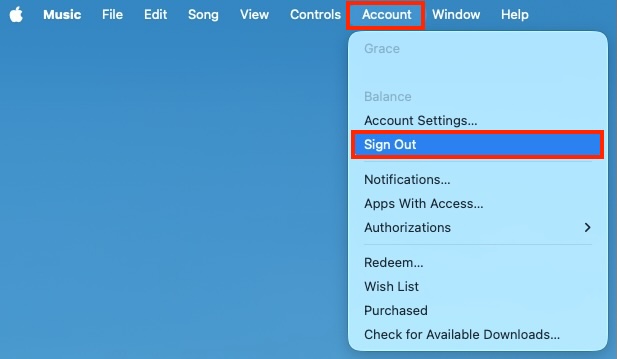
  1. Go to the Music app on your Mac.
  2. On the top bar menu, click Account.
  3. Select Sign Out.
Log out of Apple Music on Mac

5. Sign Out of iTunes on Windows

To log out of Apple Music from iTunes on Windows, follow these steps:

  1. In the iTunes menu bar, click Account.
  2. Click Sign Out.
log out apple music itunes

6. Sign Out of the Apple Music App on Windows

Apple has released a dedicated Apple Music app for Windows users. This app offers a similar user interface to the Mac version. If your Windows 10 PC is running version 19045.0 or later, you can download the app directly from the Microsoft Store.

To sign out of your Apple Music account on Windows:

  1. Open the Apple Music app on your Windows PC or laptop.
  2. Click your name in the bottom left corner of the sidebar.
  3. Select “Sign Out.”

7. Log out of Apple Music on TVs & Streaming Sticks

On Smart TVs & Streaming Sticks

You can use the Apple Music app on several major smart TV platforms and streaming devices such as Samsung, LG, Roku, Sony, etc. To sign out of Apple Music:
  1. Open the Apple Music app on your TV.
  2. Go to the Settings gear icon (usually in the bottom-left corner or top-right profile menu).
  3. Select Account or your profile name.
  4. Select Sign Out.

On Apple TV

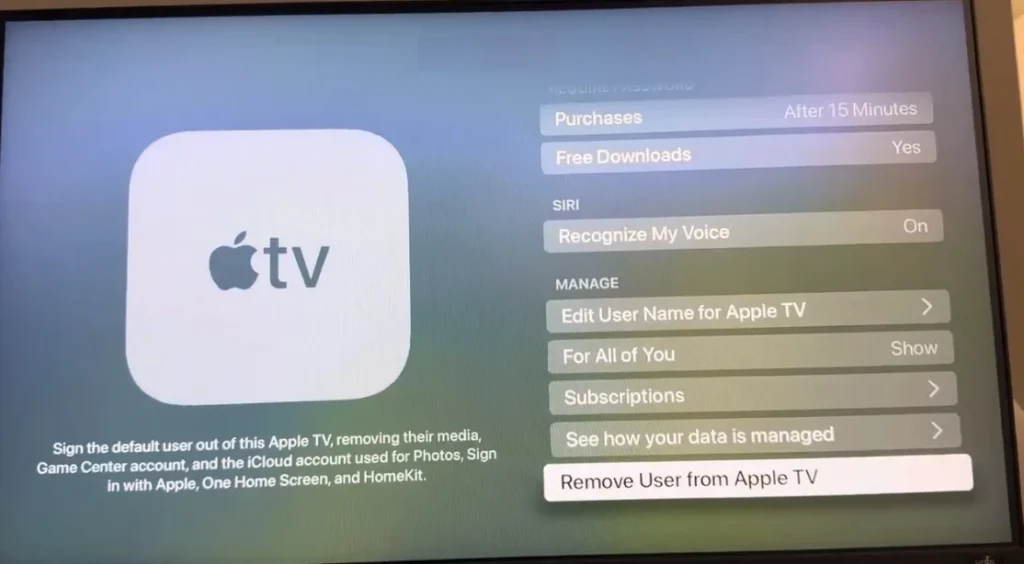
  1. Open Settings on your Apple TV.
  2. Select Users and Accounts.
  3. Choose the user profile you want to sign out of or remove.
  4. Select Remove User from Apple TV (default account) or Sign Out (additional accounts).
Remove user from Apple TV

8. Log Out of Apple Music Everywhere

Sometimes, you may not be able to access the device you have logged into Apple Music on. In that case, use your current device to remove the device from your Apple Music account.
On iPhone/iPad

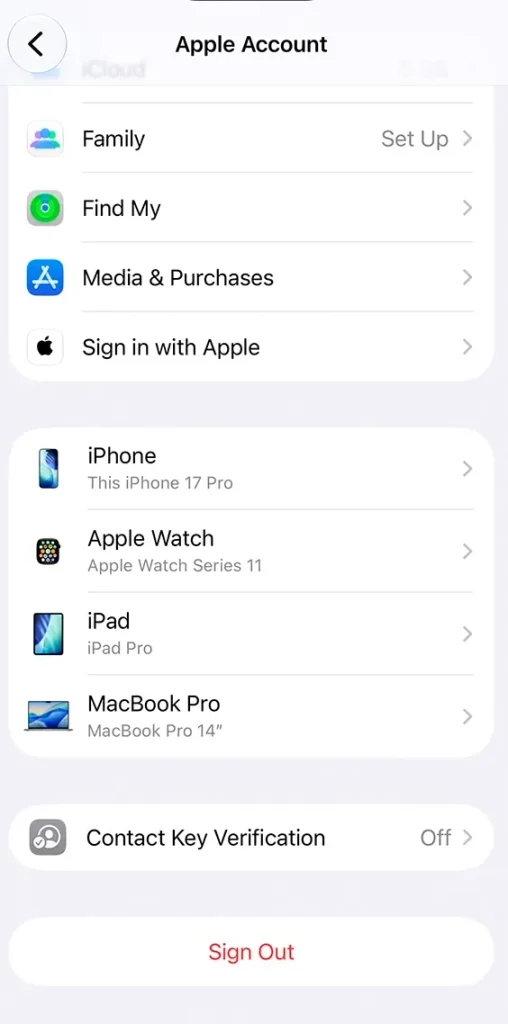
  1. Go to Settings on your iPhone/iPad and tap your name.
  2. Scroll down to the device list and select the device you want to log out of Apple Music.
  3. Select “Remove from Account.” Your Apple Music will be signed out from that device.
Remove device from Apple account

On Mac/Windows

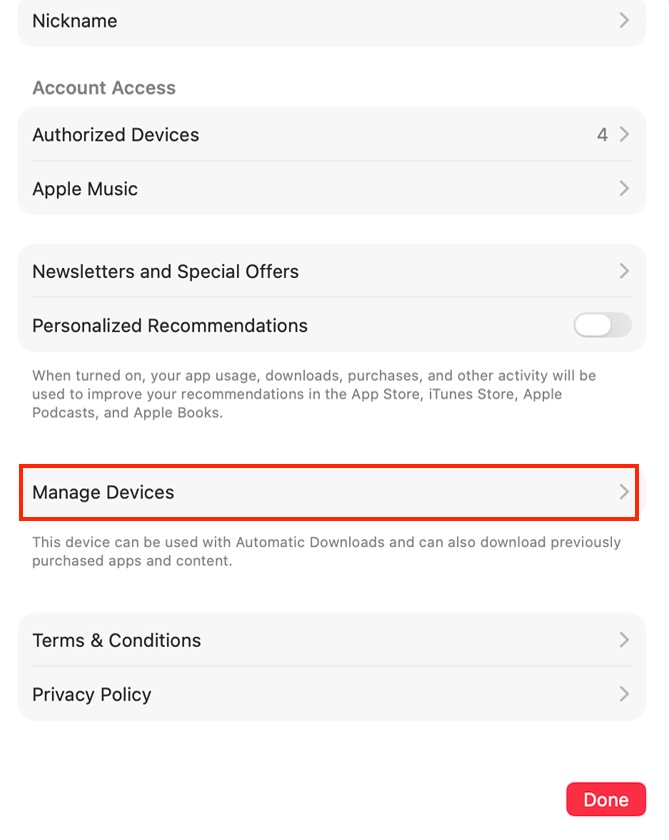
  1. Launch the Apple Music app on your Mac or Windows.
    • On Mac: Click Account from the top menu bar and select Account Settings.
    • On Windows: Click your name at the bottom and choose View My Account.
    • Sign in to your account if prompted.
  2. Scroll down and click Manage Devices. This section won’t appear if no devices are associated with your Apple Account.
  3. Click Remove next to the device you want to unlink.
Apple Music Manage Devices

With iTunes for Windows

  1. Launch iTunes on Windows.
  2. Click Account from the top menu bar and select View My Account.
  3. Scroll down to the Downloads and Purchases section, then click Manage Devices.
  4. Click the Remove button next to the device you want to log out of your Apple Music account.

On Web

Step 1. Go to https://account.apple.com/ and sign in to your Apple account.

Step 2. Once signed in, click Devices from the left menu and select the device you want to sign out.
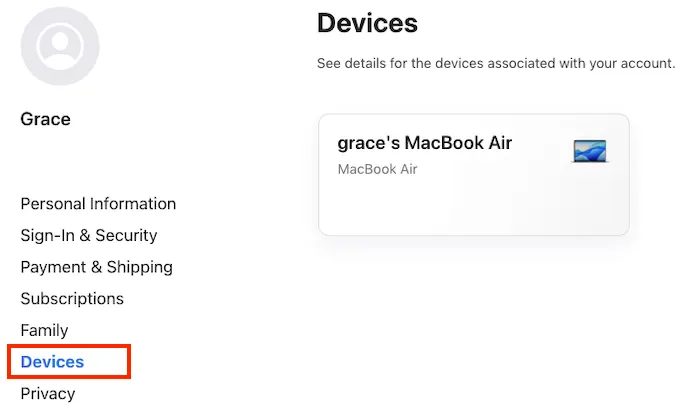
Manage Apple Account devices

Step 3. Click Remove from account to sign the device out of your Apple Music account.

Remove Apple Account devices

8. How to Download Your Favorite Apple Music Songs to MP3 before Logging Out?

Before signing out of Apple Music, it’s a good idea to download your favorite tracks and save them for offline listening. Apple Music allows users to download tracks, albums, and playlists for offline playback. However, you can access downloaded content only within the Apple Music app while your subscription is active.

If you wish to keep Apple Music songs permanently on your devices, you can opt for the best Apple Music downloader – Pazu Apple Music Converter, a safe and effective downloader that can help you download any Apple Music playlists, albums, and songs to MP3, AAC, FLAC, and other popular formats on Mac/Windows without any loss in quality.

Pazu Apple Music Converter not only downloads your favorite playlists and songs, but also preserves the original audio quality, ID3 tags, and metadata, so you won’t lose any important information. Plus, one of the distinguishing features of Pazu Apple Music Converter is the really fast download and conversion speed – almost 10 times faster than any other similar software.

Pazu Apple Music Converter integrates with the Apple Music web player, so you can batch-convert any Apple Music playlist or album to the format you choose without iTunes or the Music app.

Key Features:

  • User-friendly interface
  • 10x fast music download speed
  • Advanced DRM removal
  • Lossless audio quality
  • Keep original ID3 tags & metadata
  • Download Apple Music songs, albums, and playlists
  • Unlimited downloads
  • Adjustable output options

The following tutorial will show you how to download Apple Music to MP3 and get Apple Music for free. 

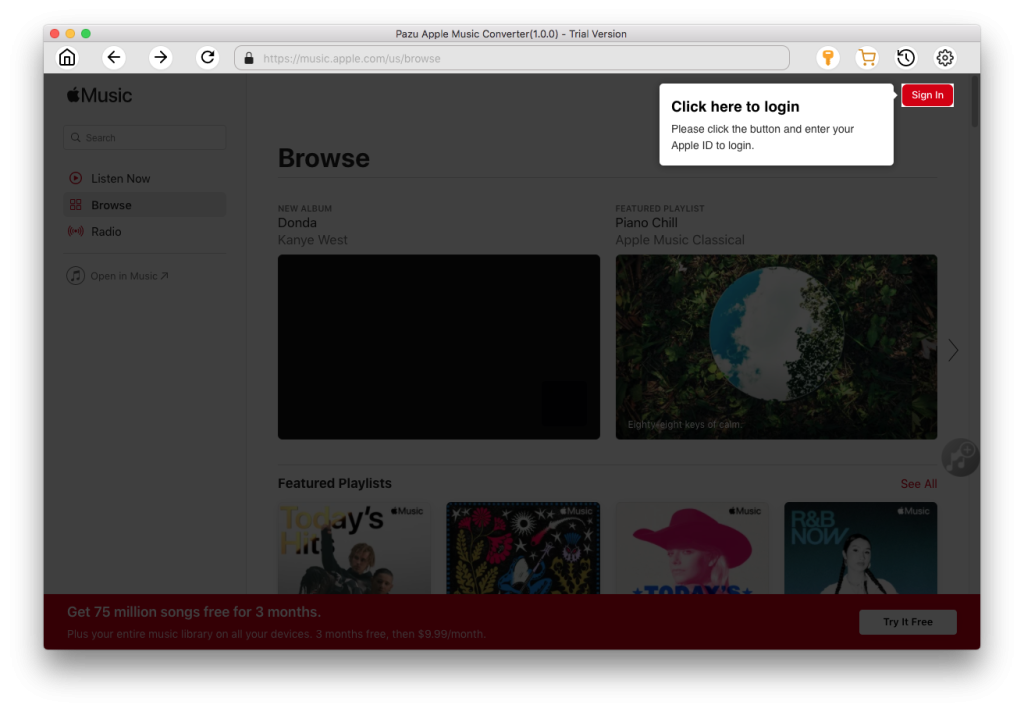
Step 1. Launch Pazu Apple Music Converter

Download, install and run Pazu Apple Music Converter on your Mac or Windows.
Apple Music Converter

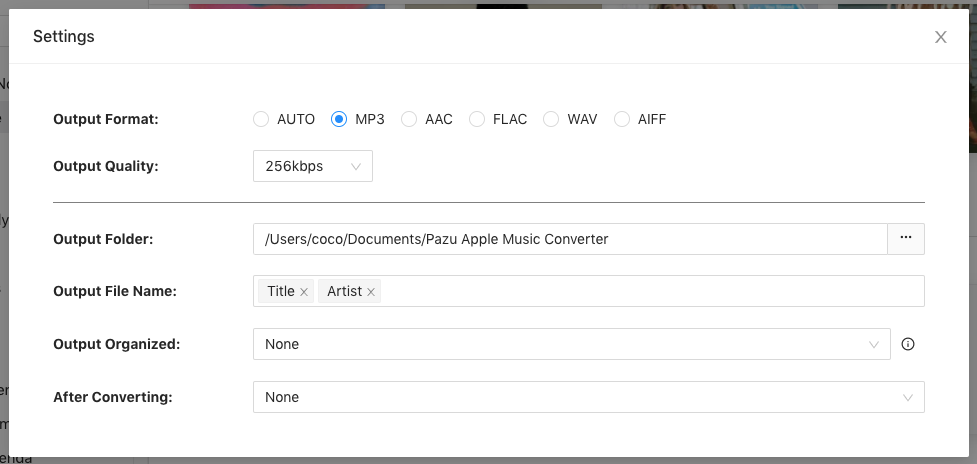
Step 2. Choose the output format

The default format is M4A in 256 kbps. Apple Music Converter also supports MP3, AAC, FLAC, WAV, and AIFF. Click the gear icon if you want to change the output format or output folder.
Apple Music Converter settings

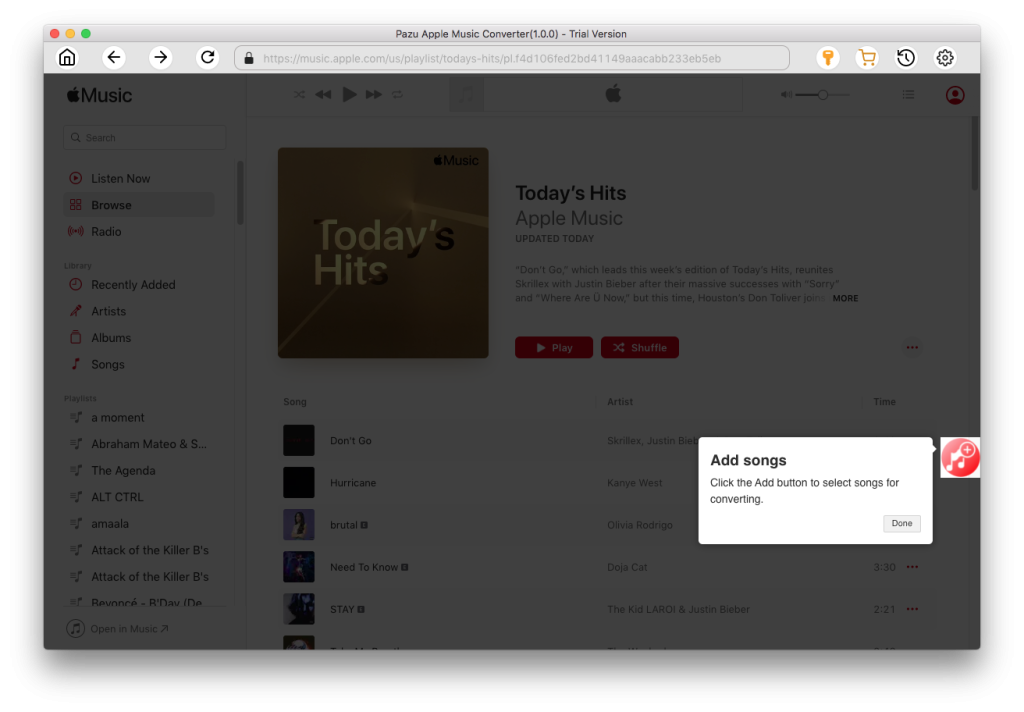
Step 3. Choose a playlist, artist, or album you want to download

Follow the on-screen instructions to choose a playlist, artist, or album that you want to download.
add Apple Music songs

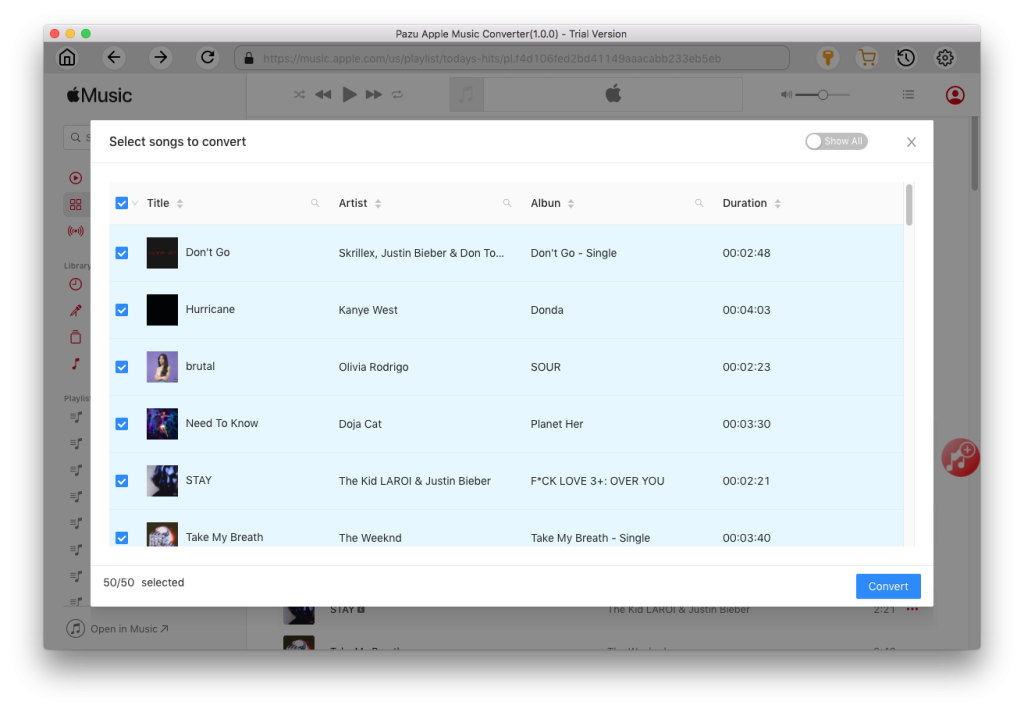
Step 4. Download Apple Music songs

Click the “Convert” button to start downloading Apple Music songs, albums, and playlists to MP3, so you can play them anywhere, even after canceling your Apple Music subscription.
convert Apple Music to MP3