

Spotify offers music for everyone, with its vast library accessible to both free and Premium users. However, the offline playback feature is exclusive to Premium, and you cannot transfer downloaded tracks to other devices or music players.
To have more control over your music collection, converting Spotify music to MP3 offers an effective workaround and ensures offline playback across almost all devices and platforms. This guide explores ways to download Spotify music to MP3 on various devices, including computers, phones, tablets, and web browsers. Find the method that best suits your needs and build a music collection you can truly own.
Pazu Spotify Converter offers a comprehensive solution for managing your Spotify music library. It is designed for both Spotify Free and Premium users to download all Spotify songs, playlists, albums, and even podcasts for offline listening. It extracts Spotify music and converts it to various high-quality formats, including MP3, M4A, FLAC, and more.
Pazu Spotify Converter supports both Windows and Mac computers, allowing you to freely select and batch download any songs from an album or playlist. It saves Spotify tracks with lossless audio quality and preserves all ID3 tags. Additionally, you can customize the names of your Spotify songs with titles, albums, artists, and more. After downloading, you can transfer the songs to any other compatible devices for offline enjoyment, giving you full control over your music collection.
Install and launch the Pazu Spotify Converter on your Mac or Windows computer. Log in to your Spotify account within the app.
Step 1. Finding Your Music:

Step 2. Setting Up Download Preferences:

Step 3. Converting Spotify to MP3:

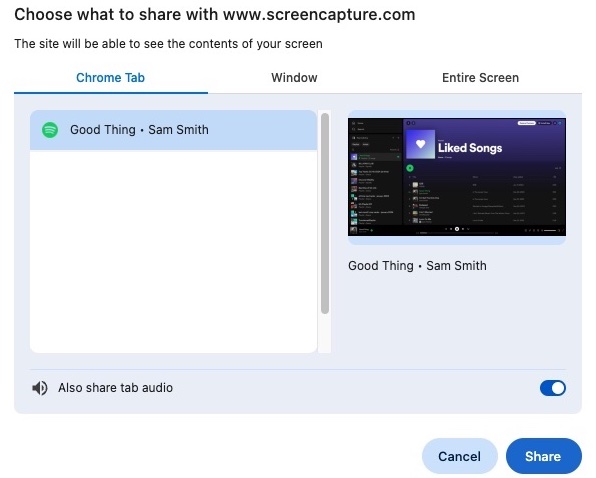
Screen Capture lets you record audio playing in your browser, including music from the Spotify web player. While the free version of Screen Capture can only save recordings in MP4 format, you’ll need to transfer them to MP3 with a free tool like VLC Media Player.

Audacity is a free, cross-platform audio editor and recorder available for Windows, macOS, and Linux. It offers more control over recording compared to online tools, but requires some technical understanding. Audacity saves recordings in various formats, including MP3, WAV, FLAC, and OGG, giving you flexibility in choosing the output format.

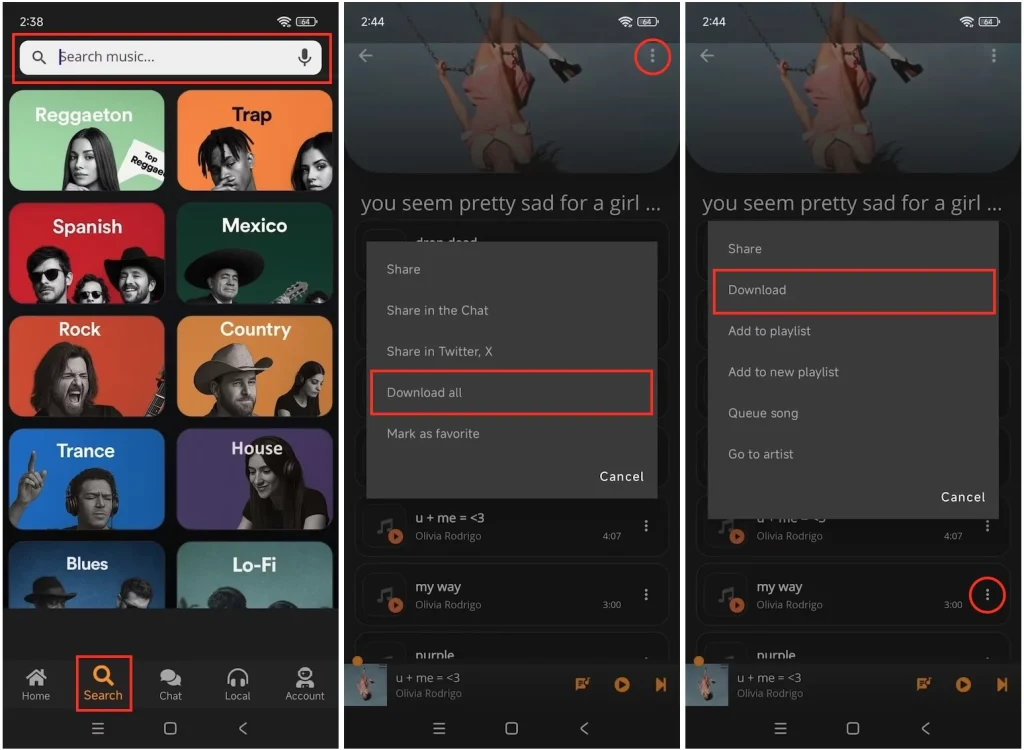
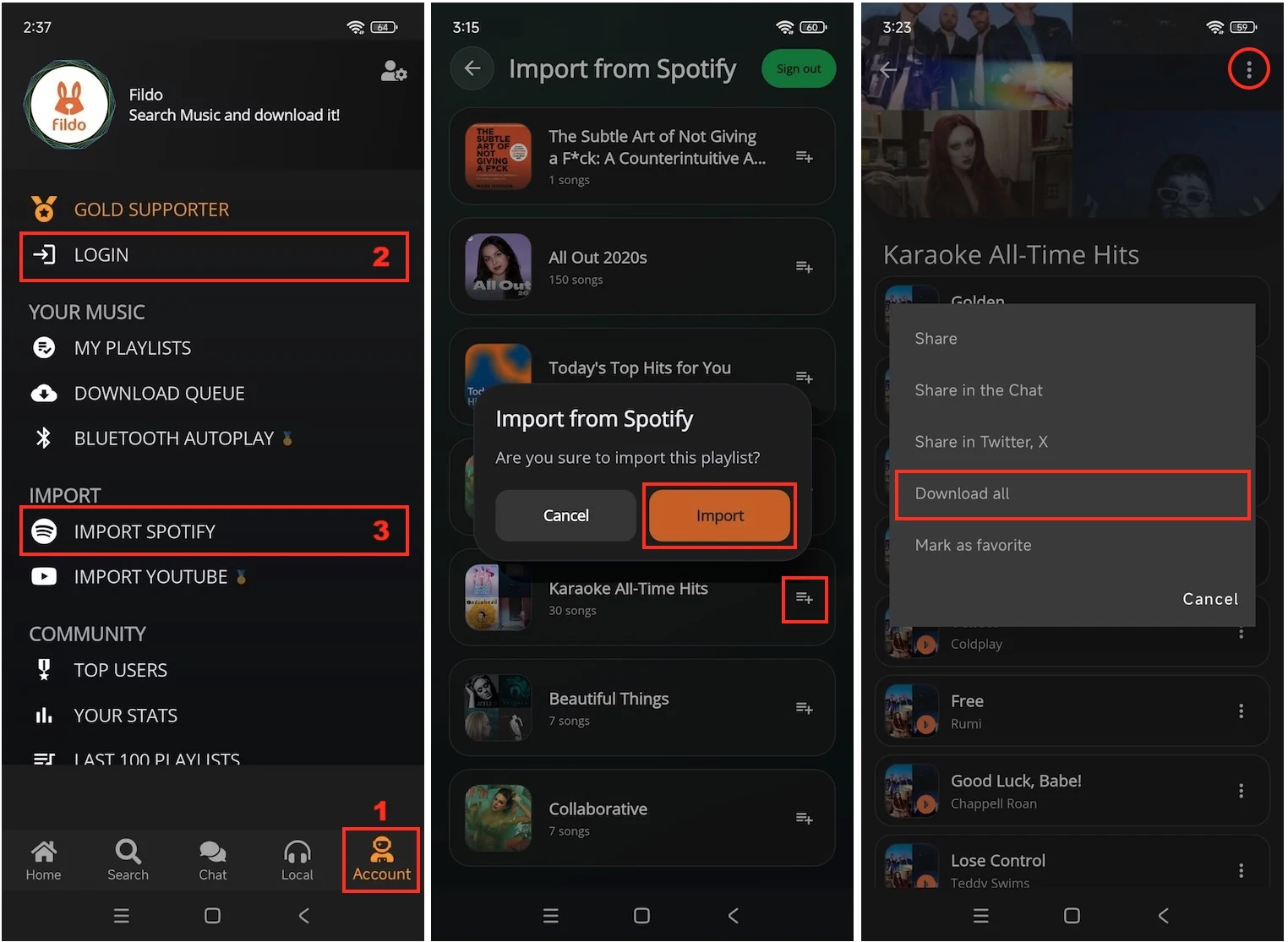
Fildo APK, an Android app, offers a refreshing alternative to downloading Spotify to MP3. Unlike pre-built libraries, Fildo acts as a powerful search engine, scouring various online sources to find music that matches your playlists or search queries, and downloads music in MP3 and FLAC formats.
You don’t need to log in to Spotify to search for and download songs with Fildo. You can also sign in to your Spotify account to import your playlists and download them directly in the app.
SpotiFlyer is a music downloader application for multiple platforms, supporting popular services such as Spotify, YouTube, Gaana, JioSaavn, and SoundCloud. The Spotiflyer Mod APK can convert playlists, albums, and tracks to MP3 on Android devices, even if you are on the Spotify free version.
SpotiFlyer allows you to choose the downloaded audio quality. However, even at the highest setting (320 kbps), there can still be noticeable quality loss.

Update: As of 2026, almost all Spotify-to-MP3 Shortcuts on iPhone are no longer working. Try using online converters or downloading Spotify to MP3 files on other devices and transferring them to your iPhone.
Shortcuts, a powerful app by Apple, lets you automate everyday tasks on your iPhone, iPad, and Apple Watch.

SpotiDownloader is a free online tool that helps you download Spotify music as MP3 files. Simply copy and paste the link of the Spotify song, album, or playlist into it. Then you can choose to download the entire playlist or download individual songs one by one. When downloading, the tool preserves the original quality of Spotify songs.
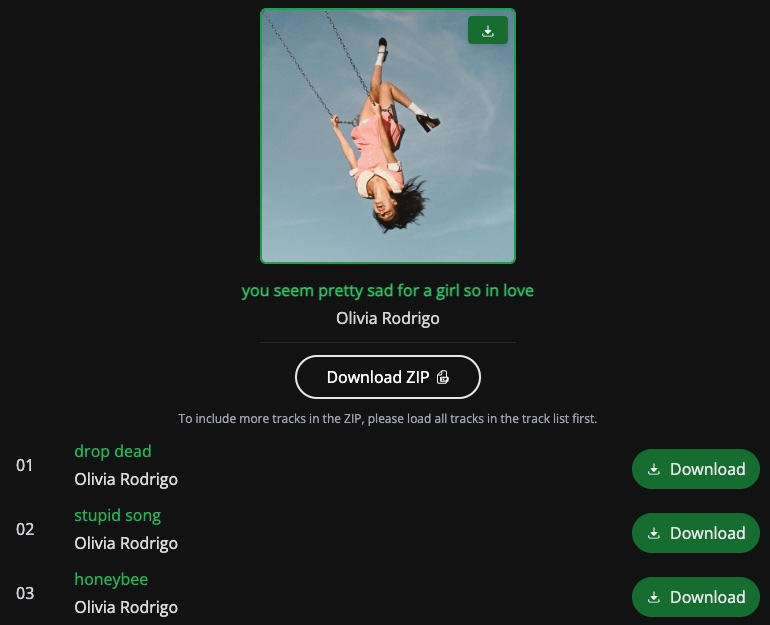
Spotify-downloader offers a quick way to download Spotify music as MP3 files. It allows you to download individual songs or entire albums/playlists (in ZIP format) by pasting their links. However, be prepared to encounter disruptive advertisements and additional verification steps before you can download anything.

We’ve explored several methods for converting Spotify to MP3 across different devices. Use the comparison table below to find the best option for your needs.
| Pazu Spotify Converter | Screen Capture + VLC | Audacity | Fildo | SpotiFlyer* | Shortcuts* | Spotifydown | Spotify-downloader | |
| Compatibility | Windows, macOS | Windows, MacOS | Windows, MacOS, Linux | Android | Android | iOS | Online Browser | Online Browser |
| Output Formats | MP3, M4A, AAC, FLAC, WAV, AIFF | MP3, FLAC, OGG | MP3, WAV, OGG | MP3, FLAC | MP3 | MP3 | MP3 | MP3 |
| Audio Quality | 320kbps | N/A | N/A | 320kbps | 128kbps | 128kbps | 320kbps | 128kbps |
| Conversion Speed | 10X | Song Length | Song Length | Medium | Medium | Slow | 3X | Slow |
| Single Song Conversion | Batch convert single songs | One at a time | One at a time | One at a time | One at a time | One at a time | One at a time | One at a time |
| Entire Playlist Batch Conversion | Yes | No | No | Yes | Yes | No | Yes | Yes |
| Ad-Free | Yes | Yes | Yes | Yes | Yes | Yes | No | No |
| ID3 Tags | Yes | No | No | Yes | Yes | No | No | Yes |

Download and convert any Spotify songs, albums, playlists to MP3/M4A etc.