
An SD card, short for Secure Digital card, is a type of removable memory card used to read and write large quantities of data in a wide variety of mobile electronics, cameras, smart devices, and more. SD cards offer great compatibility with almost every electronic device. Their availability in several different forms and storage sizes is what distinguishes them. A small micro SD card is capable of storing songs, videos, and documents of up to 1 TB of size, with incredibly fast speed.
Spotify is one of the largest online music streaming services that provides over 75 million songs worldwide. Only Spotify Premium users have the right to download Spotify content for offline listening. Due to the Spotify DRM protection, there are some restrictions for all Spotify users to freely download Spotify songs and save them to SD cards.
In order to save Spotify songs to SD cards without any limit, you can try to remove all format protections from Spotify. Then you need Pazu Spotify Converter . It's an excellent Spotify music downloader and converter. Pazu Spotify Converter can download any Spotify track or album and convert Spotify songs to plain audio formats including MP3/M4A/WAV/FLAC/OGG/AIFF with lossless quality. The converted Spotify songs are free to be transferred to an SD card or any other device even if you use Spotify free. To get Spotify on an SD card, you can follow the steps below to start saving Spotify music on an SD card.
You May Like:

Download, install and run Pazu Spotify Converter on your Mac or Windows. Please make sure you have installed Spotify app.

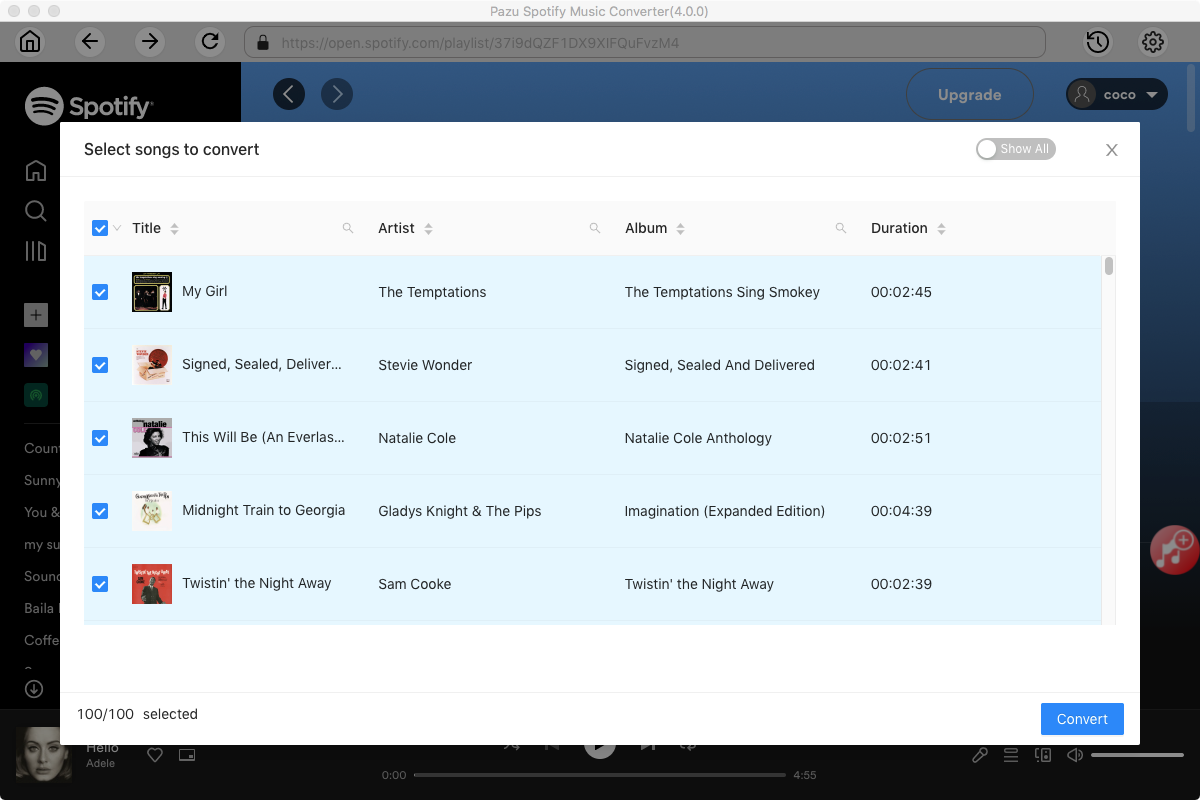
When you run the converter, Spotify app will run automatically. You are able to drag&drop songs, playlists, albums, artists, tracks, etc. from Spotify app to Pazu Spotify Converter directly. You can also copy and paste the relevant links from Spotify web player to the search bar on the bottom of the interface. Then click the Add button to import songs.
The default output format is MP3. Pazu Spotify Converter also supports MP3, M4A, WAV, FLAC, OGG, AIFF. Click Option button to change output format or output folder if you need. You can also change bitrate, samplerate according to your needs.


Click the Convert button to start recording Spotify music to the format you choose.
After conversion, click the History icon to quickly locate the DRM-free Spotify song. Insert the SD card into your computer. Double-click to open your SD card. Drag and drop converted Spotify songs into the SD card. Now, you can listen to Spotify music on any smartphone and car player via SD card.


Note: The free trial version of Pazu Spotify Converter enables you to convert the first three minutes of each song. You can remove the trial limitation by purchasing the full version.
Buy Now Buy Now
Download and convert any Spotify songs, albums, playlists to MP3/M4A etc.