

Amazon Music is an excellent streaming service, especially for Amazon Prime members, as they can access Amazon Music Prime for free. Even if you’re not a Prime member, you can still enjoy free playlists and stations with a Free account. If you’re looking for a premium experience, Amazon Music Unlimited offers ad-free, on-demand listening with high quality music and offline playback.
However, like any streaming service, Amazon Music can sometimes encounter hiccups. If you’re facing issues like buffering, pausing, or songs not playing correctly, don’t worry. Here are some effective troubleshooting tips to address the most common issues. Follow these solutions to resolve the problem and get your music back on track.
For uninterrupted music streaming, a stable internet connection is essential. To troubleshoot streaming problems, ensure that your device is connected to either Wi-Fi or a mobile network. If you’re using a mobile network, check if your Amazon Music app settings permit cellular data usage.


If the Amazon Music app doesn’t respond, you can force it to close and then reopen it.




If relaunching the app didn’t resolve the problem, try restarting your device. This can help fix system glitches affecting the app’s performance. It can also improve internet connection speeds and proper app processing.
Before turning off the device, make sure to close all running apps. Wait for at least one minute before powering it back on. This should restore the Amazon Music app to normal functionality.
Amazon Music Unlimited subscribers have access to a vast library of over 100 million songs in High Definition (HD) and millions in Ultra High Definition (Ultra HD). You can check the audio quality of the song you’re playing with the Amazon Music app. If a song is available in HD or Ultra HD, you’ll see the corresponding badging on the Now Playing page.
However, if your device doesn’t support 16-bit/44.1kHz and higher quality, you might encounter playback issues with Amazon Music. In such cases, consider switching the streaming quality to Standard or Data Saver to ensure compatibility.
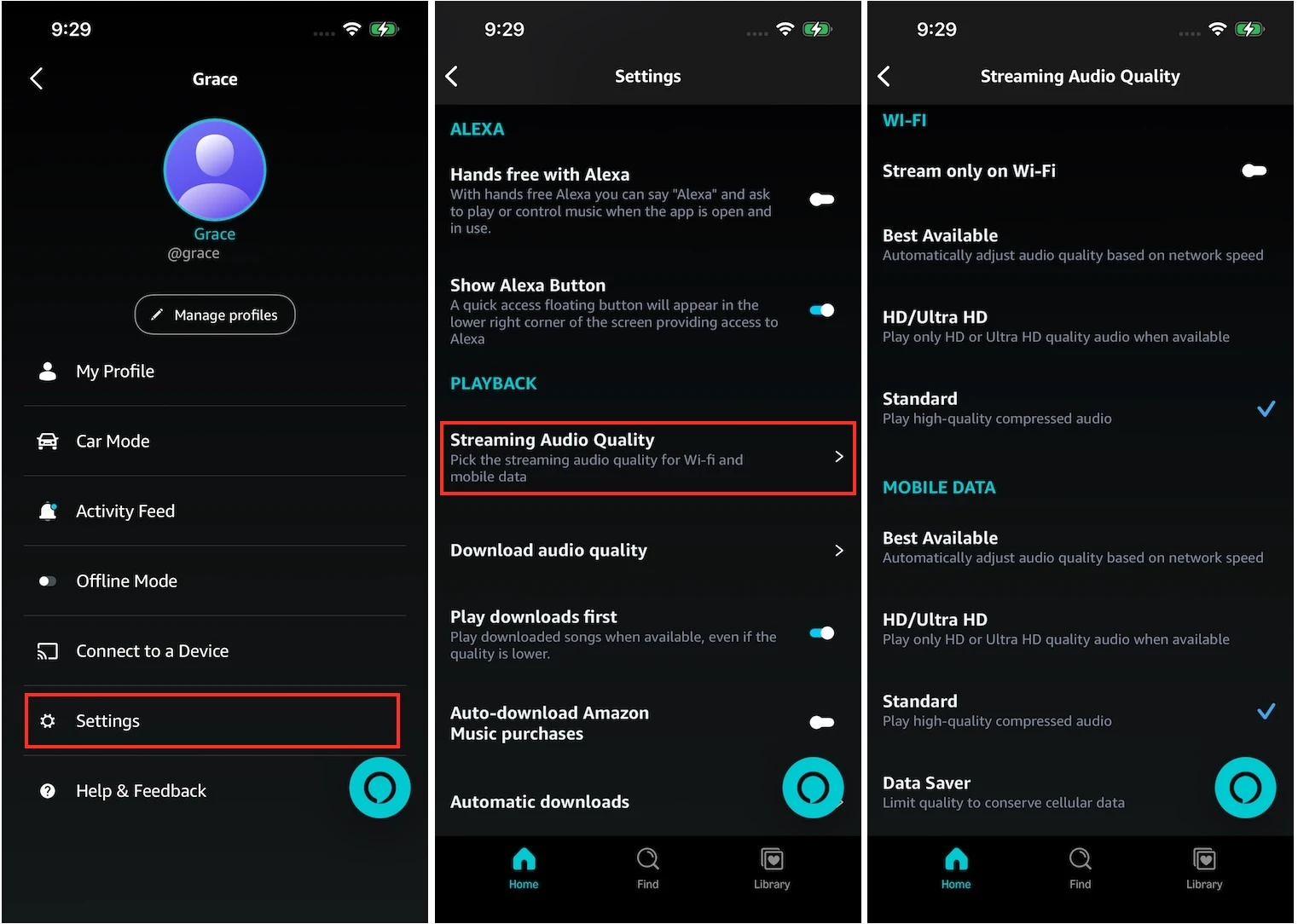
Follow the steps below to adjust the streaming audio quality on Amazon Music.
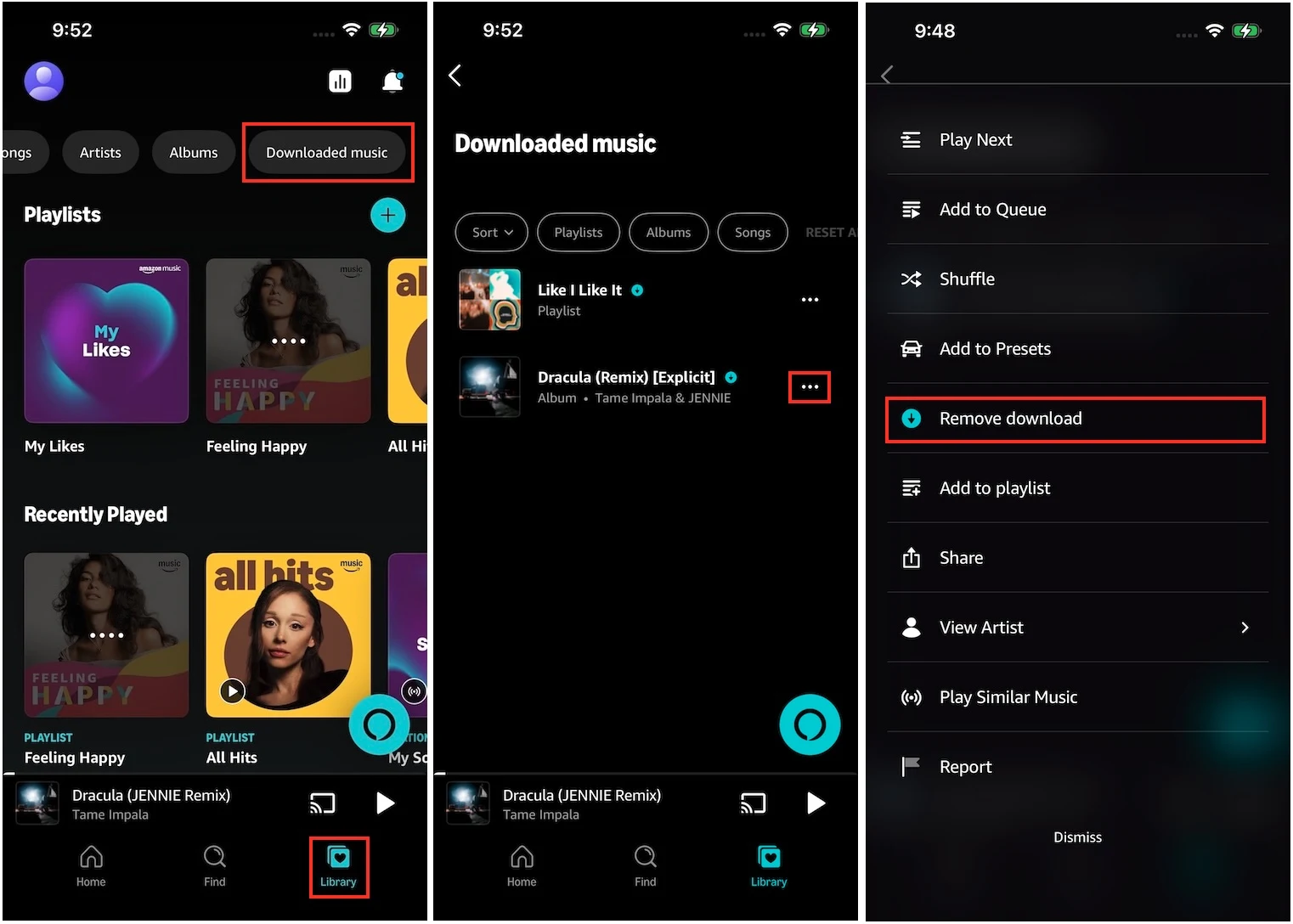
If the songs you’ve downloaded are corrupted, it can lead to Amazon Music not playing issue. To resolve this, try deleting the affected songs from your Amazon Music library and then re-download them to your device.
Here’s how to remove and re-download the songs from Amazon Music:
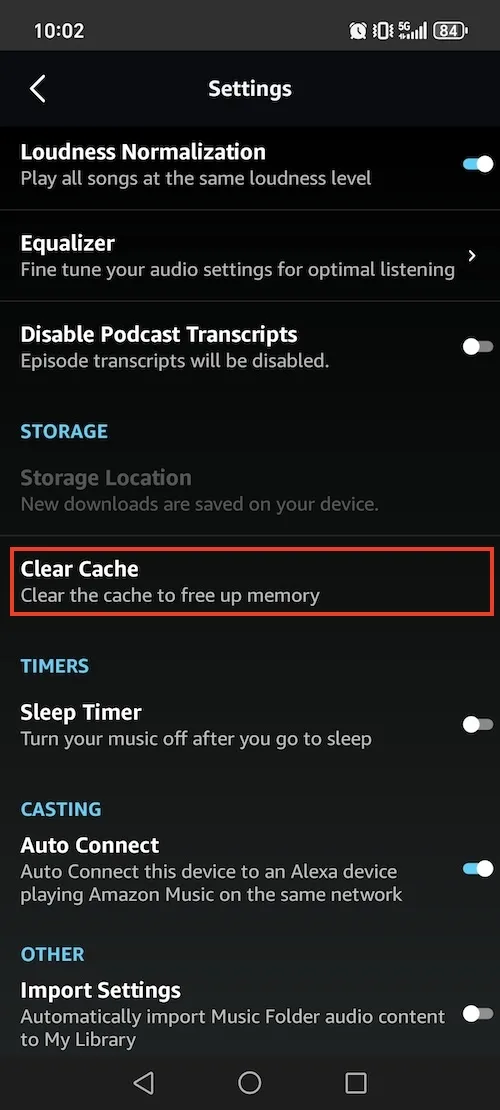
Cache files are temporarily stored on your device to reduce loading times and improve performance. However, they can become corrupted, causing playback problems. Here’s how to clear the cache on various platforms, including Android, Fire Tablets, iOS, PC, and Mac, to resolve the Amazon Music performance issue.
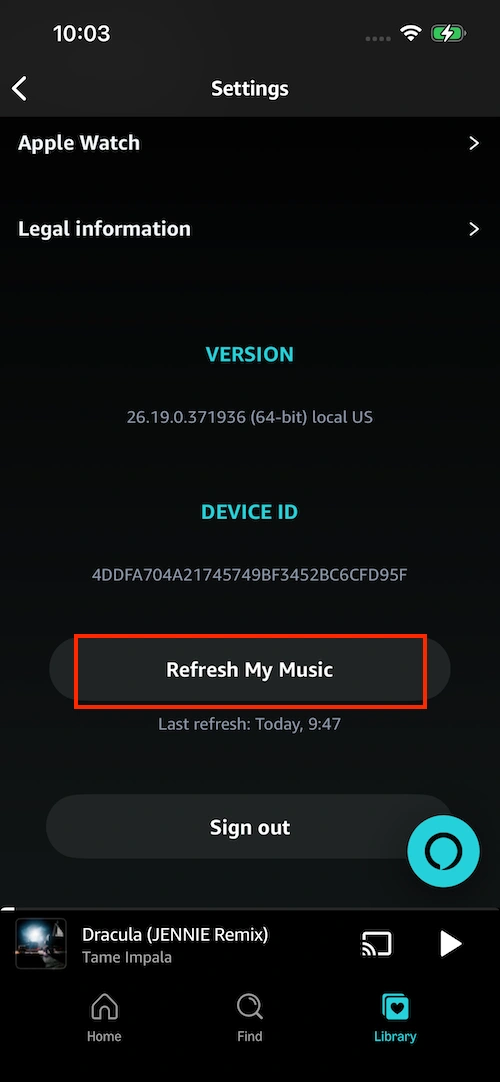
There is no option to clear all Amazon Music caches on iOS devices. To refresh the data, select your profile image at the top > Settings > Refresh My Music (at the bottom of the page).
There are three different ways to refresh Amazon Music data on your PC or Mac.
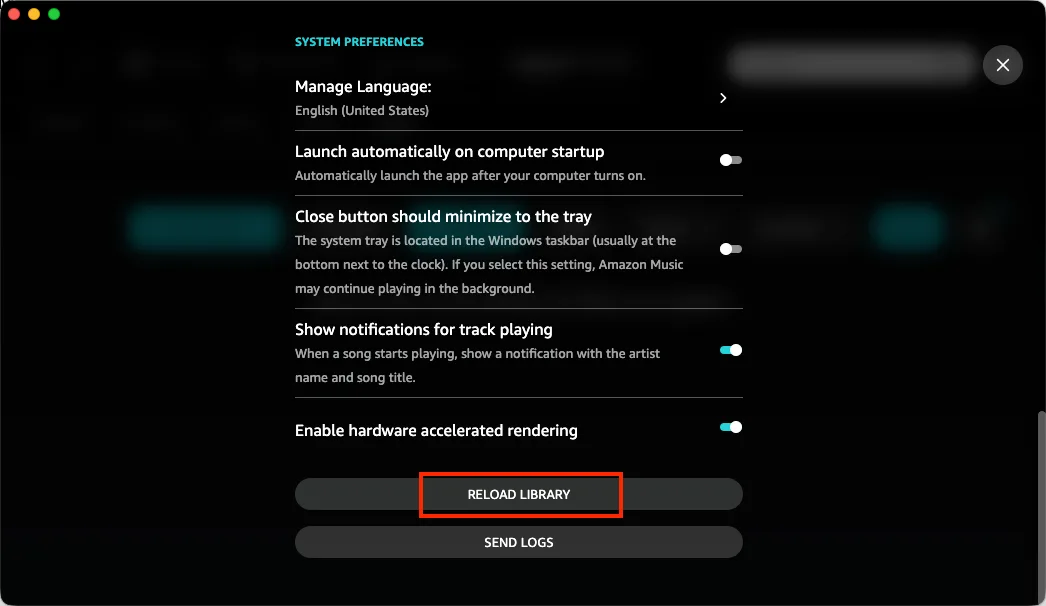
Outdated apps can often lead to crashes, instability, and other issues. Keep Amazon Music up to date for the best performance. Here’s how to check for updates:
If your Amazon Music app is consistently malfunctioning, the issue may lie with its core files. The most effective solution is to uninstall and then reinstall the app from your device’s app store. This process will remove any problematic files and replace them with a fresh, error-free installation.
Once finished, simply sign back into your account to resume streaming.
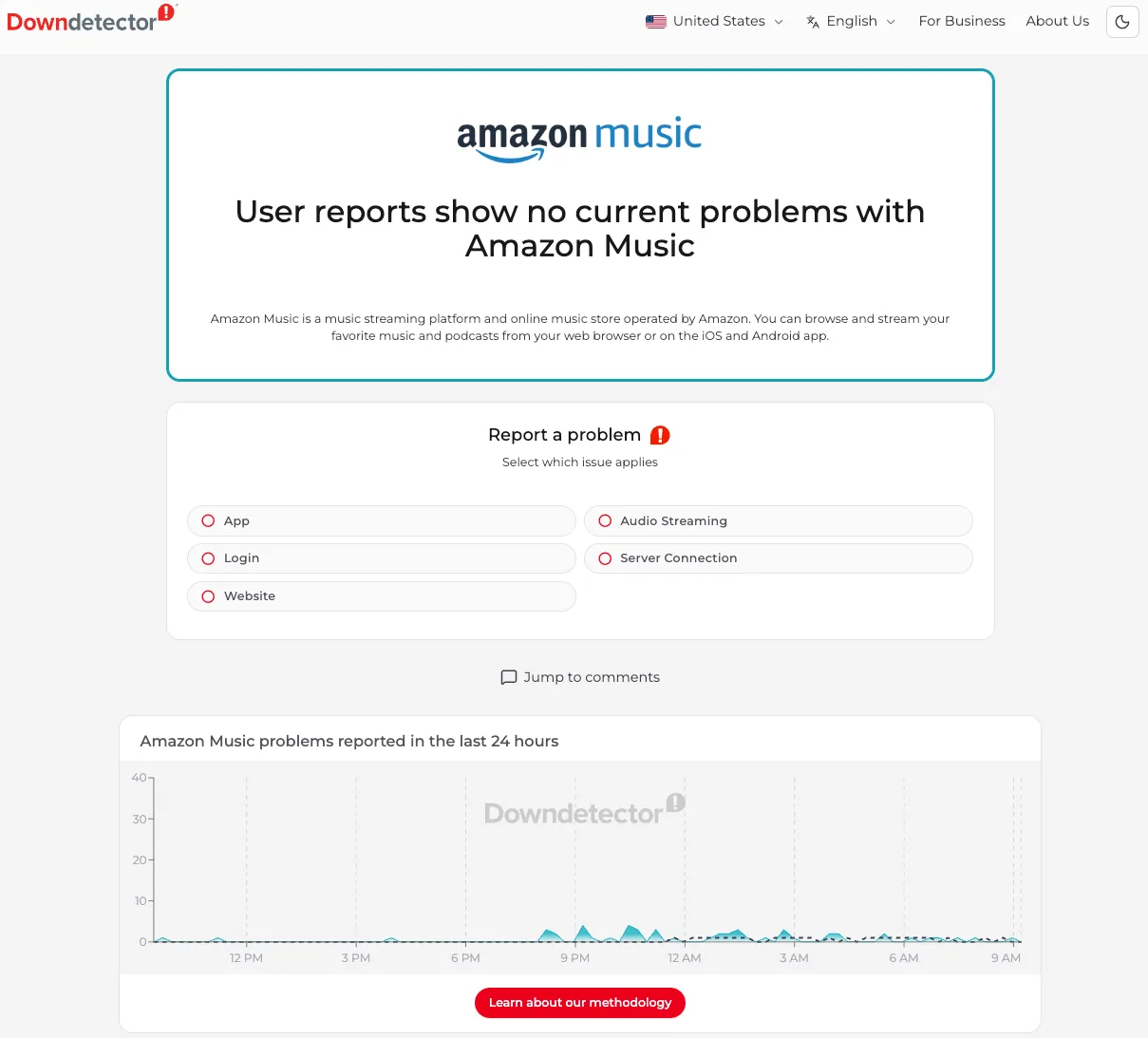
Like other streaming platforms, Amazon Music’s servers can experience outages. When this happens, you may encounter the issue where Amazon Music won’t play.
You can check if the service is experiencing a problem by visiting websites like Downdetector. It provides information about ongoing outages for Amazon Music as well as other streaming services, such as Spotify and Apple Music.
If Amazon Music’s service is temporarily down, you’ll need to wait until it’s restored. Once it’s back up, you can resume enjoying your music as usual.
Another method to fix Amazon Prime Music’s won’t play issue is to download songs to MP3 and listen offline.
Both Amazon Music Prime and Unlimited plans offer offline listening, but this feature is limited to All-Access Playlists for Prime members. However, all downloaded content – whether with Prime or Unlimited plans – is protected by DRM. This means downloaded files can only be played within the Amazon Music app and cannot be transferred to other devices.
Luckily, there is a professional Amazon Music Downloader – Pazu Amazon Music Converter that allows you to download songs, albums, and playlists to common formats including MP3, M4A, AAC, FLAC, WAV, and AIFF with the 100% original quality kept. So, you can play them on any supported device and applications like Apple Music, Windows Media Player, or your MP3 player to avoid the Amazon Music playback issues.
Amazon Music Free doesn’t support offline playback. However, with Pazu Amazon Music Converter, you can also download songs with Amazon Music Free. Now follow the tutorial below to learn how to convert Amazon Music to MP3 in a few steps.
Download, install, and launch Pazu Amazon Music Converter on your computer, then click Sign In to log in to your Amazon account.

If you have purchased a license, click the key icon to register the converter. If not, continue using the trial version.
Click the Settings icon in the top right corner and select the output format such as MP3 and FLAC, etc.

Select the songs, albums, or playlists you want to download. Click the red Add button on the right side.

All songs in the playlist will be added to the download list by default. Uncheck the songs that you don’t want and click the Convert button at the bottom right.

Once downloaded, click the clock icon to find the downloaded songs. You can play them with any supported player and device offline.


Download Amazon Music to MP3, FLAC, etc.