

Amazon Music operates on a subscription model, offering three tiers of services: Free, Prime, and Unlimited. Additionally, users can purchase music directly on this platform. Amazon Music is available across various devices, including Windows and Mac computers, iOS devices, and Android devices. This guide is about how to use Amazon Music on your PC and Mac, so you can easily play music in the background, enjoy better sound, or use a stable network connection. We’ll also show you how to download Amazon Music for offline listening, even with an Amazon Music Free account.
For a better Amazon Music experience on desktop, you can use the Amazon Music app. It provides broader settings options than the web player, such as audio quality, download preferences, loudness normalization, and more.
If you want to enjoy music offline with Amazon Music Unlimited or Prime, the download feature is only accessible within the Amazon Music app. You cannot listen to Amazon Music offline with the web player.
Moreover, the desktop app offers faster streaming and higher quality than the web player. With the desktop app (and select mobile devices), you can enjoy Ultra HD (up to 24-bit, 192 kHz), whereas the Amazon Music web player typically supports up to HD (16-bit, 44.1 kHz) and drops to 320 kbps under poor network conditions.
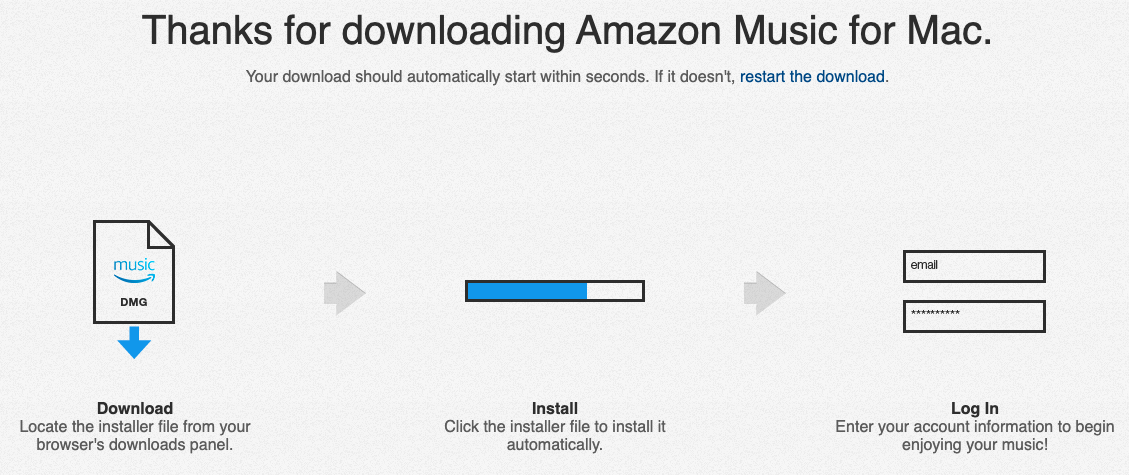
You can download the Amazon Music app from the App Store on Mac or the Microsoft Store on Windows. A more direct way is to download and install from Amazon’s official website:
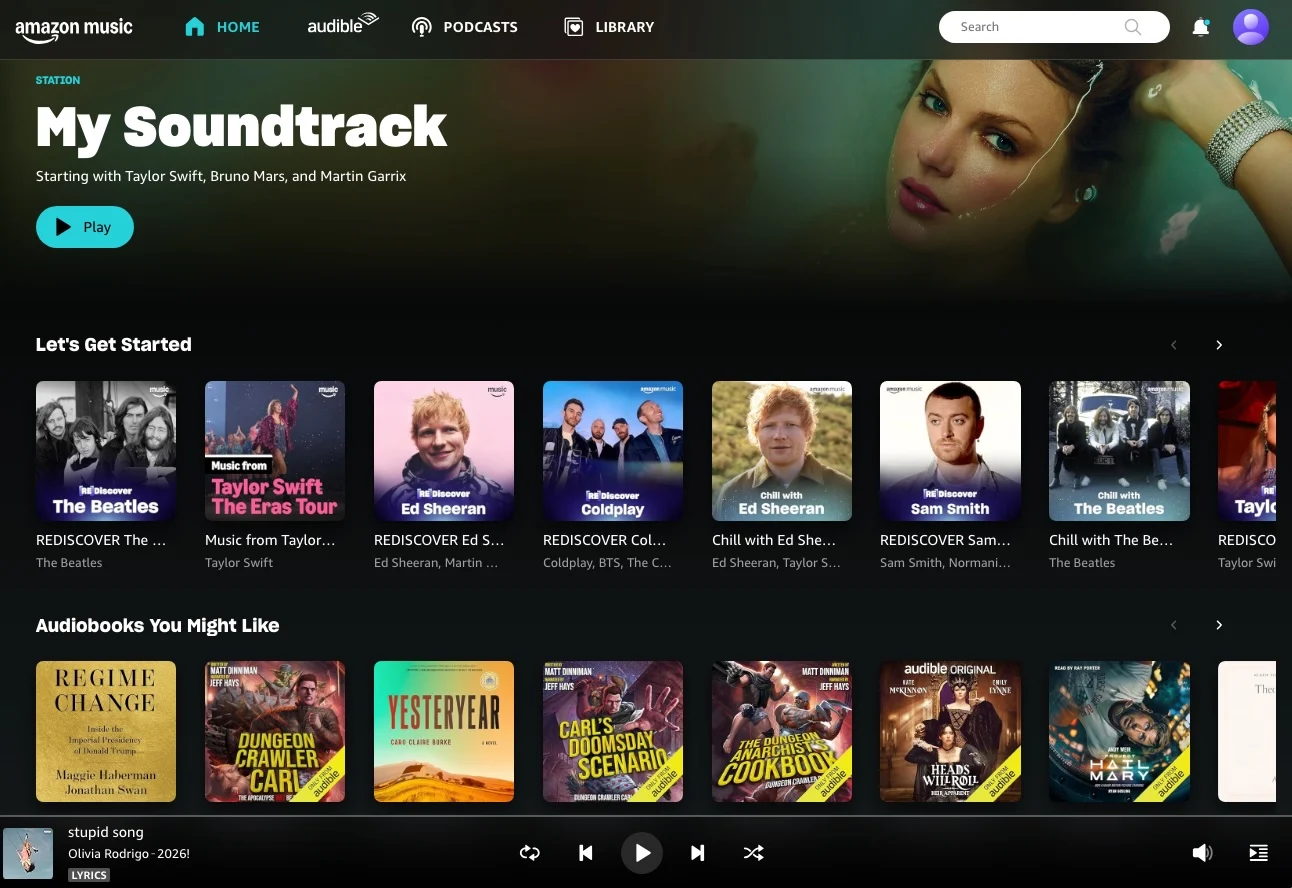
The Amazon Music web player is a convenient way to enjoy music quickly. If you don’t use your computer for music streaming often, you can swiftly start listening to your favorite songs on your Windows or Mac with the Amazon Music web player.
The third way to play Amazon Music on a PC or Mac is to use Pazu Amazon Music Converter. This professional Downloader can not only download Amazon Music songs, albums, and playlists to MP3, M4A, and other common formats, but also stream Amazon Music with its built-in web player. So you don’t need to install the Amazon Music app.
After downloading with Pazu Amazon Music Converter, you can play the songs on any supported player like Apple Music/iTunes, Windows Media Player, or your MP3 player, etc. Furthermore, the audio quality and original ID3 tags can be well preserved in downloaded MP3 files.
Amazon Music Free doesn’t support offline playback. However, with Pazu Amazon Music Converter, you can also download songs with a Free account. Now follow the tutorial below to convert Amazon Music to MP3 in a few steps.
Download, install, and launch Pazu Amazon Music Converter on your computer, then click Sign In to log in to your Amazon account.

If you have purchased a license, click the key icon to register the converter. If not, continue with the trial version.
Click the Settings icon in the top right corner and select MP3 as the output format.

Go to the songs, albums, or playlists you want to download, and click the red Add button at the right side.

All songs in the playlist will be added to the download list by default. Uncheck those tracks that you don’t want to download, and then click the Convert button.

The Converter will automatically download Amazon Music tracks to the default folder on your computer.
After downloading, click the clock icon  to see all the converted songs. Now you can play them with any supported player or device.


Download Amazon Music to MP3, FLAC, etc.