

If you are an Amazon Prime subscriber, Amazon Music may be the most suitable music streaming service for you. Amazon Prime members have access to Amazon Music Prime with 100 million ad-free songs, though most content is played in shuffle mode except for All-Access playlists. If you want to unlock more features, subscribe to Amazon Music Unlimited. As a Prime member, you can join Amazon Music Unlimited at a discounted rate of $11.99/month or $119.00/year. Non-Prime users pay $12.99/month. Any song, album, or playlist can be downloaded so that you can listen offline.
Besides the music streaming service, Amazon Music also allows you to purchase digital music. This article explains how to download songs and albums for offline listening with Amazon Music Prime and Unlimited, how to purchase and download songs from Amazon Music, as well as how to download songs to MP3.
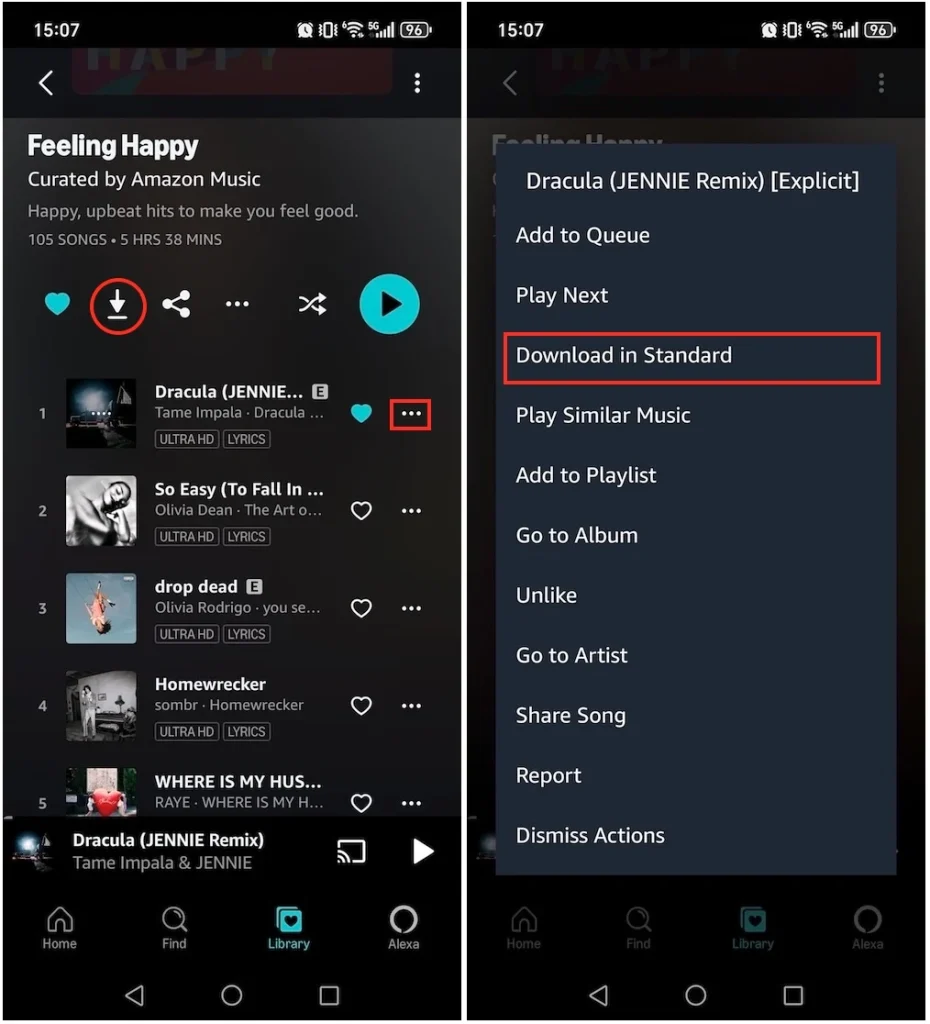
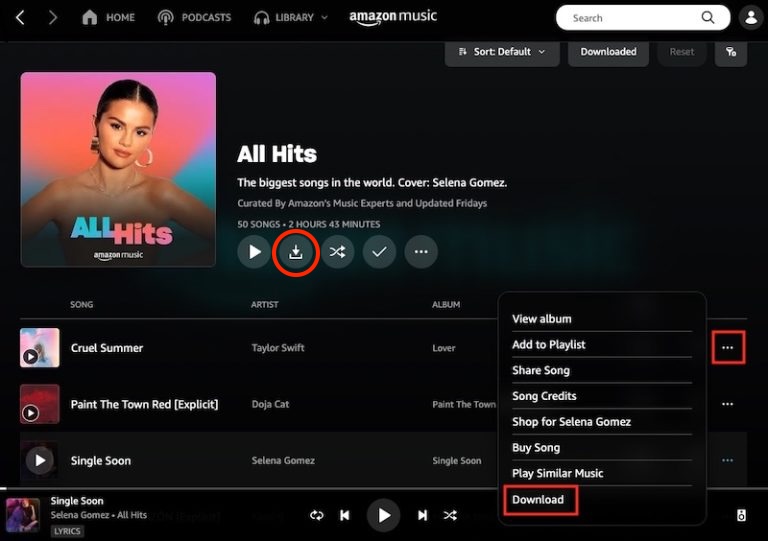
Amazon Music Prime and Amazon Music Unlimited titles are not available for download to computers. You can download these titles to your Amazon Music app for offline playback.
On tablet/phone
On Mac/Windows
You can download purchased Amazon Music songs to store them locally or import them into other media players. You can find millions of songs to purchase on the Amazon Music Store. Most songs are between $0.99 and $1.29, and most albums are between $9.99 and $14.99.
Best of all, when you download songs bought from Amazon Music, they are saved as DRM-free MP3s encoded at 256 kbps. This means you can play them on any MP3 player, such as Apple Music/iTunes or Windows Media Player, and you don’t need to worry about format compatibility or license expiration.
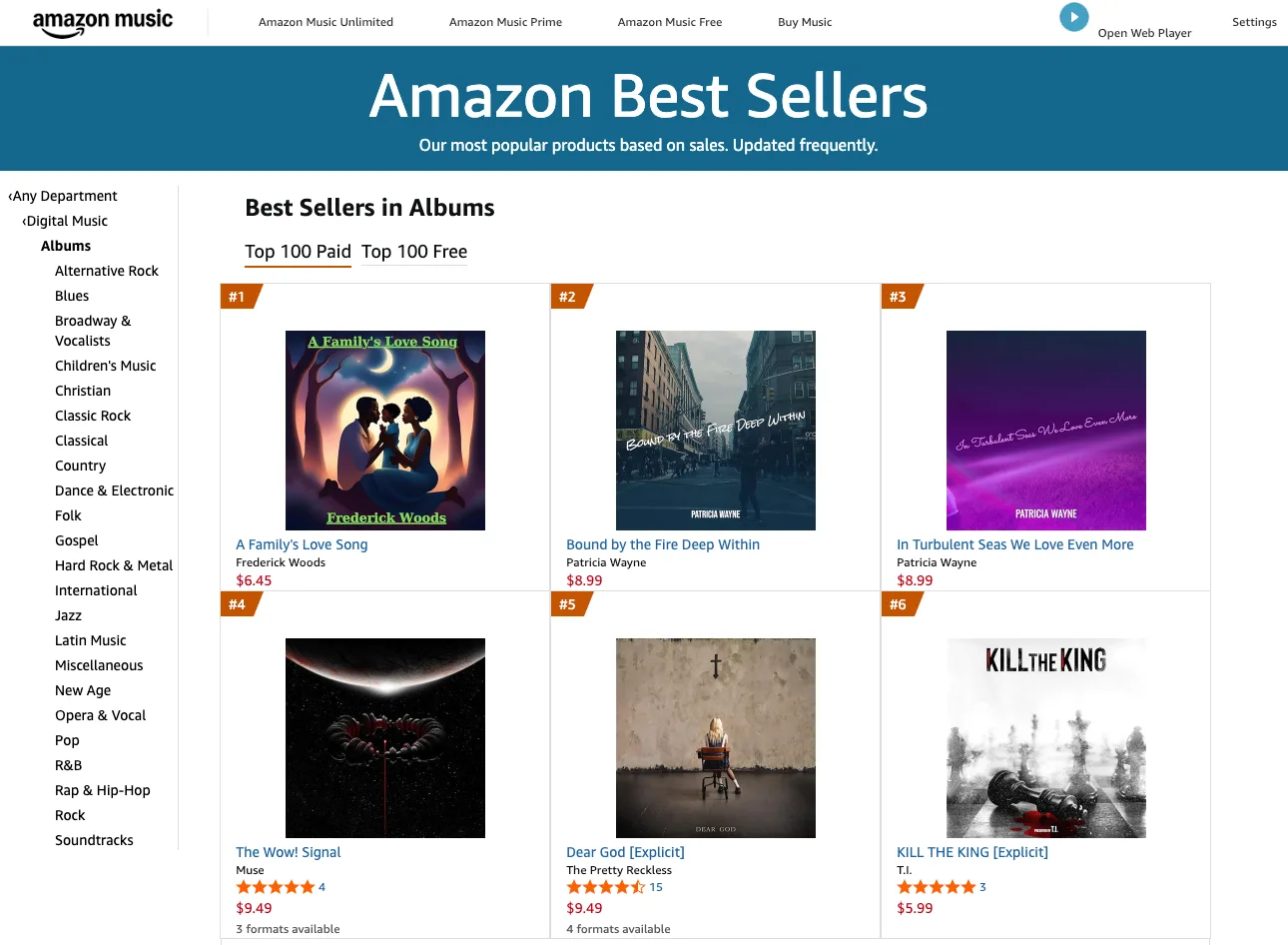
Using the Amazon MP3 online store is easy. You can browse by price or genre, shop for Best Sellers, or check out new and future releases. You can also listen to the tracks before buying. If you’ve signed up and set up your payment profile, you’ll find that the “one-click ordering” makes buying music very easy.
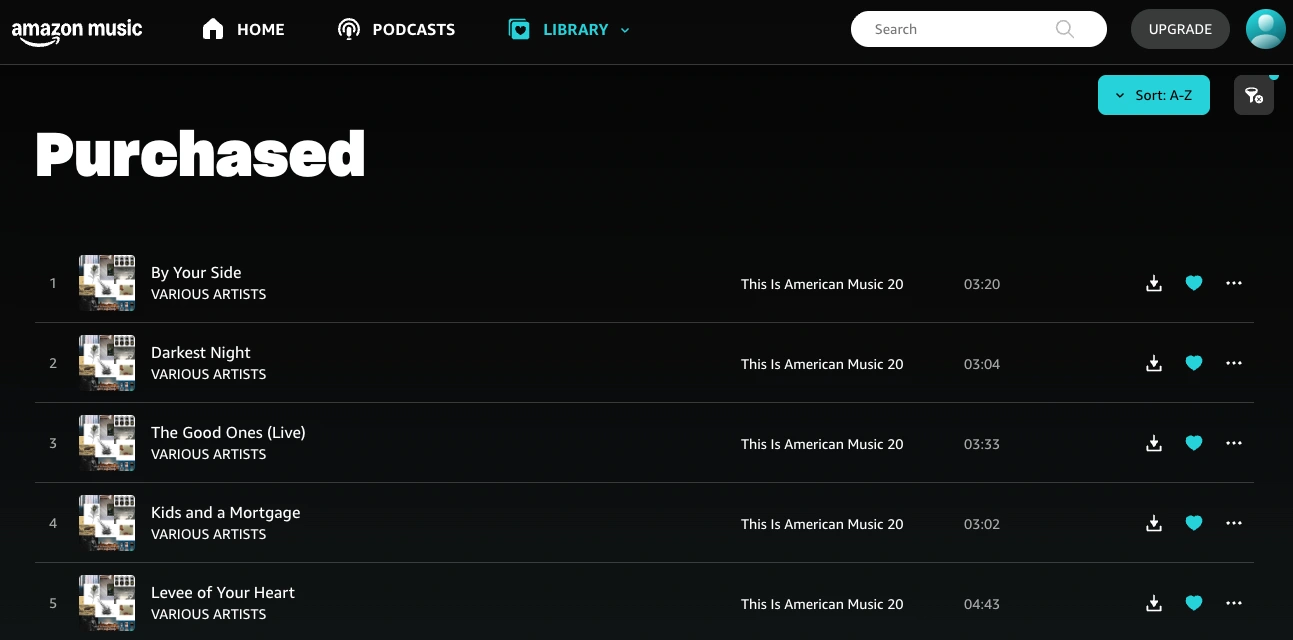
After purchase, find the songs at https://music.amazon.com/recently/purchased. Click the Download icon to save the songs directly to your device, then transfer them to your preferred MP3 player.
Unlike songs you purchased from Amazon, songs you downloaded from Amazon Music Prime/Unlimited can only be played within the Amazon Music app. Actually, you won’t find playable audio files like the songs you purchased. However, there is a professional Amazon Music Downloader that allows you to download any songs, albums, and playlists from Amazon Music to MP3, M4A, AAC, FLAC, WAV and AIFF, so you can play the songs anywhere you want, with Apple Music/iTunes, Windows Media Player, or your MP3 player, etc.
This professional Amazon Music downloader is Pazu Amazon Music Converter, developed to download Amazon Music songs, albums, and playlists as MP3, M4A, etc. Audio quality and original ID3 tags will be well preserved in downloaded MP3 files.
Amazon Music Free doesn’t support offline playback. However, with Pazu Amazon Music Converter, you can also download songs to MP3 with Amazon Music Free. Now follow the tutorial below to convert Amazon Music to MP3 in a few steps.
Download, install and launch Pazu Amazon Music Converter on your computer, then click Sign In to log in to your Amazon account.

If you have purchased a license, click the key icon to register the converter. If not, continue using the trial version.
Click the Settings icon in the top right corner and select WAV as the output format.

Select the desired songs, albums or playlists you wish to download. Once you open an album/playlist and tap the red Add button suspended on the right side, you’ll be presented with the list of songs.

All songs in the playlist will be added by default. Click the check box next to the tracks that you don’t want to convert.

Click the Convert button in the bottom right corner, and Pazu Amazon Music Converter will automatically download and convert Amazon Music tracks to the default folder on your computer.

When the conversion process finishes, you can browse all the converted songs in the history list by clicking on the  icon. And now you’re prepared to stream your Amazon Music songs anywhere.


Download Amazon Music to MP3, FLAC, etc.