

Amazon Alexa, also known simply as Alexa, is a virtual assistant technology bought by Amazon in 2013. It was first used in the Amazon Echo, Echo Dot, Echo Studio and other smart speakers. Alexa app also works on iPhone, iPad, iPod touch, Android and can be used even if you don’t have an Amazon device. You can ask Alexa to play Apple Music just like you use Siri.
Amazon Alexa possesses many skills, but its ability to play music is among its most important. You can listen to music in a variety of ways, though the process will differ depending on whether you want to hear your own media library or stream songs from a specific service.
The easiest way to play music with Alexa is to listen through a music streaming service. By default, Alexa is linked to Amazon Music, but you can also connect to other popular music services and even wirelessly stream from your mobile phone, tablet, or computer. Here’s how.
The answer is yes. Although an Amazon account is required for activation, maintenance, and use of the Alexa app, Echo devices, and Alexa functionality on other smart home tech and Televisions, it doesn’t need to be a Prime account. This account is free, and it’s the same Amazon account you’ll use to shop on Amazon.com. As long as you have an Amazon account – whether free or Prime – Alexa will work.
If you don’t have Amazon Prime, you can still listen to music on Alexa from Amazon Music and other music streaming services.
After you set up your Amazon Echo or Fire TV, you can use the Alexa mobile app to link accounts with popular platforms such as Amazon Music, Apple Music, Spotify, Deezer, iHeartRadio, Pandora, SiriusXM, Tidal, TuneIn, Vevo, and Global Player. You will need an account with each service before you can access it through your Echo/Fire TV. If the service offers a free tier, you can still listen (in a limited capacity).
Here are some free music streaming services you can use on Alexa.
You can use Spotify Free on Echo devices through Alex, but music playback will also be limited by Spotify Free account restrictions, such as shuffle and ad interruptions.
Supported devices
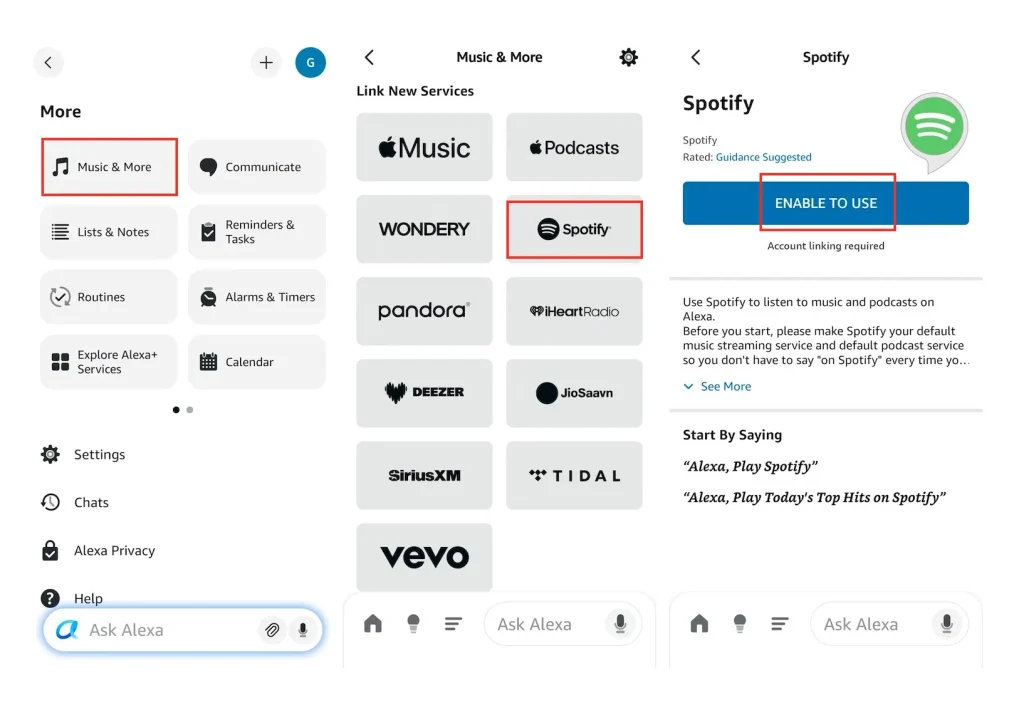
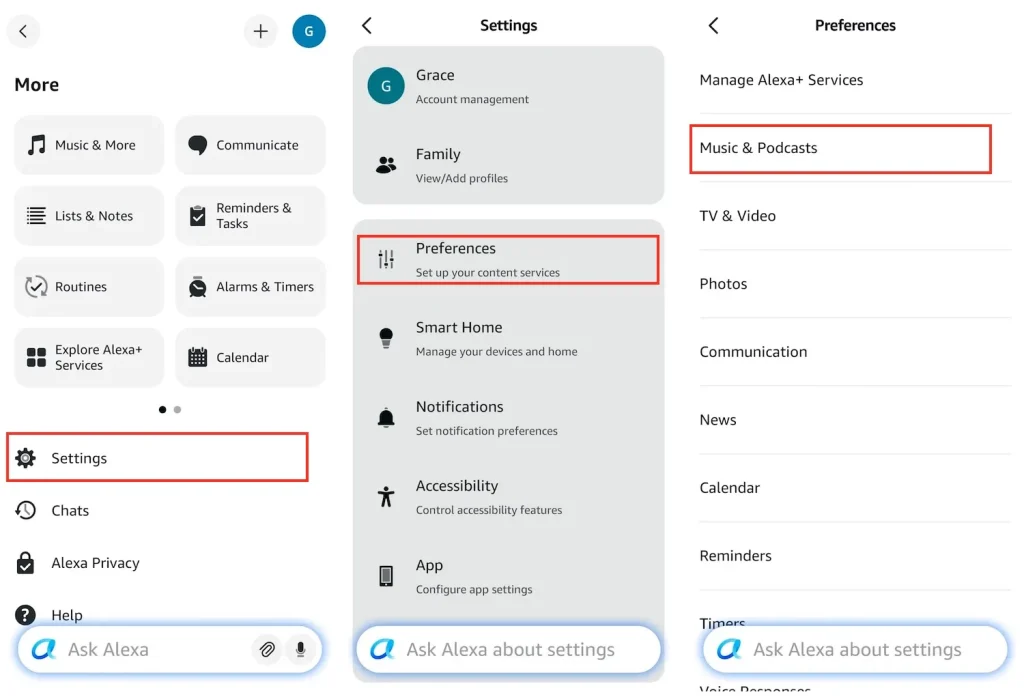
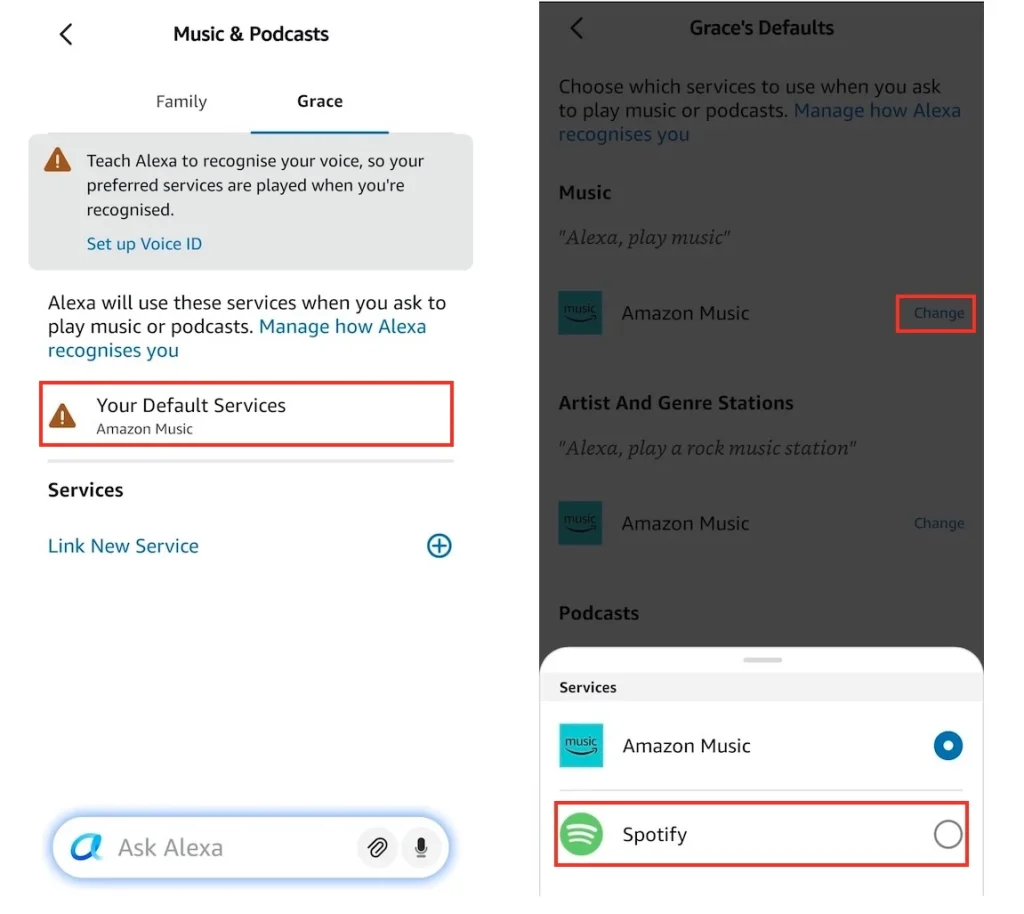
Related: Connect Spotify to Alexa
Amazon offers an ad-supported free tier of its Music service, allowing users to access thousands of stations, top playlists, and millions of podcast episodes. Similar to Spotify’s free version, you cannot request specific songs through Alexa. Instead, you can enjoy playlists and stations by saying commands like “Alexa, play the Michael Bublé station,” “Alexa, play the Top Pop station,” or “Alexa, play the All 80s station.“
To explore the wide range of playlists and stations available, users can visit music.amazon.com (or the appropriate country-specific website) and sign in to their account. It’s important to note that this free tier has certain limitations, such as the ability to listen on only one Echo device at a time, no support for HD or Ultra HD quality, and the absence of spatial audio.
If you are an Amazon Prime member, you can access the Amazon Music Prime tier for free, which offers ad-free listening and on-demand playback for All-Access playlists. However, when playing Amazon Music Prime with Alexa, songs are all in shuffle mode, no matter whether they are from the All-Access playlists or not.
Users with Amazon Music Unlimited, a paid subscription, gain access to a vast catalog of over 100 million songs with on-demand playback, including on Alexa-enabled Echo devices.
Amazon Music is the default music service for Alexa. After setting up your Echo device, Alexa should comply with your music requests seamlessly.
If not, follow the steps mentioned earlier and check the Music & Podcasts settings to ensure Amazon Music is set as the default music service. Additionally, you can set different default services for Music, Artist, Genre Stations, and Podcasts.
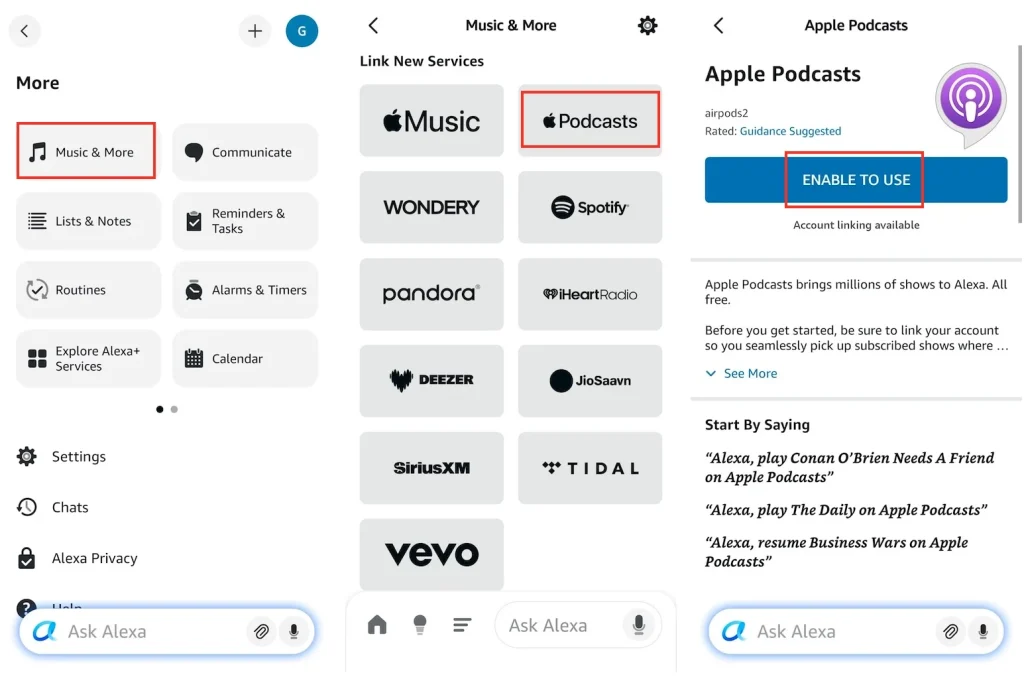
Apple Podcasts for Alexa is available in over 40 countries, including Australia, Austria, Brazil, Canada, France, Germany, India, Ireland, Italy, Japan, Mexico, New Zealand, Spain, the United Kingdom, and the United States.
Say something like “Alexa, play [podcast title] on Apple Podcasts.” If you don’t want to say “on Apple Podcasts” each time, you can make Apple Podcasts your default podcast service.
Alexa also allows you to play your own MP3s (or music encoded in other formats, such as FLAC) on the Echo or other Alexa-compatible speakers, including My Media Server for Alexa, allowing you to stream songs you’ve stored on another device. These services aren’t as full-featured or as easy to use as Amazon Music was, but at least they still let you access your music collection with voice commands.
My Media for Alexa lets you control and stream music from your home media collection to your Amazon Echo or Amazon Dot using your voice. Here’s how to get started:
Update: Plex officially discontinued its Amazon Alexa support on June 15th, 2026. It is no longer available in the Alexa Skill Store, and any existing connections have stopped functioning.
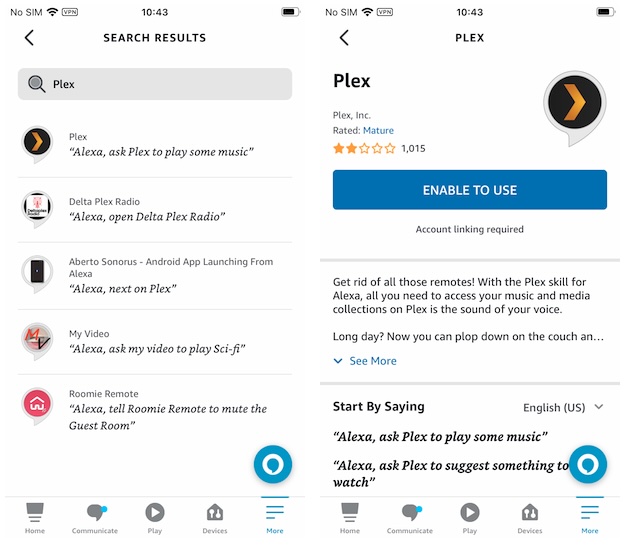
3. Now, you can use Plex to play your music collection on the Amazon Echo. Plex’s support page has a list of voice commands you can use, but here are some useful ones:
If you want to listen to Spotify Free on Echo, on-demand and ad-free, try a smart Spotify music downloader — Pazu Spotify Converter. It can help you download any songs, albums, playlists, and podcasts to MP3 with either a Spotify free or premium account. You can choose to save the downloads as MP3, M4A, AIFF, WAV, FLAC, or AAC files. With Pazu Spotify Music Converter, you can easily save Spotify music as local music and play it on the Echo or other Alexa-compatible speakers with Plex or My Media Server for Alexa.
To download music from Amazon Music Free, check out Pazu Amazon Music Converter.
Follow the steps below to download Spotify songs and playlists as local music on your Mac or Windows:
1. Download, install, and run Pazu Spotify Converter and log in to your Spotify account.

2. Click the gear icon to customize the output format (MP3, M4A, AIFF, WAV, FLAC, or AAC), audio quality, the output path, and more.

3. Use the built-in Spotify web player to locate the songs, albums, or playlists you want to download. Then click the Add to List button.

4. You can download individual songs or batch-convert the entire playlist. To download individual songs or specific songs of your choice, simply uncheck the ones you don’t want.
Click the Convert button to start downloading the Spotify songs to your local computer.

5. Once done, find downloaded songs by clicking the Folder icon or by going directly to the output folder you customized in the previous step.

Note: The free trial version of Pazu Spotify Converter enables you to convert the first three minutes of each song. You can remove the trial limitation by purchasing the full version.
Download and convert any Spotify songs, albums, playlists to MP3/M4A etc.