

Spotify collaborative playlists allow multiple users to contribute to and curate a shared tracklist. Unlike standard playlists managed by a single person, setting a playlist to collaborative mode lets anyone with the link add, remove, or rearrange songs. It’s an ideal way to discover new music, plan party soundtracks, or share tunes with friends. Here is how to create and manage one on mobile or desktop.
Related: Apple Music collaborative playlists
To make Spotify collaborative playlists, keep in mind you can only use playlists you’ve created.
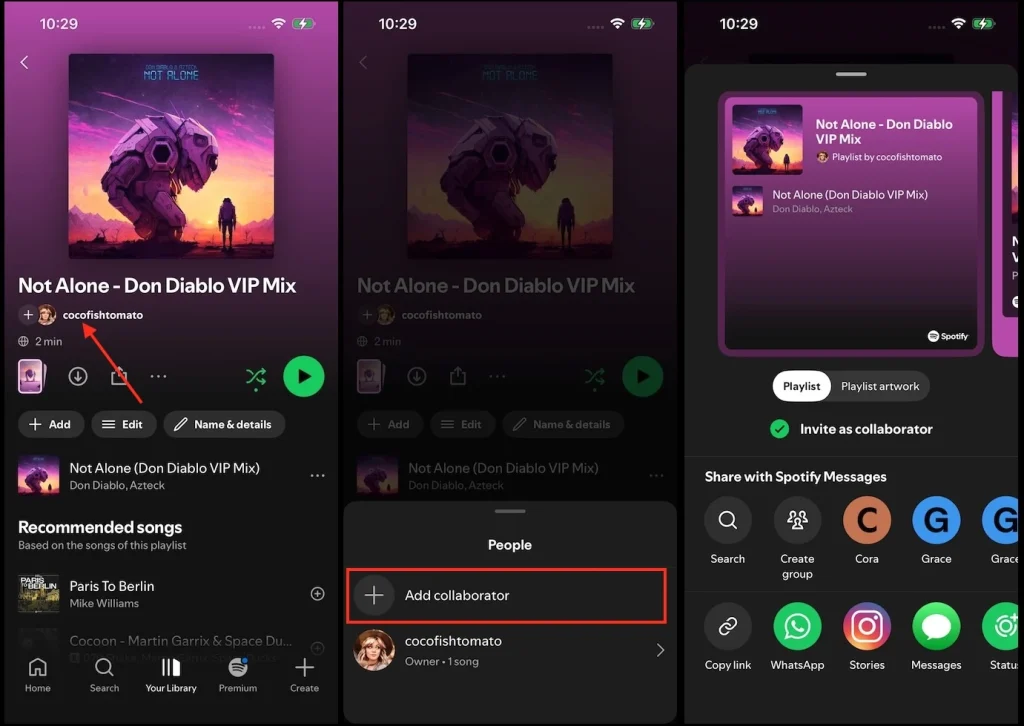
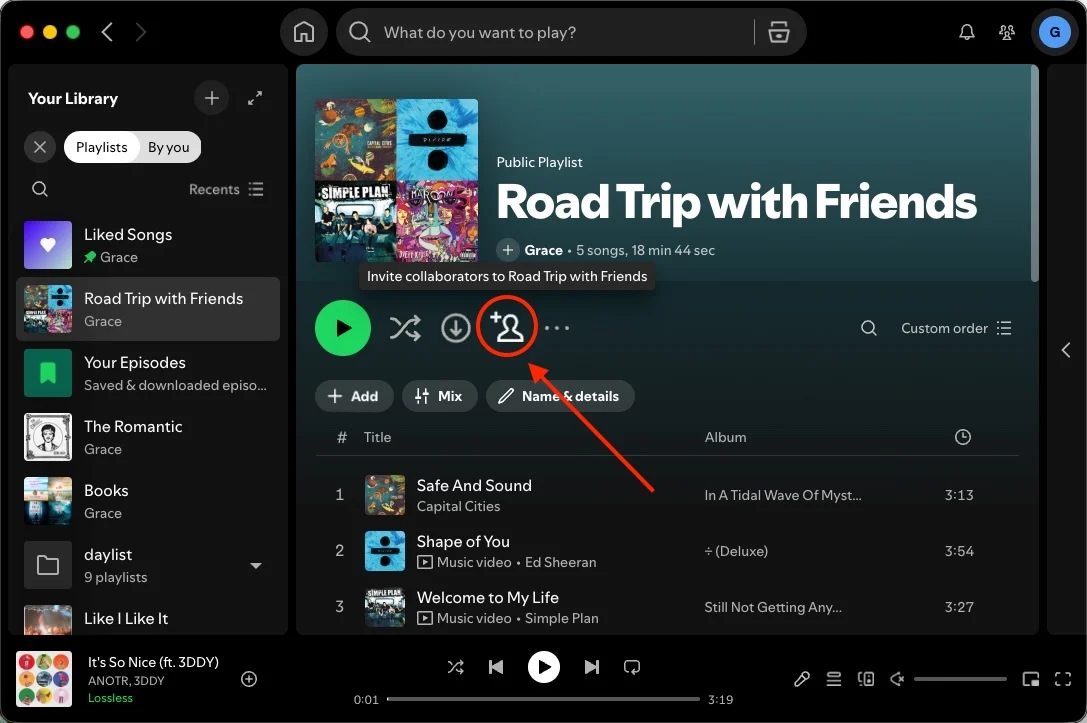
Please note that Spotify collaborator invite links expire automatically after 7 days. Anyone opening the link after 7 days will need a new invite generated.
To grant editing access (adding, removing, or reordering tracks), users must join using the specific Invite Collaborators link. Sharing a standard playlist link will only allow them to listen, not edit.
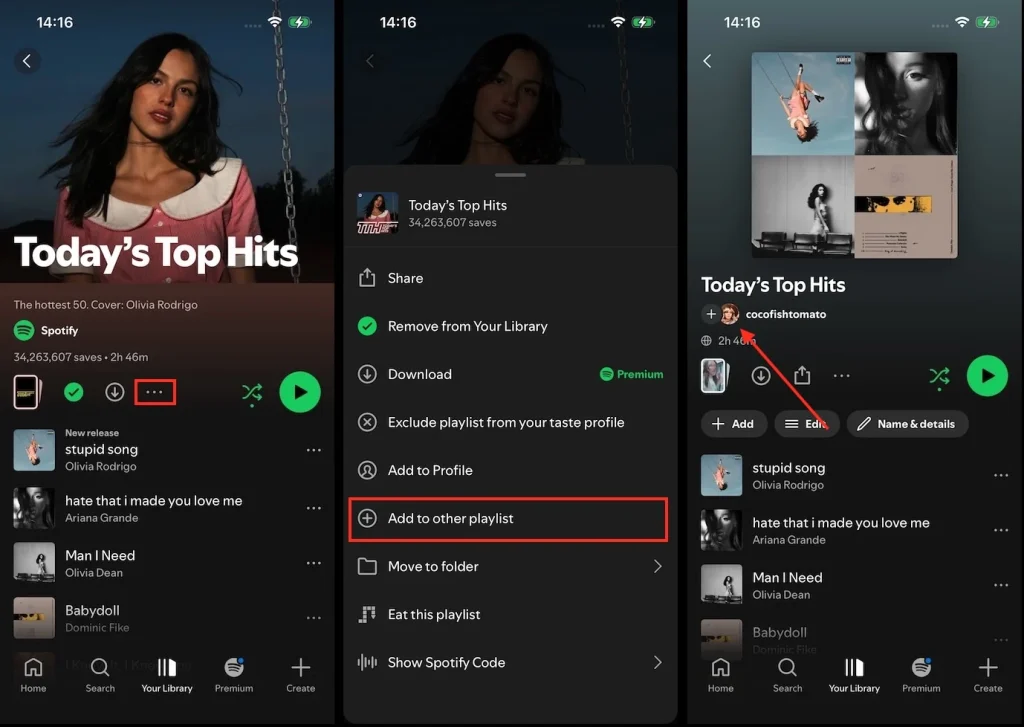
You can only invite collaborators to playlists you created. If a playlist is created by Spotify or another user, there is no Invite Collaborators icon even if you add it to Your Library.
💡 Workaround: How to Make a Spotify Playlist Collaborative
If you want to collaborate on a playlist made by Spotify or someone else, copy the playlist into a new or existing playlist created by you, then you can make it collaborative.
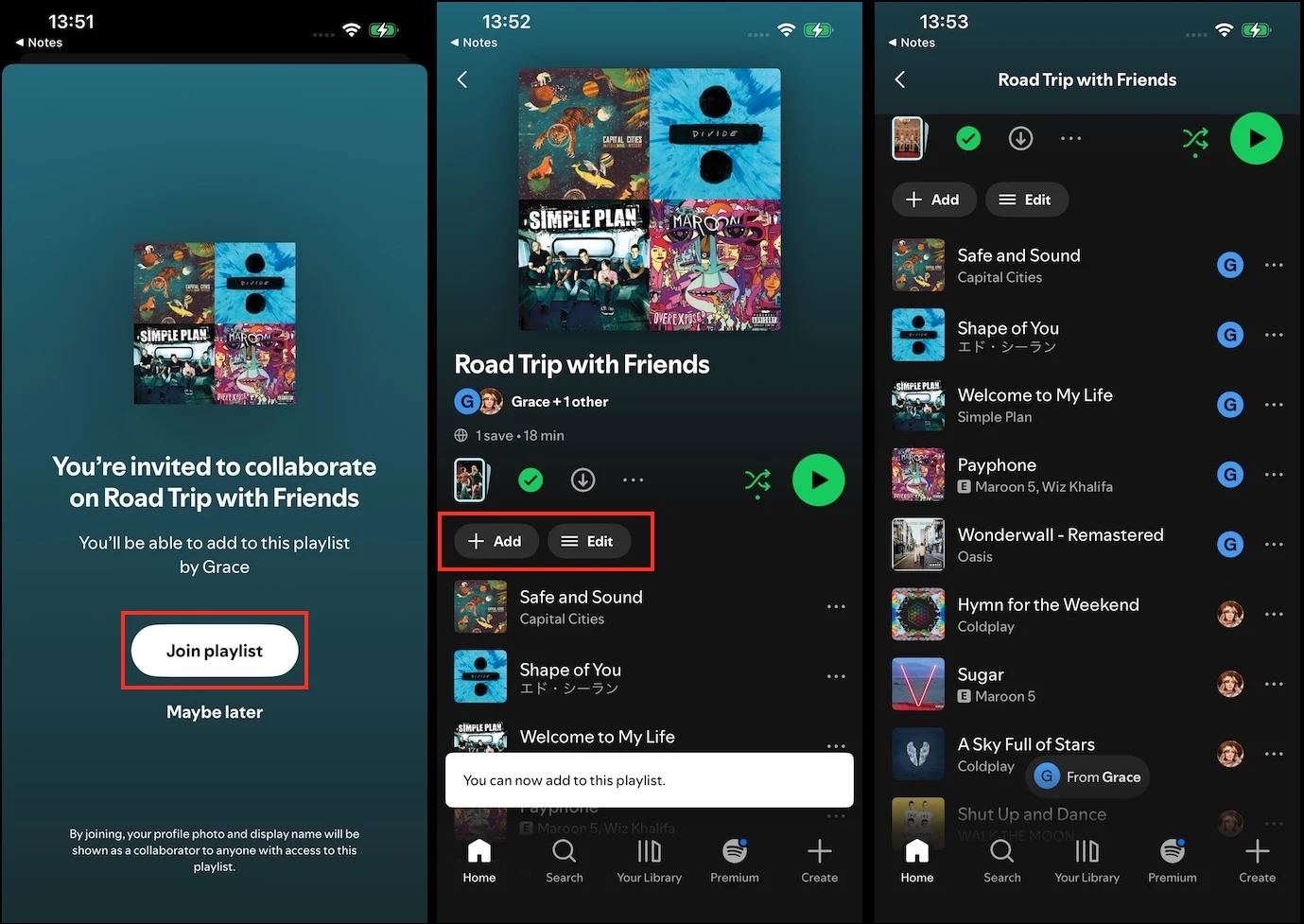
Once you have joined, you can add, reorder, or remove tracks from the playlist. All changes will sync across all devices for everyone who has joined the playlist.
You can add tracks in two ways:
To remove a song from a collaborative playlist, tap the three dots next to a track and select Remove from this playlist.
Spotify Blend allows up to 10 users to merge their unique music tastes into a single shared playlist. Unlike standard playlists, a Blend is dynamic and updates daily based on what everyone in the group is currently listening to. Anyone in the Blend can invite additional friends.
To create a Spotify Blend playlist:
Once your friends tap the link and accept, Spotify will generate your shared Blend playlist, complete with a taste-match score and tracks reflecting everyone’s music preferences.
You can also blend with artists. To see all of the artists you can Blend with and their invite links, check out this blog post. You may also get the artist’s Blend invite link from the artist’s social media account, or in the Artist pick playlist on their Spotify profile.
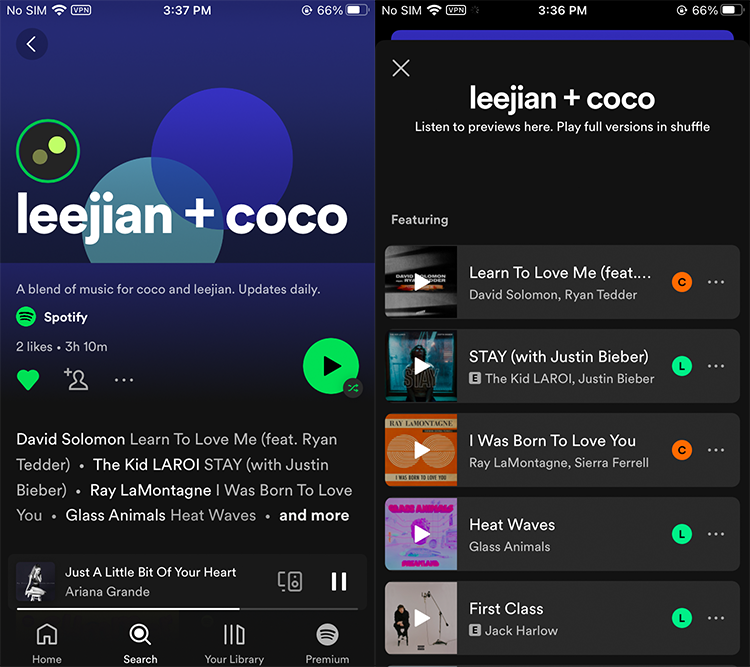
Unlike Spotify Blend (which automatically suggests songs using an algorithm), songs in a Collaborative Playlist are added, removed, or reordered manually by the creator and invited collaborators. Spotify will not automatically insert songs into a collaborative playlist.
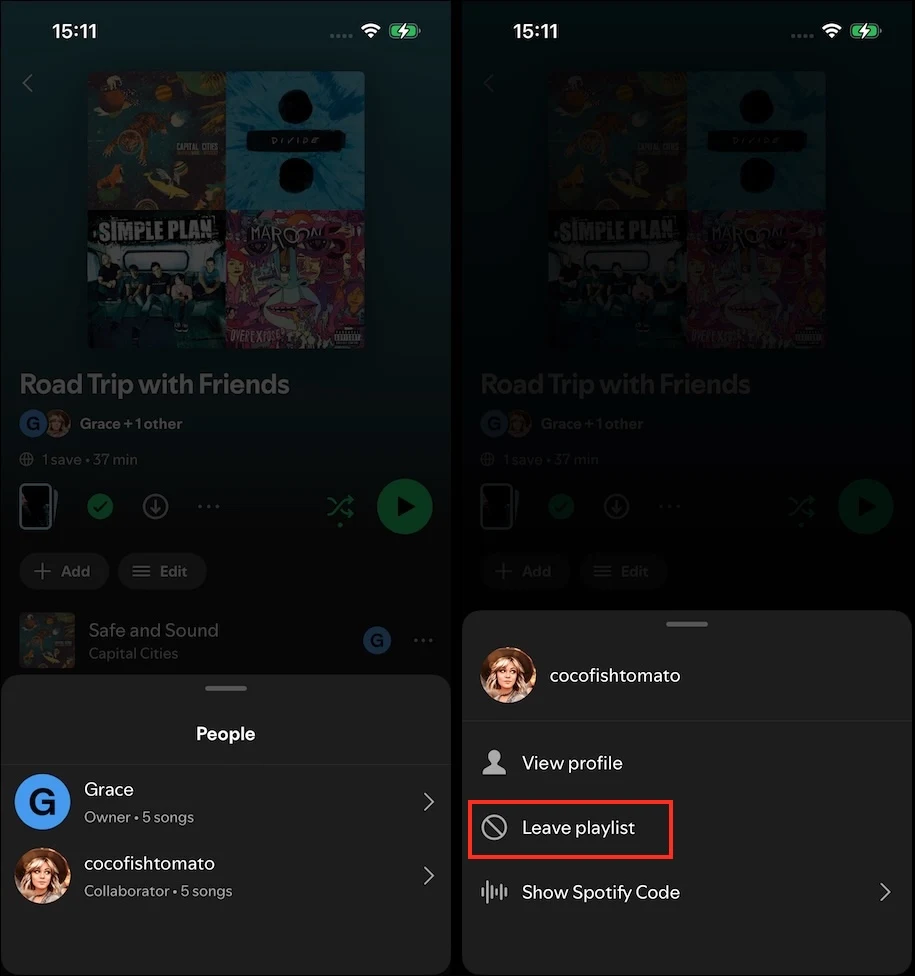
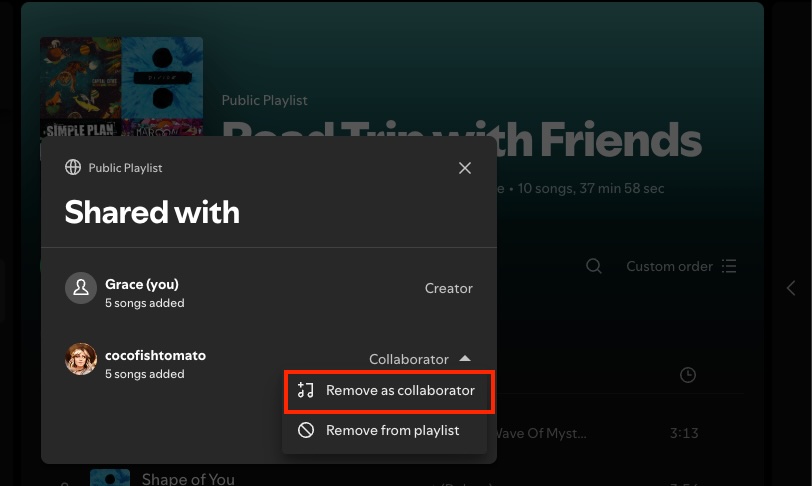
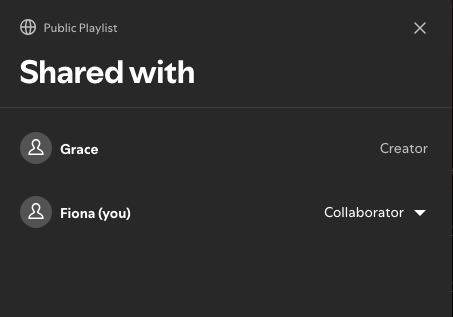
While only the Collaborative playlist owner can control permissions or remove members, anyone with an active invite link can join as a collaborator.
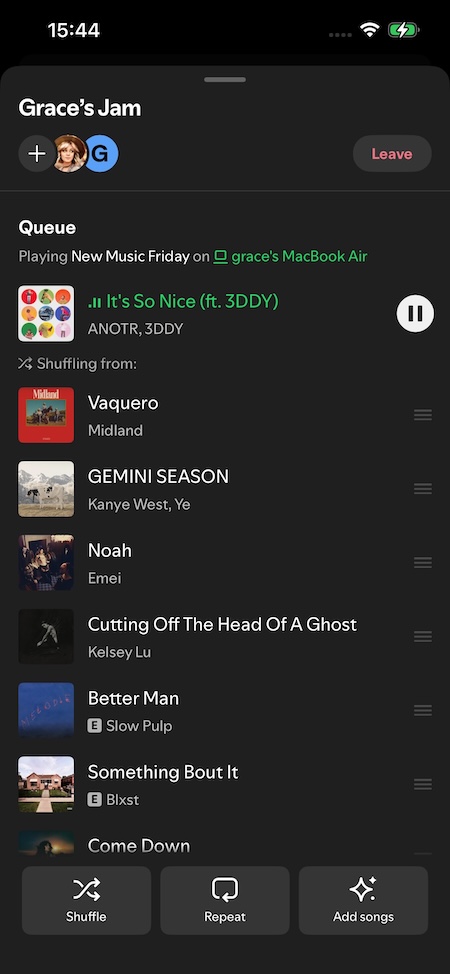
Spotify offers two distinct social features for music enthusiasts: Jam and Collaborative Playlists. Here’s a breakdown of their differences:
Spotify Jam:
Collaborative Playlists:
In summary, Jam is designed for a live, real-time listening party where participants control what plays next in sync, whereas Collaborative Playlists focus on building and curating a shared music collection over time.
Actually, Spotify free users can also download the Collaborative Playlists for offline listening. All you need is Pazu Spotify Converter.
Pazu Spotify Converter is designed to help you download Spotify music to MP3, M4A, WAV, FLAC, AAC, and AIFF with either a free or premium account on Mac/Windows. Featuring a built-in Spotify web player, you don’t even need to install the Spotify app. With advanced technology, Pazu can preserve the original audio quality, ID3 tags, and metadata. Follow the steps below to download your collaborative playlists to MP3.
Key features of Pazu Spotify Converter:
Download, install and run Pazu Spotify Converter on your Mac or Windows. Log in your Spotify account with the built-in web player.
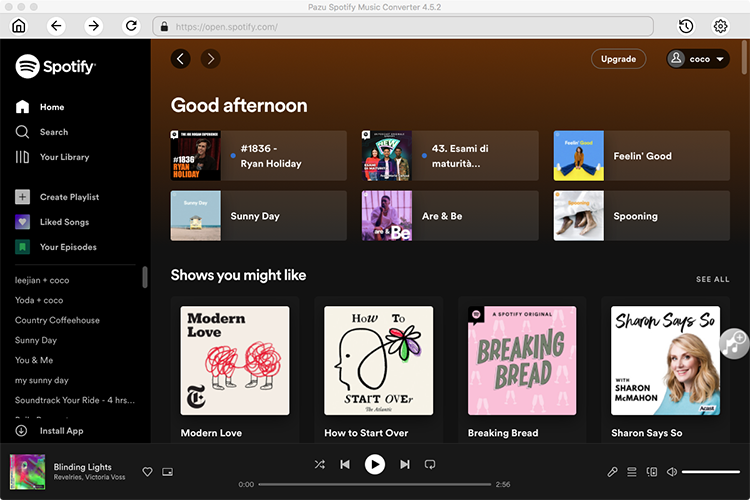
Click the gear icon in the top right corner and select MP3 as the output format. Here you can also set output quality, customize the output path, organize output files in various ways, rename them, and more.

Select the collaborative playlist you want to download and click the red “Add to list” button.
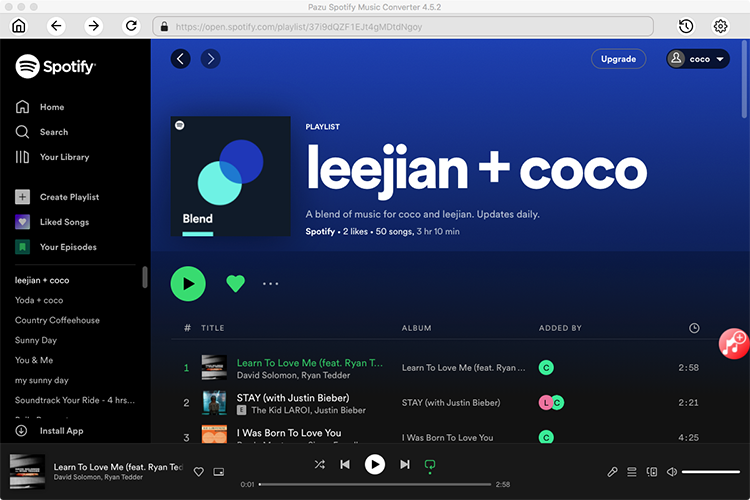
Spotify Converter will detect and display all songs. Uncheck any songs you don’t want to download. Click the Convert button to start downloading Spotify songs in MP3 format.

Once the conversion is done, click the folder icon to find the downloaded MP3 songs. You can then play them with any supported music player.

Note: The free trial version of Pazu Spotify Converter enables you to convert the first three minutes of each song. You can remove the trial limitation by purchasing the full version.

Download and convert any Spotify songs, albums, playlists to MP3/M4A etc.