

Spotify offers great social features, allowing you to track what your friends are listening to and what playlists they have. You can also share Spotify content with your friends, but usually through third-party platforms or social media. However, that has now changed.
In August 2025, Spotify included a direct Messages function that allows you to chat and share content instantly with your friends right in the mobile app. This feature is available to both Free and Premium users. If you’re ready to start sharing tracks and chatting without leaving the app, follow this guide on how to send messages to your friends directly on Spotify.
Contents
With Spotify Messages, you can chat directly and share Spotify content, including songs, playlists, albums, podcasts, audiobooks, and more with friends/family right inside the mobile app.
Messages are one-on-one conversations. Both Premium and Free users can use this feature as long as they are 16 years of age or older. You can send texts and emojis, as well as share the following with your friends:
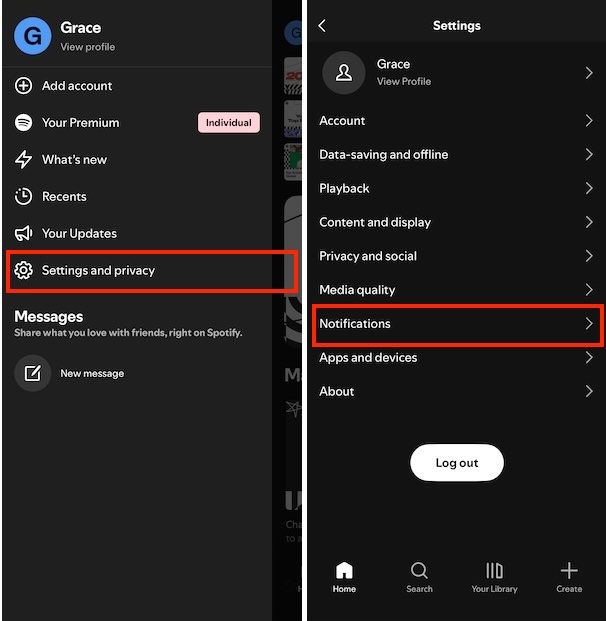
The Messages feature is easy to find on the Spotify mobile app. To use it, tap on your profile picture and you’ll see Messages under the Settings menu. When you share Spotify content, you’ll also see the “Share with Spotify Messages” option.
If you don’t see Messages on Spotify, make sure you’re using the latest version of the app. Go to the App Store or the Google Play Store on your device to check whether there is an update available.
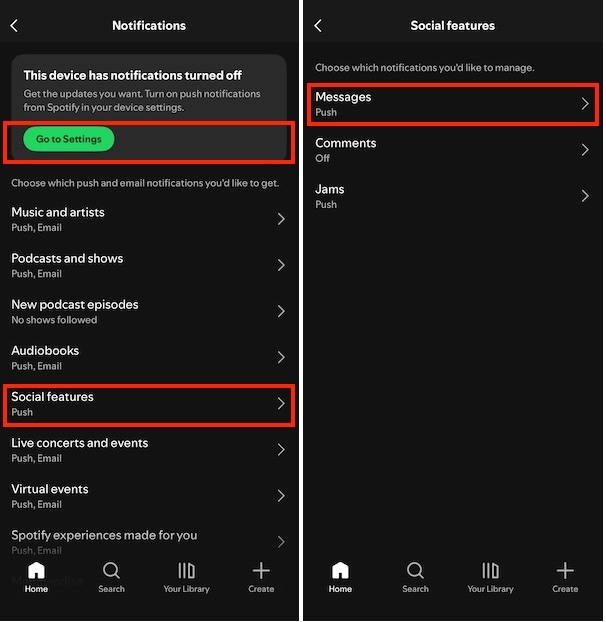
If the feature is still missing, it may be turned off in your settings. Here is how to enable Messages on Spotify:
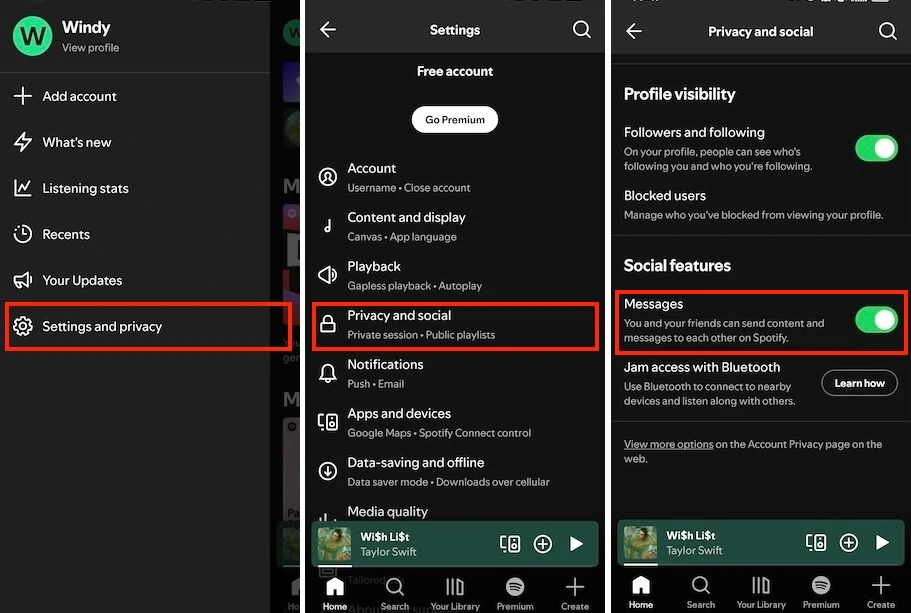
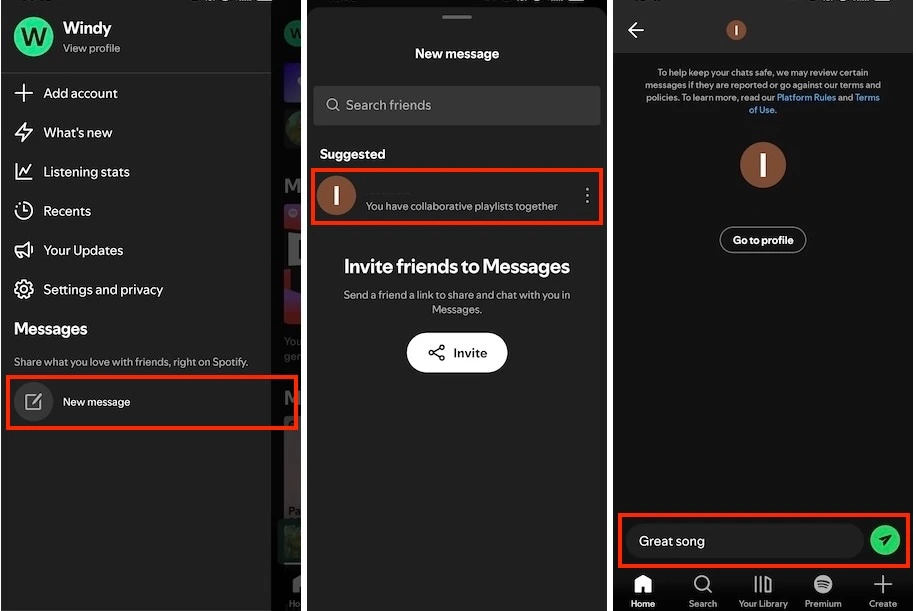
You can start a new one-on-one chat directly within the Spotify app.
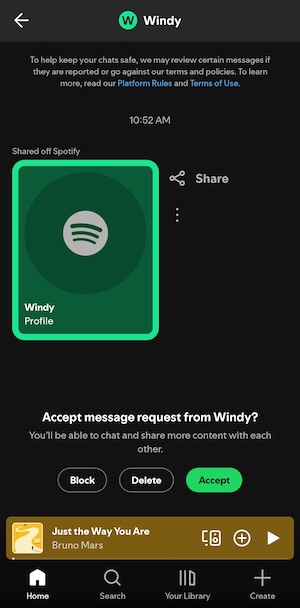
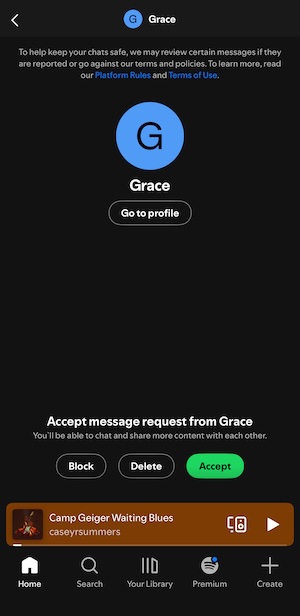
If you send a message or share content with a user for the first time, they will receive a message request. They can accept the request, block the sender or simply delete it.
Spotify automatically suggests contacts based on shared activity, such as users you’ve recently shared content with, participated in a Jam or Blend with, or currently share a Family or Duo plan with.
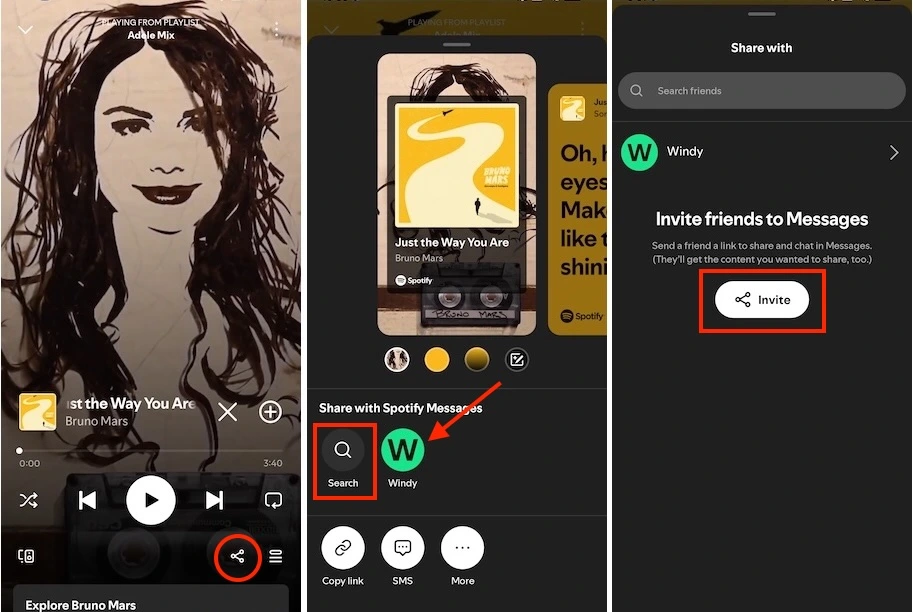
If a friend is not shown in your suggestions, you can invite them to the message chat:
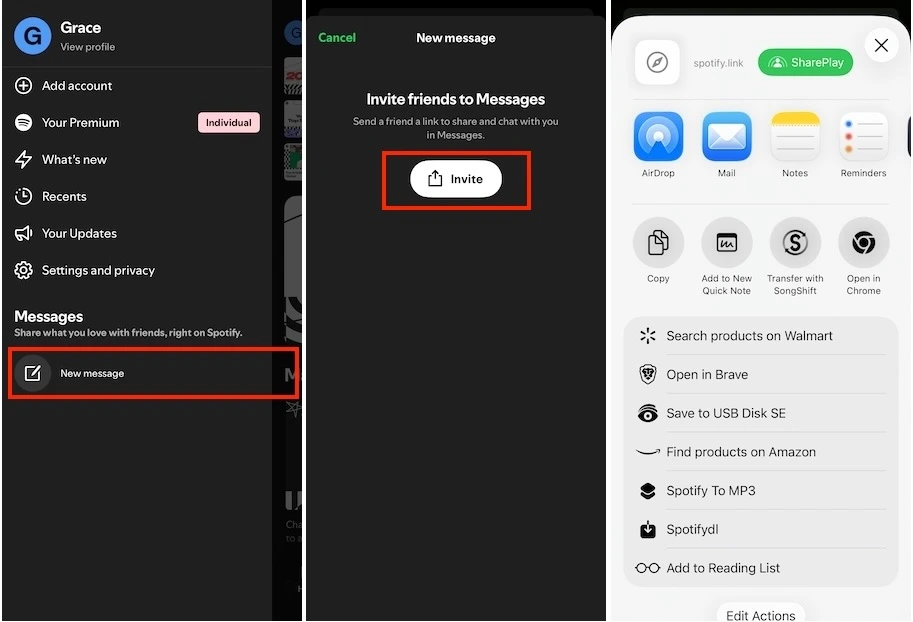
When your friend clicks the link, they will be redirected to the Spotify app to view and accept your message request, which will then activate the direct chat feature for both of you.
When you’re listening to music, podcasts, or audiobooks, you can easily share what you’re enjoying with your friends directly within the Spotify app.
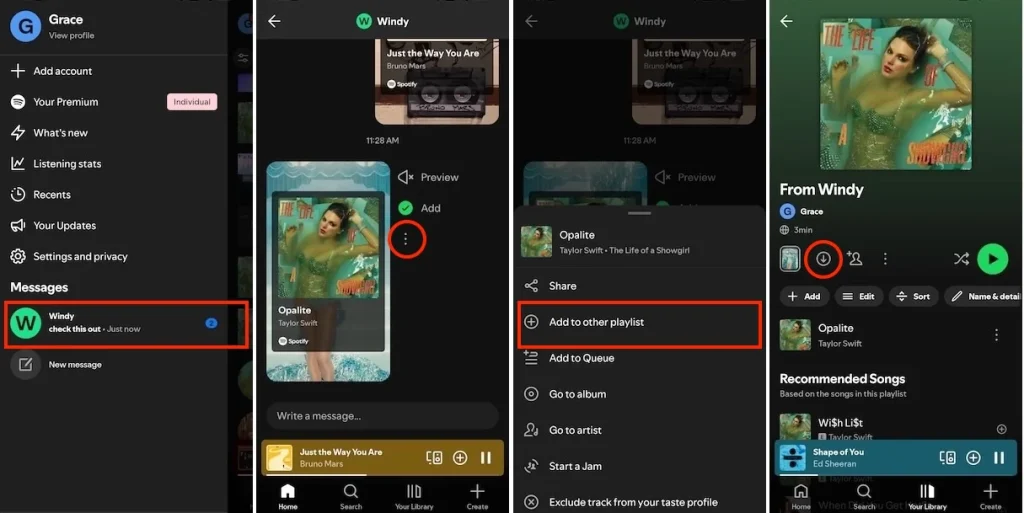
When a friend sends you a message, you can find it by tapping your profile image. Their name will appear under “Messages,” with the number of unread messages next to it.
If you don’t want to miss any message sent by friends on Spotify, you can enable push notifications for the Messages feature. Here’s how to do it within the app:
Spotify Premium users can download music offline, but only for playlists and albums. If your friend shared an individual song, you’ll need to add it to a playlist and download the playlist. Here is how you can do it:
However, with Pazu Spotify Converter, you can download songs, playlists, albums, and podcasts for offline listening with both Spotify Free and Premium. Furthermore, unlike the official app, you can select and download individual tracks from any playlist or album. This powerful tool converts music to various formats in high quality, including WAV, MP3, M4A, AIFF, FLAC, and AAC. After downloading, you can freely transfer the audio to any compatible device or media player for offline enjoyment.
Here is how you can use Pazu Spotify Music Converter to download Spotify songs with a free subscription.
Download, install, and run Pazu Spotify Converter on your Mac or Windows. Log in to your Spotify account with the built-in web player.

Click the gear icon in the top right corner. Here you can select the output format, choose output audio quality, customize the output path, organize the output files in various ways, rename output files, and more.

Use the integrated Spotify web player to find the songs, albums, or playlists you want to download. Click the Add to List button to load all songs in the album or playlist.

You can download individual songs or batch-convert the entire playlist. To download individual songs or specific songs of your choice, simply uncheck the ones you don’t want.
Click the Convert button to start downloading the Spotify songs to your local computer.

Once the conversion is done, find downloaded songs by clicking the Folder icon or directly going to the output folder you customized in the previous step.

Note: The free trial version of Pazu Spotify Converter enables you to convert the first three minutes of each song. You can remove this limitation by purchasing the full version.

Download and convert any Spotify songs, albums, playlists to MP3/M4A etc.