

Are you traveling in the long run and need some entertainment element? Nothing could be better than a playlist of your best music.
Those days are gone when they used CDs as a driver, but nowadays, as technology has evolved, you can connect your USB, smartphone, or play Spotify songs on your car’s tablet.
So, we have listed some of the most popular ways to play your favorite Spotify music in the car. Moreover, reading this article will let you know the ways of downloading Spotify tracks in MP3 with Pazu Spotify Converter. This is the best way to play Spotify offline without ads in the car if you have Spotify free.
It is the most common and easiest way to connect your smartphone to your car. You can connect your tablet or smartphone directly through a cable if your car stereo has an AUX-IN or USB port.
Remember, when connecting a cable, don’t forget to check the manufacturer’s instructions to ensure you are using the right cable for your device.
Once you have connected the smartphone or other devices through a USB cable, you can adjust Spotify track selection via your car’s stereo control panel.
Furthermore, connecting via AUX-IN lets you control the volume with the control panel. However, you need to do it on a smartphone to change or skip tracks.
You can find built-in Bluetooth functionality in some car stereos. And Spotify is compatible with most Bluetooth-enabled car stereos. To enjoy Spotify in your vehicle using Bluetooth, you must first pair your smartphone or tablet with your car’s stereo.
How to Connect Spotify to Your Car Stereo
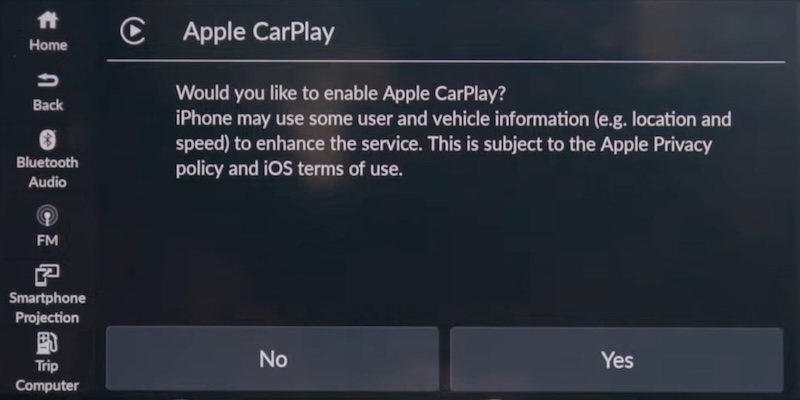
Usually, Apple CarPlay is built to use an iPhone in the car. This feature is available on iPhone 5 and later with at least iOS 7.1.
CarPlay enables the head unit or car stereo to be a display for an iPhone. It also acts as a controller for your iPhone. So it lets you view content on your iPhone while driving and project it onto your car’s built-in display. It includes making calls, getting directions, sending or receiving messages, and listening to your favorite Spotify music. In short, it allows you to keep your phone in your pocket and keep focused on the road.
How to play Spotify tracks in your car with Apple CarPlay?
You can connect your phone to a CarPlay-compatible stereo with a USB-C or Lightning cable, or via Bluetooth.
Once connected, you can play a Spotify playlist on the stereo display or use voice commands.
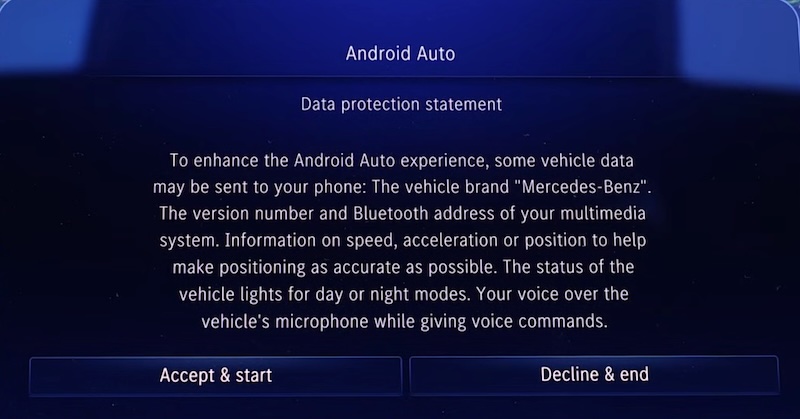
Basically, Android Auto is a popular Google solution that brings the power of your smartphone to the relatively dumb nature of vehicle infotainment systems. Built with the utmost safety in mind, it has a simplified interface, easy-to-use voice actions, and larger touch targets to minimize distractions, so the driver can keep their focus on driving.
You’ll need a phone running Android 9.0+ for a wired connection or Android 11.0+ for a wireless connection. Once connected to your phone with a compatible vehicle, you can use Android Auto on your car display.
How to Play Spotify Music in the Car with Android Auto:
Now, when Spotify is playing, it will play in the car. Or you can start Spotify on the car display.
Above are the most common and simple ways of playing Spotify music in your car. However, only Spotify Premium users can download songs for offline playback. Playing music from a phone or tablet requires an internet connection throughout the route if you don’t subscribe to Spotify Premium.
But what if you want to play Spotify songs without an internet connection? Well, there is a solution called Pazu Spotify Converter. It is an excellent Spotify Music Downloader. It allows you to download Spotify music without premium and convert it to MP3 files with 100% original quality.
This all-in-one Pazu Spotify Converter is dedicated to downloading and converting Spotify albums, songs, and playlists to M4A, MP3, FLAC, AAC, AIFF, and WAV at a ten times faster speed.
You can easily download any playlist from Spotify to MP3. Then you don’t need a premium account to listen to Spotify music offline without ads on your car. You just need to transfer downloaded songs from your device to your USB and connect to your car.
Pazu Spotify Converter allows users to download the entire playlist, album, or any single song they want without Spotify app, thanks to the integrated Spotify web player.
How to download Spotify songs by Pazu Spotify Converter?
Install and run Pazu Spotify Converter on your Windows or Mac. You will find the integrated Spotify web player. Log in there with your free or premium Spotify account.

Now choose the output format (It’s your choice whether you want to download in an M4A, MP3, AAC, FLAC, WAV, and AIFF format. Click the gear icon available on the top right corner. Also, you can even change the output file name.)

Browse songs, albums or playlists you want to download from the built-in Spotify web player. Click the album or playlist and click Add to list button.
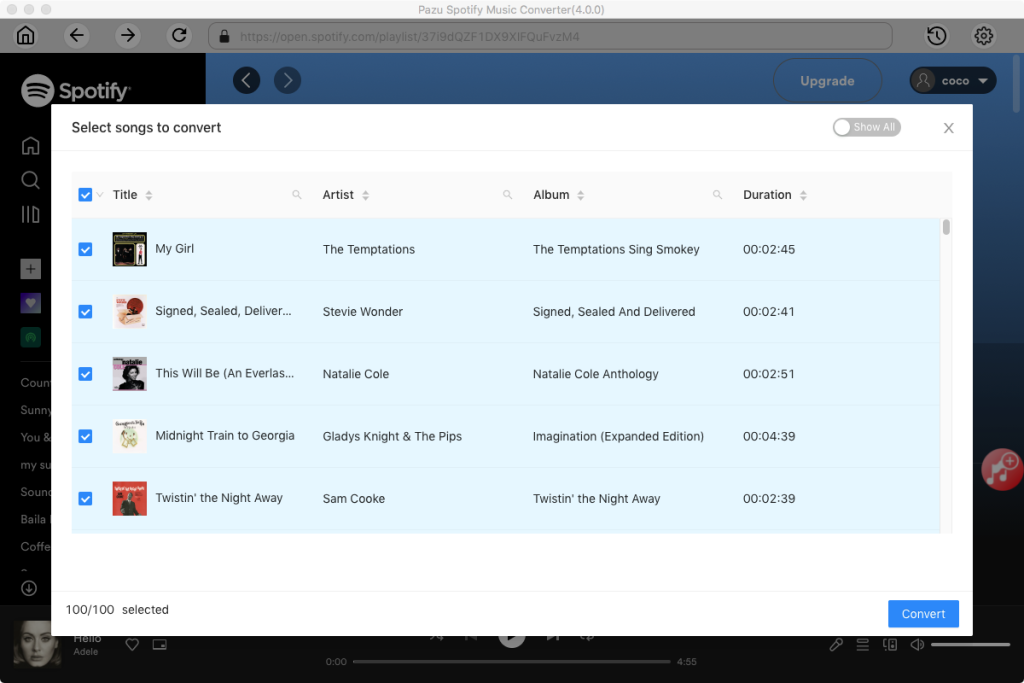
Click on the Convert button.

Once converted, open the output folder to locate the DRM-free Spotify songs quickly.
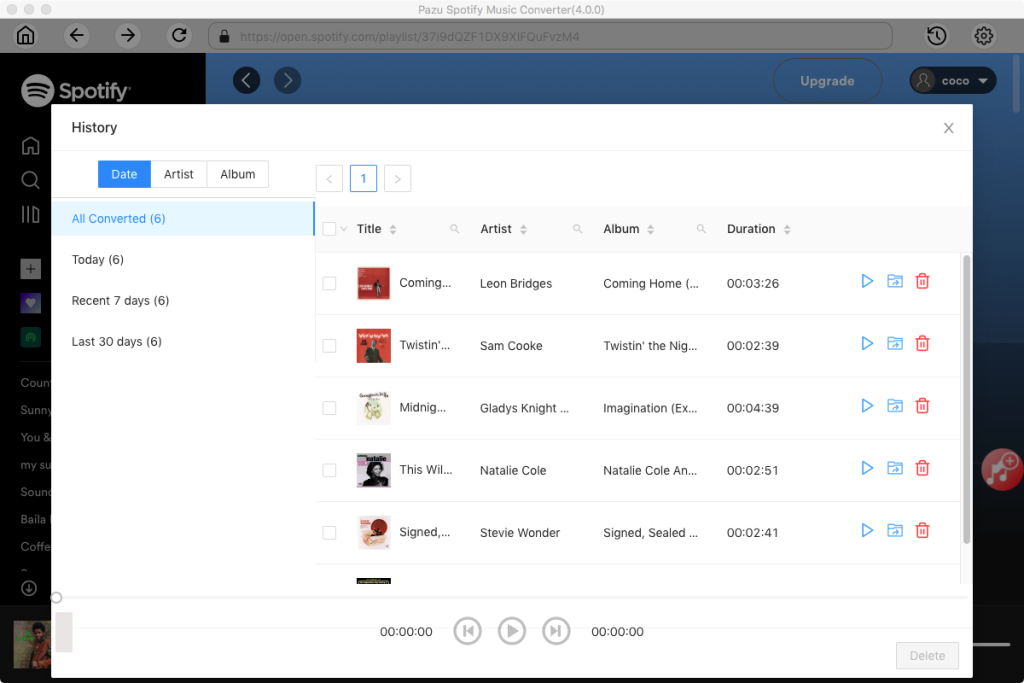
Now you can transfer songs easily on the USB and play them in your car offline without ads, even you only have Spotify free.
To listen to Spotify in your car, you can use a cable or Bluetooth to connect your phone. Alternatively, you can also use Apple CarPlay or Android Auto. For ad-free offline listening without Spotify Premium, Pazu Spotify Converter is the best solution. It allows you to download any Spotify songs, albums, playlists, and podcasts to M4A, MP3, AAC, FLAC, WAV, and AIFF formats with high quality. Then you can play downloaded music on any supported device, including in your car with a USB.

Download and convert any Spotify songs, albums, playlists to MP3/M4A etc.