

Star ratings are a common way to express preferences, and Apple Music uses this familiar system to let users rate songs, albums, and music videos. You can assign a rating from one to five stars, reflecting how much you enjoy the content. These star ratings are saved to your Apple Music library and can be used to automatically generate playlists or to sort and browse your music collection. If you’re interested in using this feature, read on to learn how to enable star ratings and apply them to your Apple Music library.
Related: What Does the Dot Mean on Apple Music
Contents
To use the star rating feature in Apple Music, you first need to enable it. Here’s how you can activate the feature on your Mac, Windows, and iOS devices. While you can use the Apple Music app on Android, it doesn’t support viewing or rating songs.
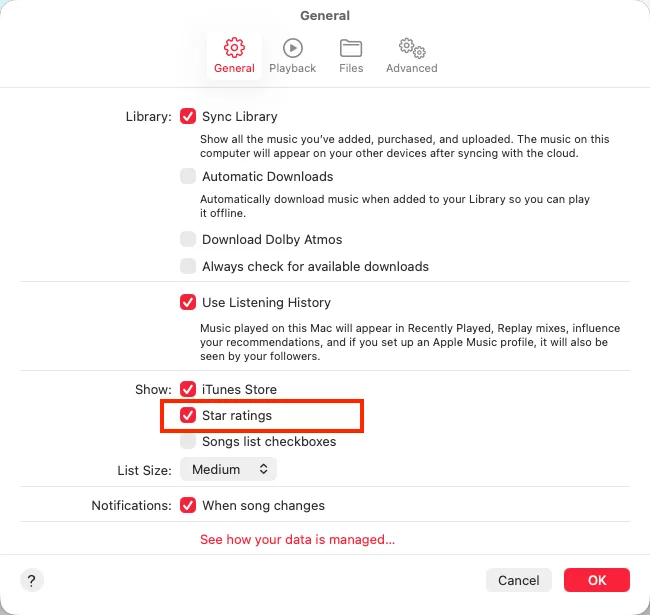
With the Apple Music App
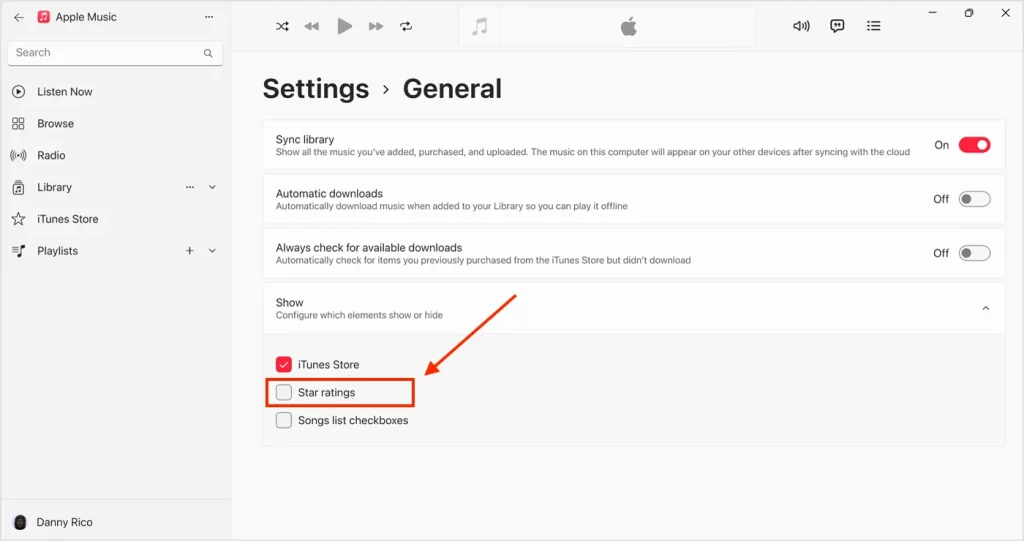
With iTunes
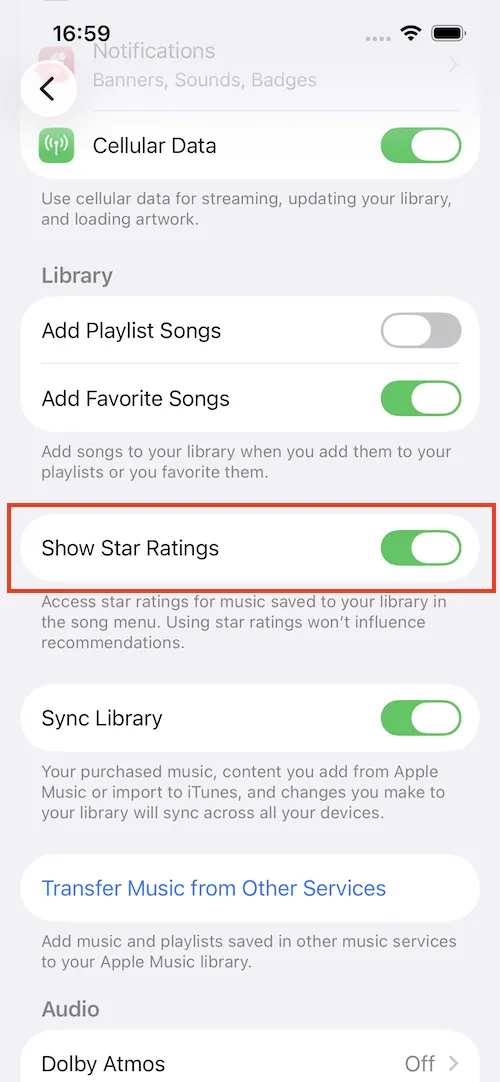
If you can’t find the Show Star Ratings option on your iPhone, ensure you are running the latest version of iOS and “Sync Library” is enabled.
Song rating syncs to all devices that use the same Apple ID. When you rate a song on your phone, for instance, you will see the corresponding stars displayed with the song on your Mac computer as well. This means you won’t need to rate the song again and again on each device.
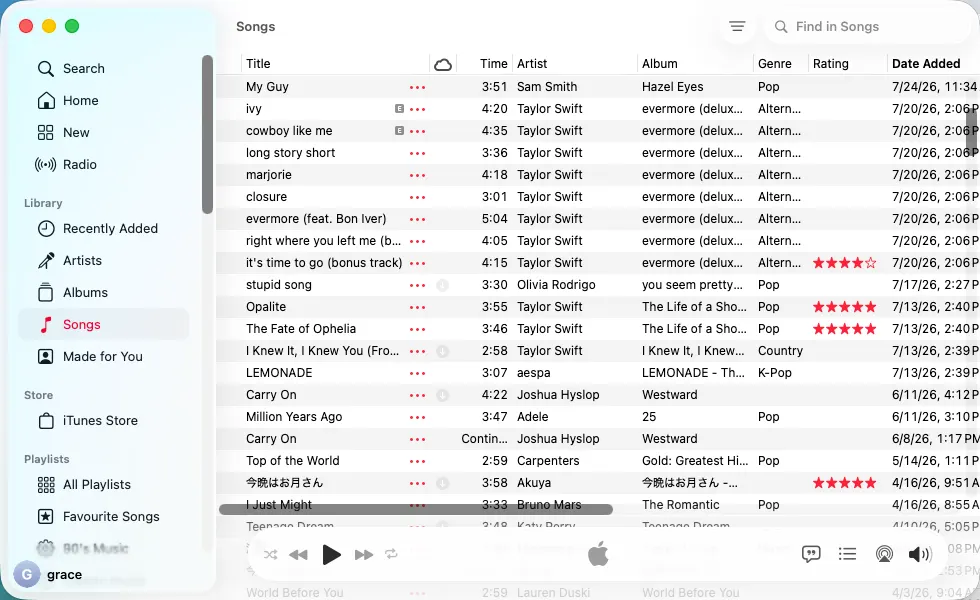
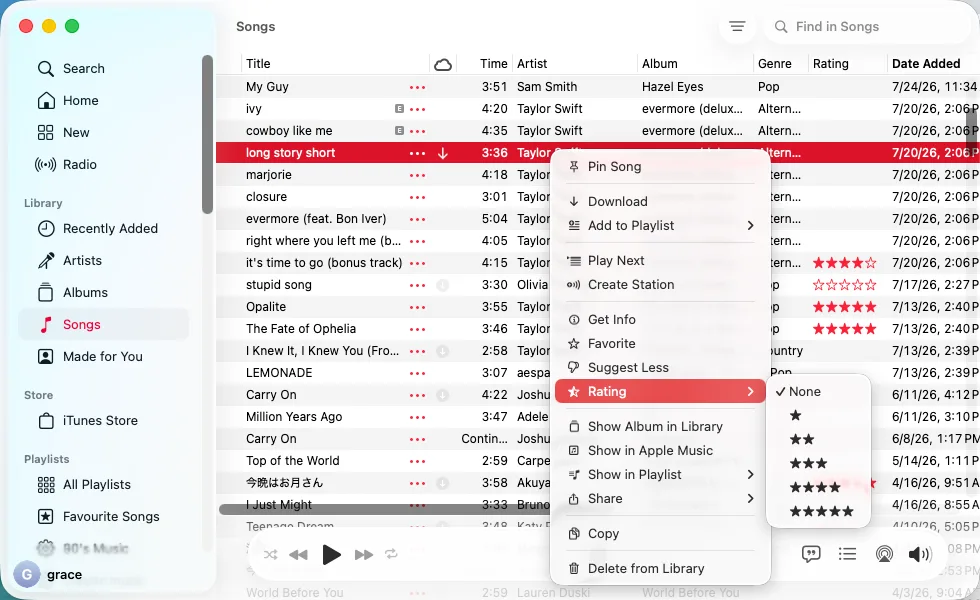
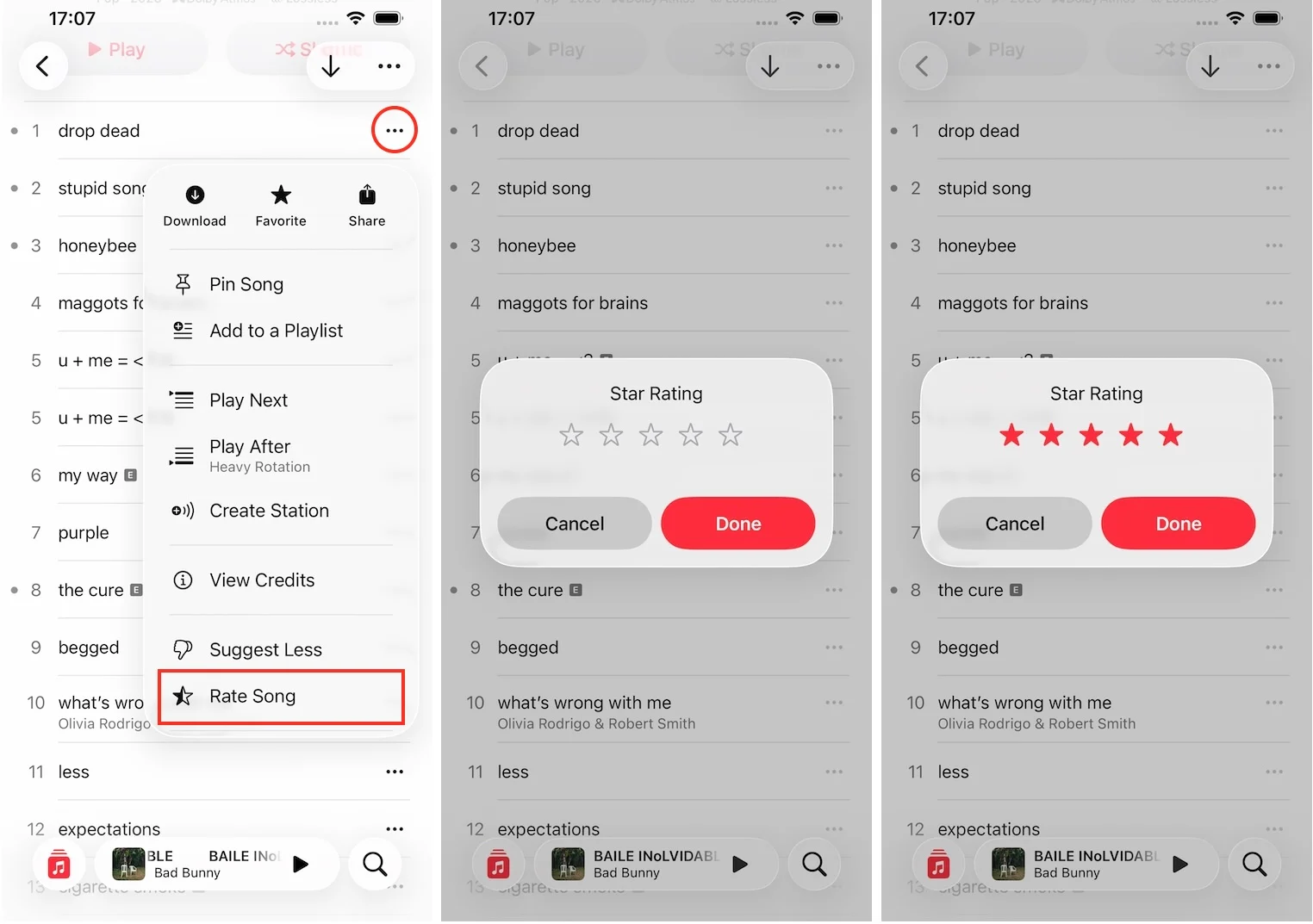
You can also click the three dots and select “Rating” to add or remove stars to a song, album, or music video.
Apple Music allows users to download tracks, albums, and playlists for offline playback. However, downloaded Apple Music content will only be available for offline listening within the Apple Music app while your subscription is active. If you want to save Apple Music songs forever on your devices, you can go with the best Apple Music downloader – Pazu Apple Music Converter.
Pazu Apple Music Converter is a safe and effective downloader that can help you download any Apple Music playlists, albums, and songs to MP3, AAC, FLAC, and other popular formats on Mac/Windows without any loss in quality.
Not only does Pazu Apple Music Converter download your favorite playlists and songs, but it also preserves the original audio quality, ID3 tags, and metadata, so you won’t lose any important information. Plus, one of the distinguishing features of Pazu Apple Music Converter is the really fast download and convert speed – almost 10 times faster than any other similar software.
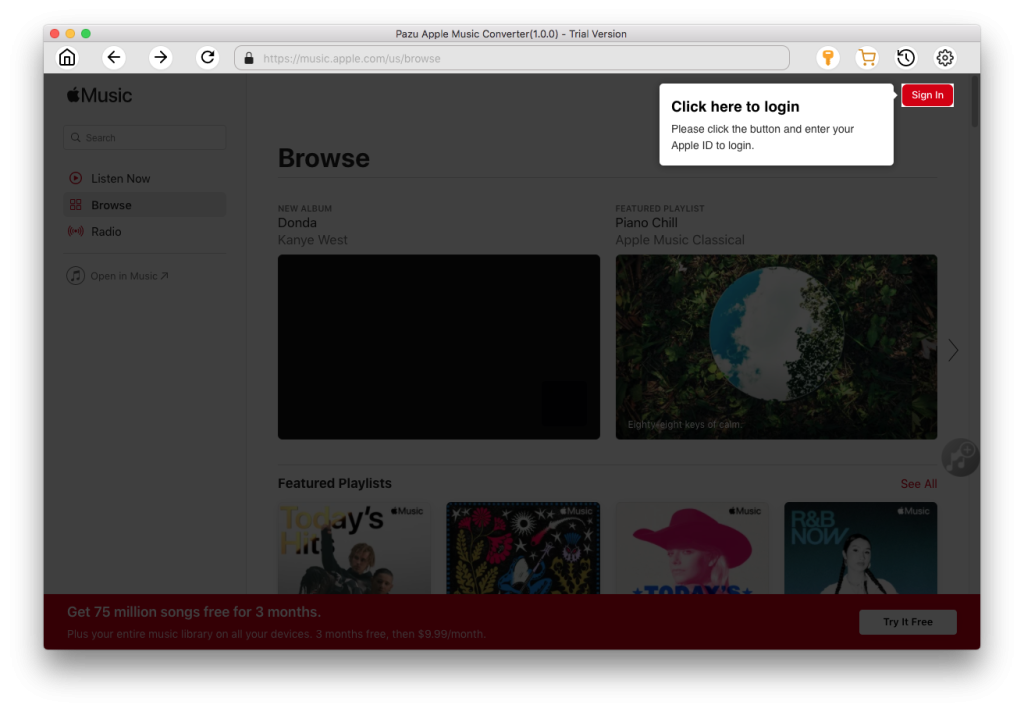
Pazu Apple Music Converter is integrated with the Apple Music web player, so you can batch convert any Apple Music playlist or album to the format you choose without iTunes or the Music app.
Key Features of Pazu Apple Music Converter
The following tutorial will show you how to download Apple Music to MP3 and get Apple Music for free.
Download, install and run Pazu Apple Music Converter on your Mac or Windows.
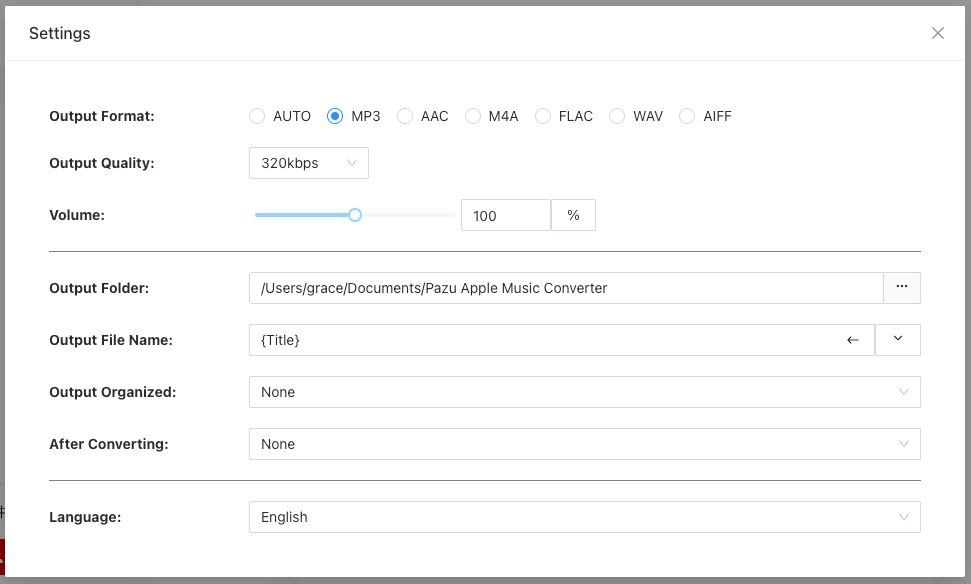
The default format is M4A. Apple Music Converter also supports MP3, AAC, FLAC, WAV, and AIFF. Click the gear icon to change the output format or output folder.
Follow the on-screen instructions to choose a playlist, artist, or album that you want to download.
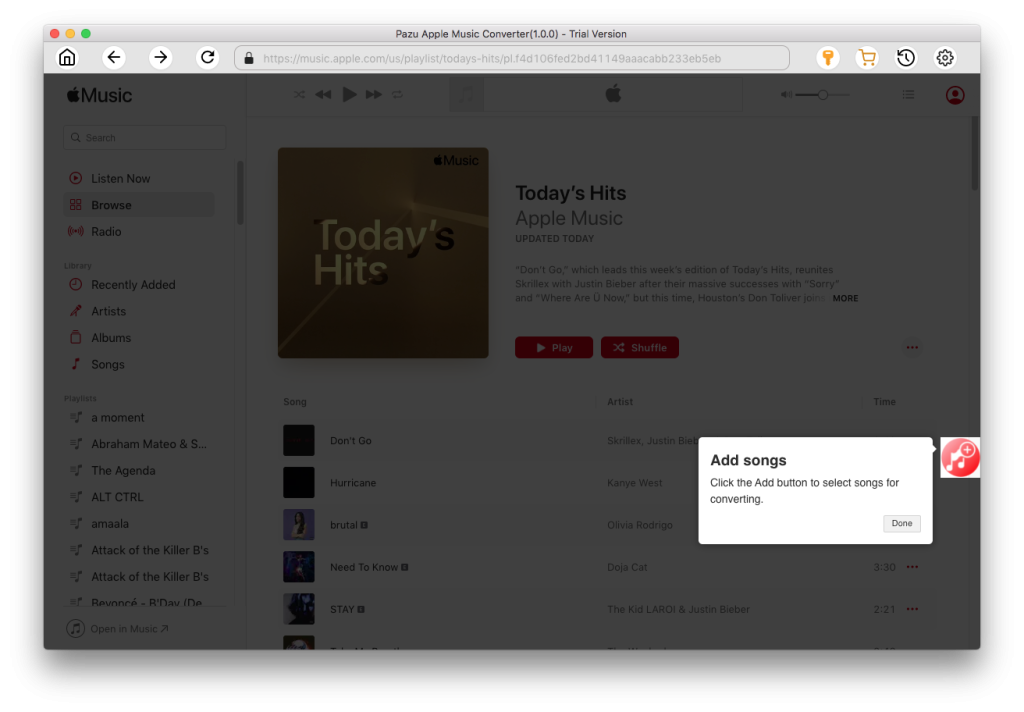
Click the “Convert” button to start downloading Apple Music songs, albums, and playlists to MP3, so you can play them anywhere you want, even after canceling your Apple Music subscription.
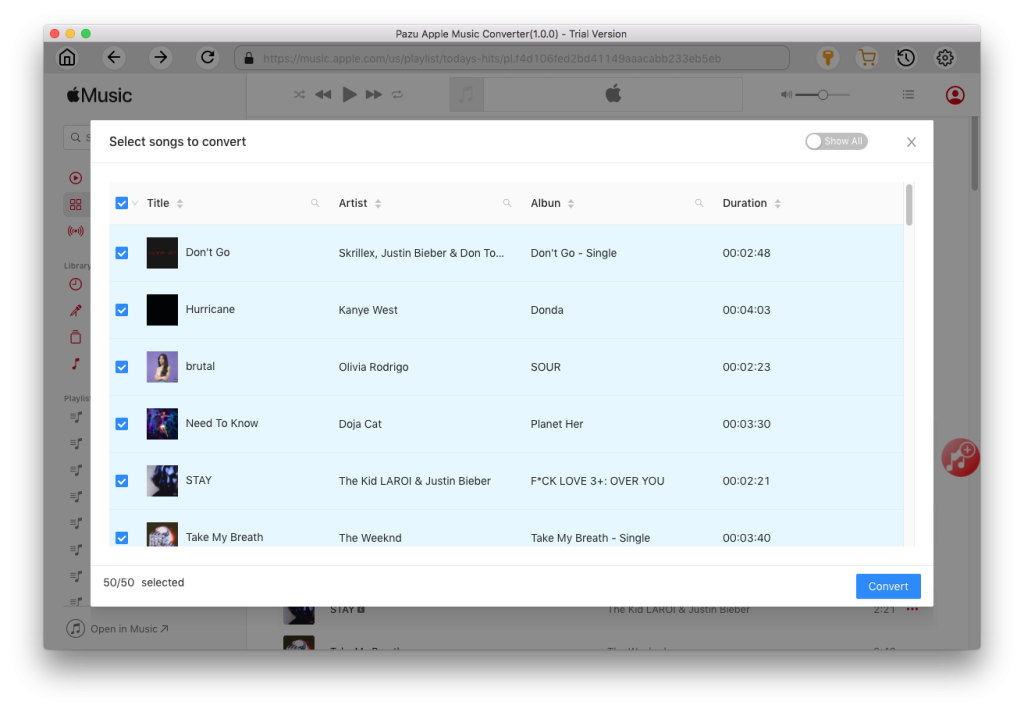

Download Apple Music to MP3, M4A, etc.