

Amazon Music offers Free, Prime, and Unlimited plans, with different features. The free plan is ad-supported, offering access to playlists and stations in shuffle mode and on-demand playback only to All-Access Playlists. Amazon Music Prime is included with the Prime membership. You enjoy full features for All-Access Playlists and limited features on other music. For complete music Premium experiences, you can upgrade to Amazon Music Unlimited.
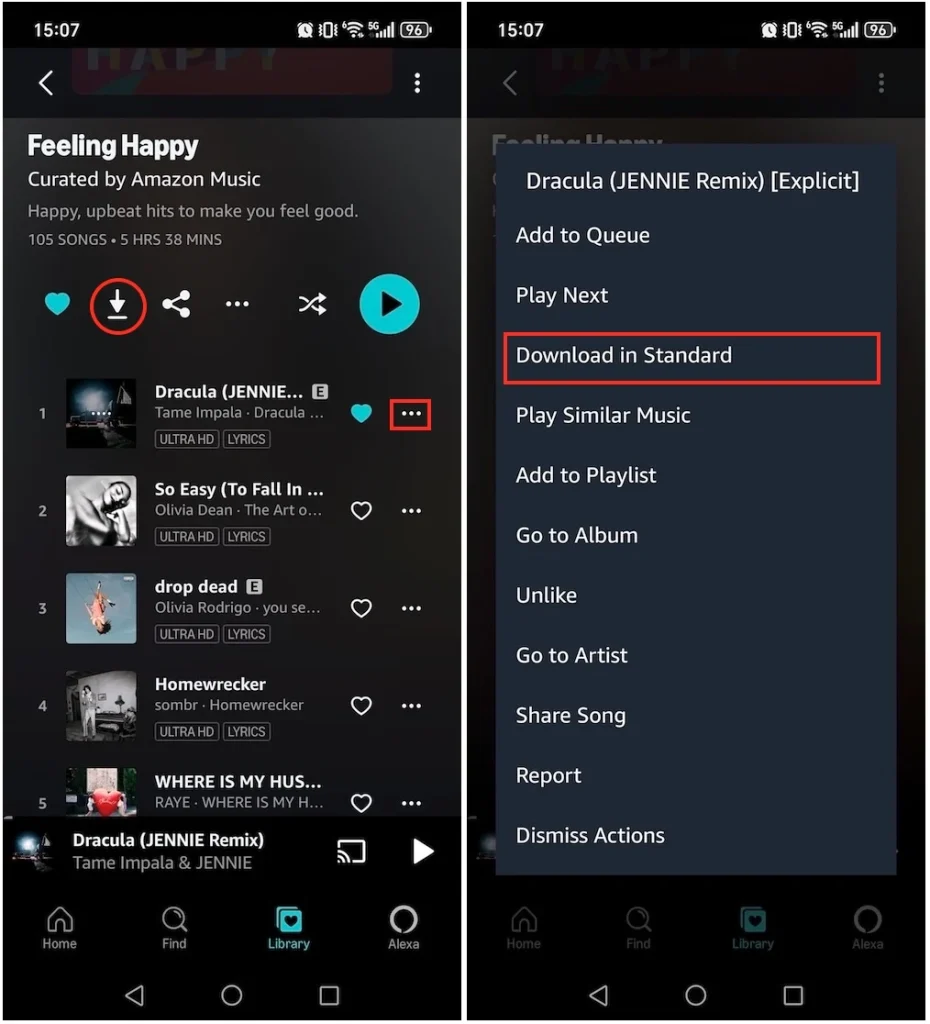
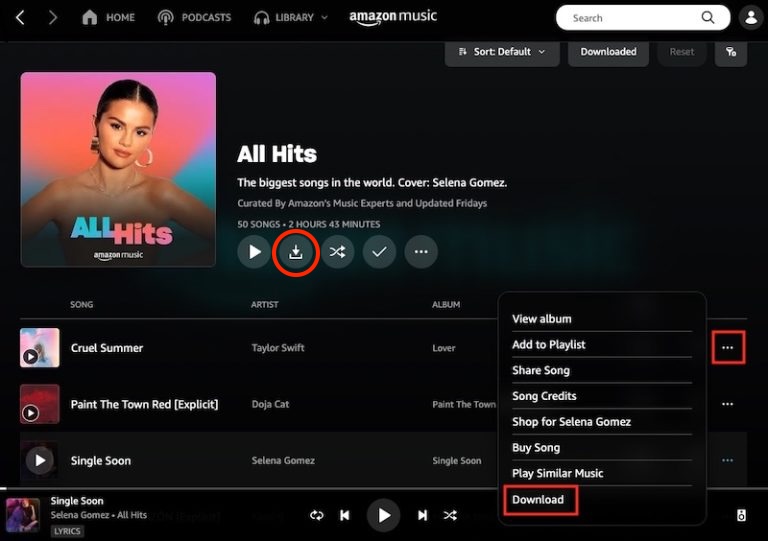
While Amazon Music Unlimited users can download any song or album for offline listening, Amazon Music Prime users are restricted to downloading only All-Access Playlists. Both tiers can use Offline Mode to make sure only the downloaded music is played. If you are interested, this article explains how to download Amazon Music offline and enable Offline Mode.
CONTENTS
Free users cannot download songs from the Amazon Music streaming library. Amazon Music Prime can download music for offline listening, but with limitations. Only Amazon Unlimited subscribers can enjoy full download features.
Amazon Music Prime and Unlimited members can download music with both mobile and desktop apps. The Amazon Music web player doesn’t support downloading.
Even if you’re on the free Amazon Music plan, don’t worry – we have a great alternative solution for downloading Amazon Music without the app.
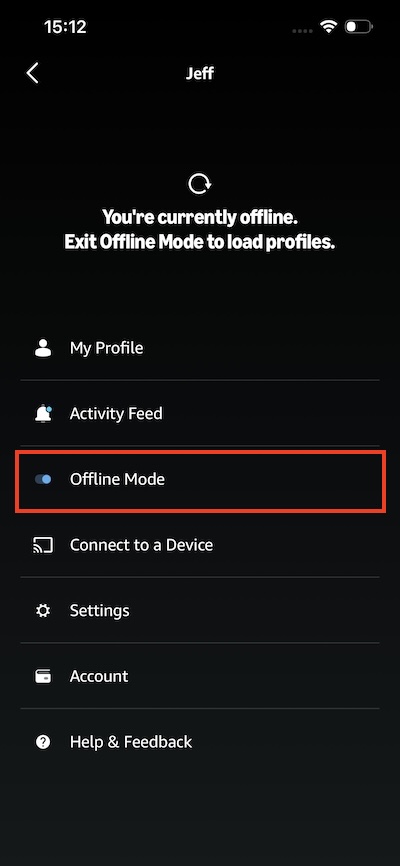
To save your mobile data or to ensure a smooth listening experience when you’re on a poor internet connection, enable Amazon Music Offline Mode on iOS devices. Then only the downloaded tracks are played.
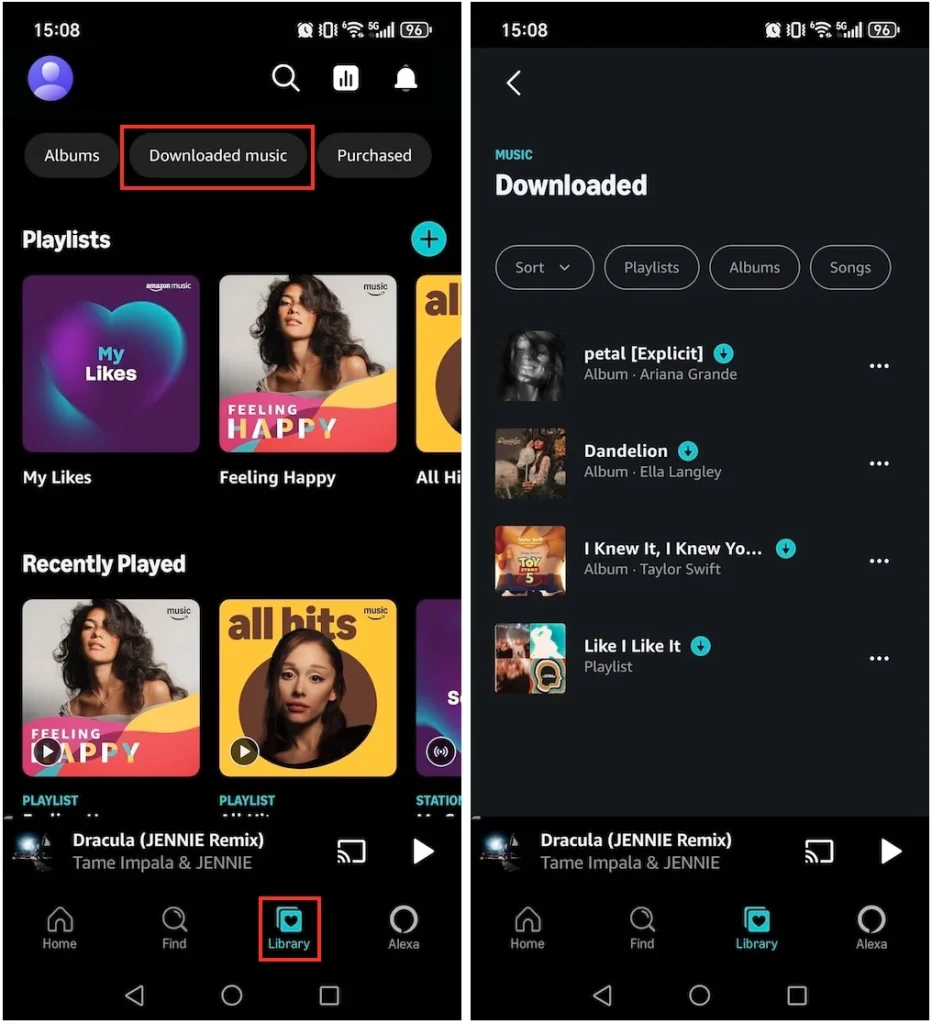
With Offline Mode enabled, find downloaded songs from Library > Downloaded.
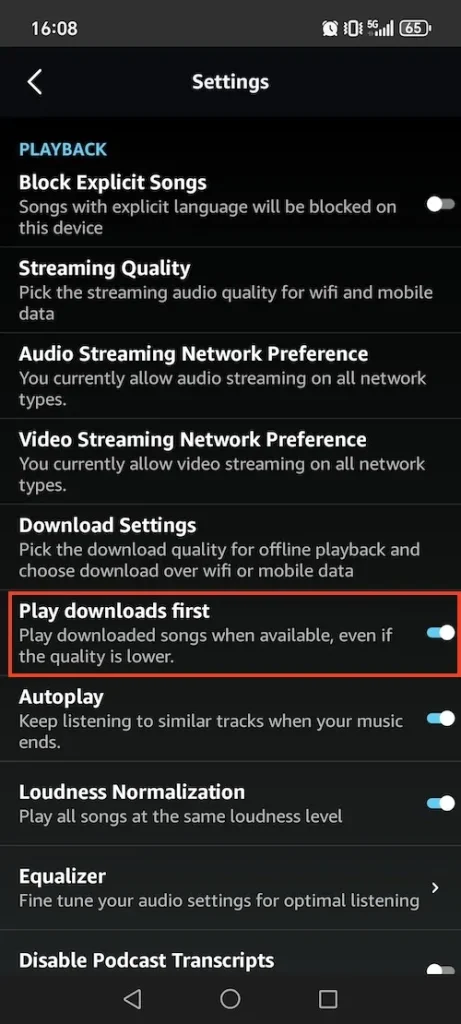
Amazon Music used to have a specified “Offline Mode” on its Android app. Currently, this function is removed. But you can tap your profile image, select “Settings”, and then enable “Play downloads first.” This forces the app to play the offline version of a song rather than streaming it over your network.
Also, to listen to Amazon Music offline tracks on Android, go to the downloaded music within the app:
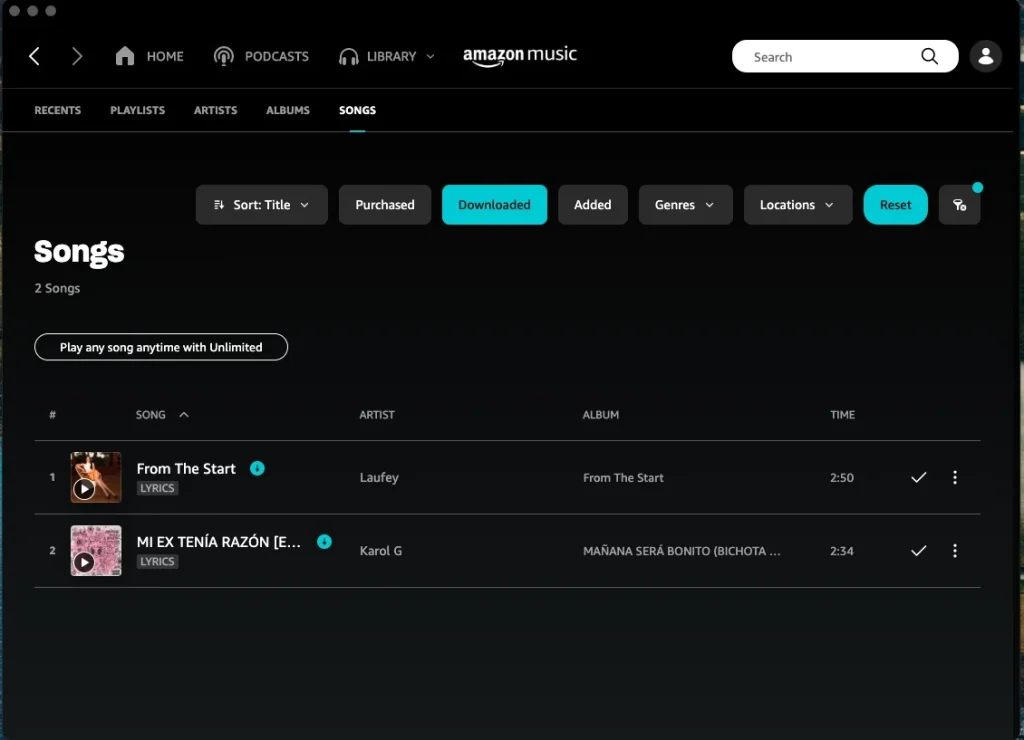
There isn’t an “toggle” Offline Mode switch on the Amazon Music app for PC and Mac. However, you can easily access your downloaded music in the library and enjoy it whether online or offline.
Amazon Music Free doesn’t support offline playback. Luckily, there is a professional Amazon Music Downloader – Pazu Amazon Music Converter that allows you to download songs, albums, and playlists, no matter whether you are on a Free, Prime, or Unlimited account. Downloaded music can be saved as MP3, M4A, AAC, FLAC, WAV, or AIFF. So you can listen to your favorite tracks on any supported device or with apps like Apple Music, Windows Media Player, or your MP3 player. Moreover, it can preserve original audio quality and ID3 tags.
Follow the tutorial below to learn how to convert Amazon Music to MP3.
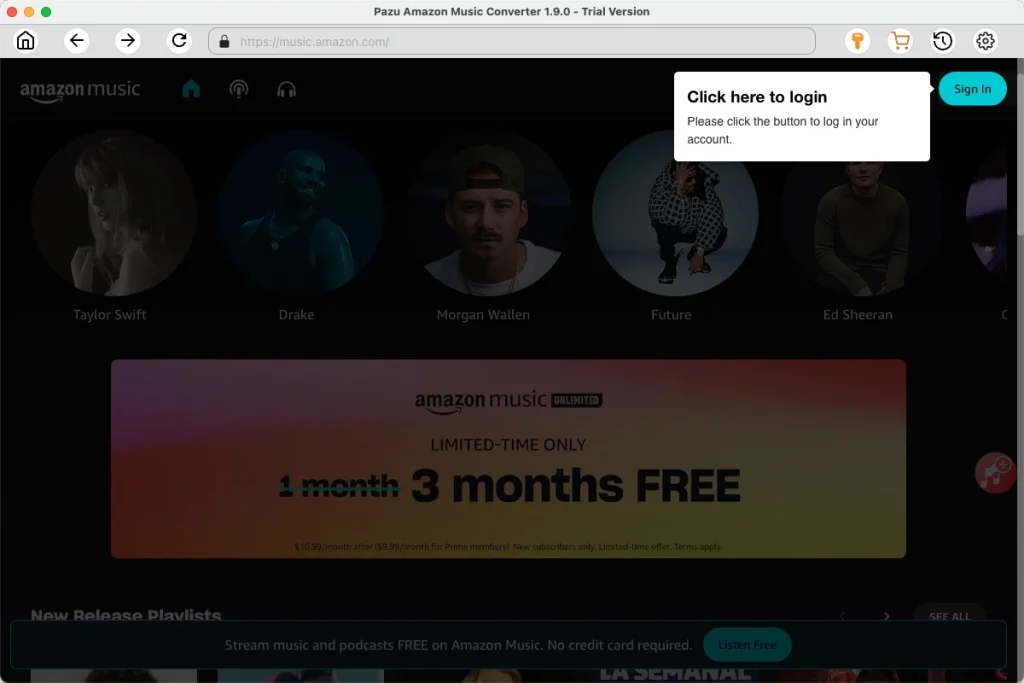
Download, install, and launch Pazu Amazon Music Converter on your computer, then click Sign In to log in to your Amazon account.
If you have purchased a license, click the key icon to register the converter. If not, continue using the trial version.
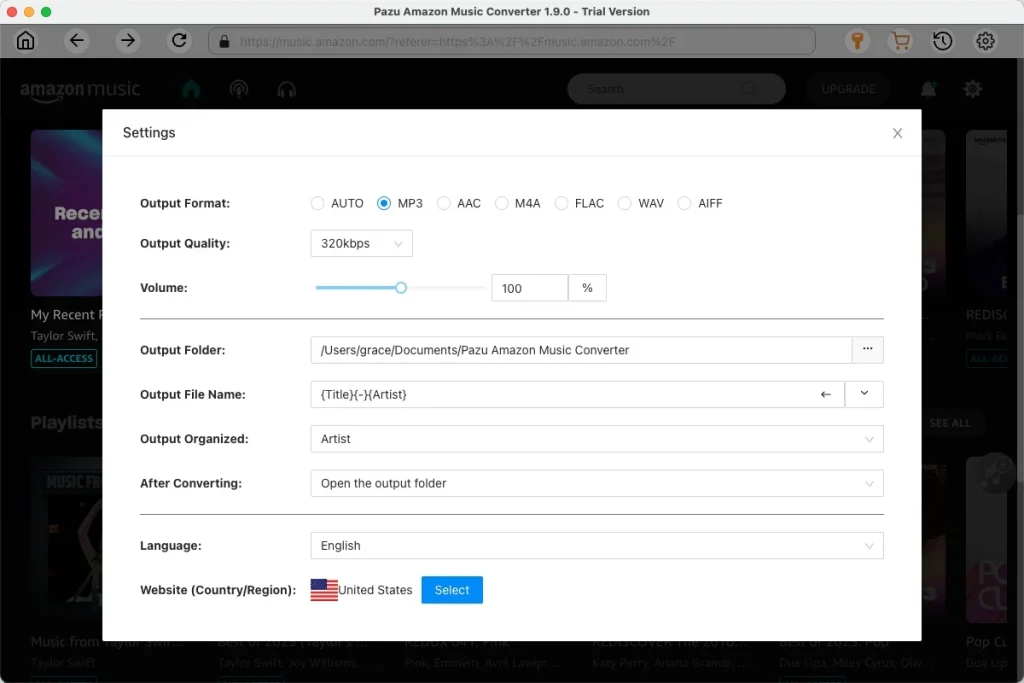
Click the Settings icon in the top-right corner and select MP3 as the output format.
Select the songs, albums, or playlists you want to download. Click the red Add to List button on the right side.
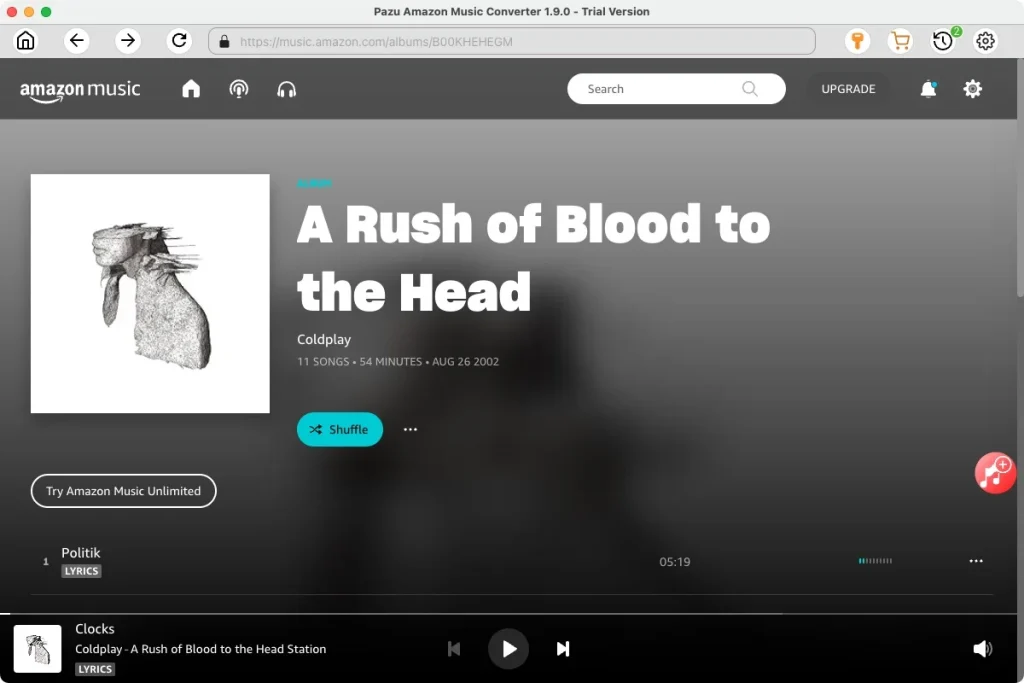
All songs in the playlist will be added by default. Uncheck tracks that you don’t want to convert.
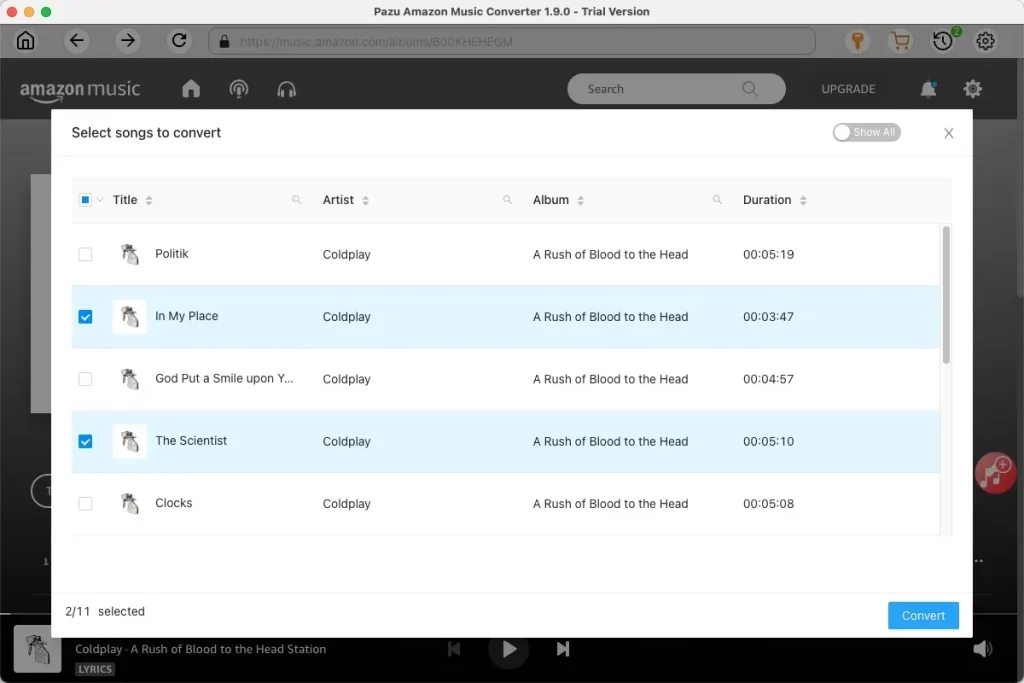
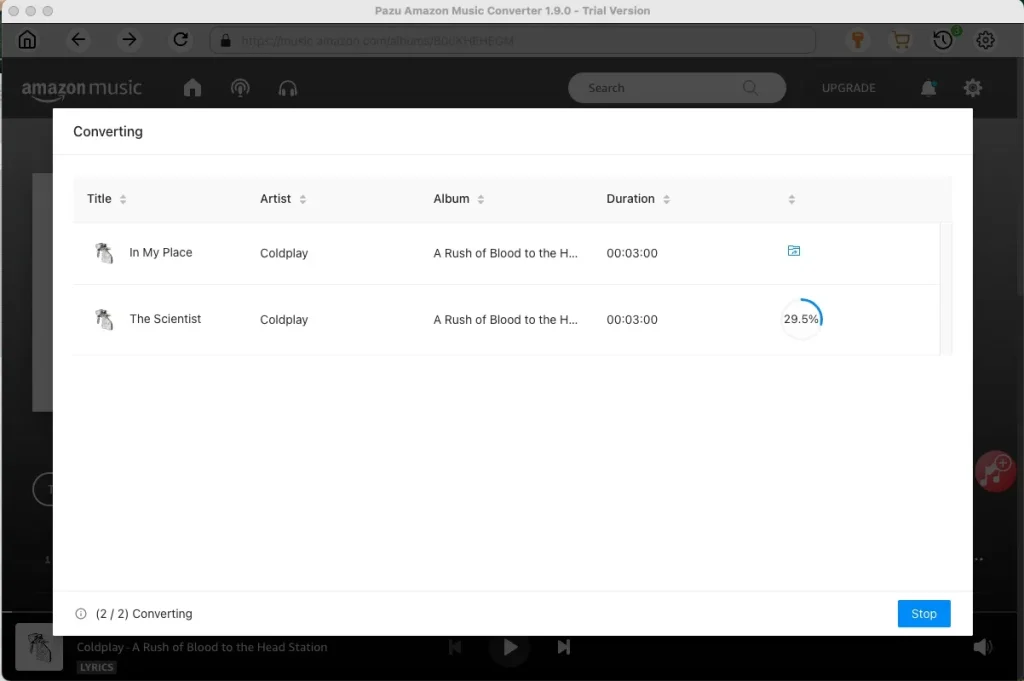
Click the Convert button in the bottom right corner, and Pazu Amazon Music Converter will automatically download and convert Amazon Music tracks to the default folder on your computer.
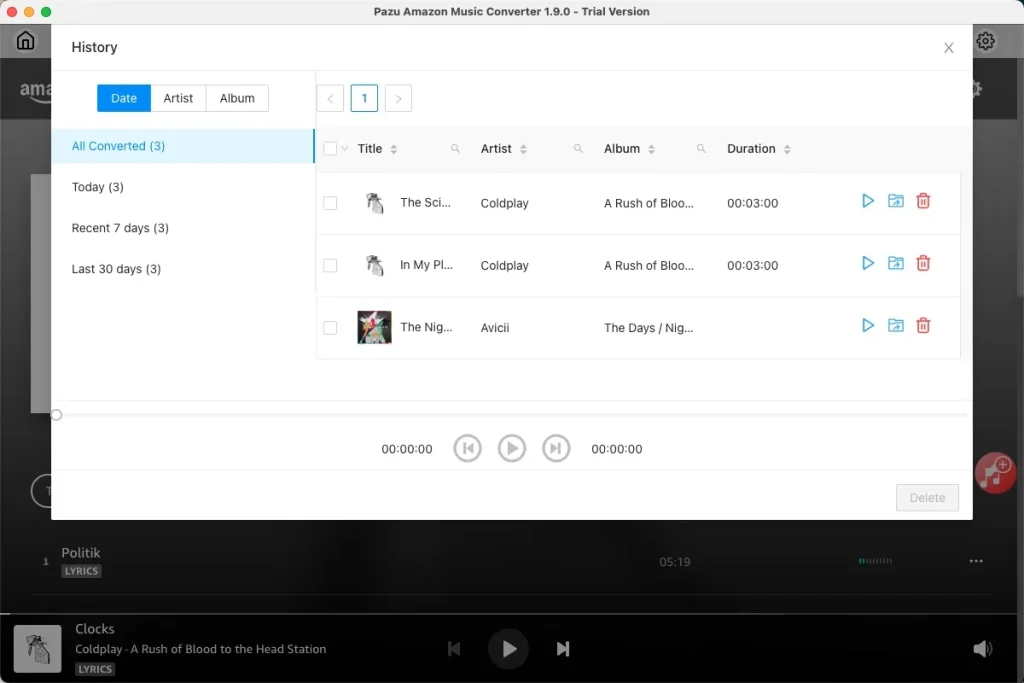
Once downloaded, click the clock icon  to browse all the converted songs in the history list. Click the folder icon to quickly locate downloaded songs. Now you can listen to your Amazon Music songs anywhere.

Download Amazon Music to MP3, FLAC, etc.