

Spotify launched an audiobook section ot US users on September 20, 2022. The service has since expanded to over 20 countries, offering a massive library of over 700,000 titles featuring best-selling authors such as Colleen Hoover, Michelle Obama, and Stephen King. This rapid expansion aligns with industry trends: Grand View Research says the global market for audiobooks could grow sevenfold by 2030 to reach a worth of $35 billion.
Audiobook hub is available to both Spotify free and premium users. Spotify offers free audiobooks, a pay-per-book model, and dedicated monthly subscription packages. Once a title is unlocked or included in your plan, you can also download the book to enjoy offline while traveling, commuting, or flying. In this guide, we’ll explain all the free and paid options you can use to stream and download audiobooks on Spotify.
Spotify audiobooks are available in the following countries: Australia, Austria, Belgium, Canada, Denmark, Finland, France, Germany, Iceland, Ireland, Liechtenstein, Luxembourg, Monaco, Netherlands, New Zealand, Saudi Arabia, South Africa, Sweden, Switzerland, United Arab Emirates, United Kingdom, and United States.
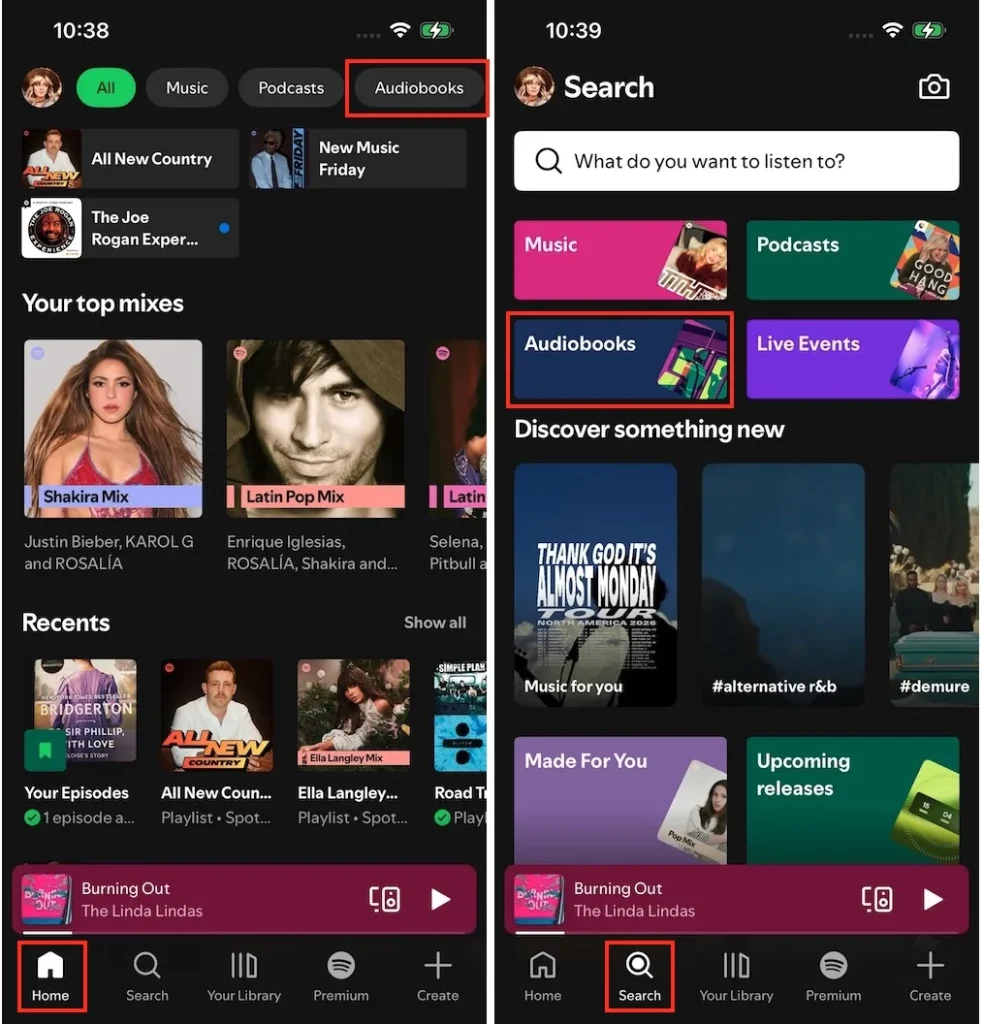
Users in these regions can find the Audiobook hub from the Spotify Home page or on the Browse all section on the Search page.
Available to: Spotify Free and Premium
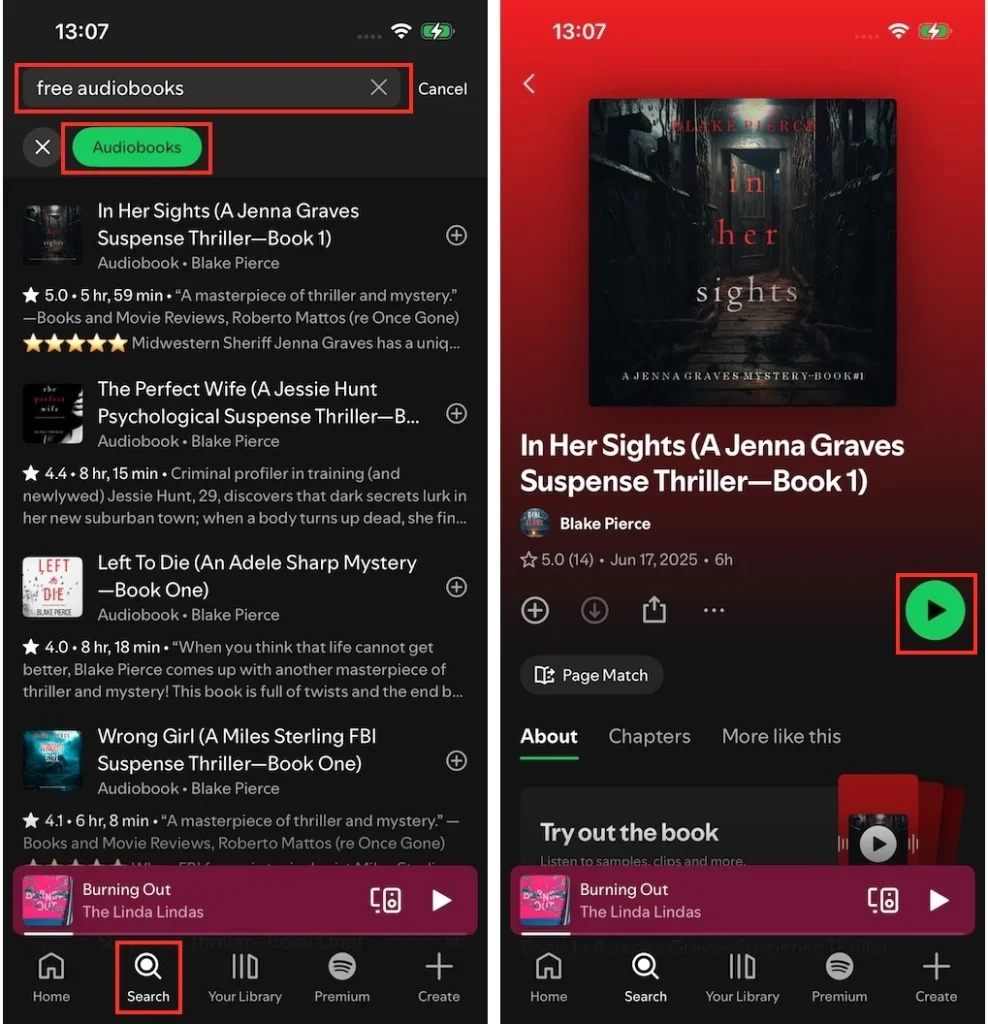
Spotify offers a small selection of free audiobooks, including public-domain classics. Enter “free audiobook” in the search bar and select Audiobooks from the filters. Select the title you’re interested in from the results, then tap the play button (mobile) or click “Get” (desktop) to unlock the book.
Available to: Spotify Free and Premium
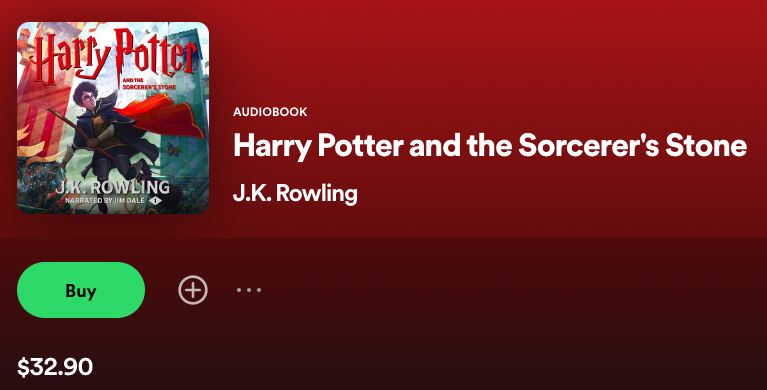
Spotify audiobooks are available for purchase on a pay-per-book model. You don’t need a Premium account to buy. However, you can only purchase audiobooks on the desktop app and web player, not within the mobile app. After purchasing, the book will be automatically saved in your library.
Every book in the Spotify catalog is individually priced, generally ranging from $4.99 to $32.99. Click the Buy button and follow the instructions to finish the payment.
Available to: Spotify Premium account holders (Individual, Duo, or Family)
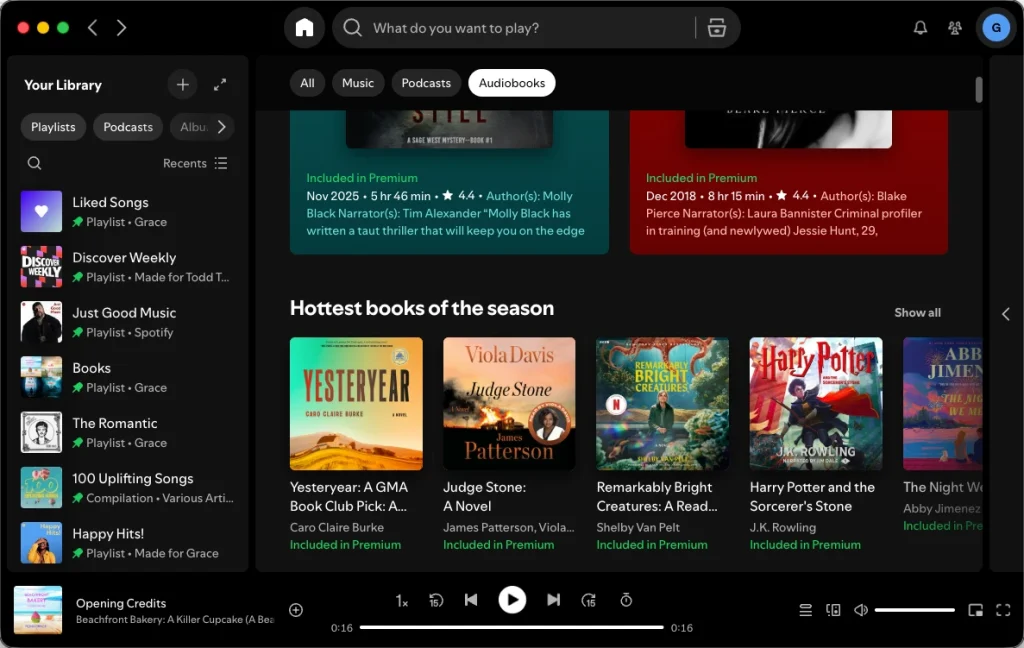
Spotify Premium plan holders can enjoy 12-15 hours of free audiobook listening each month, depending on the country your account is in. For example, US users can get 15 hours, and German users 12 hours. Go to the Audiobooks section and find the books marked as “Included in Premium” to start listening. Please note that any unused listening hours expire at the end of each month and do not roll over to the next month.
Available to: Spotify Premium account holders and members (Individual, Duo, or Family)
If you’ve run out of the audiobook listening hours included with your premium plan, you can purchase a one-time 10-hour top-up for $12.99. Unlike the included listening hours, which cannot carry over to next month, the top-up hours remain valid for 12 months from the purchase date. In addition, you can also purchase top-ups for your Family or Duo plan members.
Please note that your unused top-up hours will not be accessible if you unsubscribe from Spotify. You can regain access after you subscribe to Spotify again, as long as the hours are still in the 12-month valid period.
To Purchase Audiobook Listening Top-ups:
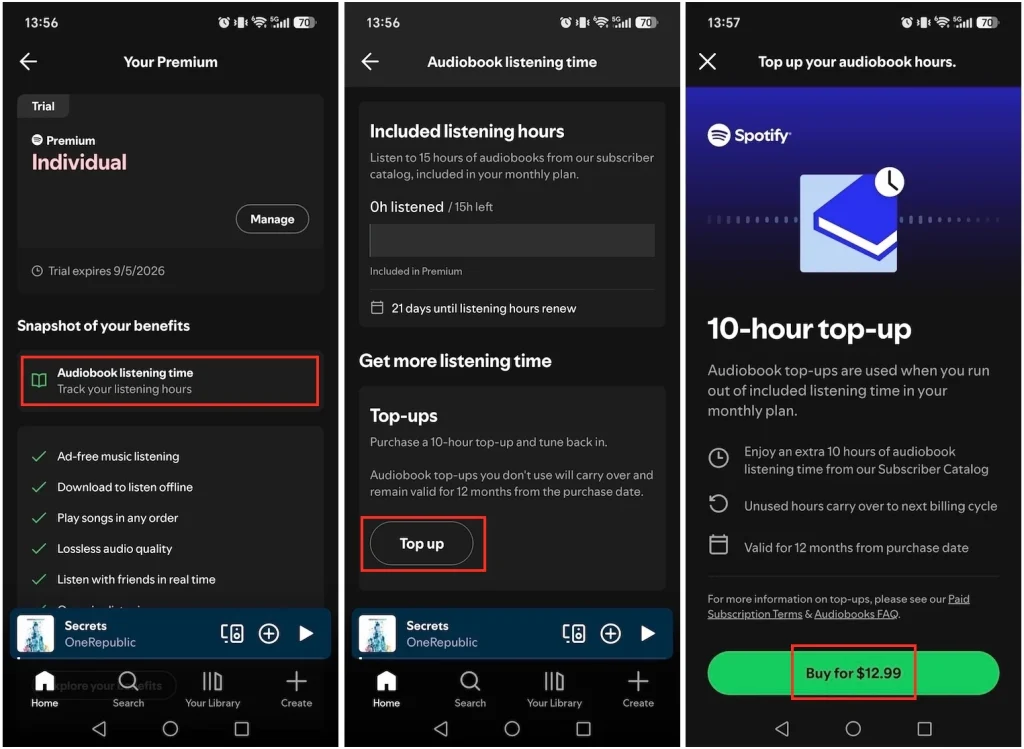
You can also buy Spotify audiobook top-up hours for your Premium members if you’re on a Duo or Family plan. Here’s how:
Available to: Spotify Premium account holders and members (Individual, Duo, or Family)
Audiobooks+ is a recurring monthly subscription add-on to add audiobook listening hours for you or your Premium members. It unlocks an additional 15 hours of listening for an extra $11.99 per month.
How to Subscribe to Audiobooks+:
Why Can’t I See the Audiobooks+ Add-on?
Check if any of these common reasons apply to you if you don’t see the Audiobooks+ add-on:
Available to: Spotify Free users in the U.S.
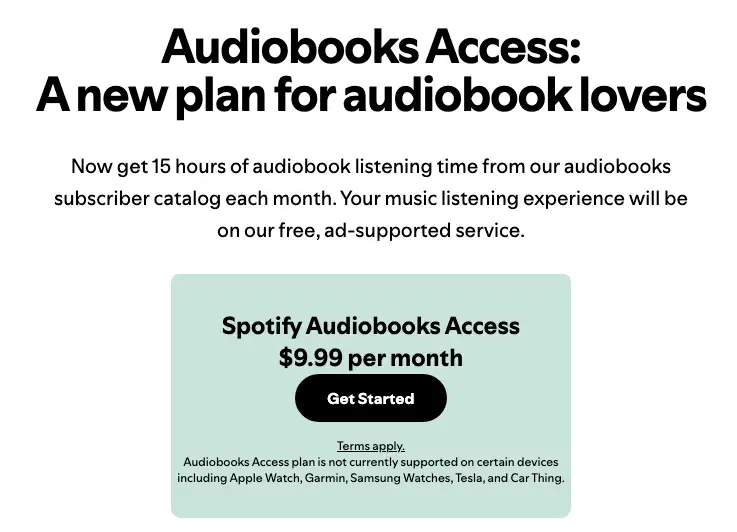
If you want audiobooks but don’t care about ad-free music, Free Spotify users in the United States can subscribe to the Audiobooks Access plan. It offers 15 hours of audiobook listening time while keeping free, ad-supported music and podcast listening.
The plan costs $9.99 per month and is currently available only in the US. To subscribe, visit the Spotify Audiobooks page, scroll down to the Audiobooks Access section, and click “Get Started.”
Although Spotify allows you to download audiobooks for offline playback, you can only play them within the Spotify app. Free users can also download purchased audiobooks (including free audiobooks after unlocking them for free). Just open the Spotify app on your desktop or mobile device, click or tap the Download icon under the audiobook title to download the entire book. You cannot download individual chapters.
To download individual chapters of Spotify audiobooks, or to play downloaded audiobooks anywhere, try a smart Spotify music downloader – Pazu Spotify Converter. It is designed for both Spotify Free and Premium users to download Spotify music, podcasts, and audiobooks for offline listening. It’s able to extract Spotify music and convert it to MP3, M4A, AIFF, WAV, FLAC, and AAC. With Pazu Spotify Music Converter, you can easily enjoy any Spotify Premium feature within a free account forever.
Now, let’s learn how to use Pazu Spotify Music Converter to download Spotify audiobooks to MP3, following the tutorial below. You can use the same steps to download Spotify music and podcasts.
Key features of Pazu Spotify Converter:
Download, install and run Pazu Spotify Converter on your Mac or Windows. Log in your Spotify account with the built-in web player.

Click the gear icon in the top right corner. Here you can select the output format (AUTO/M4A, MP3, AAC, FLAC, WAV, or AIFF), choose the output audio quality, customize the output path, organize the output files in various ways, rename the output files, and more.

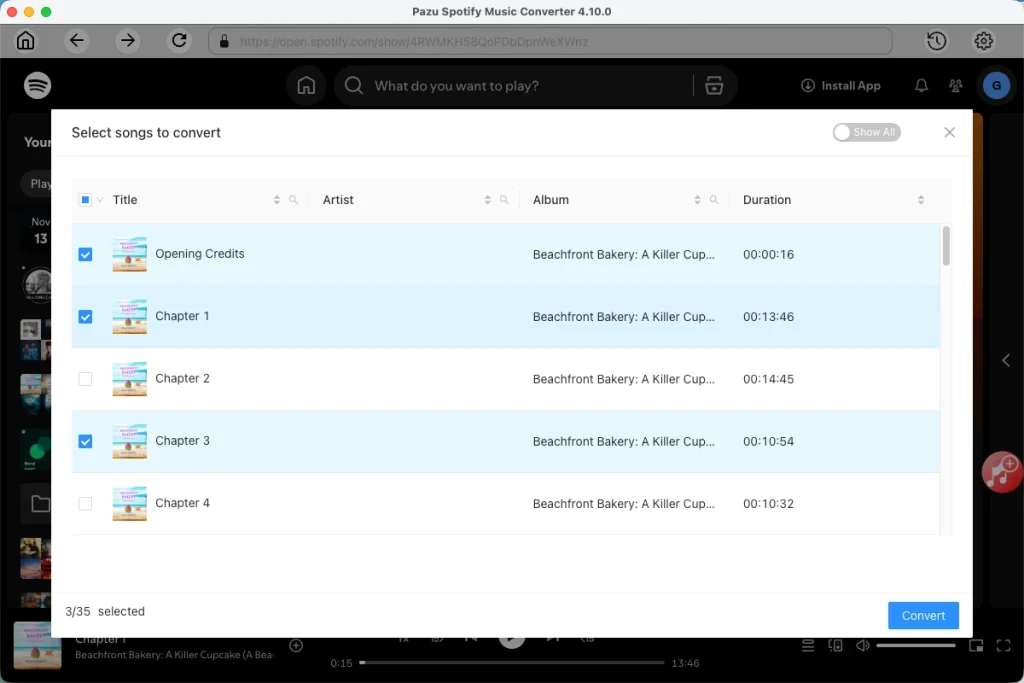
Use the integrated Spotify web player to search for the audiobook you want to download. Click the Add to list button to load all chapters, and uncheck those you don’t want to download.
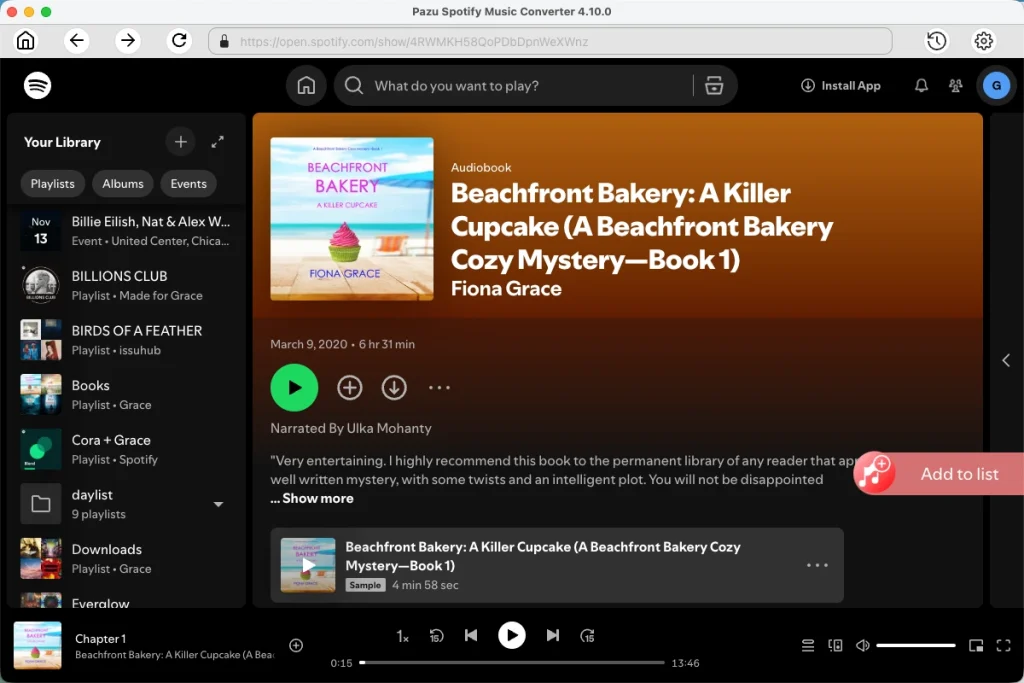
Click the Convert button to start downloading the audiobooks to your local computer.
Once done, find the downloaded audiobooks as local files by clicking the folder button or directly going to the output folder you customized in the previous step.
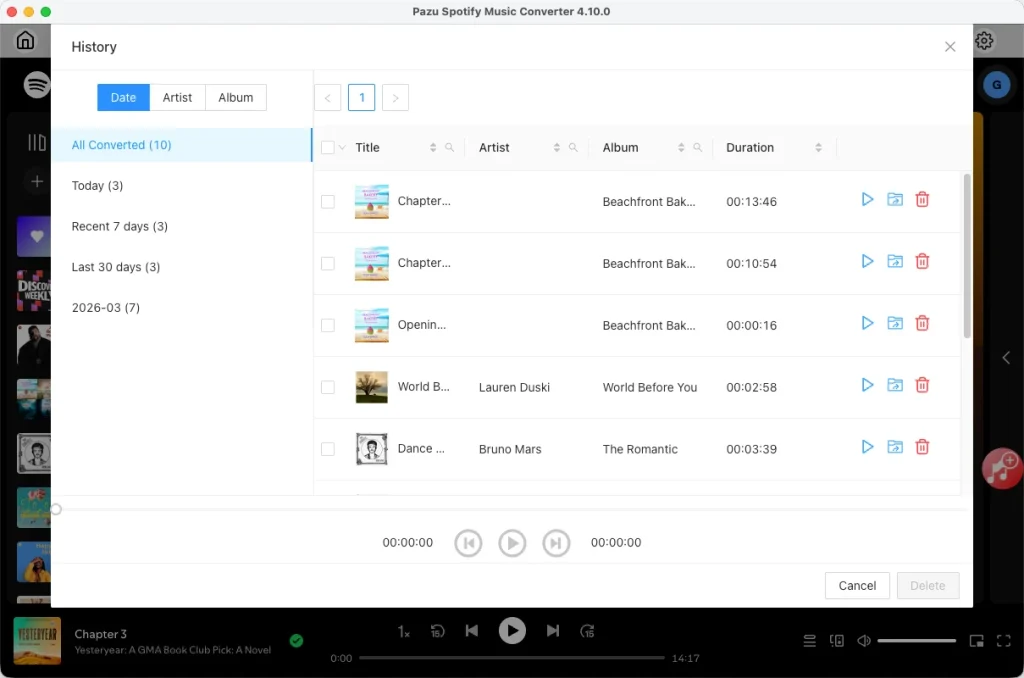
Note: The free trial version of Pazu Spotify Converter enables you to convert the first three minutes of each song. You can remove the trial limitation by purchasing the full version.
Download and convert any Spotify songs, albums, playlists to MP3/M4A etc.