

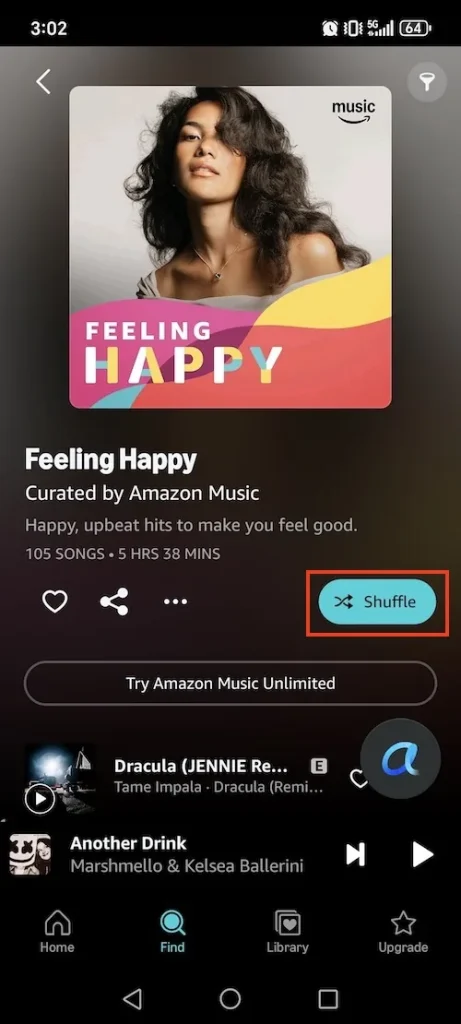
Amazon Music free and Prime members are limited to shuffle play for most playlists, artists, or albums. On-demand listening is restricted to All-Access playlists. If you are tired of these playback restrictions and want to pick the exact songs you hear, this guide walks you through how to bypass Shuffle Mode and upgrade your listening experience.
If you are using Amazon Music and find that you can only shuffle songs instead of selecting the exact track you want to play, it’s typically because you’re on a Free or Prime account or requesting music from an Echo device.
You can enjoy Amazon Music for free, with on-demand listening only for personalized All-Access playlists. Other music will be played in shuffle mode. This means you’ll hear a mix of the requested music and similar tracks, though this can be fun for the surprise and variety. In addition, you’ll encounter ads whether within the All-Access playlists or beyond.
Amazon Music Prime comes with Amazon Prime without additional cost. They can access the full music library with over 100 million songs ad-free. However, Prime members can play songs on demand only from the All-Access Playlists. When listening to music beyond, they will also experience shuffle mode, but with the ability to skip six tracks per hour. Plus, offline listening is limited to All-Access Playlists for Prime members.
Please also keep in mind that if you are using Echo devices on a Free or Prime account, the music you request will play in shuffle mode only, no matter whether it is from All-Access Playlists. Amazon Music Unlimited subscribers can play music on Echo devices on demand.
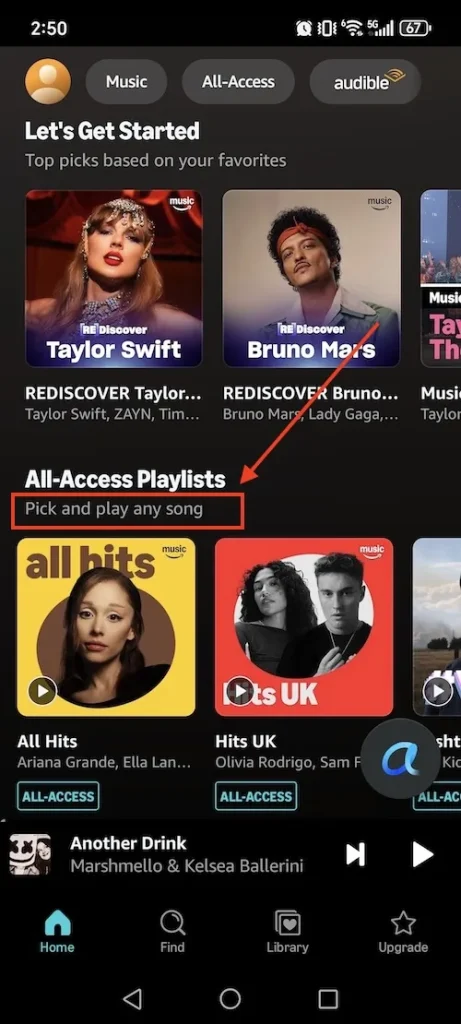
Amazon Free and Prime members who want to get around shuffle mode on Amazon Music can start by exploring the “All-Access” playlists. These playlists are based on your likes, listens, and genre preferences. You can easily find them on the Amazon Music homepage. Within All-Access playlists, you can choose and play any song on demand without skip limits.
Free users still encounter ads within All-Access playlists. Prime members can download All-Access Playlists in the Amazon Music app to listen offline.
Amazon Music Unlimited members can pick and play any song without any skip limitations. If you wish to stop your Amazon Music from shuffling, one option is to upgrade to the Unlimited tier.
For Amazon Prime members, Amazon Music Unlimited is available for $11.99 per month or $119 per year. Non-Prime users need to pay $12.99 per month. The good news is that you can always kickstart your experience with a 30-day free trial to explore all the benefits before making a decision.
Benefits for the Unlimited plan include:
The best way to turn off shuffle mode in Amazon Music is to download songs as MP3s and play them on demand with any supported player. For this purpose, Pazu Amazon Music Converter provides the perfect solution. It allows you to download songs, albums, and playlists from Amazon Music to MP3, M4A, AAC, FLAC, WAV, and AIFF, even with a free account. Once downloaded, you can play the songs anywhere, on Apple Music, Windows Media Player, or your MP3 player, without shuffle mode limitations.
Now follow the tutorial below to convert Amazon Music to MP3 or other available formats.
1. Run Pazu Amazon Music Converter
Download, install, and launch Pazu Amazon Music Converter on your computer, then click Sign In to log in to your Amazon account.

If you have purchased a license, click the key icon to register the converter. If not, continue using the trial version.
2. Choose the output format
Click the Settings icon in the top-right corner and select MP3 as the output format.

3. Add songs, albums, or playlists
Select the desired songs, albums, or playlists you wish to download. Click the red Add button on the right to add songs to the download list.

All songs in the playlist will be added by default. Uncheck the box of any track you don’t want to download.

4. Convert Amazon Music
Click the Convert button at the lower right. Pazu Amazon Music Converter will automatically download and save the tracks to the default folder on your computer.

After downloading, you can browse all the converted songs in the history tab by clicking the Clock  icon. Now you’re ready to enjoy your Amazon Music songs on any supported player or device on demand, without any shuffle play restrictions.


Download Amazon Music to MP3, FLAC, etc.