

Spotify Smart Shuffle is a dynamic feature that refreshes your listening experience by adding similar songs to your playing queue. It replaces Spotify’s Enhance Feature and is now available to Premium users (and Free users in select regions) on iOS and Android devices.
However, user opinions on Smart Shuffle are mixed. Many love the convenience and how it helps discover new music, while others think it is unpredictable or disruptive. This guide will show you how to enable Spotify Smart Shuffle, save new songs you like from it, and easily turn it off if it doesn’t suit your preferences.
Read Also: How to Stop Spotify Playing Songs Not on Playlist

Spotify Smart Shuffle is an enhanced shuffle feature to keep your listening interesting. Different from regular shuffle, it plays your playlist in random order, but mixed with new songs recommended based on your listening habits and playlist vibe.
Smart Shuffle is limited to Spotify Premium subscribers, who can use it on both desktop and mobile devices. However, it is also the default play mode for Free users in select regions including Brazil, Canada, Colombia, Egypt, India, Indonesia, Nigeria, Pakistan, South Africa, Thailand, the Philippines, Turkey, and Vietnam.
When you want to freshen up your playlist, try activating the Smart Shuffle feature. However, if you prefer full control over your listening experience and want to return to the original playlist order, simply turn it off.
 .
. To turn off the Smart Shuffle on Spotify, tap the green Smart Shuffle button once, and it will return to the white Shuffle Off icon.

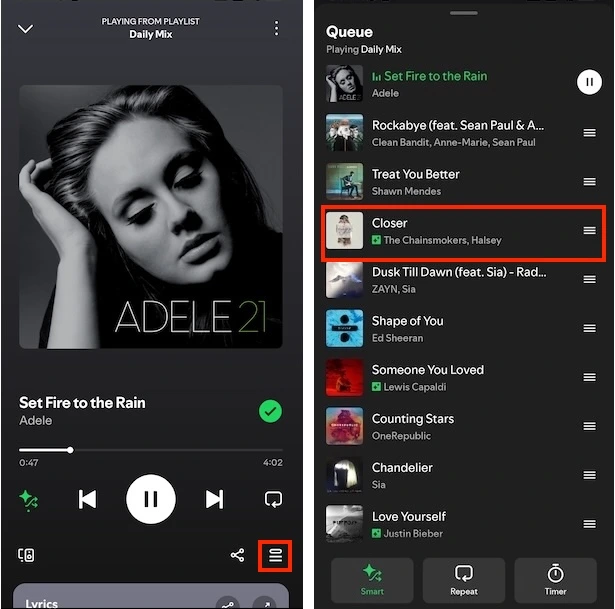
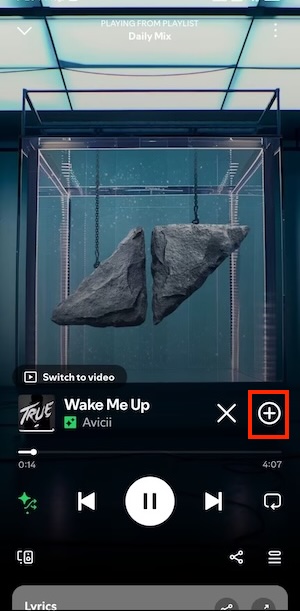
For a playlist with more than 15 songs, Smart Shuffle will add one recommended song for every three tracks in your playing queue. Otherwise, the recommended songs will be added at the end of your playlist. Here is how you can identify these new tracks and add them to your playlist if you enjoy them.
While Spotify Free now allows users to pick and play specific songs on-demand on mobile, daily on-demand listening minutes are limited. Once that limit is reached or if you try to disable shuffle mode on a playlist, Spotify will prompt you to upgrade to Premium for unlimited skips and complete control over playback order.

However, this limitation can be overcome with a smart Spotify music converter. Pazu Spotify Converter is designed for both Spotify Free and Premium users to download songs, playlists, albums, and podcasts for offline listening. It extracts Spotify music and converts it to various high-quality formats, including MP3, M4A, AIFF, WAV, FLAC, and AAC. Pazu Spotify Converter supports both Windows and Mac computers. After downloading, you can transfer the songs to any compatible device for offline listening. With this tool, you have full control over your music collection and can play them in any order without Premium.
Now, let’s learn how to use Pazu Spotify Music Converter to download Spotify songs with a free subscription.
Download, install, and run Pazu Spotify Converter on your Mac or Windows.
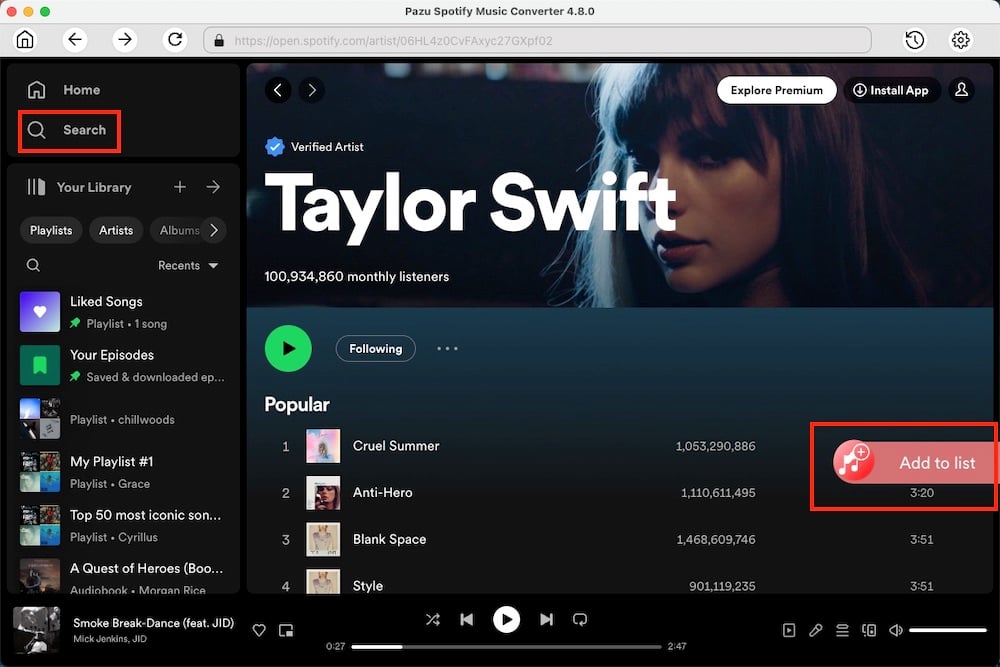
After logging in to your Spotify account, use the integrated Spotify web player to search for songs, albums, or playlists you want to download. Click the Add to List button to load all songs in the album or playlist.
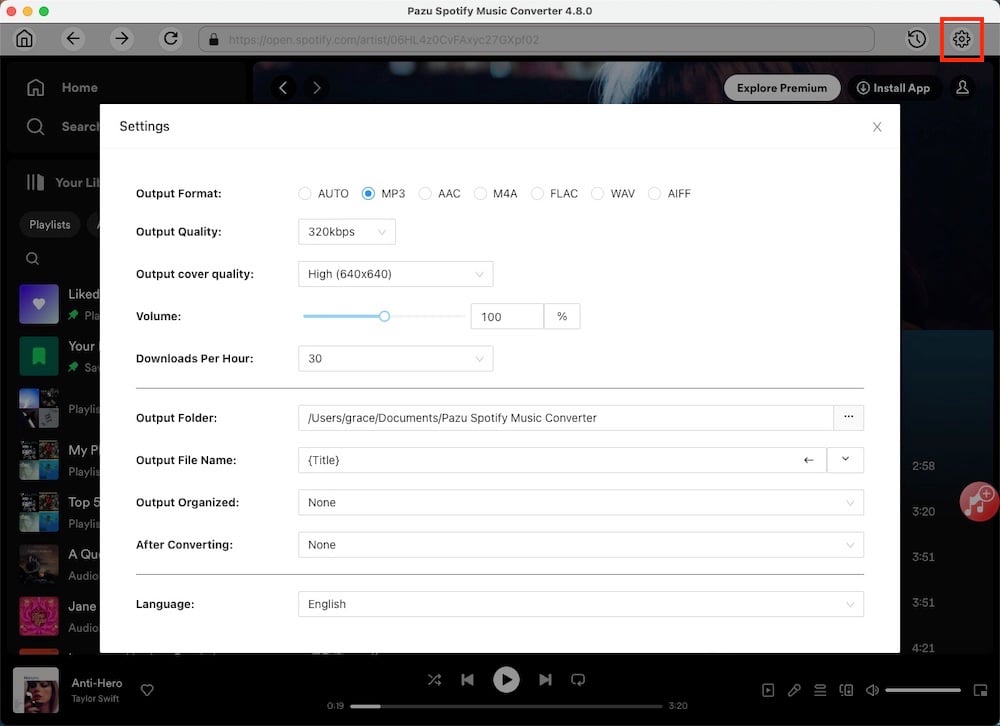
Click the gear icon in the top right corner to select the output format (AUTO[M4A], MP3, AAC, FLAC, WAV, or AIFF), choose output audio quality, customize the output folder, and more.
Click the Convert button to download the Spotify songs to your local computer.
To download individual songs or specific songs of your choice, simply uncheck the ones you don’t want before clicking Convert.

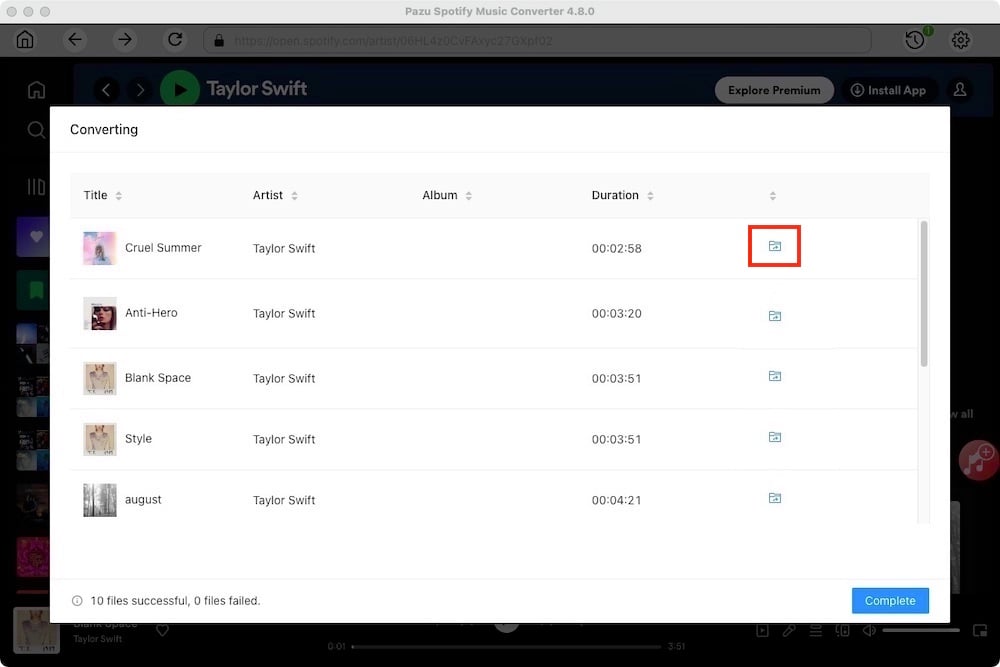
Once the conversion is done, click the folder icon or directly go to the output folder you customized in the previous step to find the downloaded Spotify songs. From there, you can transfer the songs to any compatible device and enjoy them in any order.
Note: The free trial version of Pazu Spotify Converter enables you to convert the first three minutes of each song. You can remove the trial limitation by purchasing the full version.

Download and convert any Spotify songs, albums, playlists to MP3/M4A etc.