

It is extremely frustrating when you listen to Spotify, but it keeps pausing, which happens to many people. But don’t worry, here we will show you several solutions to fix the Spotify pausing issue and the best alternative to avoid all Spotify issues – play Spotify with other music players.
Related: How to fix Spotify keeps crashing on iPhone?
Check if your internet is disconnected. Music streaming apps need a solid internet connection to play music without pauses or buffering. Constant buffering usually occurs if your Internet connection is slow. An unstable internet connection is another typical reason why Spotify stops working while in use. If you experience connection problems, Spotify may suddenly stop playing.
If this is the case, disconnect from the network on your phone and then rejoin the network. Besides, if you use a VPN to access Spotify, make sure your VPN is connected.
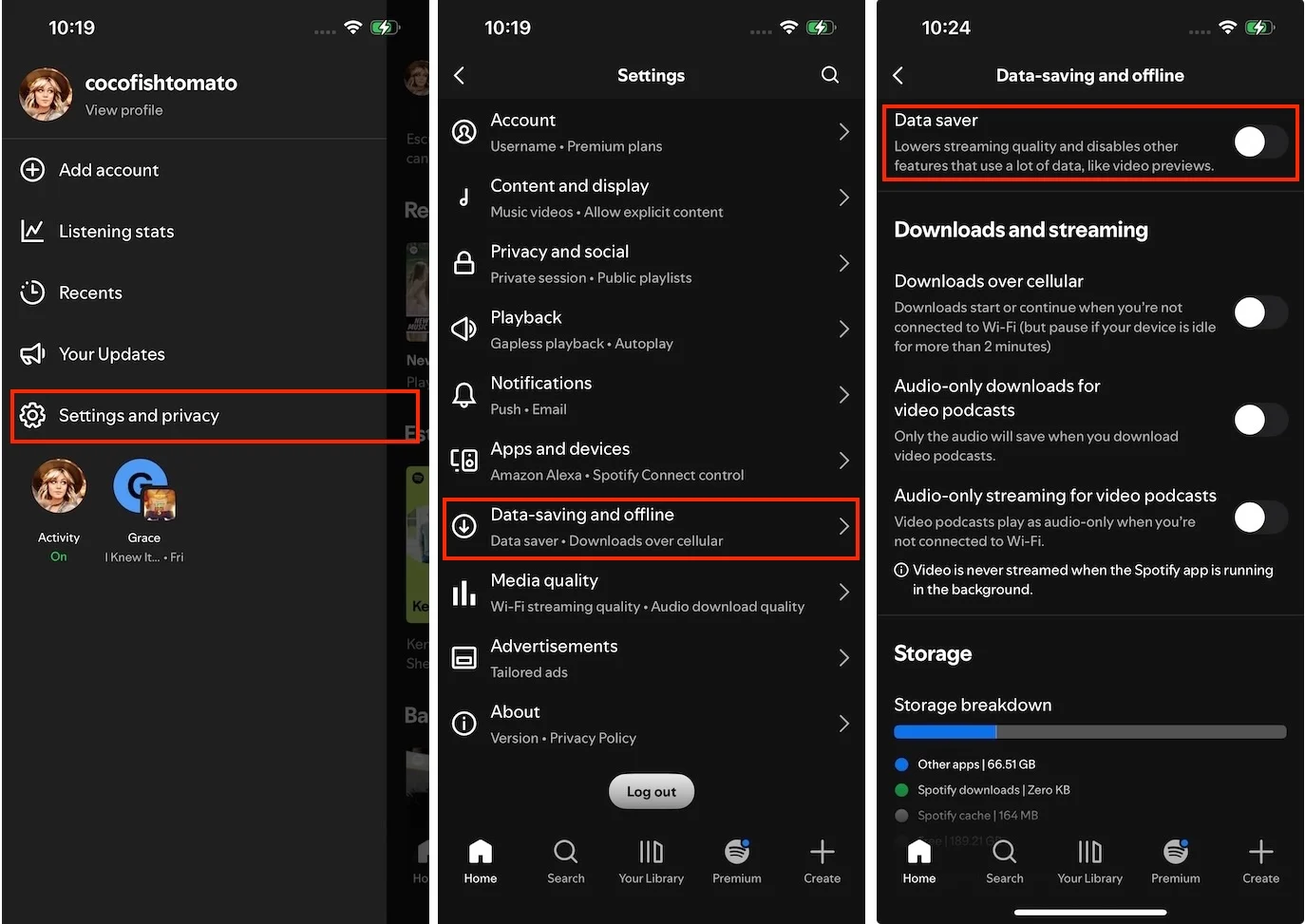
Spotify Data Saver reduces the app’s data usage by showing fewer images and reducing audio quality. Data Saver is only available on the Spotify mobile app. This mode has the potential to interfere with playback quality and cause Spotify to pause.
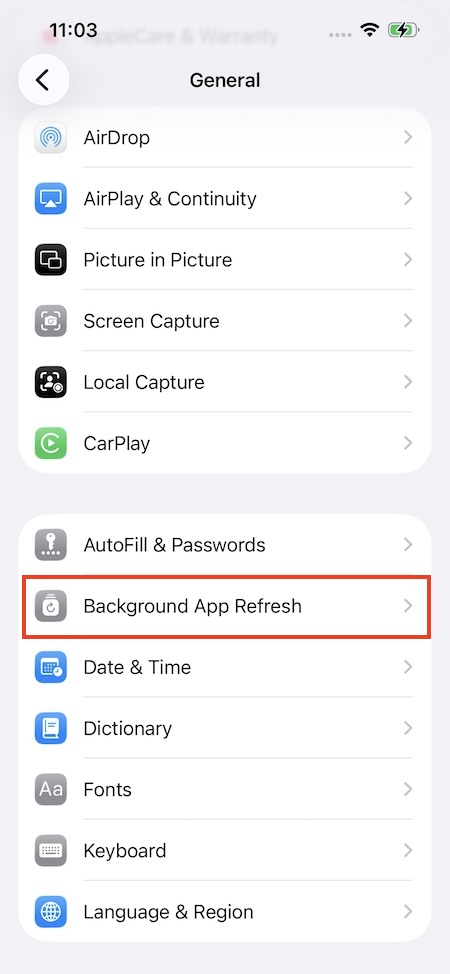
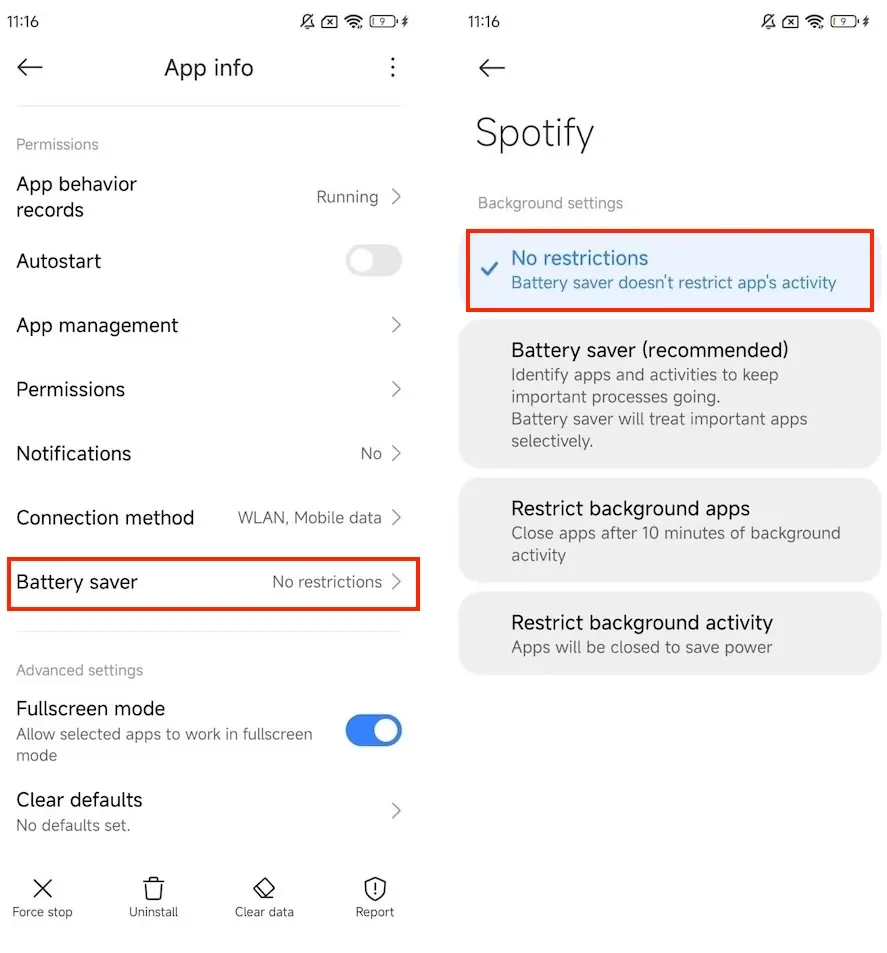
If you find that the Spotify app on your mobile stops playing when the device screen sleeps or locks, you need to check if Spotify has permission to operate in the background.
On iOS
On Android
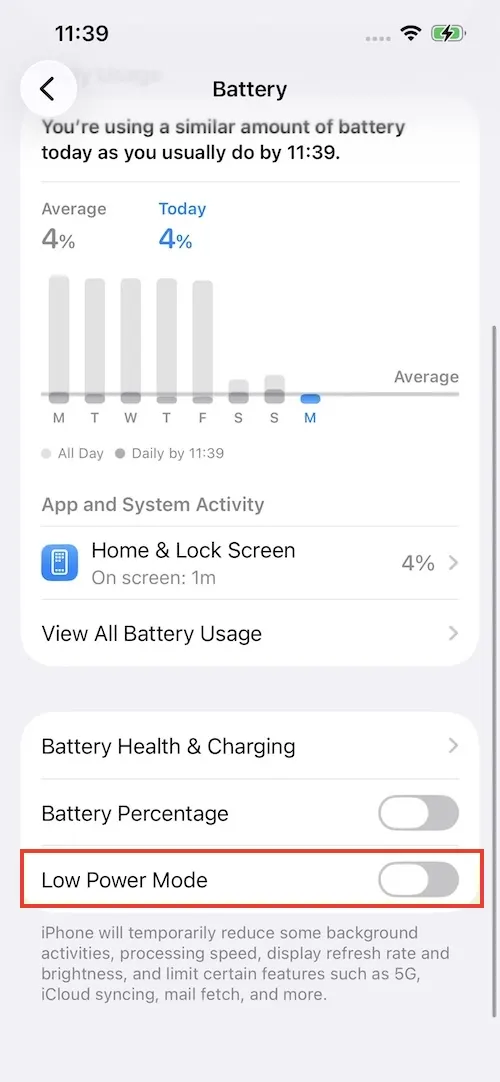
Another reason why your Spotify keeps pausing on your iPhone or iPad may be that Low Power Mode is enabled on your device. Low Power Mode reduces the amount of power that your iPhone or iPad uses when the battery gets low. It may block apps such as Spotify from freely using your cellular data or Wi-Fi networks while running in the background.
To turn Low Power Mode off, go to Settings > Battery, and disable Low Power Mode.
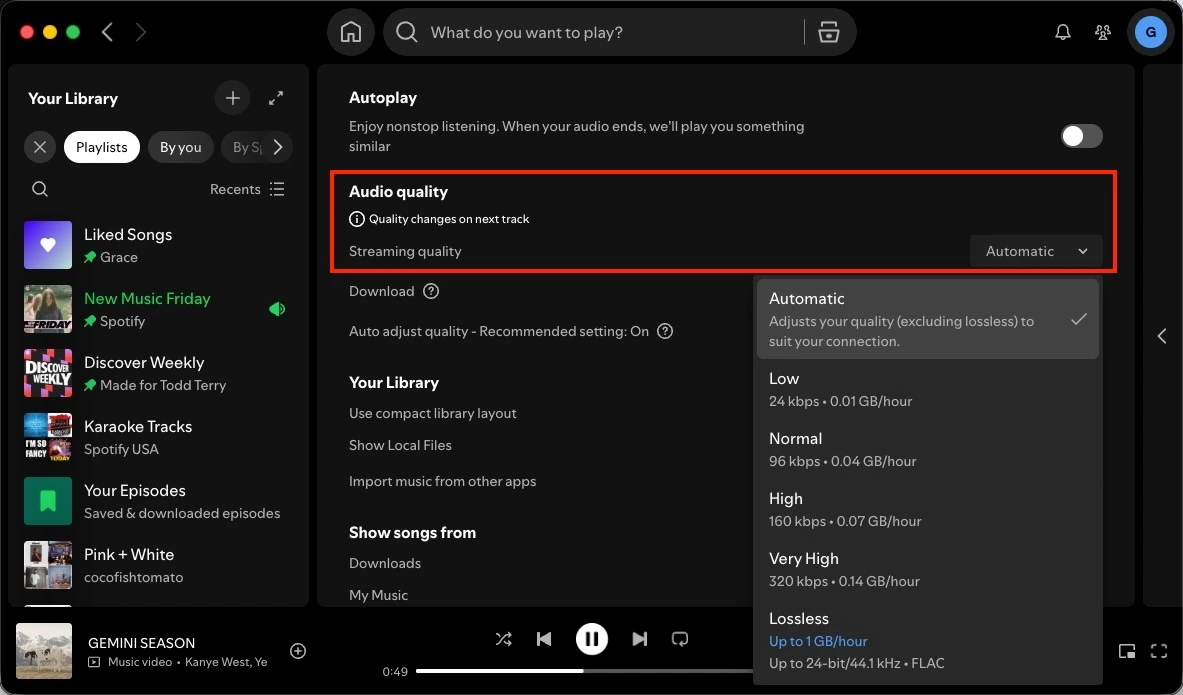
If your internet connection is not fast enough, changing the streaming audio quality to Automatic or Low will help with the Spotify pausing or loading issues.
On mobile or tablet
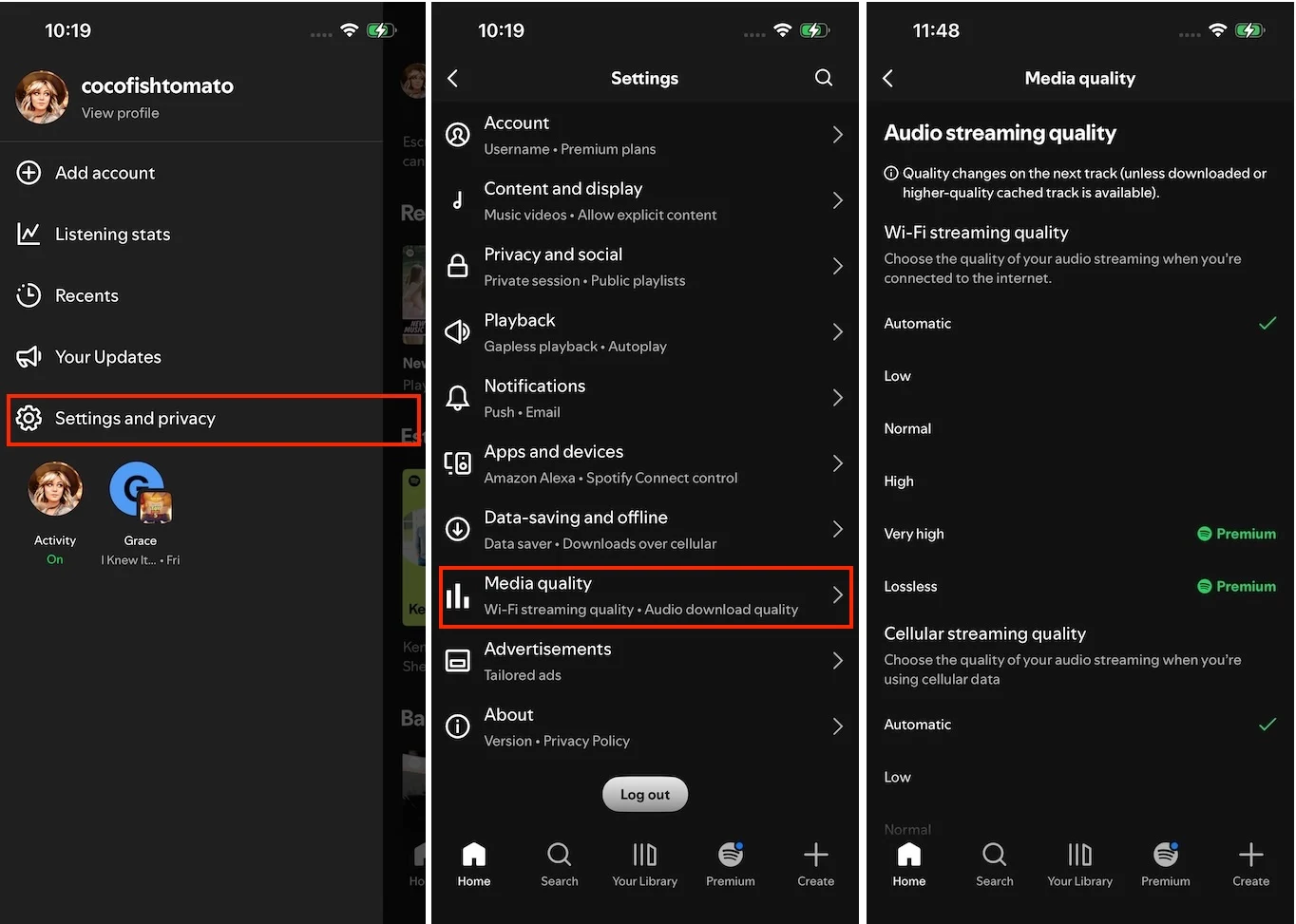
On desktop
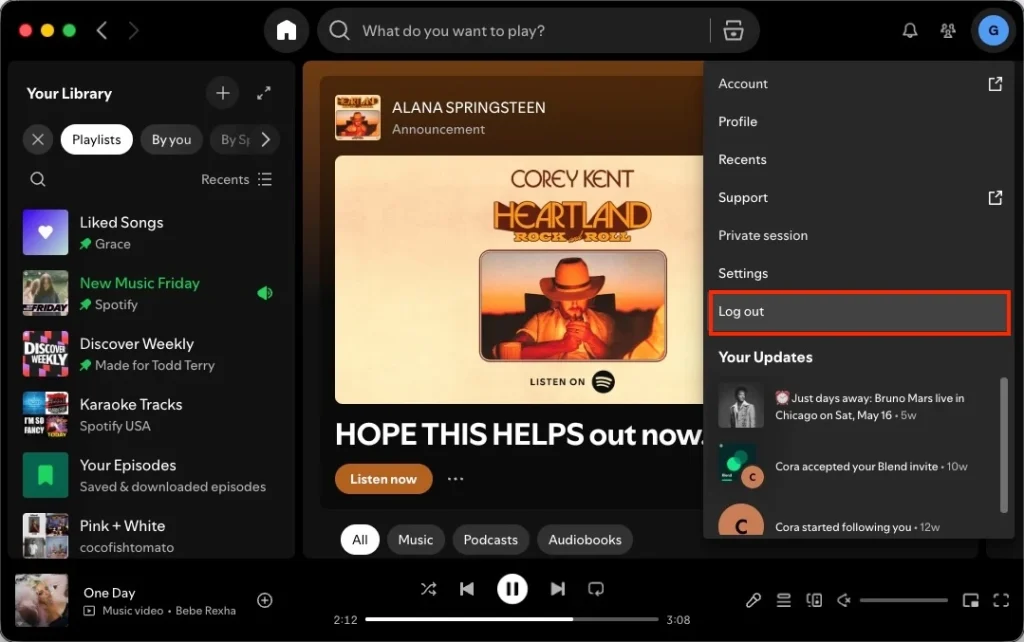
Logging out and back in to your Spotify account makes it start fresh. This basic troubleshooting cliché can always solve pausing issues.
On mobile or tablet
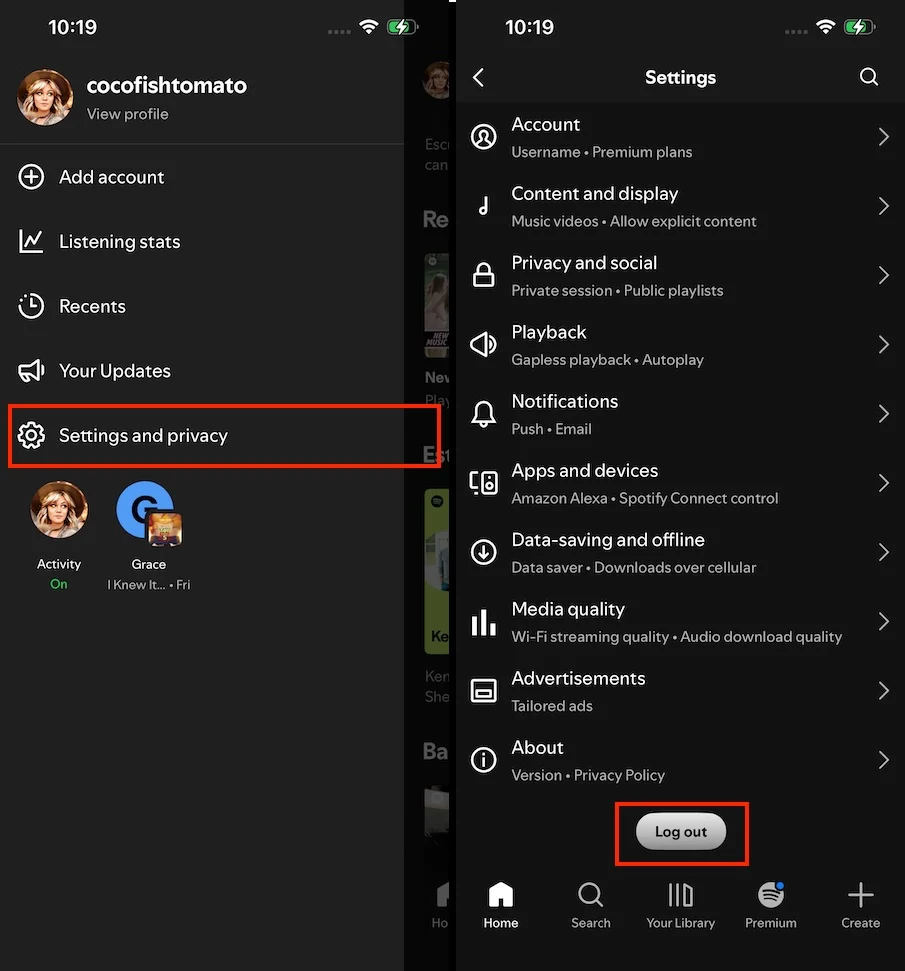
On desktop
The outdated Spotify app may not support the latest features and can cause it to pause, stop working, or crash. So always keep your Spotify updated to have the best performances.
Desktop
When a new update is available for download, you will see a blue dot next to the menu button in the top right section of the app. Click on the notification bell in the top right and click on Update Available. Restart Now. You can also reinstall the app to get the latest version easily.
iPhone/iPad
Launch the App Store and find Spotify’s page. Tap on the Update button and get the new feature.
Android
Launch the Google Play Store and search for Spotify. On its store page, tap on the Update button.
If you have a Spotify Free, Premium Individual, or Student plan, you can only listen to Spotify on one device at a time. Check if somebody is listening to your account on another device. You might have forgotten to log out on a different device, and a friend or family member is unknowingly listening using your account. This can also happen when Spotify Duo subscribers listen to Spotify on more than 2 devices or family subscribers listen to Spotify on more than six devices.
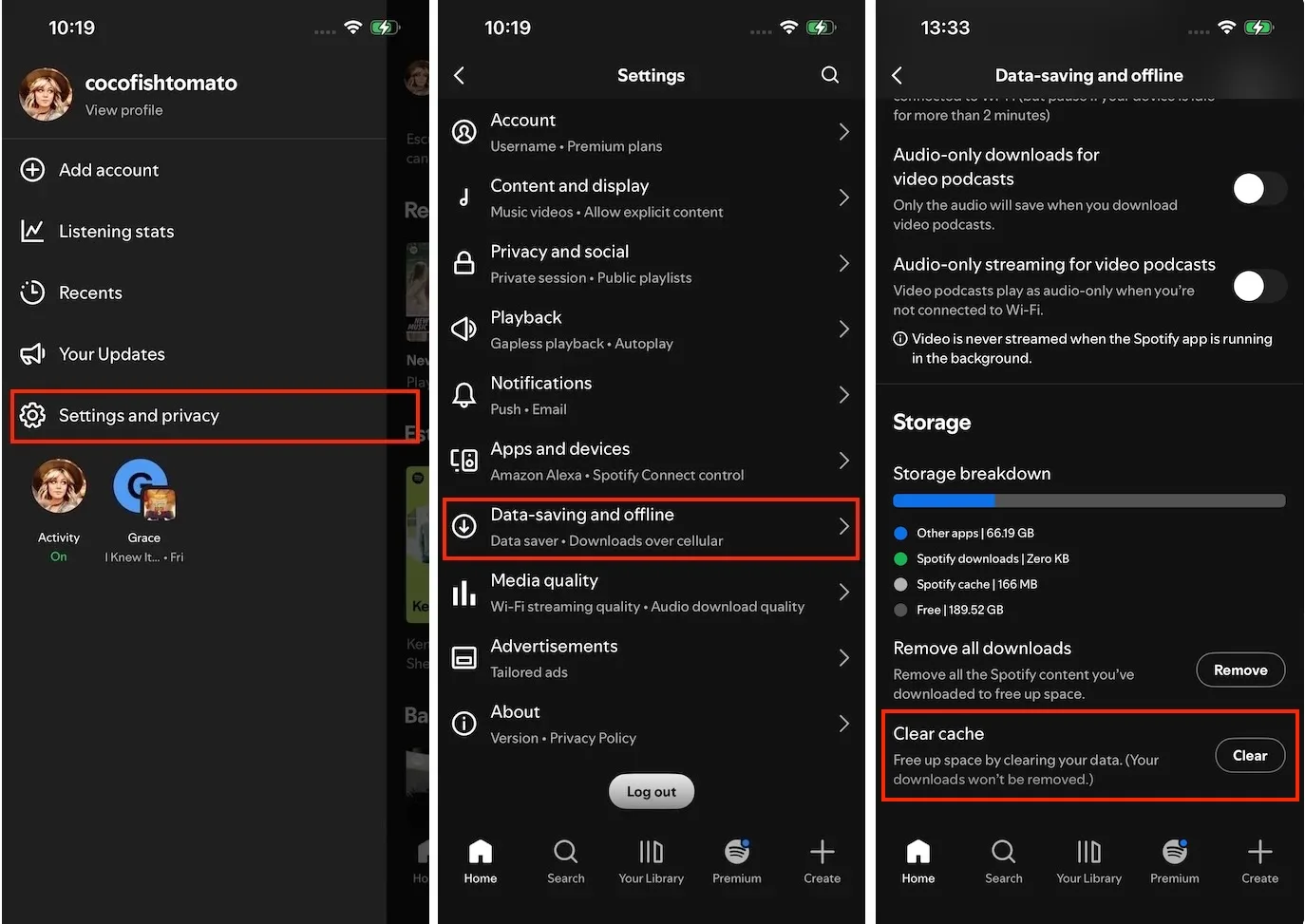
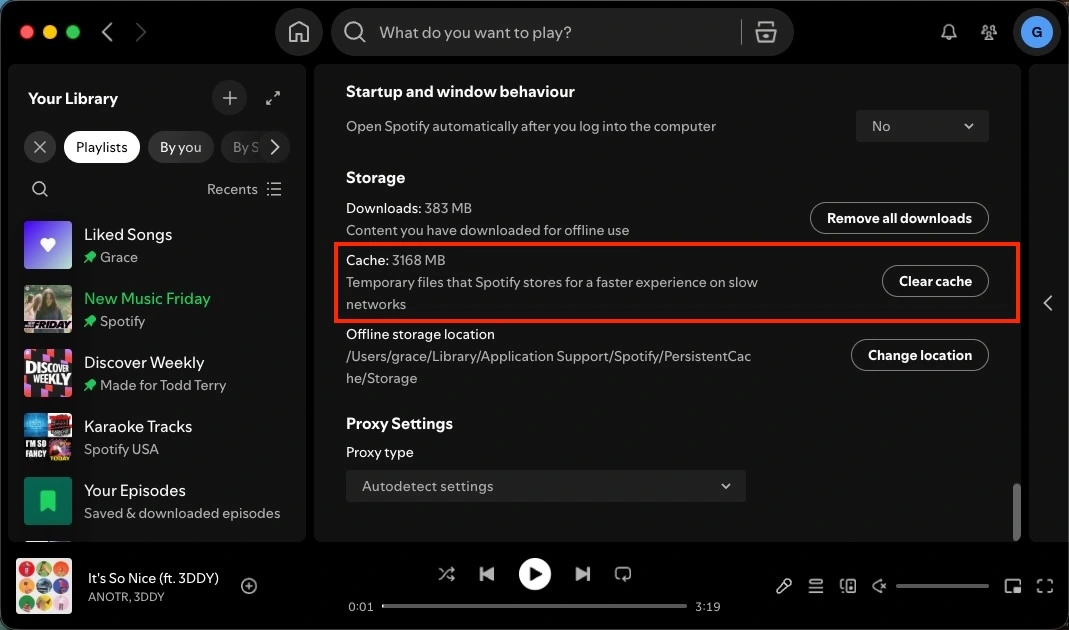
Clearing the cache is a powerful troubleshooting step to fix pausing and buffering loops. It can clear the bloated or corrupted chunks of audio files saved on your device and give the app a fresh start.
On Android and iOS
On Desktop
To avoid all Spotify app issues, the best way is to play Spotify music with other music players, such as Apple Music/iTunes, VLC, Windows Media Player, etc. All you need to do is download Spotify music to MP3 with Pazu Spotify Converter, which is feasible whether you have a Spotify free or premium account.
Pazu Spotify Converter is specially designed for you to download Spotify music to common formats with either a free or premium account on Mac/Windows. Pazu Spotify Music Converter allows you to convert Spotify songs to the most popular audio formats, such as MP3, M4A, WAV, FLAC, AAC, and AIFF. With the adoption of advanced encryption technology, it’s able to keep all the converted audio files with 100% lossless audio quality and the original ID3 tags and metadata information. For more details, see below.
Key features of Pazu Spotify Converter:
Download, install and run Pazu Spotify Converter on your Mac or Windows. Log in your Spotify account with the built-in web player.

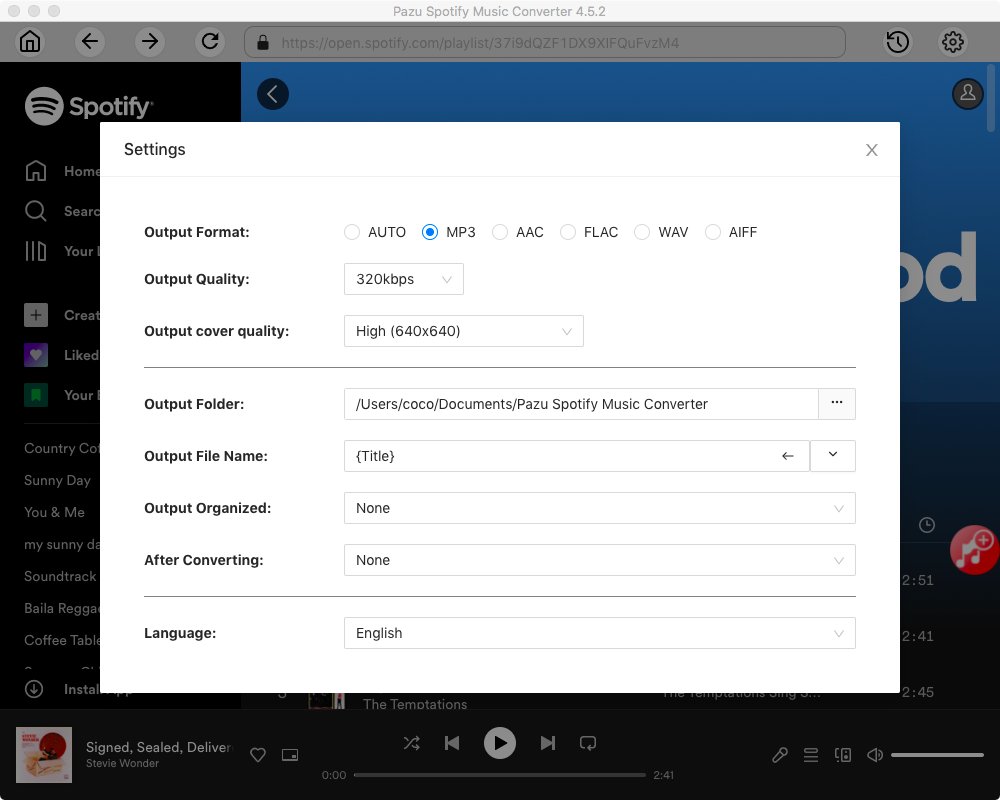
Click the gear icon in the top right corner to open the Settings window. Here you can choose:
Select the songs, album, or playlist you want to convert to MP3. Spotify Converter will detect and select all songs in the playlist or album by default. Uncheck the songs you don’t want to download if there are any. Click “Show All” icon to toggle “Hide Converted” on in case some songs have been downloaded before.
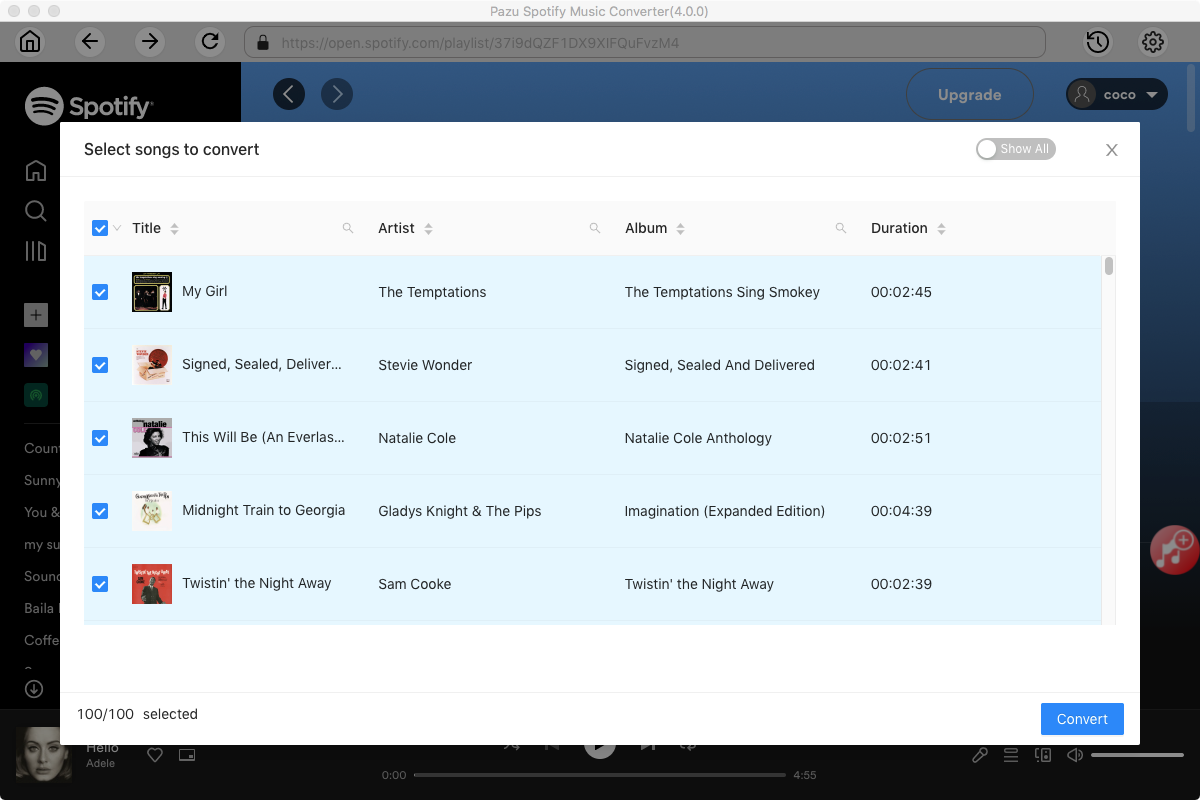
Click the Convert button to download Spotify songs to MP3.

Once the conversion is done, click the folder icon to find the downloaded MP3 songs. Now you can then play the Spotify MP3 songs with your favorite music player or device.
Note: The free trial version of Pazu Spotify Converter enables you to convert the first three minutes of each song. You can remove the trial limitation by purchasing the full version.

Download and convert any Spotify songs, albums, playlists to MP3/M4A etc.