

Among music streaming platforms, YouTube Music stands out for offering a wide range of unreleased songs, covers, and remixes that may not be available elsewhere. Its integration with YouTube adds value by allowing users to easily switch between music video and audio. However, users have mixed opinions on YouTube Music’s audio quality, with some finding it satisfactory while others feel the music lacks detail.
Audio quality can be a key factor in your listening experiences. In this article, let’s explore what audio quality YouTube Music can offer, how to adjust YouTube Music quality, and which one is superior in quality between YouTube Music and Spotify.
Contents
YouTube Music offers four audio quality levels: Low, Normal, High, and Always High. Always High maintains High quality even in poor network conditions. However, YouTube Music currently does not offer lossless audio.
YouTube Music Premium members can choose from all three audio quality options for both streaming and downloading experiences. In addition, they can also choose Always High when listening to YouTube Music online.
YouTube Music Free users can only listen to the music up to 128kbps (Normal, default setting).
The table below outlines the YouTube Music audio quality options for users to choose from.
| Audio Quality | Streaming (Premium) | Downloading (Premium) | Streaming (Free) |
|---|---|---|---|
| Low – 48kbps | Yes | Yes | Yes |
| Normal – 128kbps | Yes | Yes | Yes |
| High – 256kbps | Yes | Yes | N/A |
| Always High – 256kbps | Yes | N/A | N/A |
YouTube Music Premium members can select the audio quality settings. If you haven’t manually chosen an audio quality, it will automatically be set to Normal.
Here is how you can select the audio quality for your streaming with YouTube Music:


YouTube Music allows Premium users to download music for offline playback. Before downloading, you can choose the audio quality for your offline music with the following steps.

Here is a comprehensive comparison of YouTube Music’s audio quality against all major competing streaming services, broken down across both Free and Premium tiers.
| Audio Quality | Premium | Free |
|---|---|---|
| YouTube Music | 256kbps AAC & OPUS | 128kbps AAC & OPUS |
| Spotify | 320kbps Ogg Vorbis / AAC (24-bit/44.1 kHz Lossless FLAC in certain countries) | 160kbps Ogg Vorbis |
| Amazon Music | 24-bit/192 kHz FLAC (Unlimited) | 320kbps OPUS (Free and Prime) |
| Apple Music | 24-bit/192 kHz ALAC | N/A |
| Tidal | 24-bit/192 kHz FLAC | N/A |
| Deezer | 16-bit / 44.1 kHz FLAC | 128 kbps MP3 |
| Pandora | 192 kbps AAC (Plus and Premium) | 128 kbps AAC |
| SoundCloud | 256 kbps AAC | 128 kbps MP3 |
YouTube Music provides 4 audio quality options for Premium users, with the highest quality at 256kbps: Low(48kbps), Normal(128kbps), High(256kbps), and Always High(256kbps).
On the other hand, Spotify allows Premium members to choose from 5 options for sound optimization: Low(24kbps), Normal (96kbps), High (160 kbps), Very High (320 kbps), and Automatic Mode (depending on internet connection). The highest audio quality provided by Spotify is 320 kbps. In supported regions, Spotify offers Lossless audio up to 24-bit/44.1 kHz FLAC.
For Free users, YouTube Music provides a maximum quality of 128kbps while Spotify offers up to 160kbps.
On paper, Spotify’s 320 kbps ceiling looks superior to YouTube Music’s 256 kbps. However, because YouTube Music uses the highly efficient AAC / OPUS codec and Spotify uses Ogg Vorbis, the real-world audio quality is virtually identical over standard speakers and Bluetooth headphones. Some users find that Spotify has a warmer bass, while YouTube Music has a more natural sound. YouTube may sound louder, as Spotify uses normalization on all tracks. For better and louder audio quality on Spotify, you can turn off the “Normalize Volume” under the Audio Quality settings.
Apple Music and Amazon Music Unlimited provide uncompressed CD-quality (16-bit / 44.1 kHz) and Hi-Res Lossless (up to 24-bit / 192 kHz) at no additional charge. However, Apple Music doesn’t offer a free tier.
While Amazon Free and Prime technically offer a higher bitrate ceiling (320 kbps vs. YouTube Music Free’s 128 kbps), the practical audio difference over standard mobile speakers or Bluetooth earbuds is minimal. In addition, Amazon Free and Prime tiers are both more restricted than YouTube Music. Amazon Music Free and Prime force shuffle playback across most of the catalog and limit track skips, whereas YouTube Music Free allows users to search for and play specific tracks directly on demand.
Tidal and Deezer are both audiophile-focused. Tidal includes Hi-Res FLAC up to 24-bit/192kHz, while Deezer provides FLAC CD-quality audio (1,411 kbps). YouTube Music tops out at lossy compressed 256 kbps.
Pandora tops out at a lower ceiling (192 kbps AAC even on Premium), making YouTube Music superior in audio clarity. SoundCloud Go+ matches YouTube Music Premium at 256 kbps AAC, but SoundCloud’s catalog relies heavily on user-uploaded, non-mastered audio files with varying source quality.
YouTube Music Premium subscribers can download songs for offline playback. When you set the download quality to High, you can enjoy songs offline at 256kbps. However, these downloaded files are limited within the YouTube app and cannot be transferred to other devices or played by other applications.
For free users of YouTube Music, the download feature is not available. Fortunately, a reliable software tool, Pazu YouTube Music Converter, offers a solution to overcome these limitations. This tool allows you to download YouTube Music songs, albums, playlists, and podcasts in popular formats like MP3, M4A, and WAV on Mac/Windows, whether you have a free or premium YouTube Music account. In addition, downloaded tracks preserve the original 256kbps quality and can be transferred to any other supported device for offline listening.
With Pazu YouTube Music Converter, you can directly search and download playlists in batch with the built-in YouTube Music web player; no need to copy and paste YouTube/YouTube Music links manually. Check out the detailed steps below to download YouTube Music to MP3.
To get started, download, install and run Pazu YouTube Music Converter on your Mac or Windows, which features a built-in YouTube Music web player.
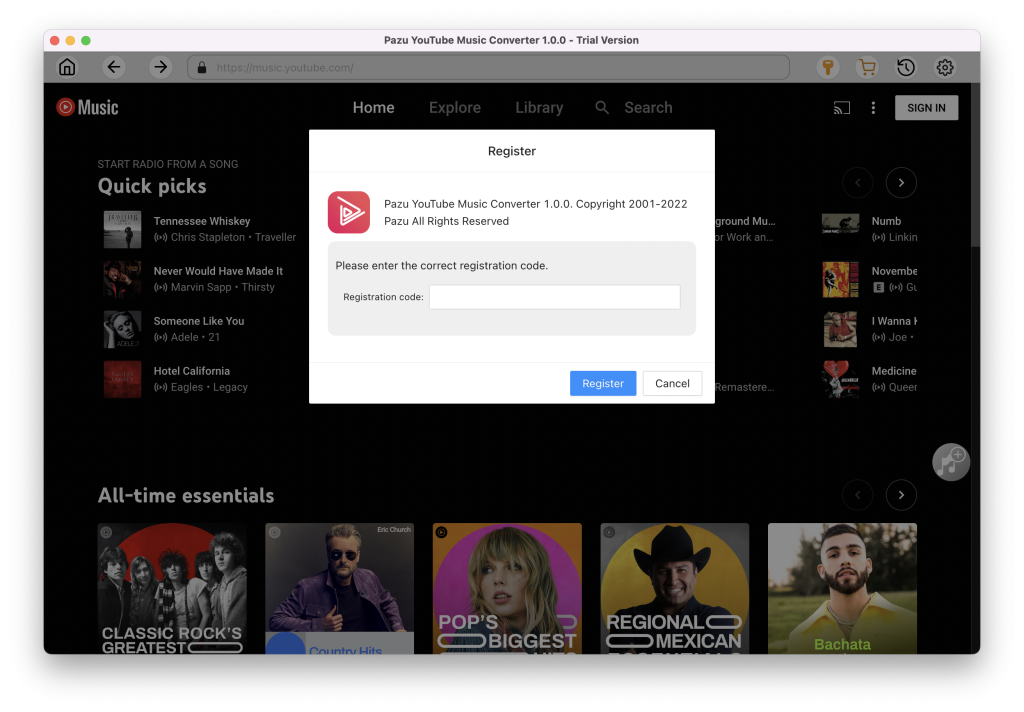
After installation, launch the YouTube Music to MP3 Converter. If you have already purchased a license, click the key icon to register the converter. Otherwise, continue using the trial version.
You don’t need to sign in to your YouTube Music account.
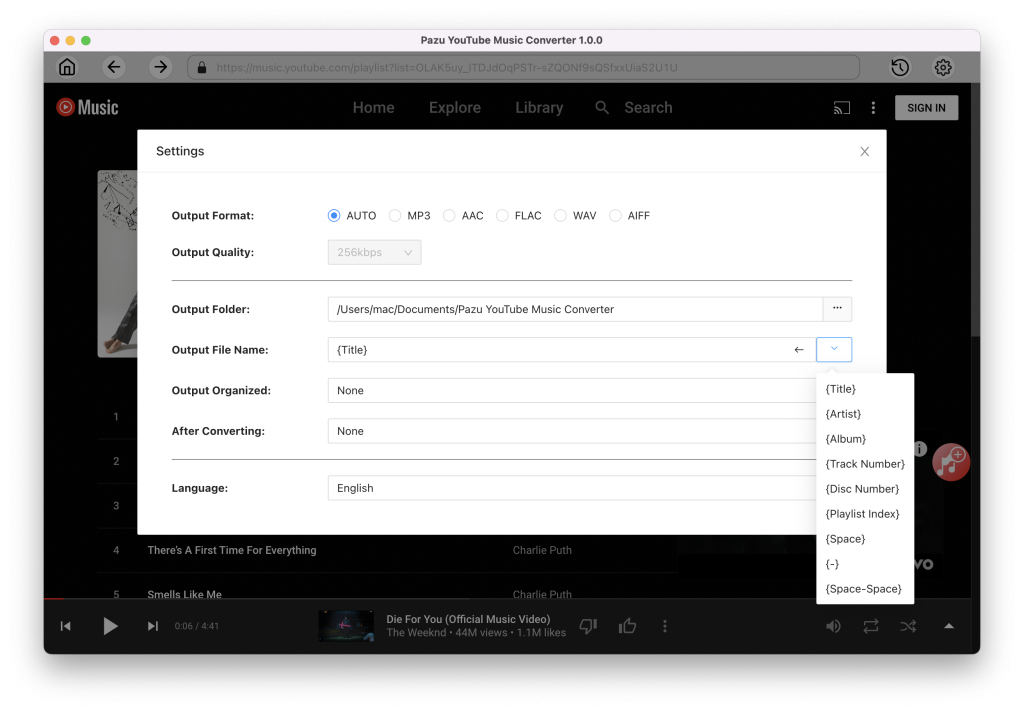
Click on Settings (the gear icon) in the upper right corner to customize the output format, quality, folder, file name, language, and more.
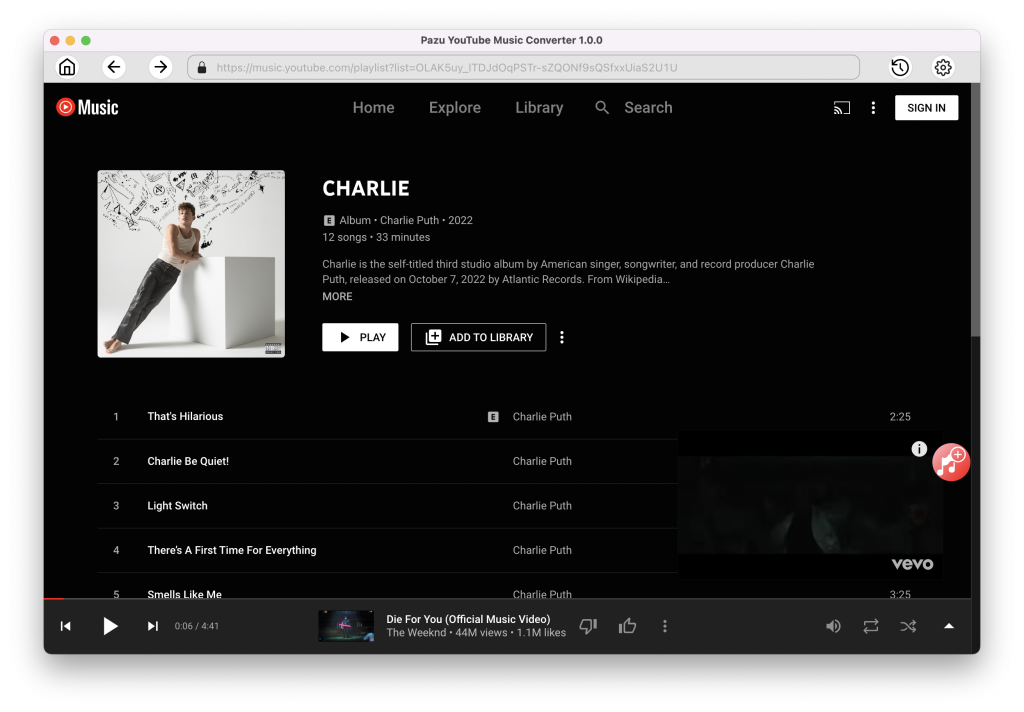
Browse or use the search function to find the songs, albums, or playlists you want to convert to MP3, then click the red Add to List icon to load the songs.
All songs in the playlist/album will be selected by default. You can uncheck the songs you don’t want to get.
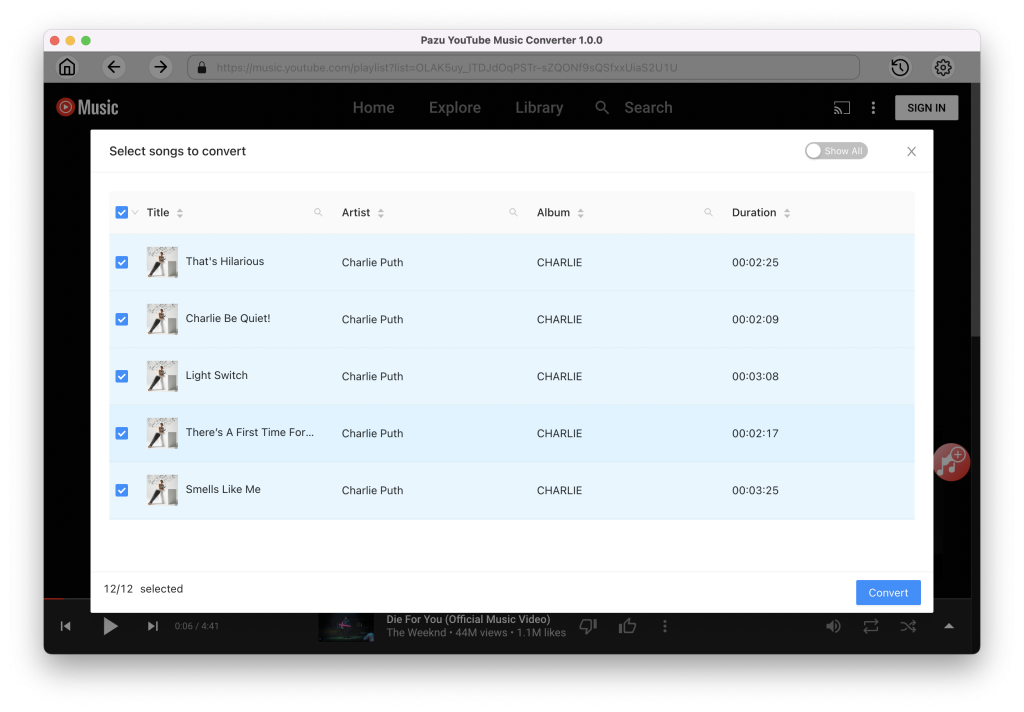
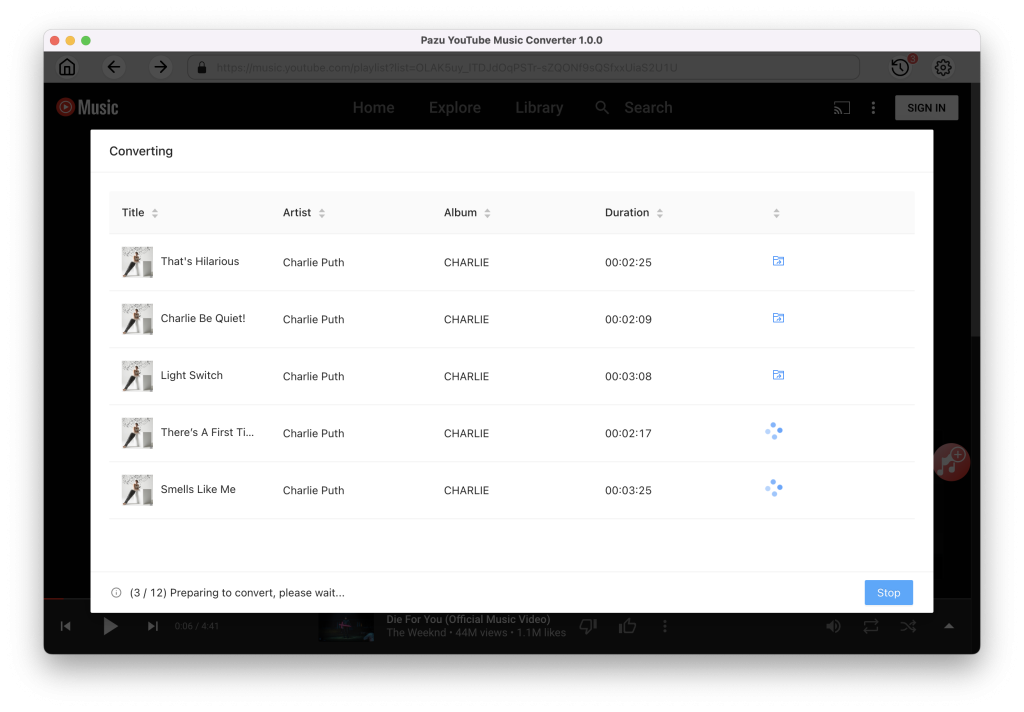
Click the Convert button and the program starts converting the YouTube Music songs.
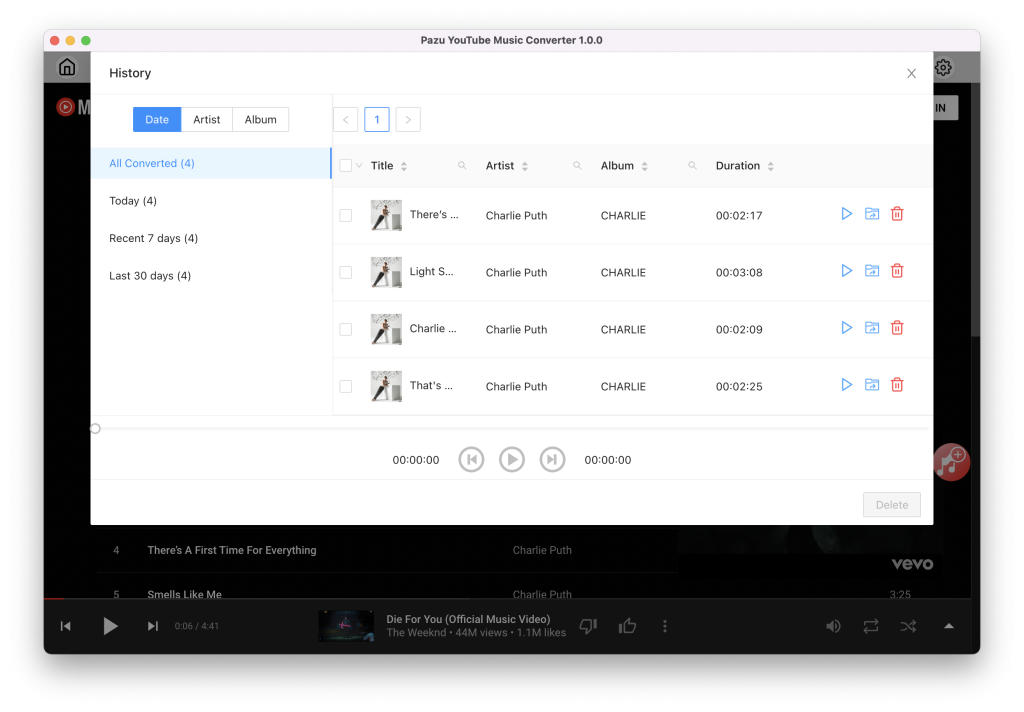
After the conversion process is complete, click on the clock icon in the upper right corner to access the converted YouTube Music songs. To locate the the converted YouTube Music songs:

Download and convert YouTube Music to MP3, M4A, etc