

DJ software that integrates with Spotify is a great option for music enthusiasts and professionals. These software options allow you to mix and play tracks directly from your Spotify playlists, adding an exciting element to your DJing experience.
While Spotify’s 2020 decision to end third-party DJ software support made it a bit harder to DJ with Spotify songs, the landscape shifted in late 2025. Spotify resumed its integration with select DJ software for Premium users in over 50 countries and regions.
Here are the DJ apps that work with Spotify. Check them out on this page. If you don’t use these DJ apps, the alternative is to download Spotify music to MP3 and use the songs with any DJ software without limitations.
Contents
Offtrack (Mixonset) is an AI DJ app for iOS, Android, and Mac (2020 onwards). It is compatible with Spotify, SoundCloud Free, Apple Music, and TIDAL. You can also use it with local files or CarPlay. It offers a simple and smooth experience, allowing your Spotify DJ app to create a personalized party atmosphere wherever you are.
This music mixing app intelligently creates Smart Mixes from your preferred songs, artists, and playlists, enabling smooth transitions that shorten your tracks, just like a DJ. Additionally, it seamlessly incorporates suggested songs into your queue, allowing you to discover new music every day.
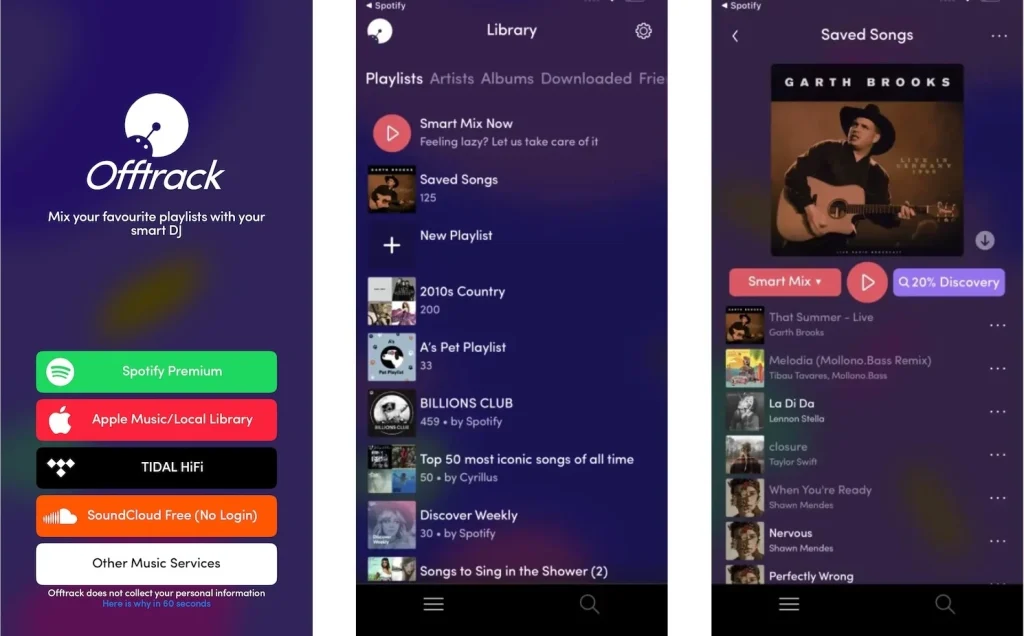
Offtrack used to be the only DJ app that worked with Spotify Premium, though a premium account is needed. Currently, other popular DJ software such as Rekordbox, djay, and Serato DJ have returned to support Spotify. However, VirtualDJ is not on the list. You can download Spotify to MP3 in 320kbps and then DJ with your favorite DJ software. Besides, Spotify also launched an AI DJ feature.
Spotify DJ is an innovative curated music service, driven by AI and tailored to your listening preferences. It uses a DJ-like voice, mimicking the style of a radio station, to enhance the music discovery experience.
On Mobile and tablet
 .
.
To change the music, tap the DJ button in the Now Playing bar at the bottom of the app.
Your DJ playlist will be added to Your Library and to your Recently played playlists.
Spotify DJ is now accessible on desktop, but to experience the feature, you’ll probably need to update or reinstall the application. Alternatively, you have the option to cast Spotify DJ from your phone using Spotify Connect. To start, play the DJ feature on your mobile device while keeping your Spotify web or desktop app open on your computer. Then, tap on the small speakers icon located at the bottom left of the currently playing track on your mobile device. Next, choose the device through which you want to listen to your music. Select ‘Web Player’ to have the music played through your desktop.
To create the voice model for the DJ, Spotiy partnered with its own Head of Cultural Partnerships, Xavier “X” Jernigan. Previously, X served as one of the hosts on Spotify’s first (and personalized) morning show, The Get Up. His voice is the first model for the DJ.
Currently, there’s no way to remove or change the AI DJ voice officially, aside from skipping track or exiting out of the feature entirely to listen to another podcast or music track. You can vote for this idea here. However, when Spotify DJ is played through desktop using Spotify Connect, the platform appears to only play music.
Rekordbox is a DJ software that supports multiple music streaming services including Spotify, Apple Music, SoundCloud Free, TIDAL, and more. After the integration with Spotify in late 2025, Spotify Premium uses can access Spotify’s extensive music catalog and playlists directly from rekordbox on Mac, Windows, iOS, and Android platforms.
Please note that the Rekordbox Spotify integration is currently available in: Albania, Andorra, Australia, Austria, Belgium, Bosnia and Herzegovina, Bulgaria, Canada, Croatia, Cyprus, Czech Republic, Denmark, Estonia, Finland, France, Germany, Greece, Hong Kong, Hungary, Iceland, Ireland, Israel, Italy, Japan, Korea, Kosovo, Latvia, Liechtenstein, Lithuania, Luxembourg, Malta, Monaco, Montenegro, Netherlands, New Zealand, North Macedonia, Norway, Poland, Portugal, Romania, San Marino, Serbia, Singapore, Slovakia, Slovenia, Spain, Sweden, Switzerland, Taiwan, United Kingdom, United States.
How to DJ Spotify with Rekordbox on Mac/Windows
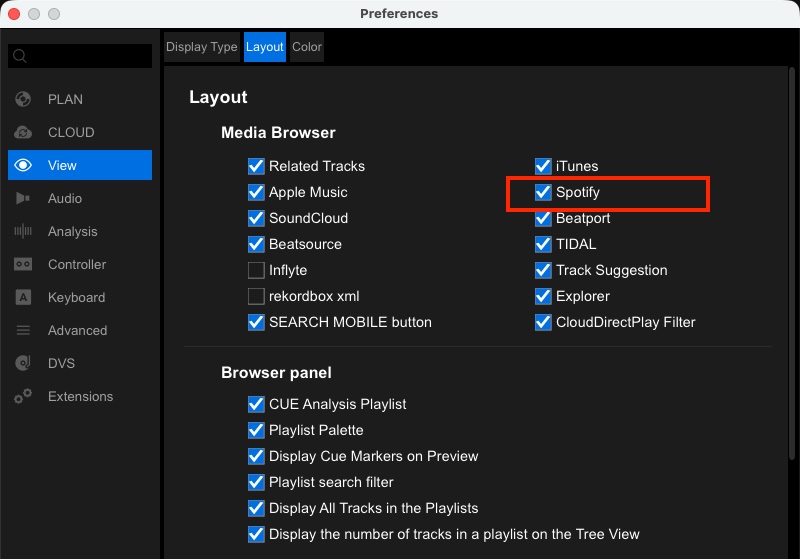
Related: How to Use Spotify in Rekordbox
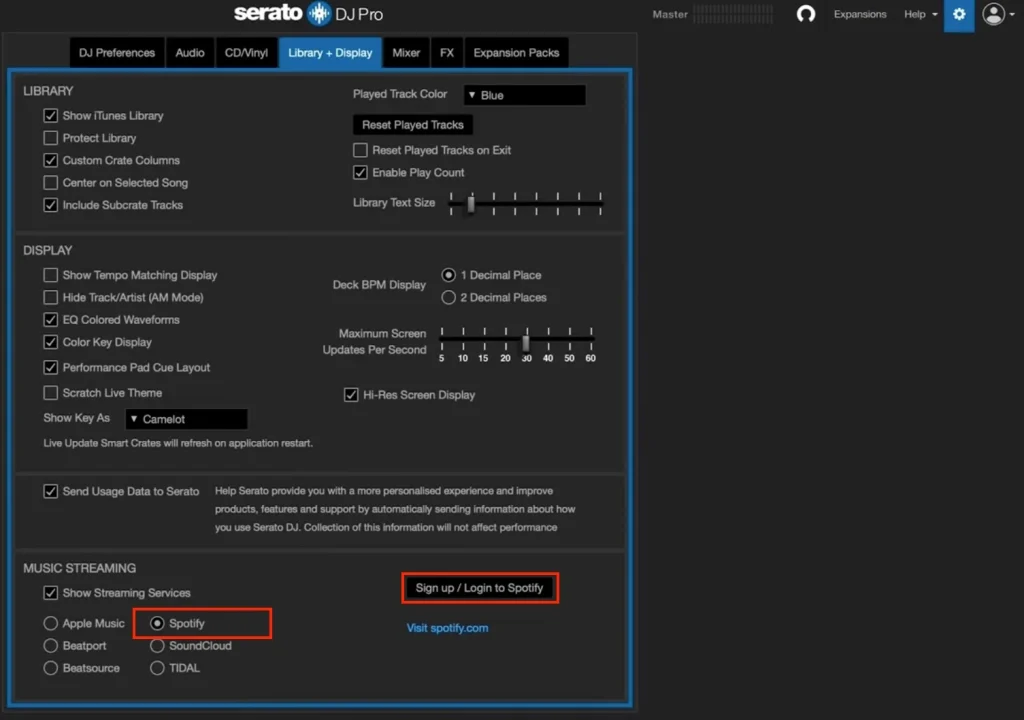
Spotify is now supported by both Serato DJ Lite (Free) and DJ Pro. With a Spotify Premium, you can browse the full Spotify catalog alongside your local files to stream, cue, and mix instantly. Note that Serato DJ Spotify integration is available in 51 markets.
How to Use Serato DJ with Spotify
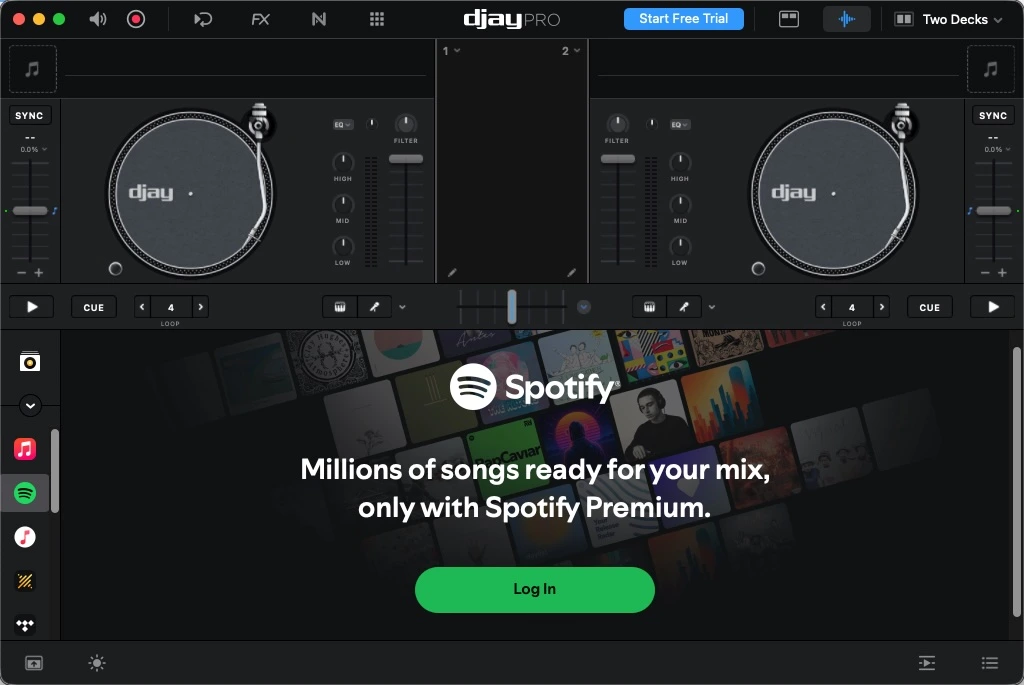
Djay is a beginner-friendly DJ software featuring intelligent beat-matching and Automix. With a Spotify Premium account, you can access your Spotify Library with both the free and paid versions of djay in 51 countries and regions. Spotify integration in djay is available across iOS, Android, Mac, and Windows.
To use Spotify on djay:
Almost all DJ software allows you to access your music from several sources. These include accessing your music stored in external media sources (e.g., USB sticks or hard drives), iCloud Drive, Finder or the Files app, and accessing music stored in other cloud services (e.g., OneDrive, Google Drive, Dropbox, etc.).
While Spotify no longer works with some third-party DJ apps, there is still a solution for you to use Spotify music with a third-party DJ app. This requires third-party music converter software to download Spotify songs to your computer and saves them in your music file format of choice.
There is a Spotify to MP3 converter called Pazu Spotify Converter. It allows you to download any Spotify music in MP3 format without limitations, and there is no need to get Spotify app as it features built-in Spotify web player. You can download as much music, playlists, and albums as you want. All you need to do is download Spotify songs to MP3 with Pazu Spotify Converter and then import the MP3 songs to your DJ software.
Pazu Spotify Converter is a professional Spotify music downloader for you to download streamed Spotify music, playlist and podcast to common formats including MP3, M4A, WAV, FLAC, OGG, AIFF with the 100% original quality kept. After downloading, all ID3 Tags and metadata including title, artwork, artist, album, track number will be preserved. To learn how to use Spotify music to DJ, here is a quick and short tutorial that you need to follow.
Download, install and run Pazu Spotify Converter on your Mac or Windows. Log in to your Spotify account with the built-in web player.

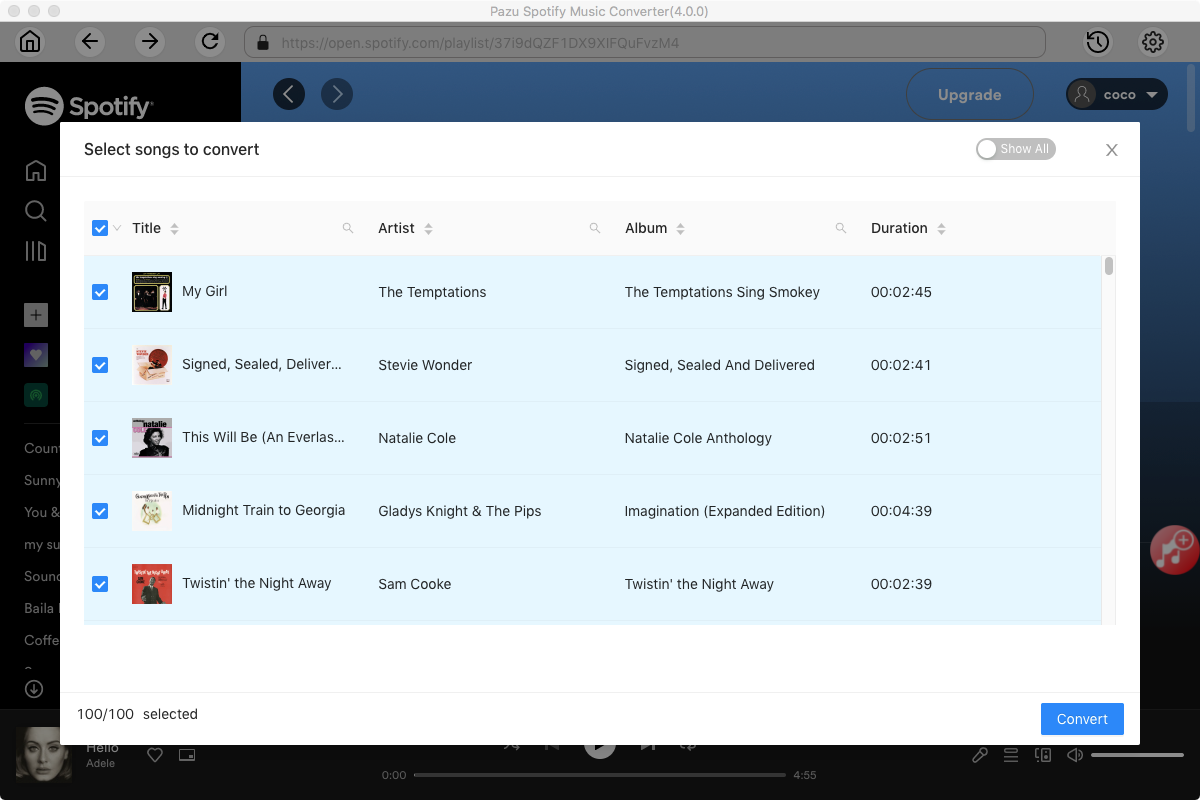
Select the songs, album or playlist you want to download. Spotify Converter will detect and display all songs. Uncheck the songs you don’t want to download if there are any. Click “Show All” icon to toggle “Hide Converted” on in case some songs have been downloaded before.
Click the ” Options ” button in the top right corner. Here you can select output format (MP3/M4A/AAC/FLAC/WAV/AIFF), output quality, customize the output path, organize the output files in various ways, rename output files and more.

Click Convert button to start downloading the Spotify songs to your local computer.

The easiest way to load music from your computer into your Serato DJ library is by using the Files button.
1. Click on the FILES tab to open the files panel. The left side of this window displays various locations on your computer’s hard drive (and external drives if you have one). Click on these locations to navigate your computer and find your music. By default, your music will usually be found in the “Music” folder inside your computer user folder.
2. Once you have located your music, drag the folder or files you want to import onto the purple “All…” icon. This is located to the left of your screen at the top of the crates and playlist window.
If you wish to import all of your music, just drag your whole music folder onto this icon. This will import any compatible file contained in this master folder from your hard drive into the Serato DJ Pro Library.
TIP: You can also import by dragging files and folders directly from Windows Explorer (PC) or Finder (Mac) into the Serato DJ Pro library.
Loading a file to either deck from the files panel will automatically add it to your library.
TIP: Dragging a folder into the crates view will instantly create a crate.


Pazu also has Amazon Music Converter, Apple Music Converter, Deezer Converter, Tidal Converter, and YouTube Music Converter that allow you to download MP3 songs from the corresponding music service. Then you can add the MP3 song to djay.

Download and convert any Spotify songs, albums, playlists to MP3/M4A etc.