

Changing the playback speed of a song can alter its emotional impact and overall aesthetic, offering a fresh perspective. Also, you may need to change the song speed for educational and analytical purposes; to fit personal tastes, moods, and activities; or to create remixes and mashups.
While Apple Music provides a fast-forward feature, it lacks a dedicated playback speed adjustment. However, you can still change the speed of songs on your iPhone and iPad with Apple Music speed changers. If you want to freely adjust Apple Music song speed on any device, the most recommended option is to download the tracks as MP3. Then you can play them with media players supprting speed adjustment and set your desired tempo.
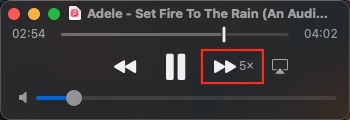
Unfortunately, Apple Music doesn’t have a dedicated playback speed adjustment feature. You can only fast-forward songs by long pressing the forward button. However, this feature is limited to accelerating songs: slowing down tracks or adjusting the fast-forward speed is not supported.
Moreover, when using this fast-forward method on Apple Music, it can be challenging to hear the lyrics clearly, particularly on a mobile device.

To change the Apple Music playback speed on iPhone or iPad, you can use music speed changers. These tools allow you to speed up or slow down the tempo of a song without affecting its pitch. Music speed changers are available in both free or paid versions. Some even integrate with your Apple Music library for seamless playback and speed adjustments within the changer.
Music Speed Changer is such an application offering both ad-support and paid versions. It also links to your Apple Music library directly. Here is how you can use Music Speed Changer to set the Apple Music playback speed on your iOS devices.
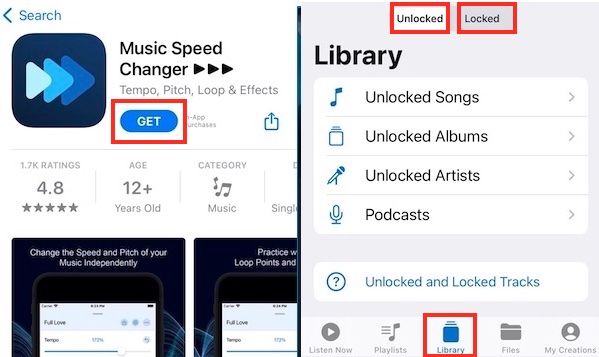

Additionally, you can find other similar music speed changers on the App Store, such as Speedic and Perfect Tempo. Speedic is available for free, while Perfect Tempo is priced at $4.99.

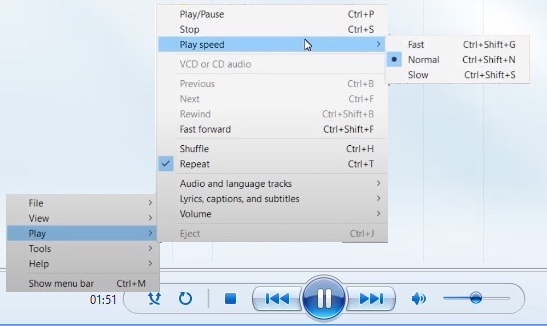
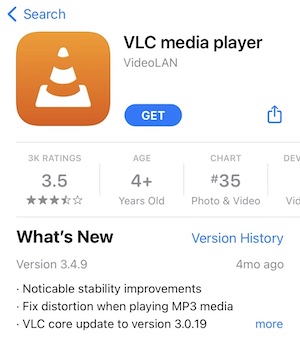
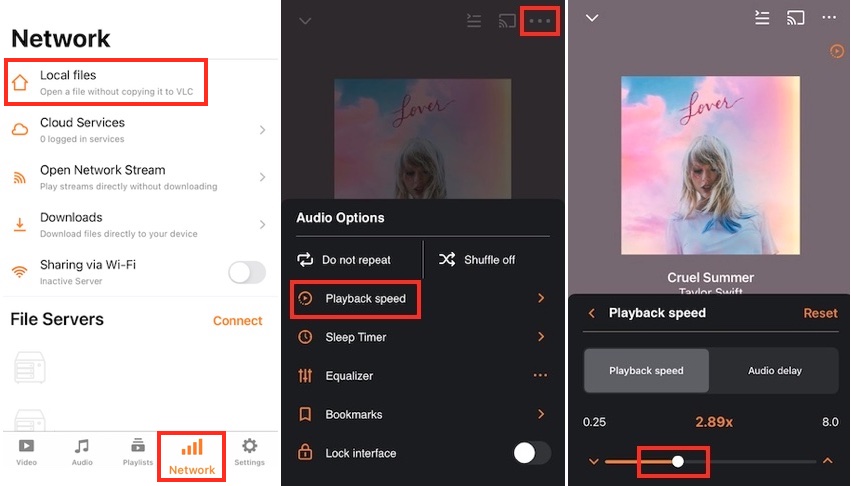
Although Apple Music doesn’t allow changing the play speed of songs, there are various media players that support tempo adjustment. Some of these players come pre-installed on your device, such as QuickTime Player on Mac and Windows Media Player on Windows. Additionally, for iOS and Android devices, you can use free players like VLC to adjust the tempo.
To achieve this, you can download Apple Music songs as MP3 files and play them offline with these media players. This way, you can freely customize the playback speed according to your preferences.
To download Apple Music songs as MP3 files, an effective method is through Pazu Apple Music Converter, a reliable and secure tool compatible with both Mac and Windows. This converter allows you to download Apple Music playlists, albums, and songs to MP3, AAC, FLAC, and other popular formats without compromising on quality. It also preserves the ID3 tags and metadata.
Pazu Apple Music Converter has a remarkably fast download speed – almost 10 times faster than comparable software. Once downloaded, you can transfer the songs to any supported device for playback speed adjustment.
Follow the tutorial below on how to download Apple Music to MP3 and playback offline.
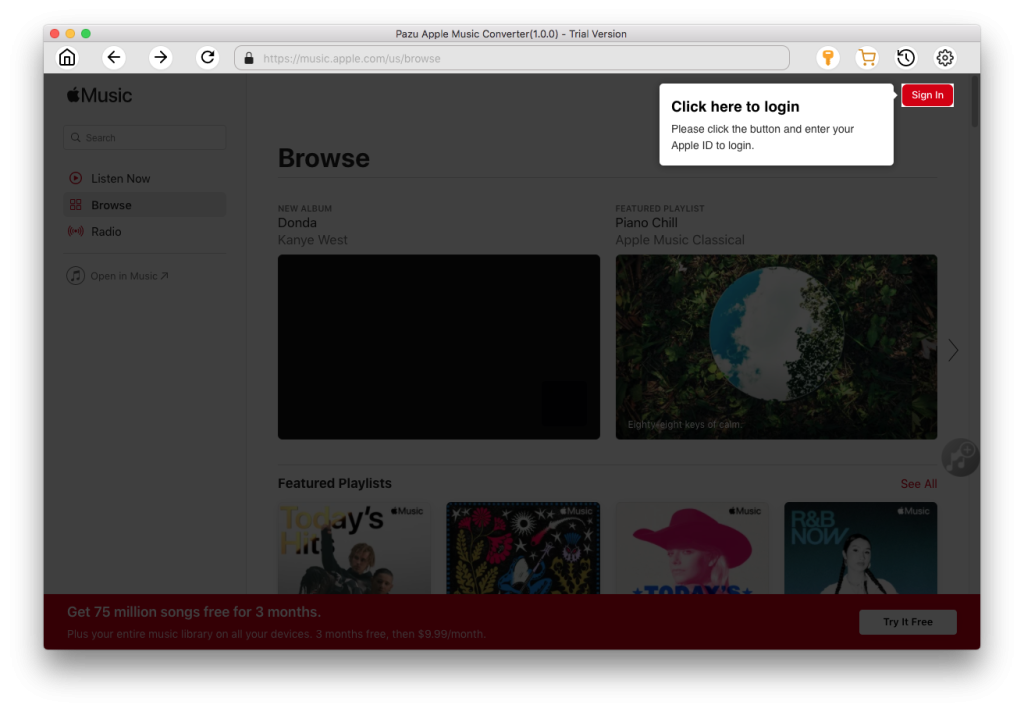
Download, install and run Pazu Apple Music Converter on your Mac or Windows.
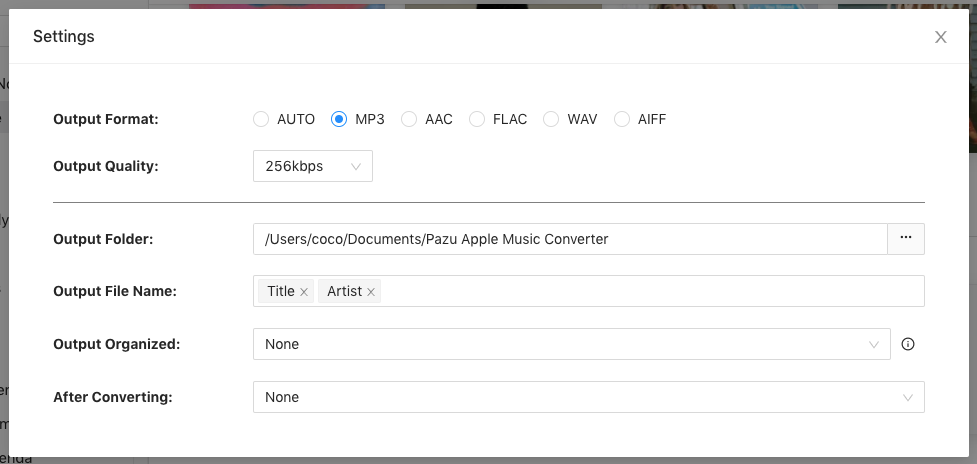
The default format is M4A in 256kbps. Apple Music Converter also supports MP3, AAC, FLAC, WAV, and AIFF. Click the gear icon if you want to change the output format or output folder.
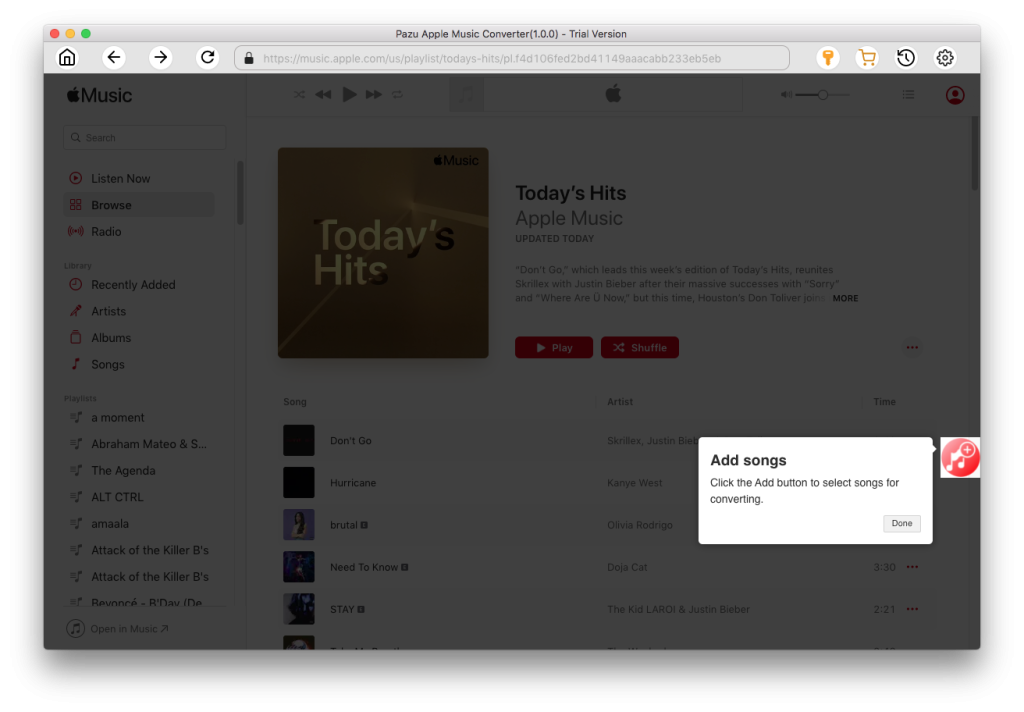
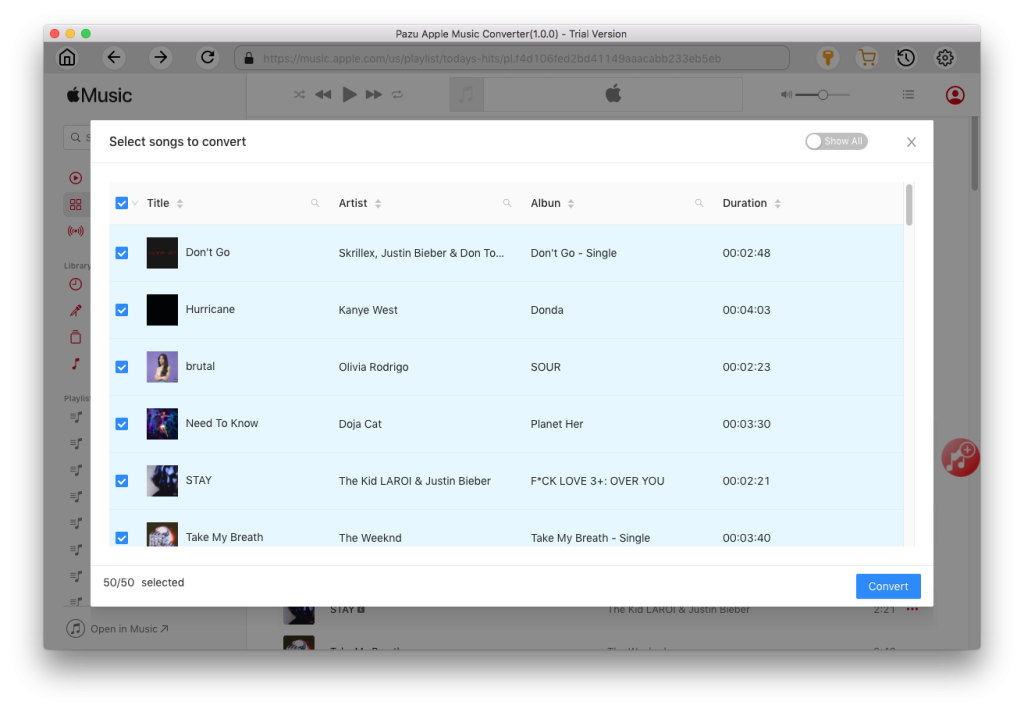
Follow the on-screen instructions to choose a playlist, artist, or album that you want to download.
Click the “Convert” button to start downloading Apple Music songs, albums, and playlists to MP3, so you can play them anywhere you want, even after canceling your Apple Music subscription.
After the conversion process is complete, click on the clock icon in the upper right corner to access the converted Apple Music songs. To locate the converted Apple Music songs:

After converting your Apple Music songs to MP3, you can easily change their playback speed with the QuickTime Player on Mac or the Windows Media Player on Windows. You can also transfer the downloaded MP3 songs to your iPhone, iPad, or Android and change the playback speed with the VLC media player, which can be easily downloaded from the App Store or Google Play Store for free.



While Apple Music doesn’t support changing the playback speed with its app, you can still speed up or slow down a song with Apple Music speed changers on your iOS devices. To change Apple Music play speed on any device, we recommend the Pazu Apple Music Converter. With its help, you can download Apple Music songs and playlists to MP3 and other popular audio formats. Then you can freely change the playback speed of the downloaded songs with the media players on various devices including Mac, Windows computers, iPhone and iPad, Android devices, etc.
To get started, download and install Pazu Apple Music Converter now.

Download Apple Music to MP3, M4A, etc.