

“Apple Music keeps messing up the info on Madonna’s Confessions on a Dance Floor album – it messes up the play order and I have to create my own playlist to correct”
Do you also find some albums on Apple Music in the wrong order, or do you want to customize the song order in Apple Music Library/album/playlist as you like? Here in this article, we will show you how to change the order of songs in Apple Music playlists or albums on Mac/iOS and Android devices.
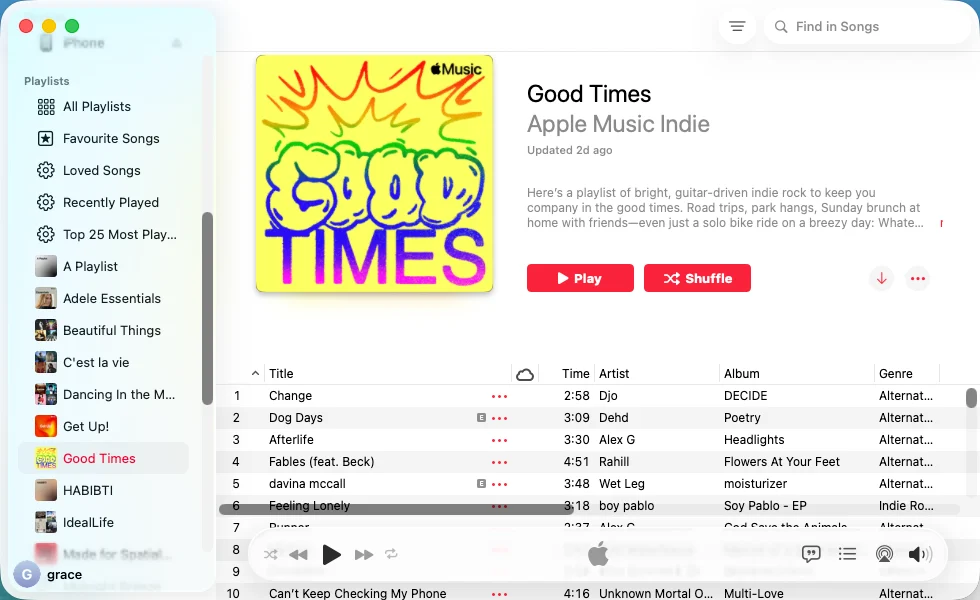
For songs in your library, you can sort your songs to play them in a specific order—use the Sort pop-up menu or click column headings to sort quickly. However, you can’t customize song order.
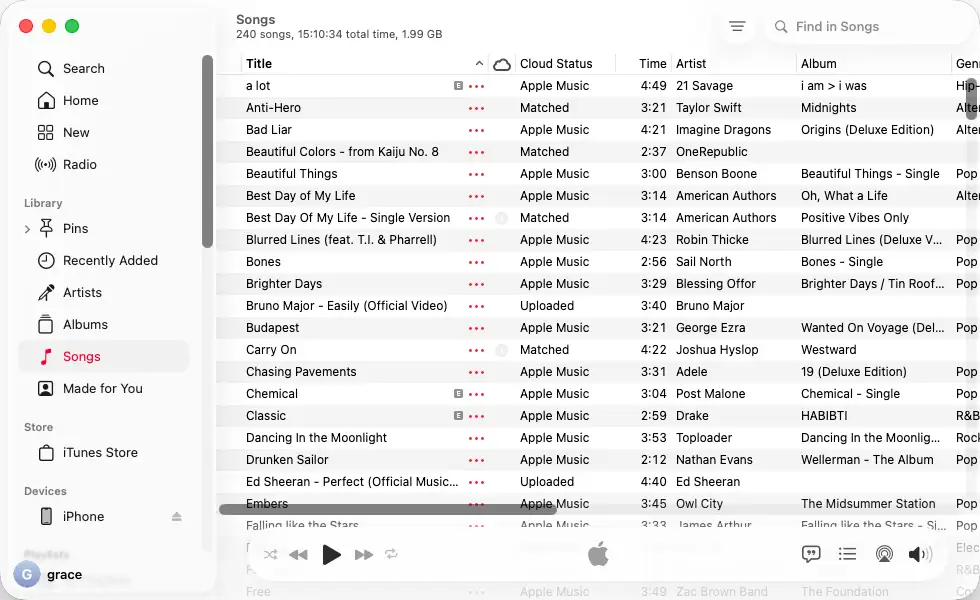
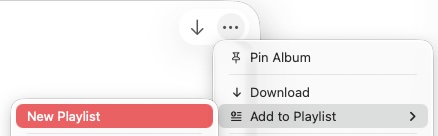
To change song order in an Apple Music album, you need to add it to a new playlist first.
1. Open the album, click … icon and choose Add to Playlist > New Playlist.
2. After the album is added to your library as a playlist, select it from the left side. Hold and drag any song to the position you desire.
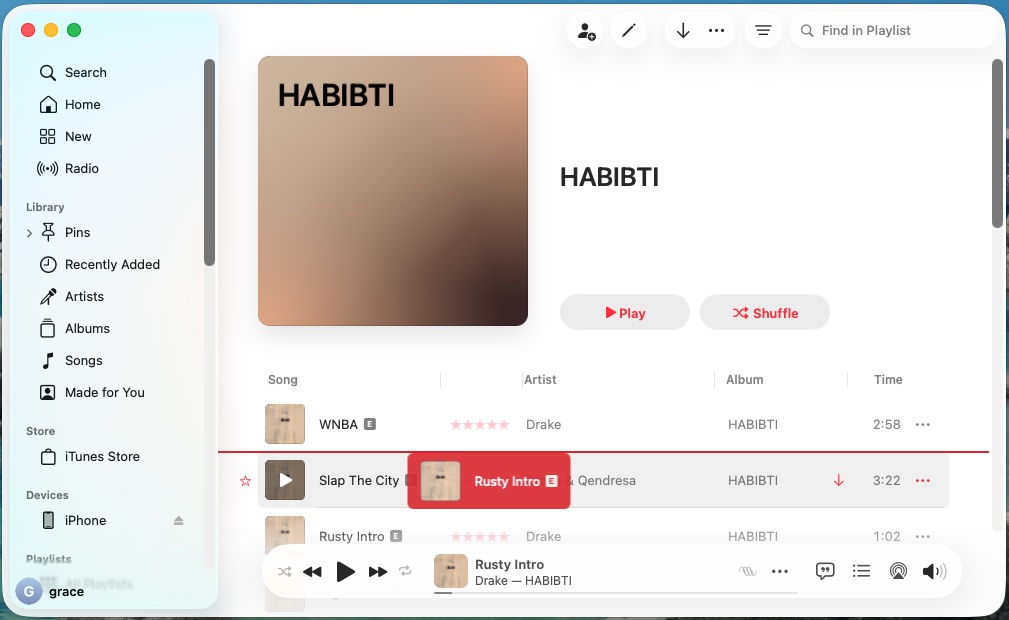
You can easily change the song order in a playlist you created by dragging and dropping songs to any position. If the playlist isn’t yours, you can add it to a new playlist and then change the song order as you wish.
In addition, here is an alternative to changing song order in any Apple Music playlist. First, you need to add it to your Library:
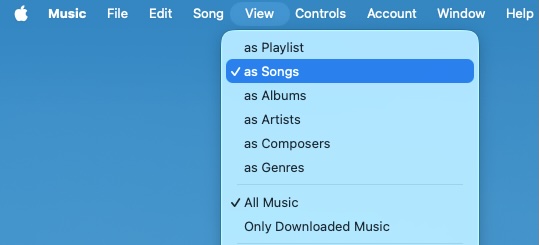
3. Now you can click the column heading to sort songs by title, artist, album, or any other category available.
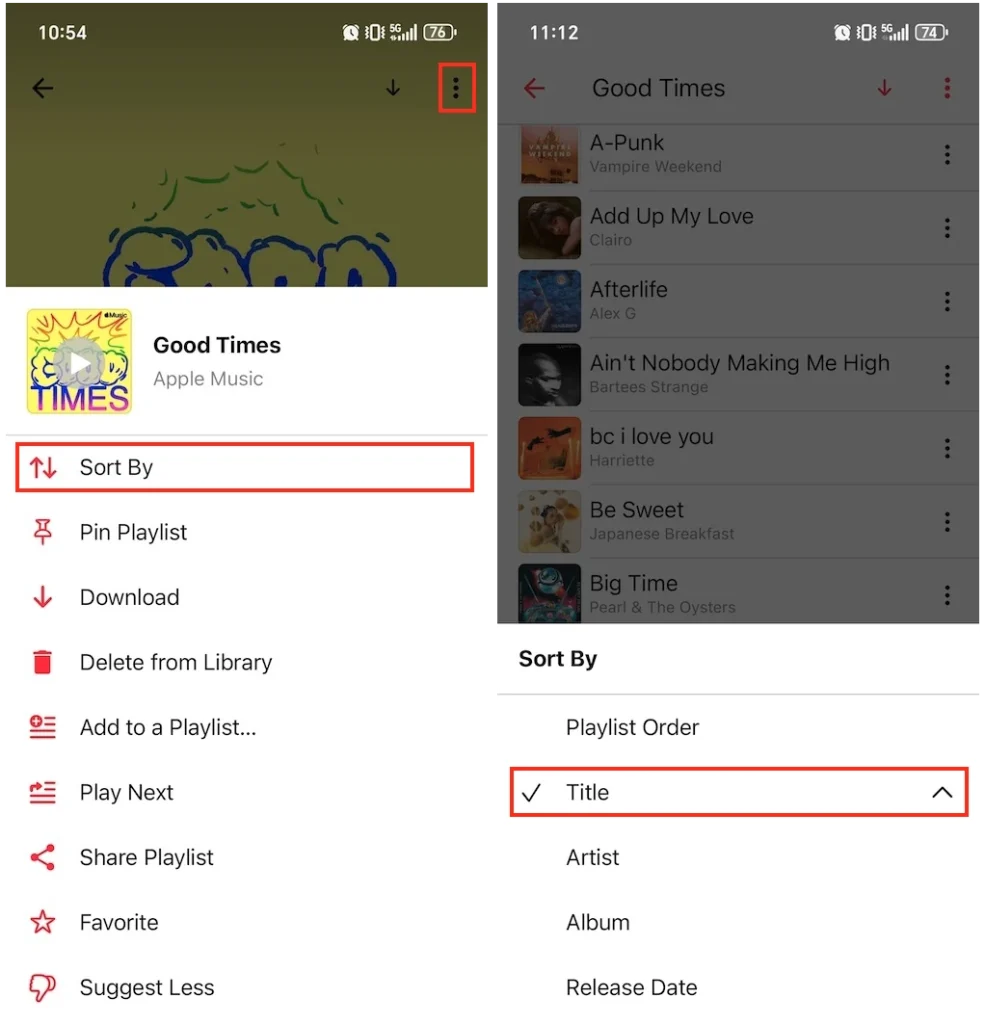
To sort songs in your library, tap the three-line icon in the top-right corner and choose Artist, Title or Recently Added. You can choose to sort all songs or Favorited songs.

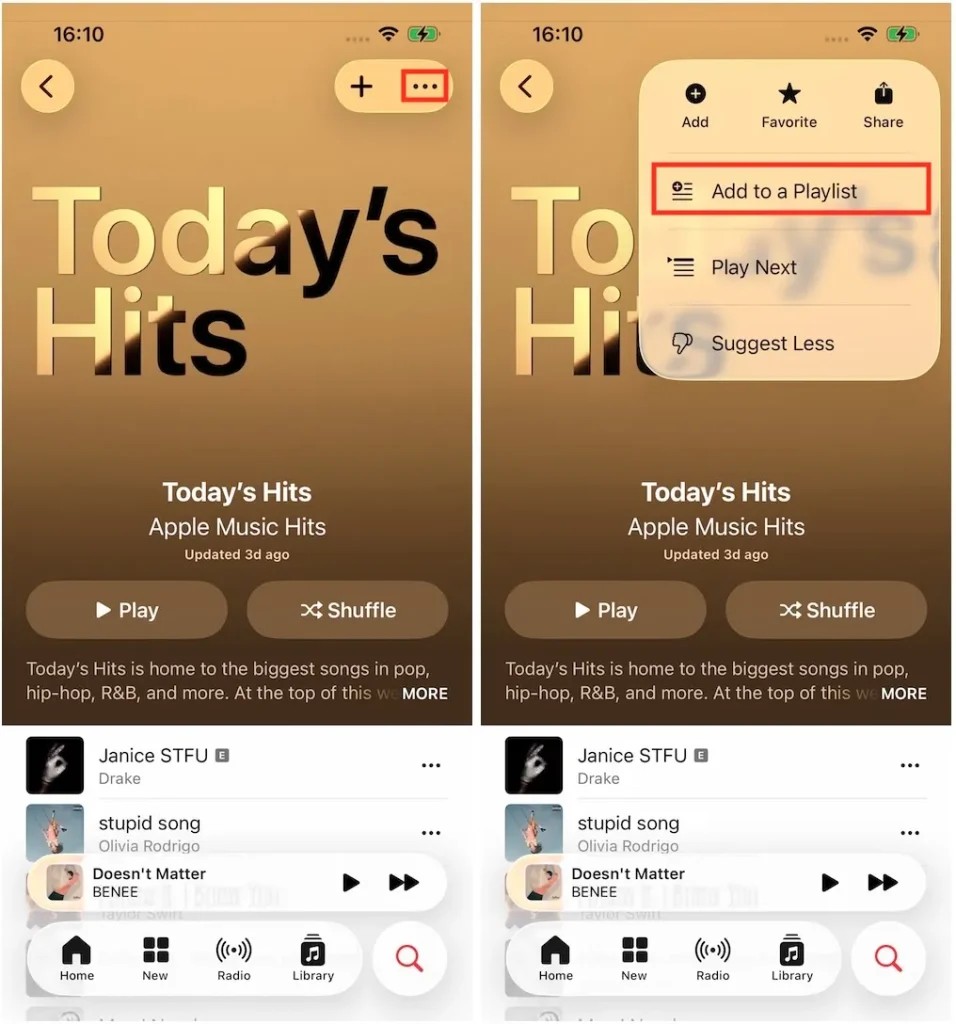
To customize the song order in a playlist or album, open the playlist/album, tap the three-dot icon in the top right corner, and choose Add to a Playlist… > New Playlist.
On the following page, tap and hold the grey four-line icon to customize song order as you like. Then add a playlist title and tap save.

You can use this alternative on playlists, but not on albums.
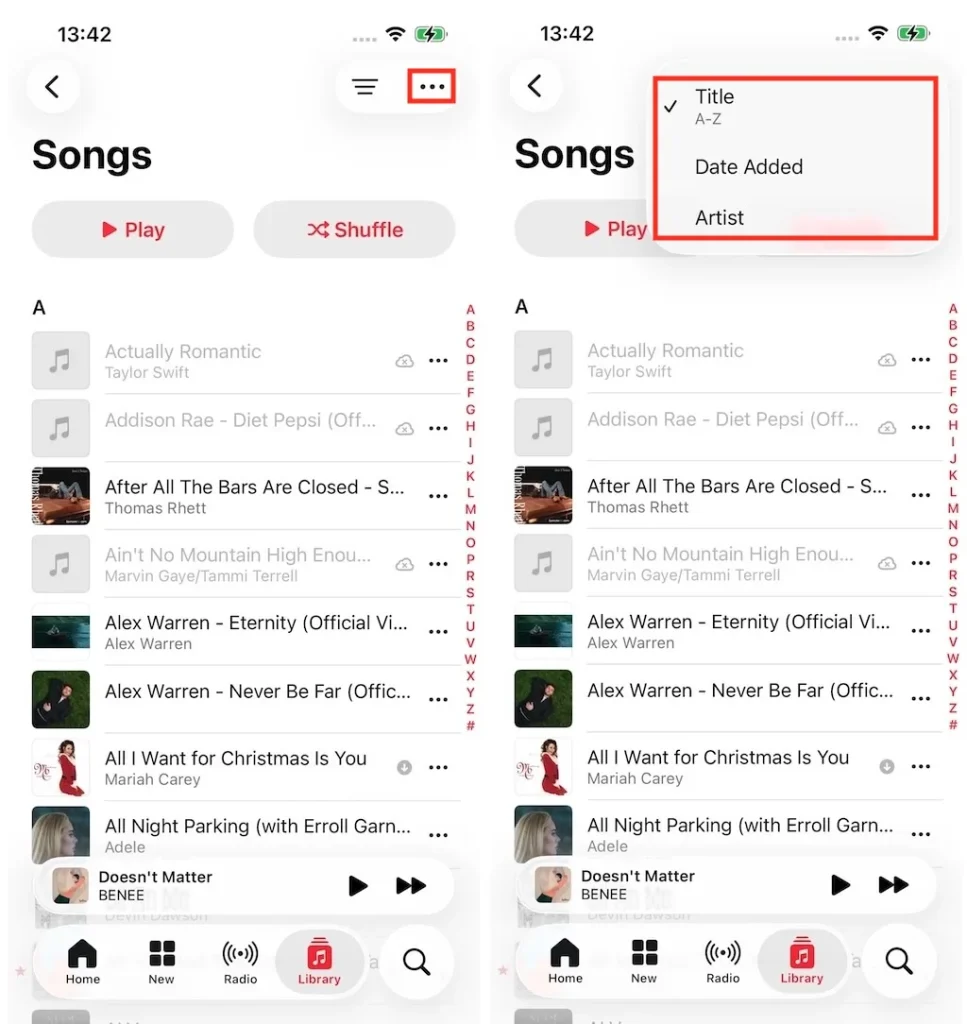
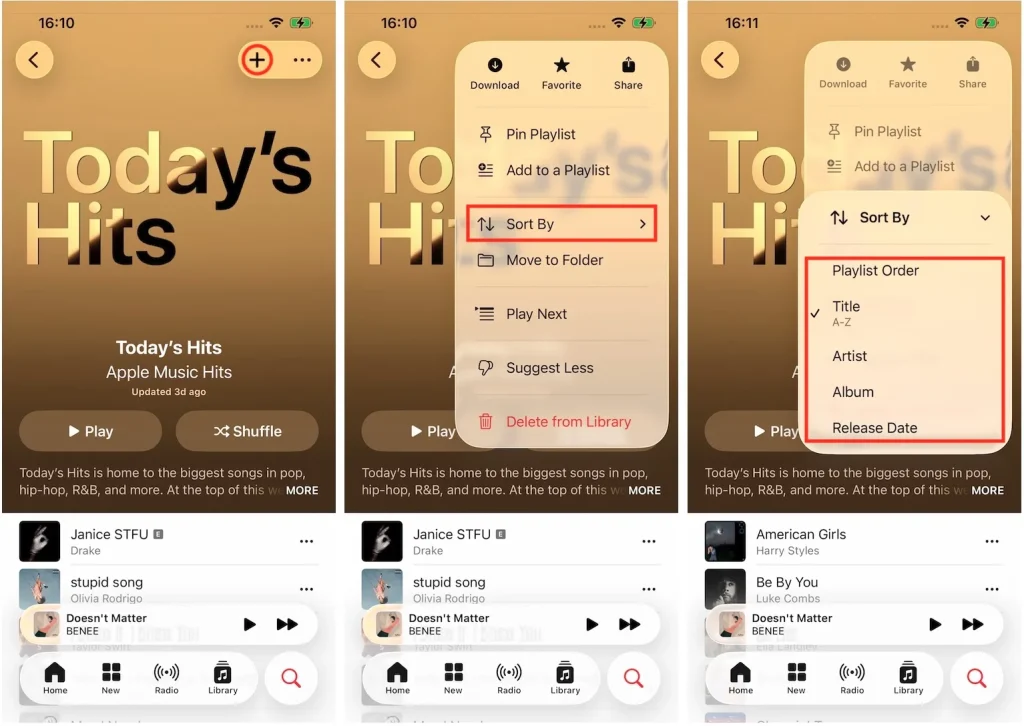
Tap the three-dot icon in the top-right corner and choose to sort the songs by Title, Date Added, or Artist. You can tap the three-line icon and choose to sort all songs or Favorited songs.
Pazu Apple Music converter allows you to download Apple Music songs with original quality on Mac and Windows with all ID3 tags.
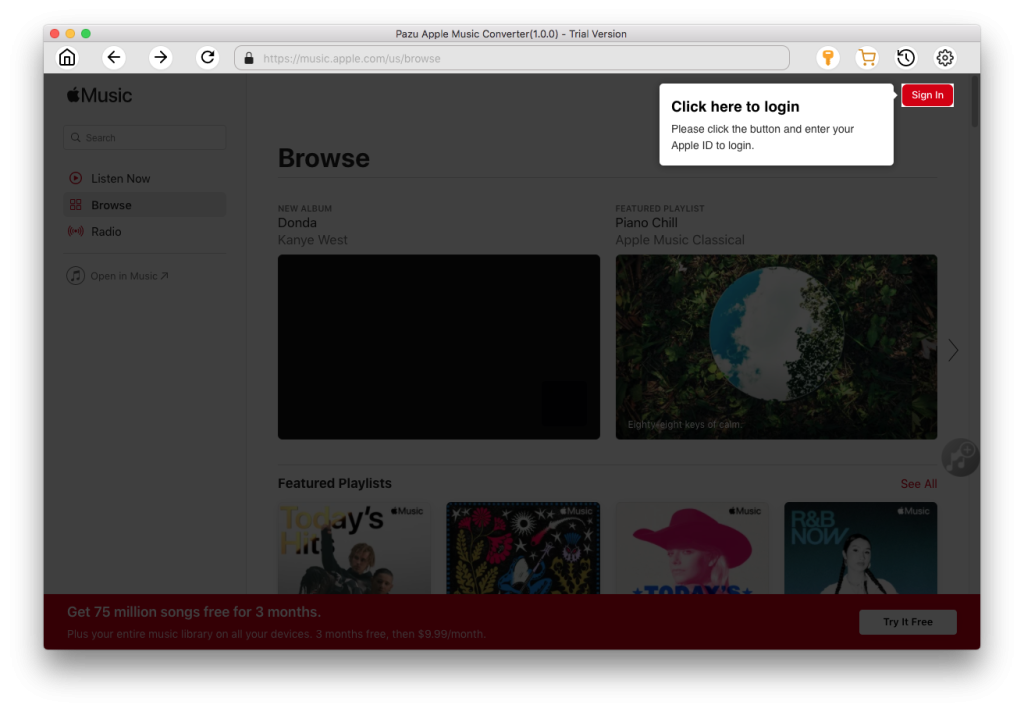
Download, install and run Pazu Apple Music Converter on your Mac or Windows.
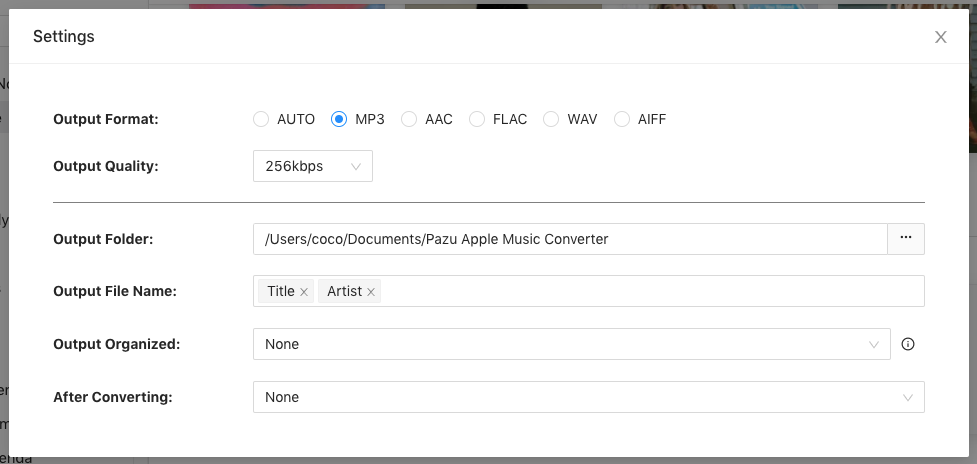
The default format is M4A in 256kbps. Apple Music Converter also supports MP3, AAC, FLAC, WAV and AIFF. Click the gear icon if you want to change the output format or the output folder.
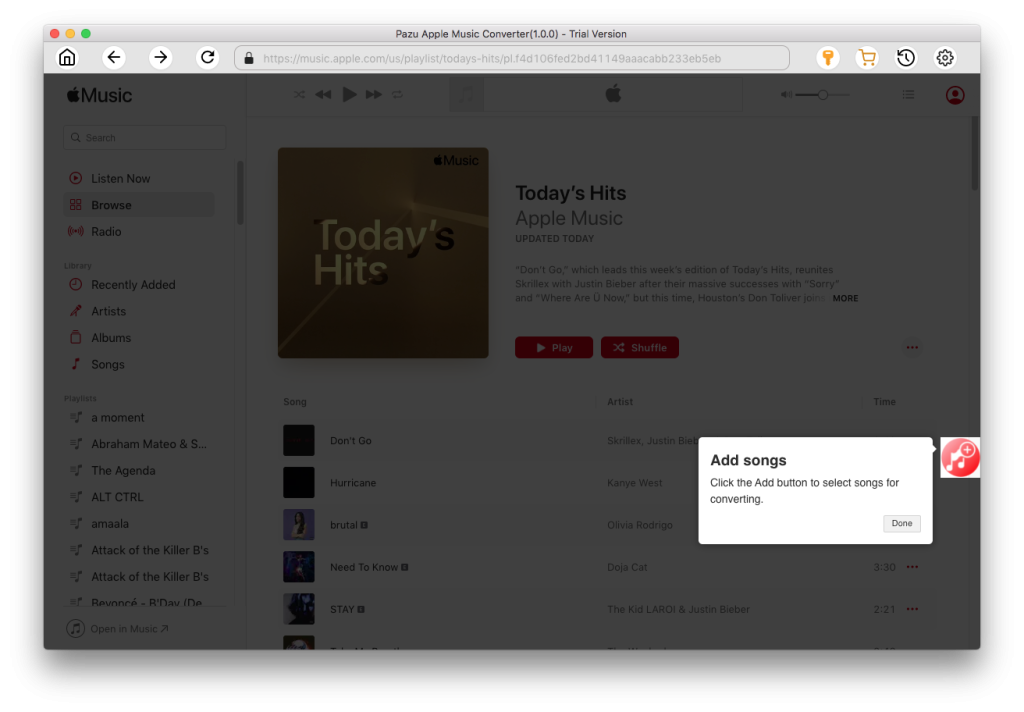
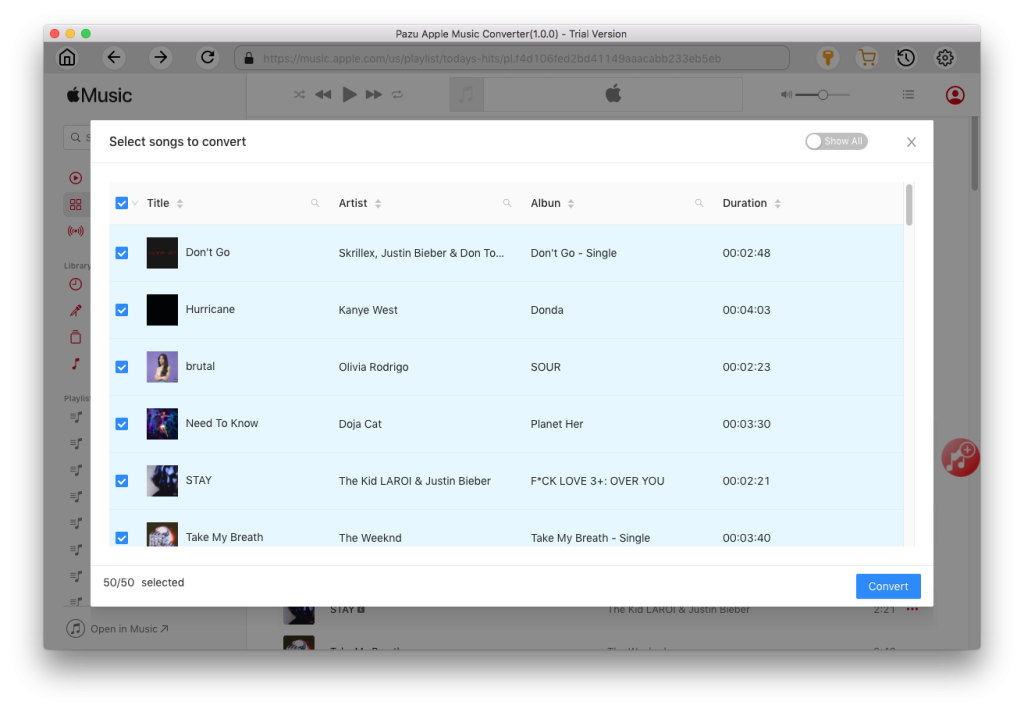
Follow the on-screen instructions to choose a playlist, artist, or album that you want to download.
Click the “Convert” button to start downloading Apple Music songs to MP3, so you can play them anywhere you want, even after canceling your Apple Music subscription.

Download Apple Music to MP3, M4A, etc.