

“The Music app has duplicated every song. How can I stop this from happening and how can I get rid of the duplicate files? I have thousands of albums in my library…”
Many people complain about duplicate songs in the Music/iTunes app, while this is caused by various reasons: Importing music from different sources or syncing music with multiple devices. Although the Music/iTunes app is not able to delete duplicate songs automatically, it does offer a simple feature for you to efficiently find and delete duplicate songs. Keep reading.
iTunes or Music may create duplicates if the same content is repeatedly added from outside the media folder when “Copy files to Media folder when adding to library” is enabled, or if it is added from an external drive that hosts the media folder and was offline when iTunes or Music was launched.
Reimporting locally stored media or redownloading from the cloud, depending on various settings in the library and the location of the files, generates a new copy of files in the media folder. The trailing digits are used when iTunes or Music wants to create a new local copy of a file at a specific path when there is an existing file there.
Besides, some songs are listed in Apple Music more than once. Sometimes it is a normal and deluxe version of an album, sometimes it’s clean and explicit, and sometimes a song is on a compilation of many artists.
The short answer is no. Songs in your Music/iTunes library can come from different sources (online sources, CDs, etc.), so Music/iTunes does not want to assume that a “duplicated” song is actually a duplicate.
For example, you may have the same song from two different albums, the original album and a separate “Best of” album. It may be the same song, but with different album info. Or you may have two different recordings of the same song from the same artist, a “studio” recording and a “live” recording. So, there’s no (potentially dangerous) feature to “delete duplicates” in Music/iTunes.
On Mac
1. Open the Music app on your Mac. Click Songs in the sidebar or go to a playlist.
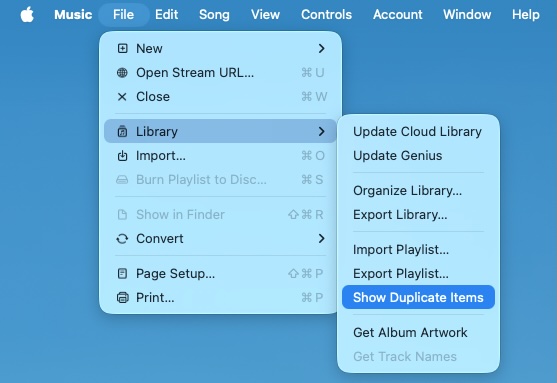
2. Choose File > Library > Show Duplicate Items.
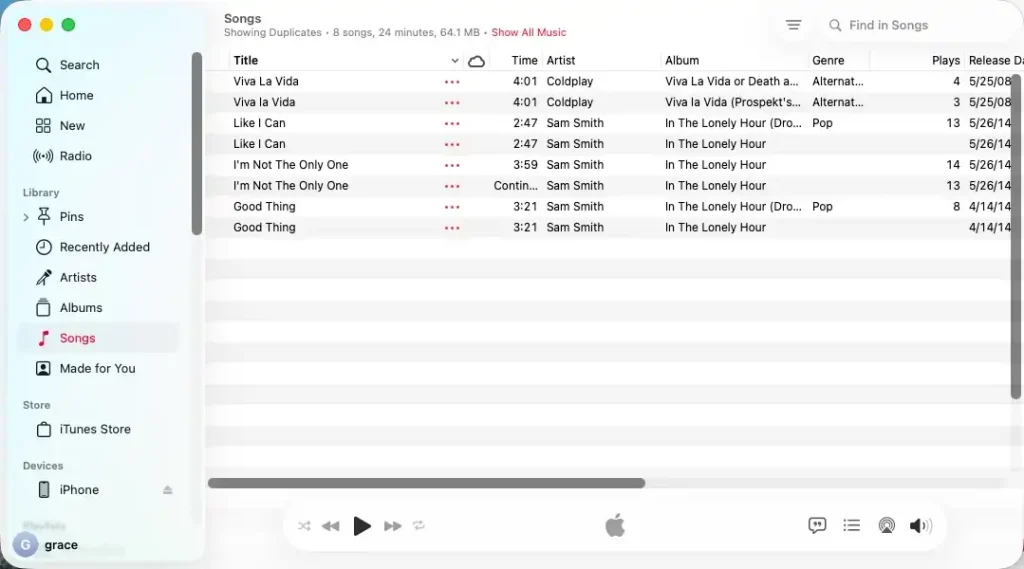
3. Now duplicate songs are displayed on the page.
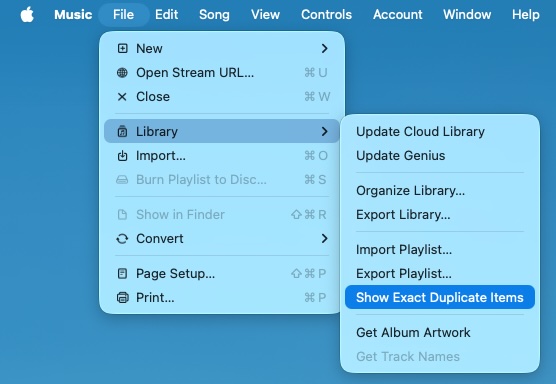
To find exact duplicates, hold down the Option key, then choose File > Library > Show Exact Duplicate Items.
On Windows

On Mac
1. Select the duplicate song you want to delete, and press the Delete key.
2. Do one of the following:

Or delete the song from all of your devices using Cloud Music Library.

On Windows
NOTE: To select multiple (non-consecutive) songs at the same time on a Music/iTunes list, press and hold down the Option and Command keys, then click songs on the list. All clicked songs are selected at the same time. Then, press Delete on the keyboard.
If every song is duplicated in your Apple Music library, just sign out, then sign back in, and the duplicates will be gone.

As mentioned earlier, you can manually clean up your Apple Music library using the “Show Duplicate Items” feature in the Library and playlists. But duplicates may occur next time you sync your Library or add new songs. The most effective permanent solution is to use a local MP3 library. Pazu Apple Music converter allows you to download Apple Music songs with original quality on Mac and Windows with all ID3 tags. Once you’ve built your local music collection, you gain total control to keep it clean and organized.
Download, install and run Pazu Apple Music Converter on your Mac or Windows.
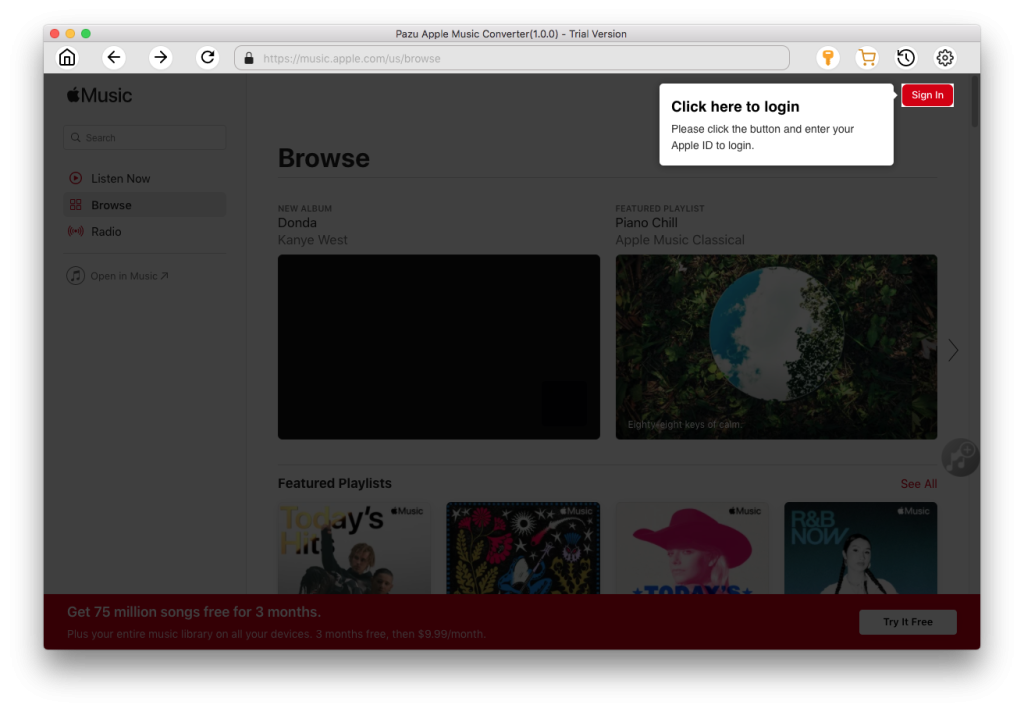
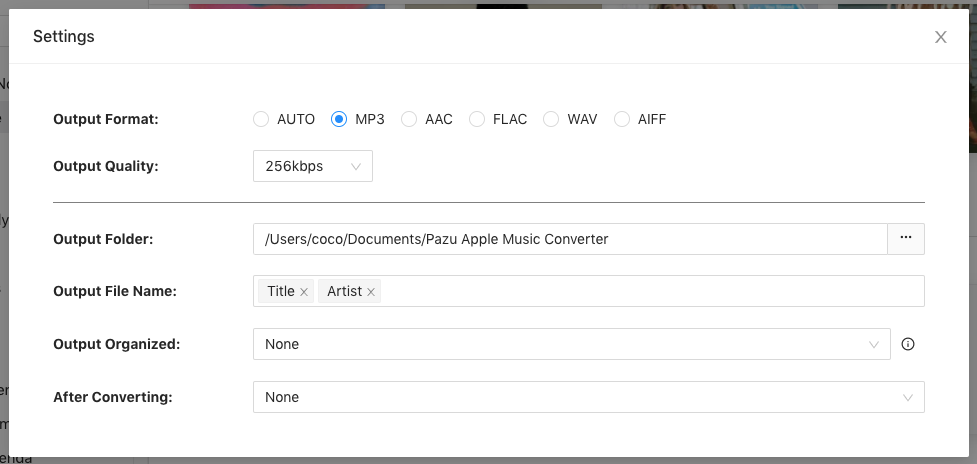
The default format is M4A in 256kbps. Apple Music Converter also supports MP3, AAC, FLAC, WAV and AIFF. Click the gear icon if you want to change output format or output folder.
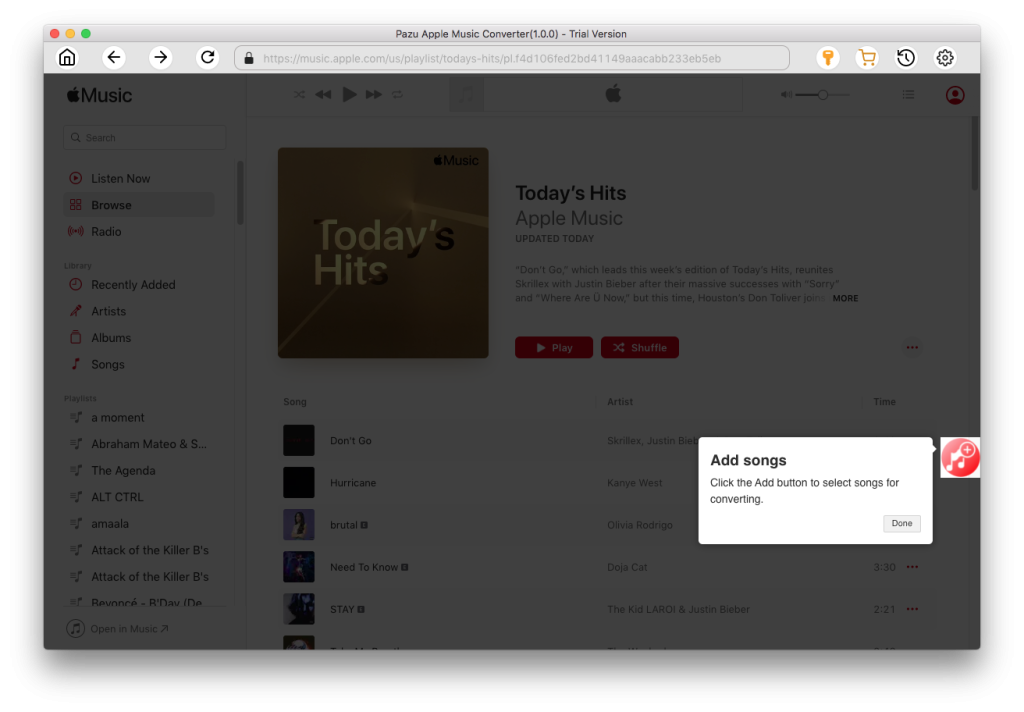
Follow the on-screen instructions to choose a playlist, artist, or album that you want to download.
Click “Convert” button to start downloading Apple Music songs to MP3, so you can play them anywhere you want, even after cancelling Apple Music subscription.
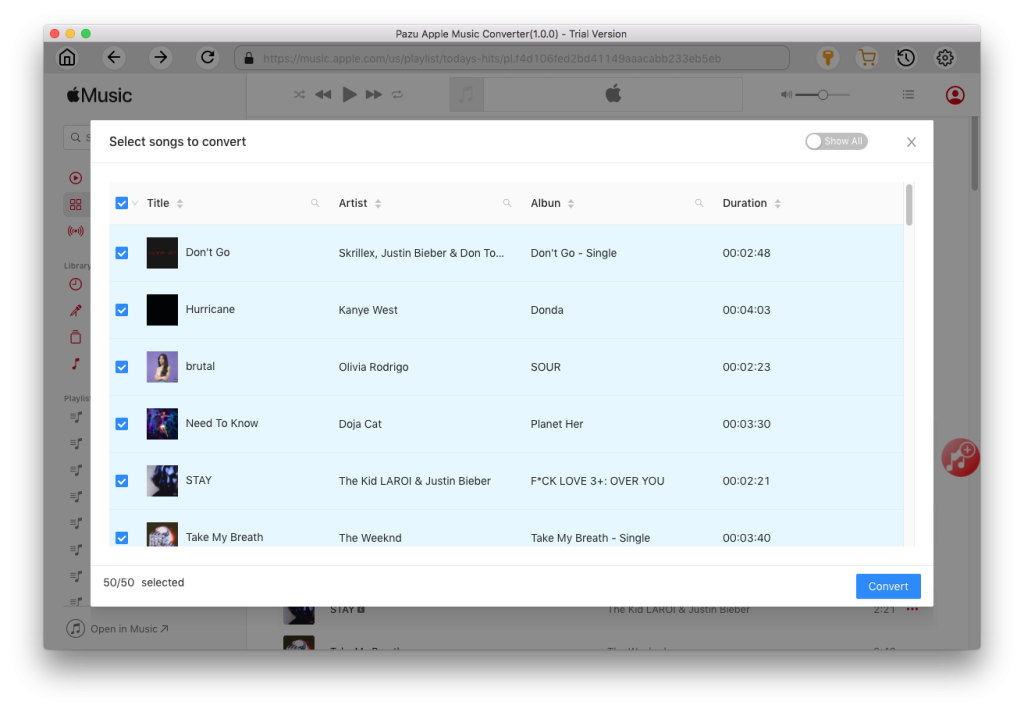

Download Apple Music to MP3, M4A, etc.