

M4P is an audio file format primarily used by Apple for tracks downloaded from Apple Music. Because these files are encrypted with DRM protection, playing them outside the official Apple Music app can be a challenge. To bypass this limitation, converting your M4P files to a universally supported format like MP3 is key. This article explores several effective methods and highlights the easiest tool to convert protected M4P files to MP3 so you can enjoy your music on any device.
Contents
M4P (MPEG-4 Protected) is a file extension used for Apple Music subscription tracks downloaded for offline listening. Encrypted with AAC compression and protected by Apple’s FairPlay Digital Rights Management (DRM), M4P files can only be played within authorized Apple Music apps or iTunes logged into the matching Apple ID. To play these tracks on other devices or media players, you must convert them to a DRM-free format, such as MP3.
M4P files were also used for audio content purchased from the iTunes Store before 2009. Since April 2009, all purchased iTunes tracks are DRM-free AAC files (.m4a).
Online converters work well for non-protected audio files. However, if you upload a DRM-protected M4P file to free web converters like FileZigZag or Online-Convert, you will hit an error stating the file is protected. Web converters cannot decode or transfer DRM-protected M4P files to MP3.


No. Neither iTunes (Windows) nor the Apple Music app (Mac/Windows) can convert DRM-protected tracks. This applies to both Apple Music subscription downloads and legacy iTunes Store purchases made before 2009.
Note: The iTunes Store has sold DRM-free AAC (.m4a) files since 2009. While Apple previously allowed users to upgrade older DRM-protected purchases to DRM-free versions, that official upgrade program is no longer available.
You can burn old purchased iTunes M4P songs to an Audio CD and rip them back as MP3s. However, Apple Music subscription tracks cannot be burned to a CD; you must use a dedicated desktop converter or audio recorder instead.
If you have DRM-protected M4P songs purchased from the iTunes Store prior to 2009, you can remove the protection by burning them to an Audio CD and ripping them back as MP3s.
Note that this method does not work for Apple Music subscription downloads, which carry strict DRM that blocks CD burning entirely.
Things to Consider Before Starting:
Step 1. Create a playlist of the M4P songs
Step 2. Burn the playlist to the CD-R
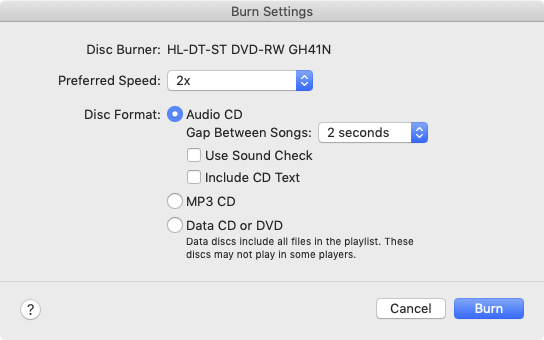
Step 3. Configure Import Settings

Step 4. Rip the Disc Back to MP3

As noted above, the CD-burning method only works for old iTunes Store purchases. To batch convert Apple Music subscription tracks, the most reliable option is Pazu Apple Music Converter. This professional tool downloads Apple Music playlists, albums, and songs to MP3, AAC, FLAC, and other popular formats without losing audio quality and metadata. It can convert both your iTunes purchases and streaming tracks.
Featuring a built-in Apple Music web player, you can directly find the music you want to download within Pazu Apple Music Converter, no need to install iTunes or the Apple Music app. With download speeds running up to 10x speed, producing DRM-free files ready to transfer to any device or media player.
Key Features of Pazu Apple Music Converter:
The following tutorial will show you how to download Apple Music to MP3 and get Apple Music for free.
Download, install, and run Pazu Apple Music Converter on your Mac or Windows.
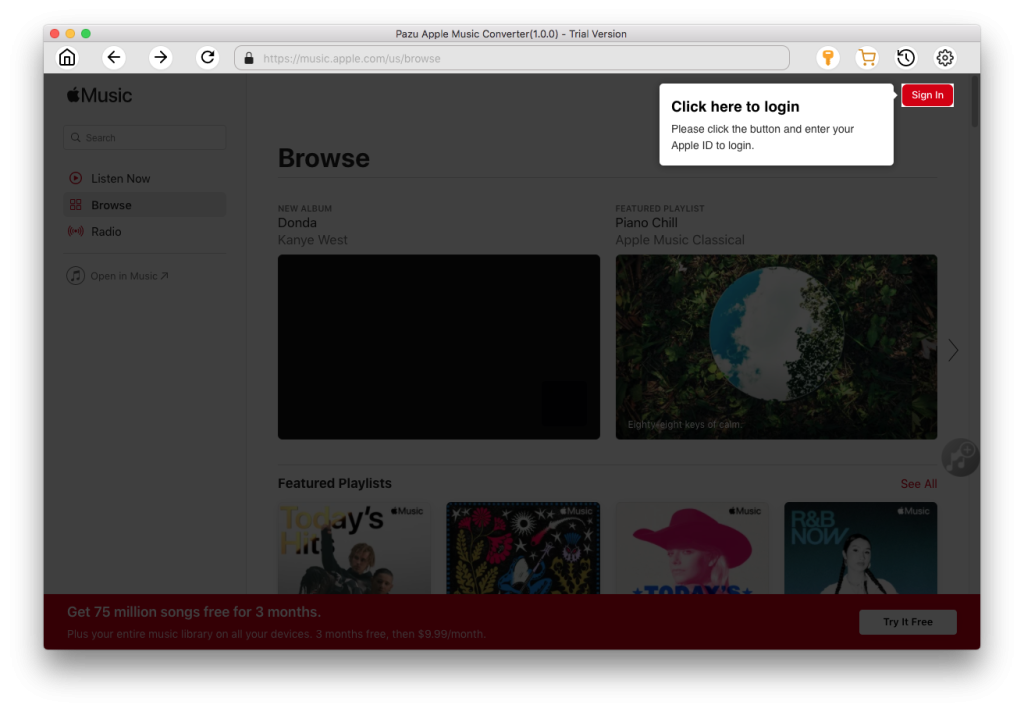
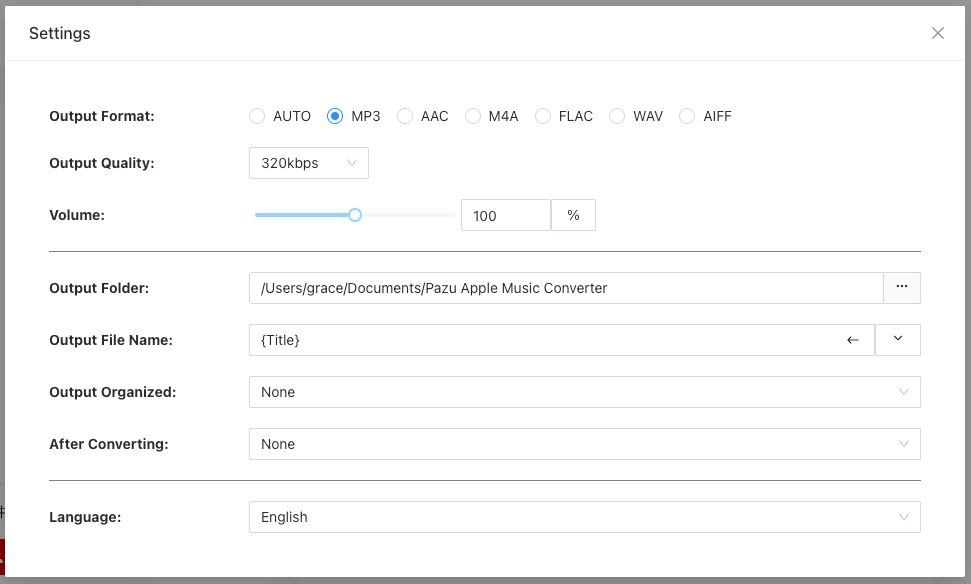
Click the gear icon to select the output format as MP3. You can also change the output folder and other settings here.
Find the music you want to download and click the red “Add songs” button to load the tracks.
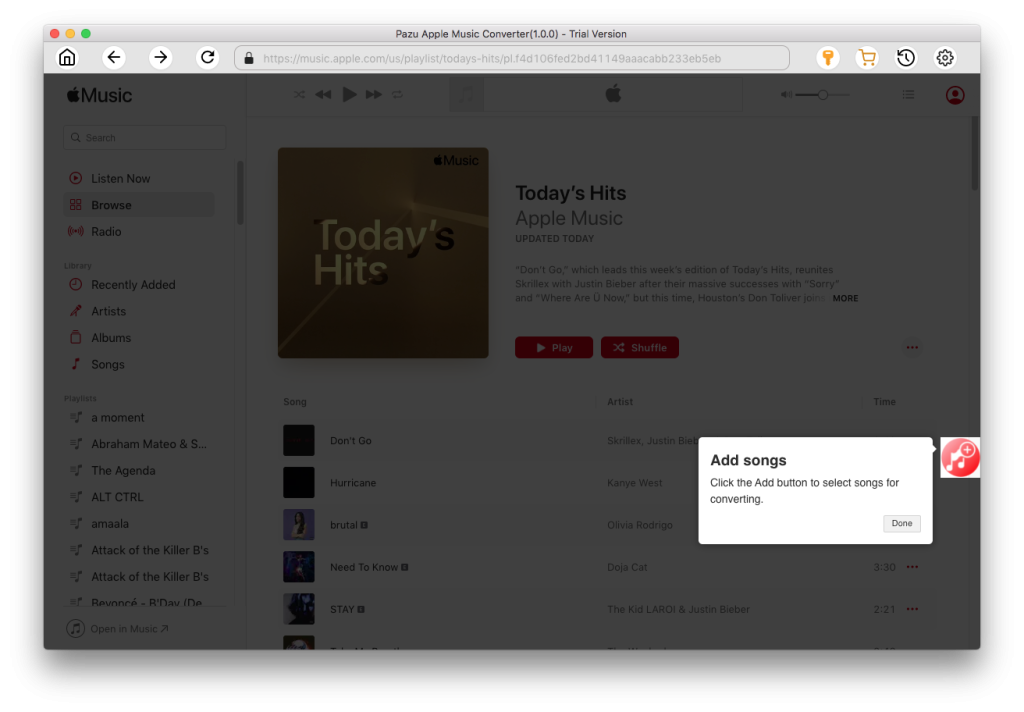
Uncheck any songs you don’t want to download and click the “Convert” button. Once done, you can play them anywhere you want, even after canceling your Apple Music subscription.
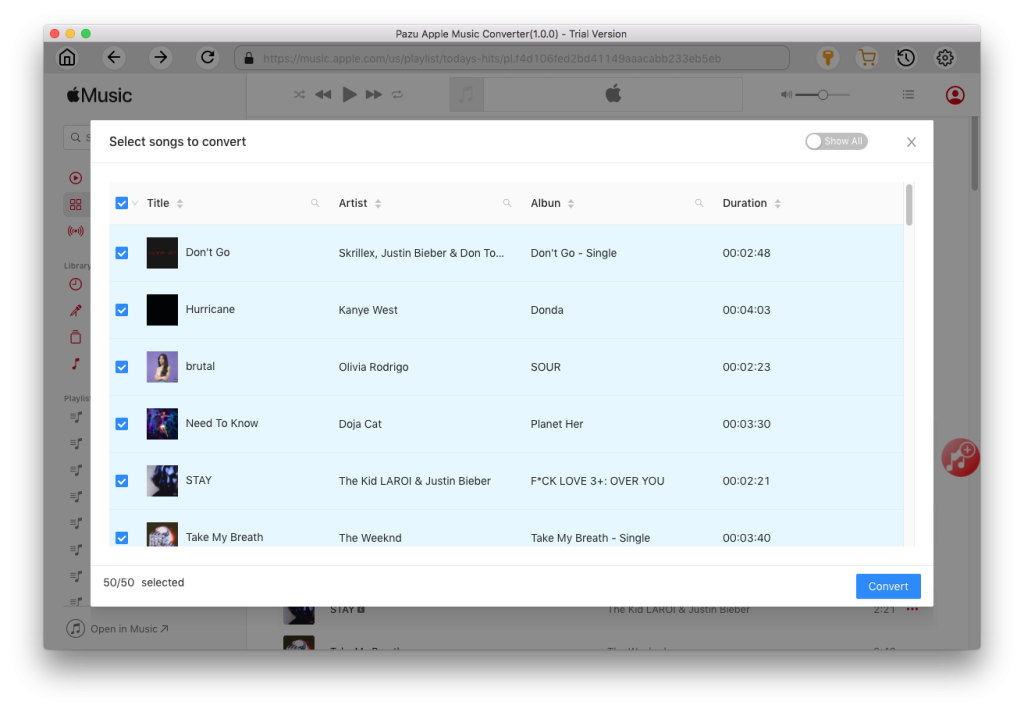

Download Apple Music to MP3, M4A, etc.