

Spotify has rolled out Lossless listening for Premium users to more than 50 countries through October 2025, including Australia, Austria, Czechia, Denmark, Germany, Japan, New Zealand, the Netherlands, Portugal, Sweden, the US, the UK, etc. Premium subscribers in these countries now can enjoy up to 24-bit/44.1 kHz FLAC high quality music.
However, Spotify music quality in other areas remains the same. Free users can have up to 160kbps music, while Premium subscribers can enjoy up to 320kbps with the Very High quality settings. Both Free and Premium users can adjust the settings for the best quality.
For a better listening experience, there are also other settings such as equalizer and volume normalization that can boost the music you hear. Here are 10 ways to improve your Spotify audio quality or how the music sounds. For the best results, consider using them in combination.
Contents
Spotify Free users get a maximum of 160kbps while Premium subscribers enjoy up to 320kbps. 320kbps is considered near-lossless quality, and it is also ideal on standard consumer audio equipment like earbuds, Bluetooth speakers, or even most car stereos. Upgrading to Spotify Premium is an easy and quick way to significantly improve your Spotify music quality. Then you can choose “Very High” under media quality settings to get 320kbps.
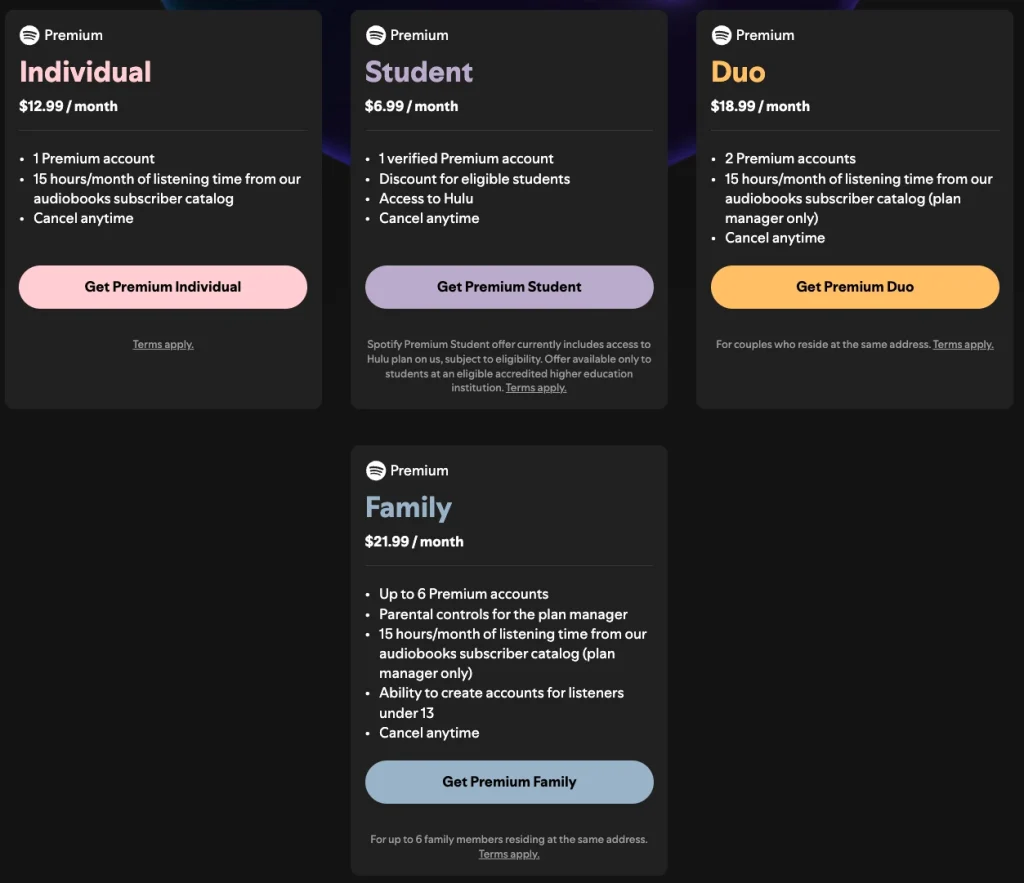
Spotify provides Individual ($12.99/month), Duo ($18.99/month), Family ($21.99/month), and Student ($5.99/month)plans for the Premium tier. Find the plan that suits you best to sign up.
Spotify web player is a convenient tool to access its vast music library at once. Just sign in to your account to start. However, the web player does not support audio quality adjustments. Free users can enjoy up to 128kbps AAC and Premium users to 256kbps, depending on your network speed.
For higher quality, use the Spotify app on your phone, tablet, or computer instead. Both Free and Premium users can set the streaming quality to the highest level supported by your plan, and Premium users can also do the same for downloads.
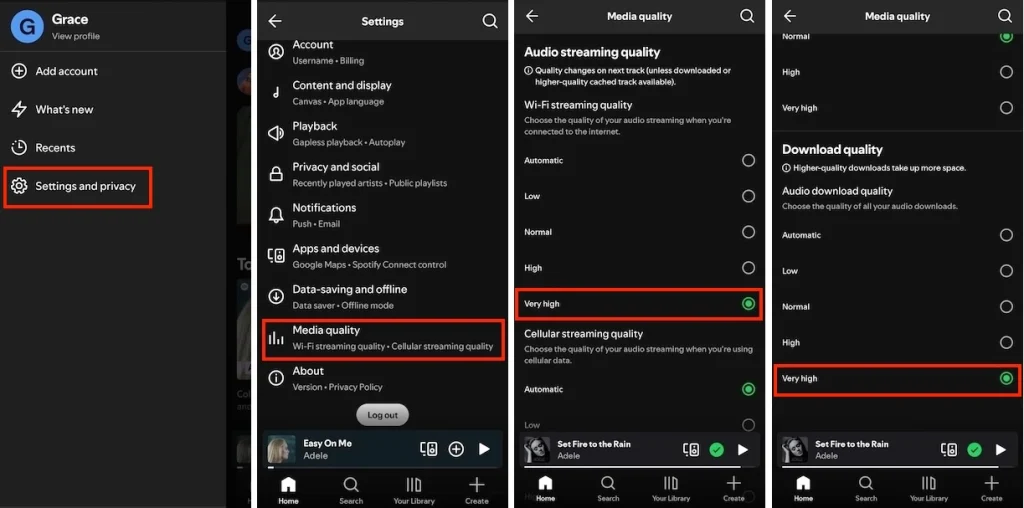
Spotify offers different sound quality options within the app. To have the best quality, set the audio quality to “High (up to 160kbps)” for Free account and “Very High (up to 320kbps)” for Premium. You can also choose the download quality, streaming quality for WiFi and cellular data. Here is how to do this with the mobile and desktop apps.

Auto Adjust Quality is a commonly used feature. It automatically chooses the music or video streaming quality according to your internet speed to ensure a smooth playback.
However, this feature can also lower the quality when your connection is poor. If you want to maintain the best audio quality on Spotify, it’s recommended to turn Auto Adjust Quality off. This ensures all music streams at the highest quality you’ve set. Please note that you may encounter interruptions during listening if your internet speed is insufficient.
Disable Auto Adjust Quality on Spotify:

Data saving will lower the streaming quality to minimize data usage when you’re on cellular data. If audio quality is your priority, disable Data Saver on Spotify to maintain the highest quality. Otherwise, keep it enabled or set it to Automatic to save more data.

Volume normalization balances quiet and loud songs to create a consistent volume level for all tracks. So you don’t need to turn the volume up or down across different songs.
However, this is often achieved by reducing the dynamic range of songs. It may affect how your music sounds – the dynamics are flattened and some of the impact is lost. If you want to hear every song exactly as it was recorded, you need to turn this feature off.
Here’s how you can disable Volume Normalization on Spotify:

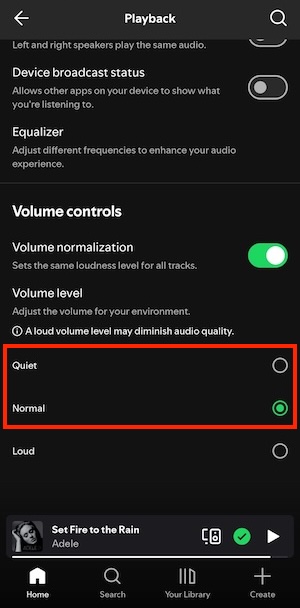
On the other hand, there’s an argument that Spotify’s normalization has improved and only impacts music on the “Loud” setting. This means you can enable Volume Normalization but set the volume level to “Normal” or “Quiet.” Both Free and Premium users can choose the volume level on the Spotify desktop app, but only Premium subscribers can select it on the mobile app. Here’s how:
Mono Audio combines all audio signals into a single channel, regardless of how many speakers are playing the sound. However, modern music overwhelmingly uses stereo audio, with two or more channels to create a sense of space and directionality. Disabling mono audio on Spotify allows you to play music in both left and right speakers. You can experience the fullness and spatial detail of the music, leading to a significant improvement in audio quality.
To Turn Off Mono Audio on Spotify:

Spotify offers a built-in Equalizer feature for users to adjust the levels of frequency ranges (bass, mids, and treble) in music and podcasts. It doesn’t actually add quality to the music, but changes the volume of specific frequency ranges to make music sound better to you. For example, you can make vocals sound clearer by boosting the treble or make a song feel “heavier” by boosting the bass. If you’re unsure how to adjust the Equalizer, Spotify provides presets like “Base booster” and “Classical” that can be applied directly.
Use Equalizer on Spotify

To make Spotify music sound better, you can use an internet streaming player such as Lumin or Bluesound. These network streamers, streaming amplifiers, or DACs (Digital-to-Analog Converters) can connect directly to Spotify and play music through your home audio system. This direct streaming path, where your phone or computer serves only as a controller, bypasses your mobile device or computer’s audio processing and can lead to better audio quality.
Lumin primarily targets the audiophile and high-end audio market, while Bluesound aims for a broader audience looking for high-quality audio solutions that are more accessible in terms of price. You can use the Spotify Connect feature to control music playback on the streaming player or another device.

Spotify Premium users can download music for offline listening. You can use the method mentioned above to set the download quality as “Very High” to get the best offline listening experiences. But these downloads are limited to the Spotify app, and you cannot listen to them on other devices or players.
However, with Pazu Spotify Converter, you can download Spotify music and podcasts with any account type, Free or Premium. It can save Spotify songs at the original quality up to 320kbps while preserving all metadata. You can choose to download in various formats (MP3, M4A, AIFF, WAV, FLAC, AAC) on Windows and Mac. Then you can transfer them to any supported device and enjoy offline.


Note: The free trial version of Pazu Spotify Converter allows you to convert the first three minutes of each track. Upgrade to the full version for unlimited conversions.

Download and convert any Spotify songs, albums, playlists to MP3/M4A etc.