

When you listen to Apple Music, you may notice that the volume level decreases significantly, or there is some variance in volume between songs. Apple Music’s low volume typically indicates an issue with your Apple Music settings, or that the songs are set to play at different volumes. Both of these issues can easily be fixed by adjusting your Apple Music settings.
If you’re wondering how to make Apple Music louder, you’re not alone. You might spend a significant amount of time curating playlists and subscribing to your favorite podcasts, but if your Apple Music volume is too low, you won’t be able to enjoy them. Fortunately, there are other methods to boost the volume and improve your listening experience on Apple Music – here’s how.
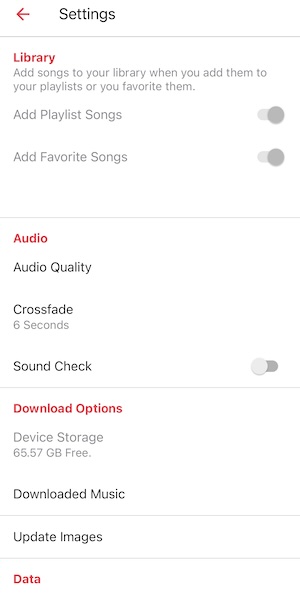
Apple Music Sound Check feature adjusts the sound level so that all songs play at the same volume. While this feature makes music playback more seamless, it frequently prevents Apple Music songs from playing loud enough. To resolve this problem, you can disable Sound Check.
On iOS

On Android
On Mac

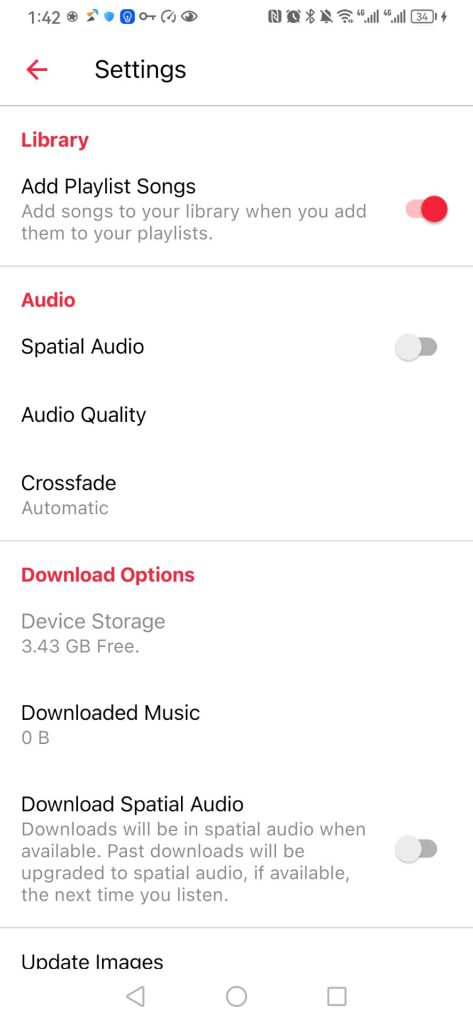
The volume level of Dolby Atmos and Lossless Audio compatible songs is noticeably lower than the Stereo mode. This is because Dolby Atmos and Lossless Audio are treated very differently from standard 256kbps songs. Dolby Atmos tracks are generally quieter than regular stereo mixes due to the threshold of -18 dBfs set by Dolby. This is done to allow for a greater dynamic range and a better listening experience. Luckily, you can easily disable Dolby Atmos and Lossless Audio in Apple Music.
On iOS

On Android
On Mac

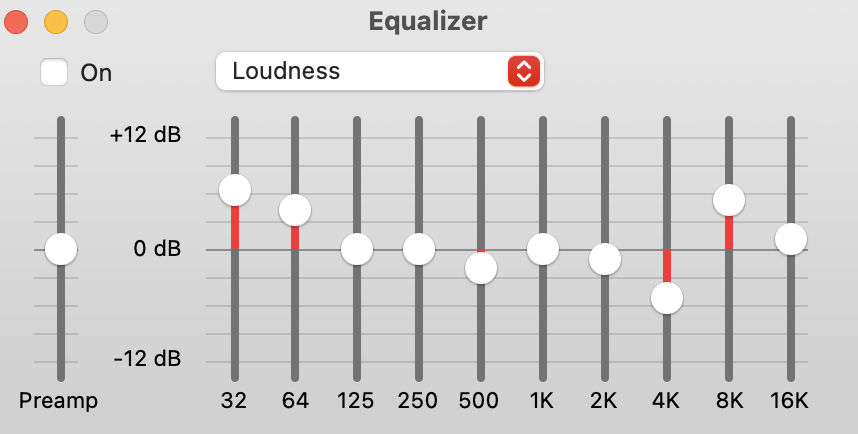
Some of the EQ settings make the volume lower because they lower certain frequencies while boosting others to give off the desired preset effect. So you can turn Equalizer off or set to Loudness.
The Loudness Equalizer can make all the quiet sounds louder, but it though decreases sound quality.
On iOS

On Mac
The best way to make Apple Music louder is to download Apple Music songs to MP3 and play them with other music player, like QuickTime Player, Windows Media Player, etc.
Audio signal compression is what every streaming service does on their end when they get the mixed and mastered PCM files from the labels and distributors. Audio signal compression also adds a bit, but not very noticeable dynamic compression, the main part is the compression in terms of file size.
Pazu Apple Music converter allows you to download Apple Music songs with original quality on Mac and Windows with all ID3 tags.
Download, install and run Pazu Apple Music Converter on your Mac or Windows.
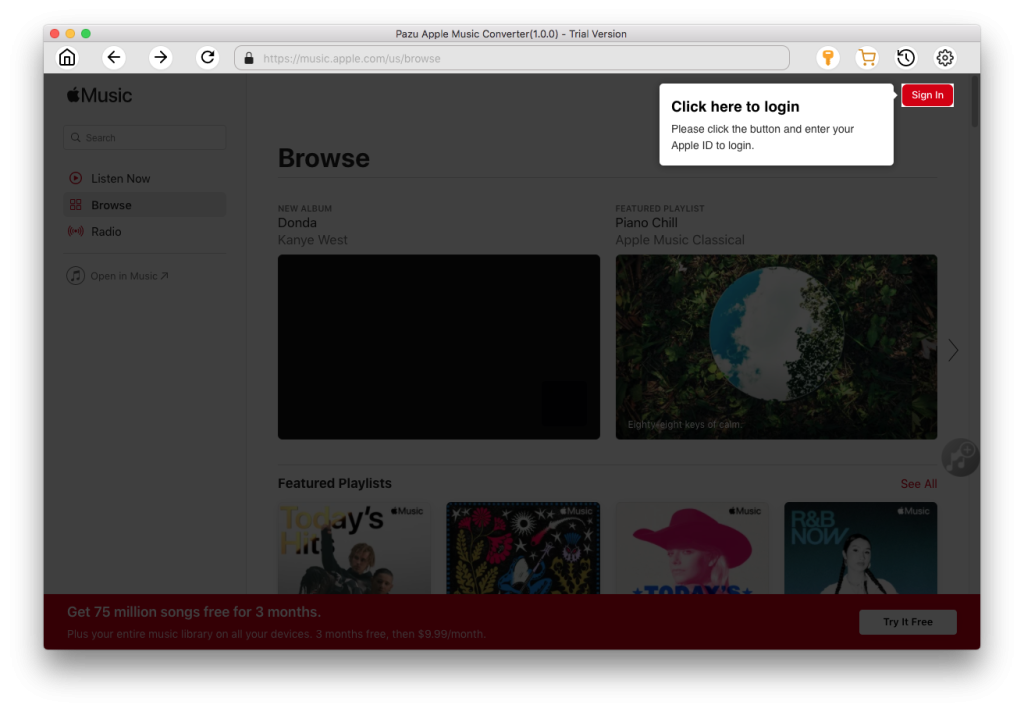
The default format is M4A in 256kbps. Apple Music Converter also supports MP3, AAC, FLAC, WAV and AIFF. Click the gear icon if you want to change output format or output folder.
Here in the Settings panel, you can also set Volume up to 200%.

Follow the on-screen instructions to choose a playlist, artist, or album that you want to download.
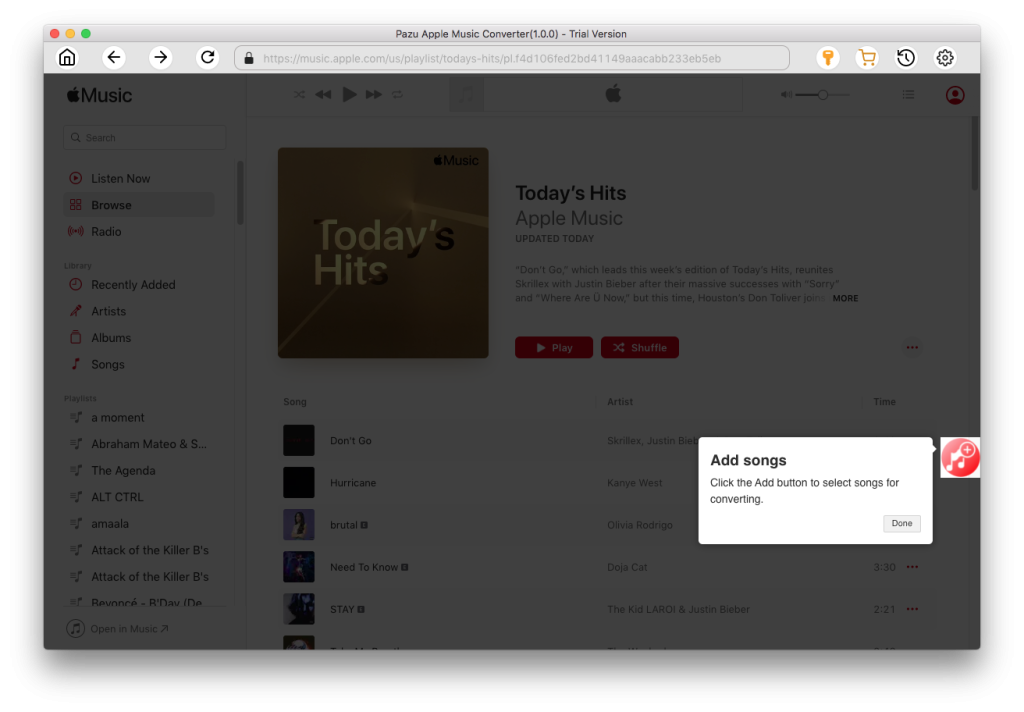
Click “Convert” button to start downloading Apple Music songs to mp3, so you can play them anywhere you want, even after cancelling Apple Music subscription.
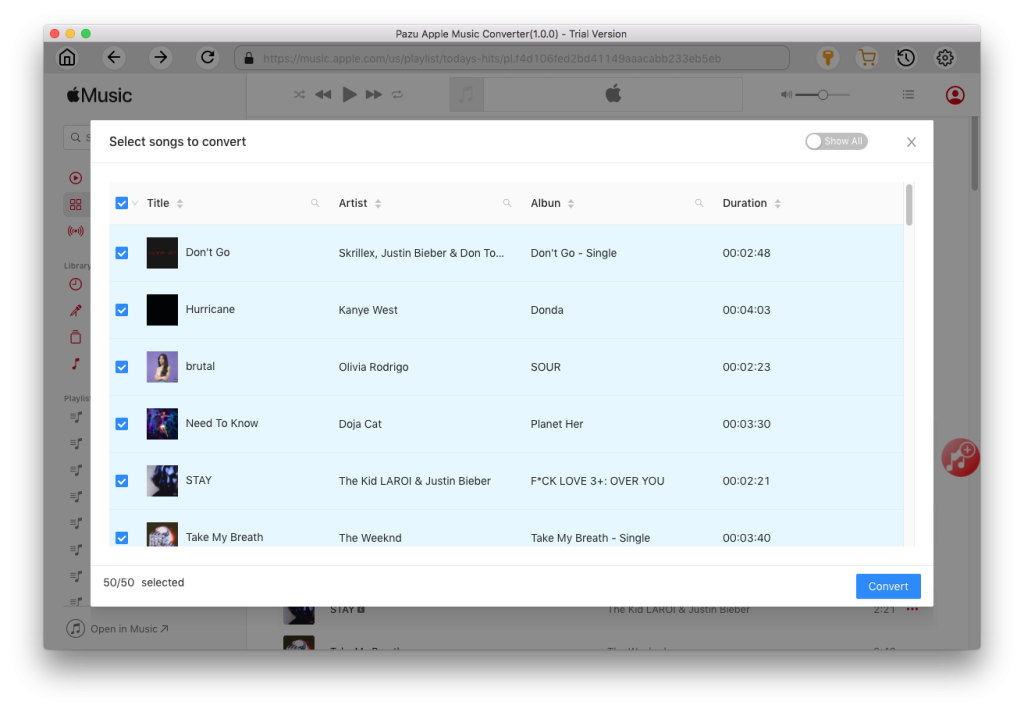

Download Apple Music to MP3, M4A, etc.