

Amazon Music is Amazon’s music streaming service, offered through different subscription plans: Amazon Music Free, Amazon Music Prime, and Amazon Music Unlimited.
Amazon Music Free provides access to playlists and stations with occasional ads. Amazon Prime members can get Amazon Music Prime for free, which offers a full catalog of over 100 million songs for shuffle play (except for All-Access playlists, which can be played on-demand) with no ads. For a premium experience, Amazon Music Unlimited offers high-quality audio and on-demand playback of any song.
Amazon Music Free doesn’t offer music downloads. Amazon Music Prime members can download songs for offline listening only for All-Access Playlists. On the other hand, Amazon Music Unlimited subscribers can download songs, albums, and playlists for offline use. It’s important to note that songs downloaded from Amazon Music Prime and Unlimited are DRM-protected and can only be played in the Amazon Music app.
If you’re an Amazon Music Free or Prime member and want to listen offline or go beyond downloading songs in All-Access Playlists, you might consider recording Amazon Music tracks. This article will show you how to do that using a free online recorder and a recording application. Additionally, we’ll introduce an excellent method to directly download Amazon Music as MP3 files for playback, whether you have Amazon Music Unlimited, Prime, or Free plan.
If you’d rather avoid installing third-party tools to record Amazon music, the online screen and audio recorder offer a convenient solution. These online recorders are generally user-friendly and can quickly capture the music you want.
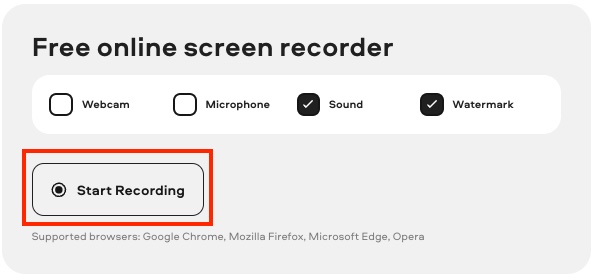
One excellent option is Screen Capture, a free online tool that lets you record your screen, audio, and even webcam feed according to your preferences. There’s no need for installation since it operates directly within your browser. Let’s explore how to record Amazon Music with Screen Capture:


In addition to online recording tools, you can also use audio recorder software to convert Amazon Music to MP3 files. Audacity is an ideal choice for this purpose. It’s a free, open-source audio editor and recorder, available for Windows, macOS, GNU/Linux, and other platforms.

While Audacity can record streaming Amazon Music, keep in mind that it can also capture other sounds, including from your microphone. To ensure the best results when recording Amazon Music on Audacity, make sure that your microphone doesn’t introduce any unwanted noise during the recording process.
The steps to record Amazon Music using Audacity are straightforward:

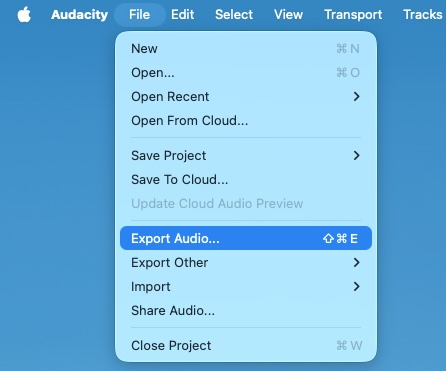
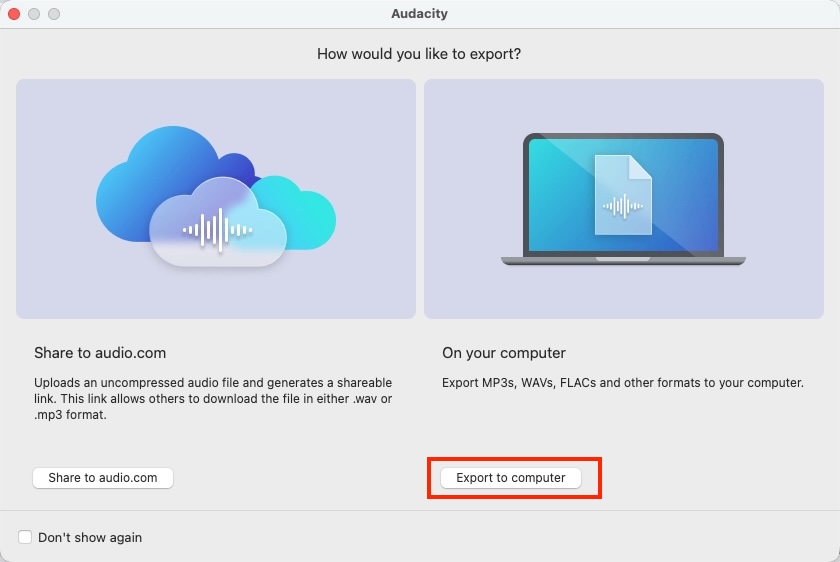
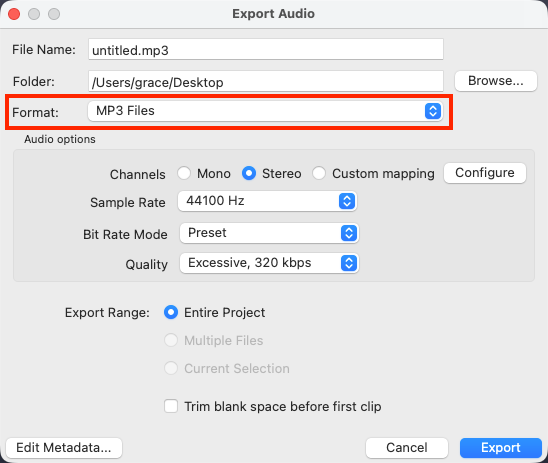
When using Audacity to convert Amazon Music, bear in mind there may be a potential loss of audio quality.
Another approach to recording Amazon Music is to directly download songs in MP3 format for offline listening. As previously mentioned, Amazon Music Prime members can only download songs from All-Access Playlists for offline playback, and the downloaded content – no matter with Prime or Unlimited plans – is protected by DRM. This means they can only be played within the Amazon Music app and cannot be transferred to other devices.
Luckily, there is a professional Amazon Music Downloader – Pazu Amazon Music Converter that allows you to download any songs, albums, and playlists from Amazon Music Prime/Unlimited to MP3, M4A, AAC, FLAC, WAV, and AIFF. This way, you can listen to your favorite tracks anywhere you’d like, using applications like iTunes, Windows Media Player, or your MP3 player. Moreover, the audio quality and original ID3 tags of the downloaded MP3 files are preserved.
Amazon Music Free doesn’t support offline playback. However, with Pazu Amazon Music Converter, you can also download songs to MP3 with Amazon Music Free. Now follow the tutorial below to learn how to convert Amazon Music to MP3 in a few steps.
Download, install, and launch Pazu Amazon Music Converter on your computer, then click the Sign In to log in to your Amazon account.

If you have purchased a license, click the key icon to register the converter. If not, continue using the trial version.
Click the Settings icon in the top right corner and select MP3 as the output format.

Select the desired songs, albums, or playlists you wish to download. Once you open an album/playlist and tap the red Add button suspended on the right side, you’ll be presented with the list of songs.

All songs in the playlist will be added by default. Click the check box next to the track that you don’t want to convert.

Click the Convert button in the bottom right corner, and Pazu Amazon Music Converter will automatically download and convert Amazon Music tracks to the default folder on your computer.

When the conversion process finishes, you can browse all the converted songs in the history list by clicking on the  icon. And now you’re prepared to stream your Amazon Music songs anywhere.


Download Amazon Music to MP3, FLAC, etc.