

Apple Family Sharing allows up to six family members to share Apple services such as Apple Music and Apple TV+. With Family Sharing and an Apple Music Family subscription, your entire family can access millions of songs at no additional cost, and each person enjoys all the benefits of the Apple Music Individual plan.
However, a feature is only great when it operates properly. If you encounter problems with Apple Music family sharing, such as it not working for some family members, the following guide will assist you in resolving the issue and getting your family-sharing experience back on the right path.

To share Apple Music with your family members, make sure you meet the basic requirements for Family Sharing.
Each family member needs to have their own Apple Account (formerly known as Apple ID). For those who don’t have one yet, they can easily create one for free at account.apple.com.
It is recommended that your devices meet these requirements to enjoy full Family Sharing and iCloud features:
Family Sharing not working for Apple Music is a common issue. Here are several effective solutions to fix this problem and restore proper functioning.
If Apple Music family sharing isn’t working, check your Apple Music Family Plan first and make sure your subscription is active. Update to the Apple Music Family plan if you are currently on an individual plan.
The Apple Music Family Plan allows up to six people to access the Apple Music subscription on their devices. Each family member has their own library and personalized music recommendations based on their listening preferences. That means up to six family members can enjoy all the benefits of the Apple Music Individual Plan ($ 11.99/month) for just $19.99/month.
If you have several Apple accounts, make sure that you’re using the same Apple Account for both your Apple Music subscription and Family Sharing. To check the Apple Account on your device, go to Settings and tap your name to verify your account name and email.
After you’ve subscribed to the Apple Music Family plan and set up Family Sharing, everyone in your family group should automatically have access to Apple Music. However, if “Share with Family” is accidentally disabled, Apple Music Family Sharing will stop working. You can manually turn on the “Share with Family” feature with these steps:


Sometimes, software glitches can disrupt Apple Music Family Sharing. Users have reported situations where their family members have accepted the invitation. However, Apple Music still asks them to sign up for a subscription, even though their settings indicate they already have a shared Apple Music plan.
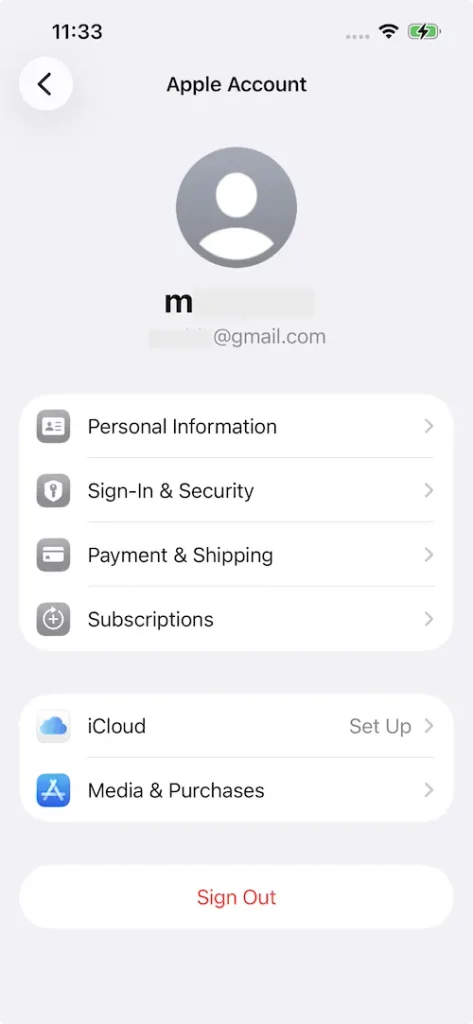
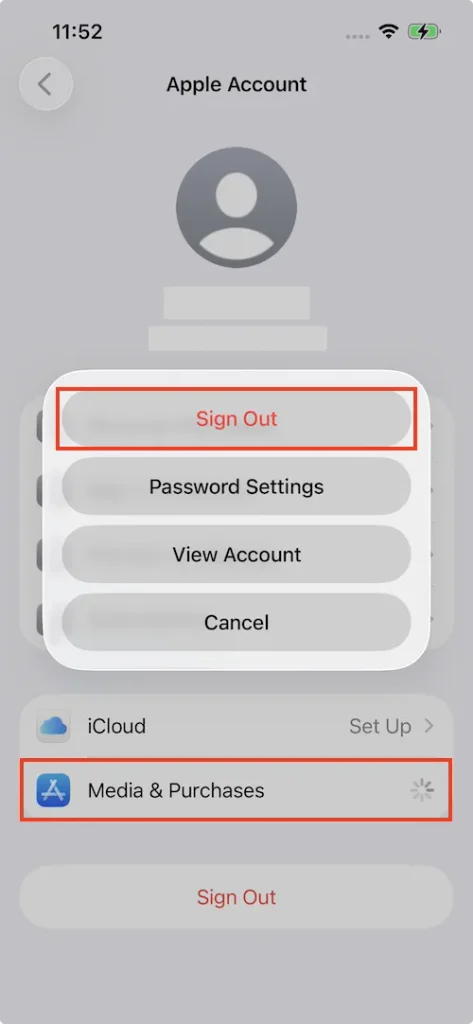
In such cases, a simple but effective solution is to sign out of Media & Purchases and then log back in. This process can reset your connection to subscriptions such as Apple Music and Apple TV, and recognize the family member’s acceptance of your Apple Music Family Sharing. It can also resolve other glitches and restore proper Apple Music Family Sharing functionality.
Here is how you can log out of Apple Music and sign back in.
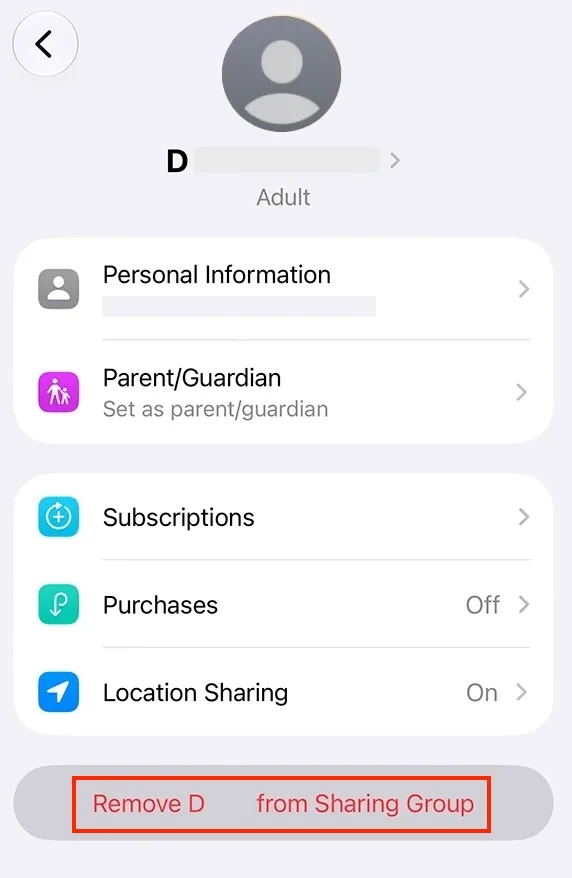
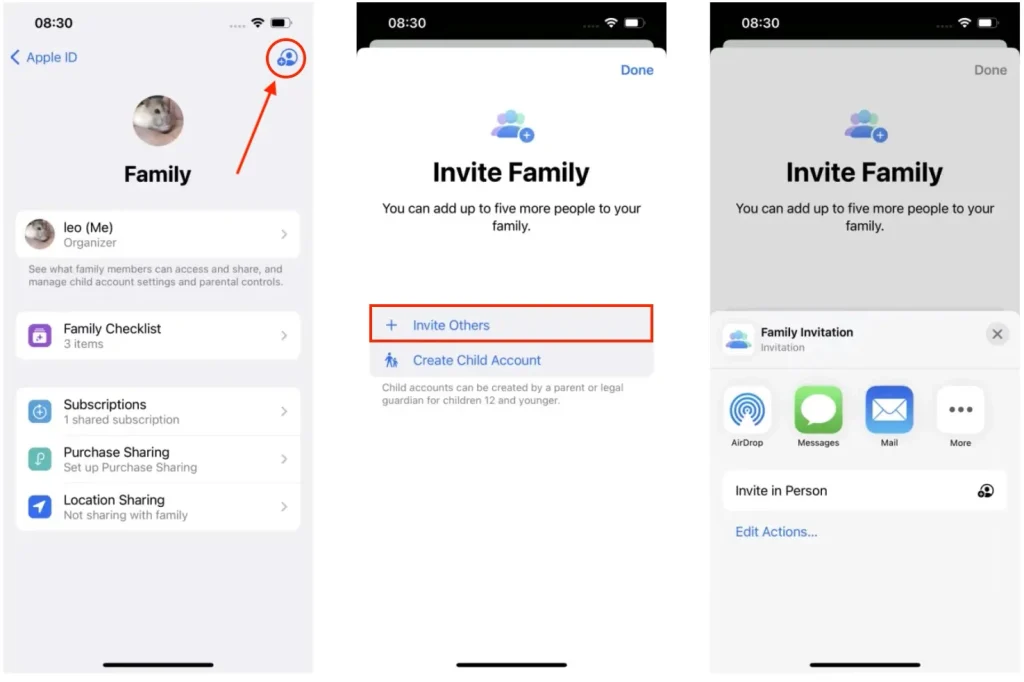
If you’ve already tried the previous methods and Apple Music Family Sharing still isn’t working, try removing your current members from the Family Sharing setup, then add them back by sending new invites.
If a member in your family group is currently on a free trial of Apple Music, the member may not be able to access the Apple Music family sharing until the trial period ends. In such cases, wait for the free trial to expire and try sharing your Apple Music family plan with the member again.
Apple Music allows users to download tracks, albums, and playlists for offline playback. However, downloaded Apple Music content will only be available for offline listening within the Apple Music app while your subscription is active. If you want to save Apple Music songs forever on your devices, choose the best Apple Music downloader: Pazu Apple Music Converter.
Pazu Apple Music Converter is a safe and effective downloader that helps you download Apple Music playlists, albums, and songs to MP3, AAC, FLAC, and other popular formats on Mac/Windows without any loss in quality.
Pazu Apple Music Converter not only downloads your favorite playlists and songs, but also preserves the original audio quality, ID3 tags, and metadata, so you won’t lose any important information. Plus, one of the distinguishing features of Pazu Apple Music Converter is the really fast download and convert speed – almost 10 times faster than any other similar software.
Pazu Apple Music Converter integrates with the Apple Music web player, so you can batch-convert any Apple Music playlist or album to the format you choose without iTunes or the Music app.
The following tutorial will show you how to download Apple Music to MP3 and get Apple Music for free.
Download, install and run Pazu Apple Music Converter on your Mac or Windows.
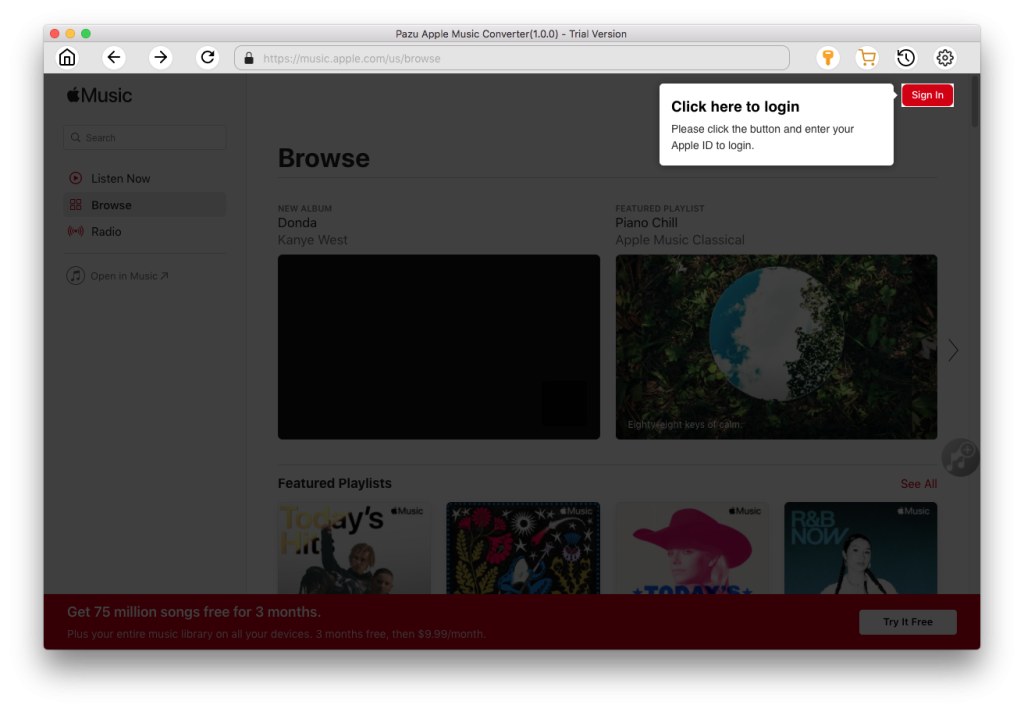
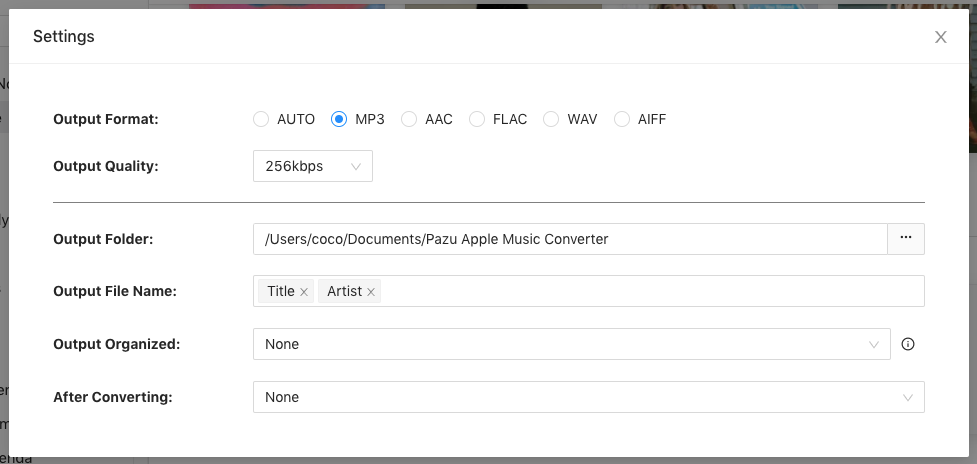
The default format is M4A. Apple Music Converter also supports MP3, AAC, FLAC, WAV, and AIFF. Click the gear icon if you want to change the output format or output folder.
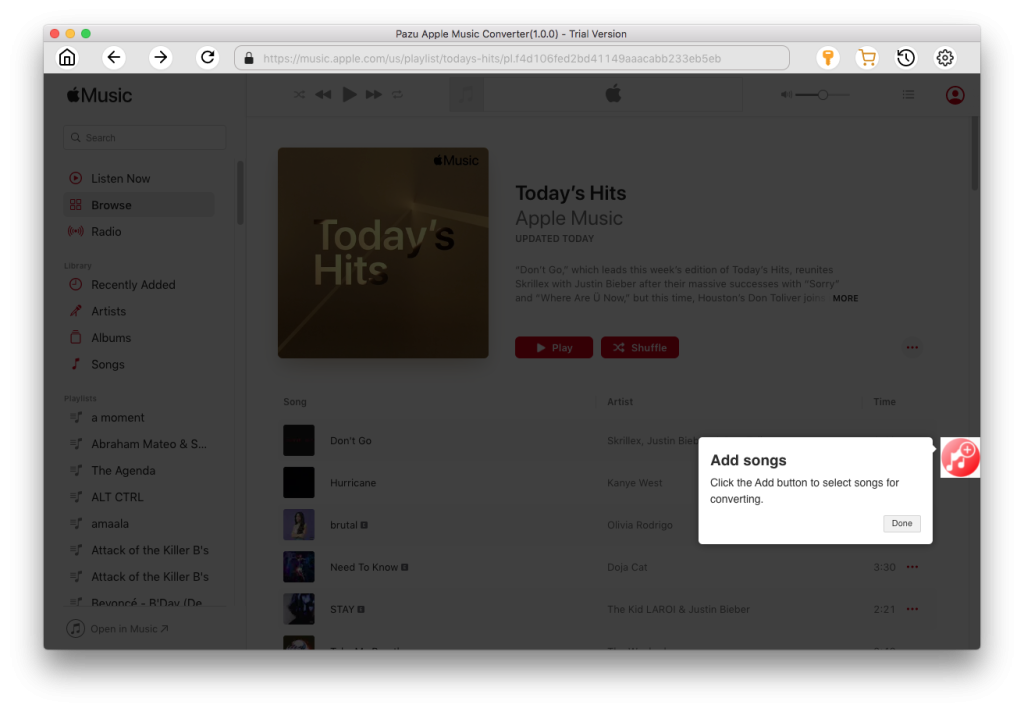
Follow the on-screen instructions to choose a playlist, artist, or album that you want to download.
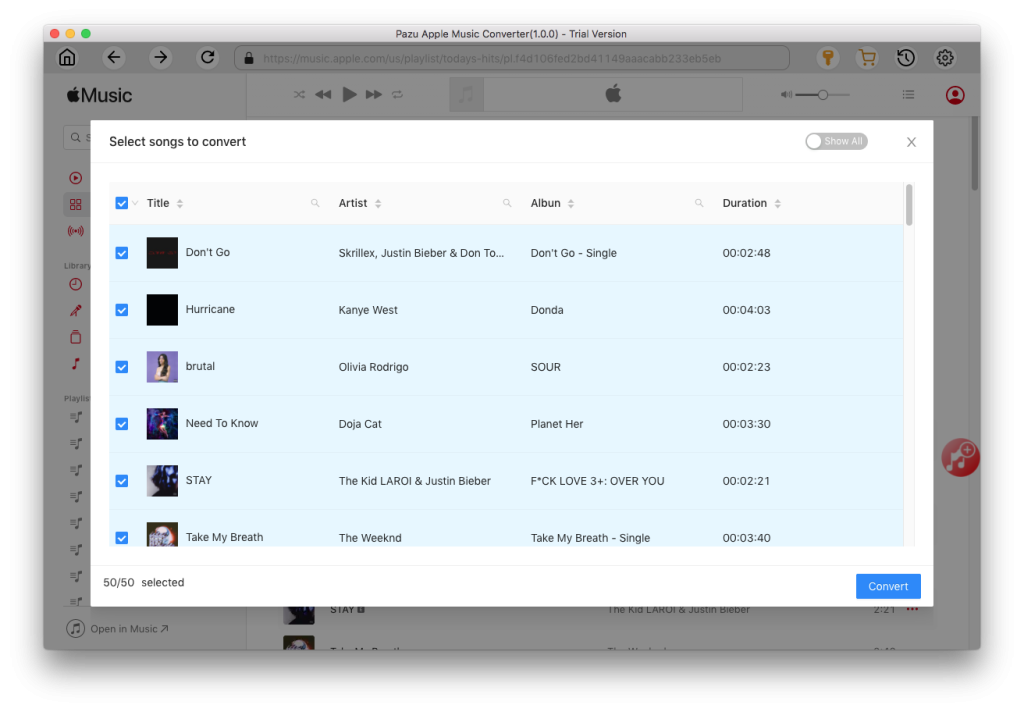
Click the “Convert” button to download Apple Music songs, albums, and playlists as MP3s so you can play them anywhere, even after canceling your Apple Music subscription.
Apple Family Sharing is a convenient way to share subscriptions like Apple Music and other content with up to six family members. If you encounter issues with sharing Apple Music through Family Sharing, the solutions in this guide should help. We also provide an extra tip on downloading Apple Music as MP3 files with Pazu Apple Music Converter. Enjoy your favorite music with your family and the ultimate offline listening experience.

Download Apple Music to MP3, M4A, etc.