

With Apple Music Family subscription and Family Sharing, up to six members in your family can enjoy unlimited access to Apple Music on their devices with their own Apple Account. Each member of an Apple Music family subscription can stream millions of songs from the Apple Music catalog. But what happens if Family Sharing isn’t working, or you want to share your music without setting up a full family group? This article will explain how to share Apple Music with or without Family Sharing.
Family Sharing lets you and up to five other family members share access to Apple services, purchases, an iCloud storage plan, and more. You can even help locate each other’s missing devices.
One adult family member (the organizer) invites other family members to participate. When family members join, Family Sharing is set up on everyone’s devices automatically. The group then chooses which services and features they want to use and share.
To share Apple Music with your family, you’ll need an active Apple Music Family subscription. If you’ve already had an Individual plan, here’s how to upgrade to the Family plan on iPhone.

The family organizer can easily invite family members who have an Apple Account or create an Apple Account for a child who doesn’t have one yet.
On iOS 16 or later

On iOS 15 or earlier


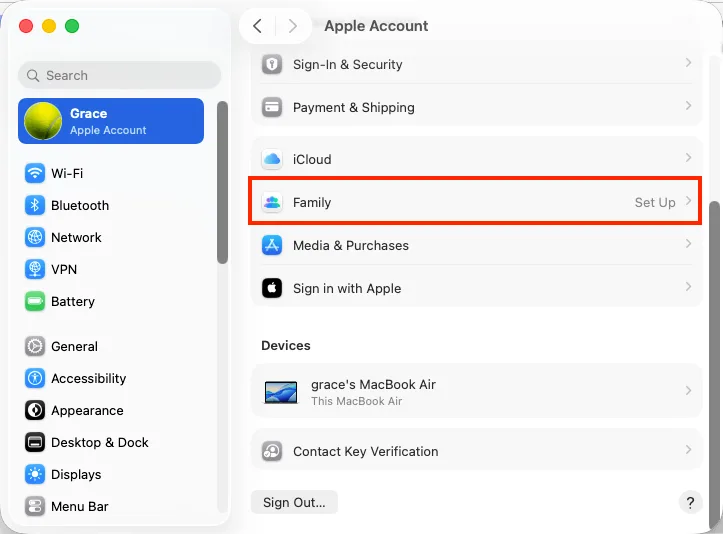
On macOS Ventura 13 and later
 > System Settings.
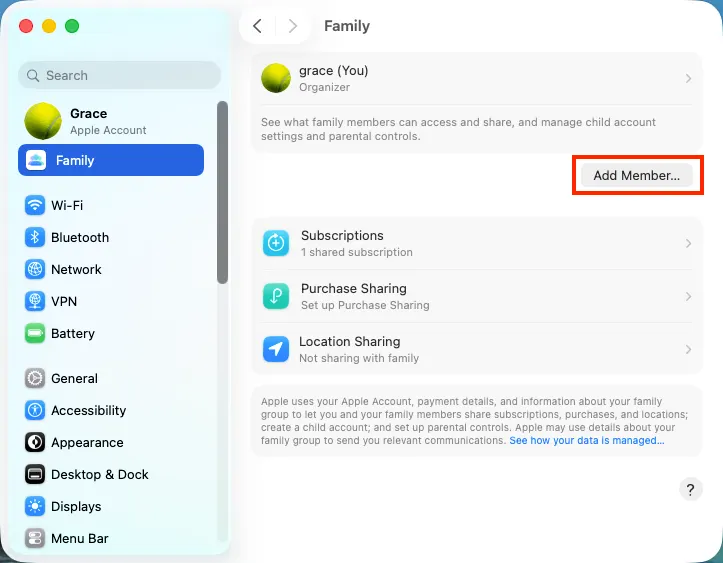
If Family doesn’t show in the sidebar, select it in the right-hand pane, then click Set Up Family > Invite People.
On macOS Monterey 12 and earlier
 > System Preferences.
 , then select Family Sharing in the sidebar.
 and follow the instructions.

On iPhone, iPad, or iPod touch
On Mac

While Apple Music Family Sharing requires an active Family subscription, there is a workaround if you are on an Individual plan: download Apple Music as local MP3 audio files and share them with your family using a USB drive, MP3 player, or other devices.
To make this possible, you’ll need a tool like Pazu Apple Music Converter. This software allows you to download Apple Music songs, playlists and albums to your computer’s local drive. Simply add the Apple Music tracks to the tool, and it will convert them into MP3, AAC, WAV, FLAC, M4A, AIFF formats at a 10X faster speed. If Apple Family Sharing isn’t working for you, this method provides an alternative way to share Apple Music with others.
Download, install and run Pazu Apple Music Converter on your Mac or Windows.
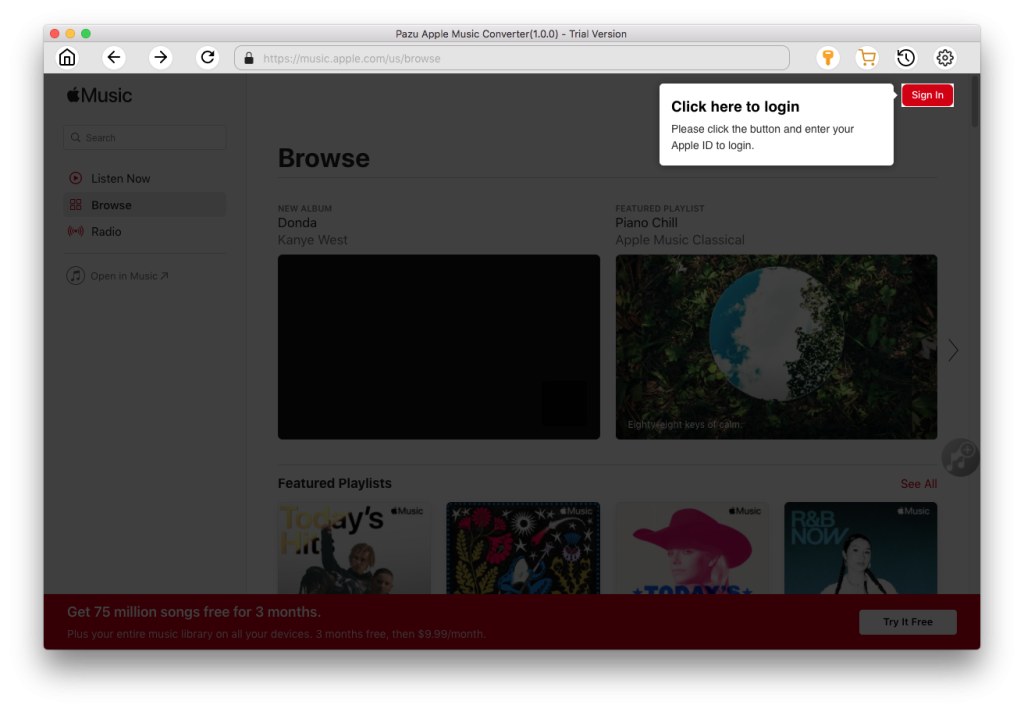
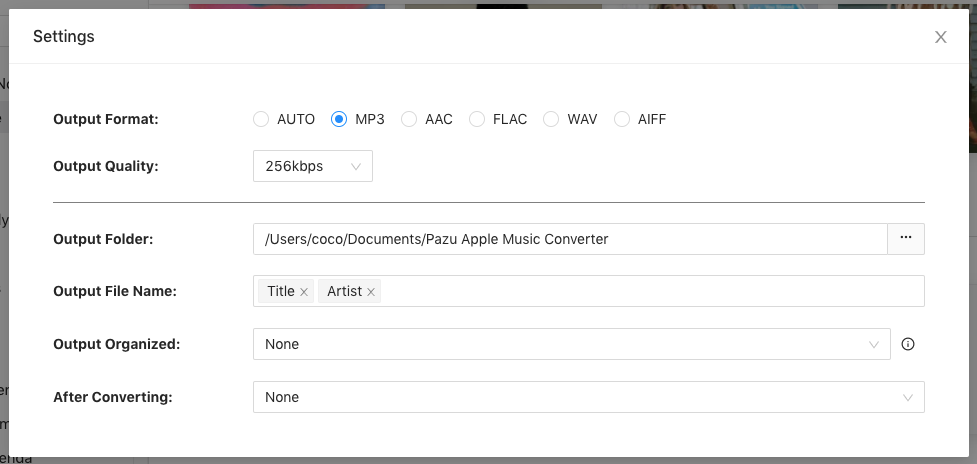
The default format is M4A. Apple Music Converter also supports MP3, AAC, FLAC, WAV and AIFF. Click the gear icon if you want to change output format or output folder.
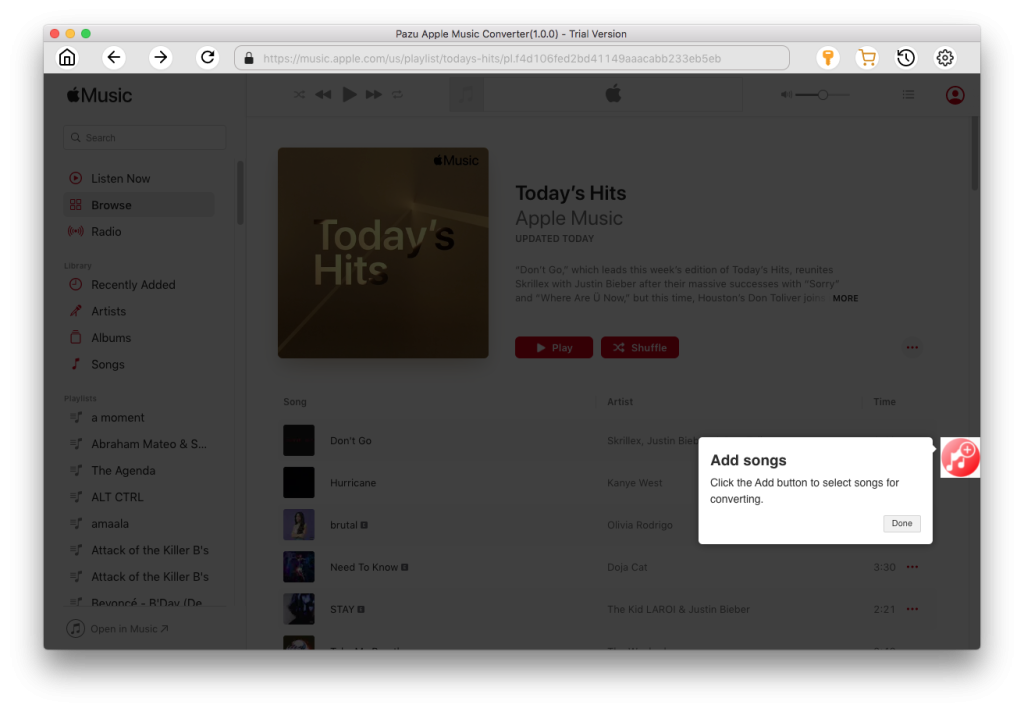
Follow the on-screen instructions to choose a playlist, artist, or album that you want to download.
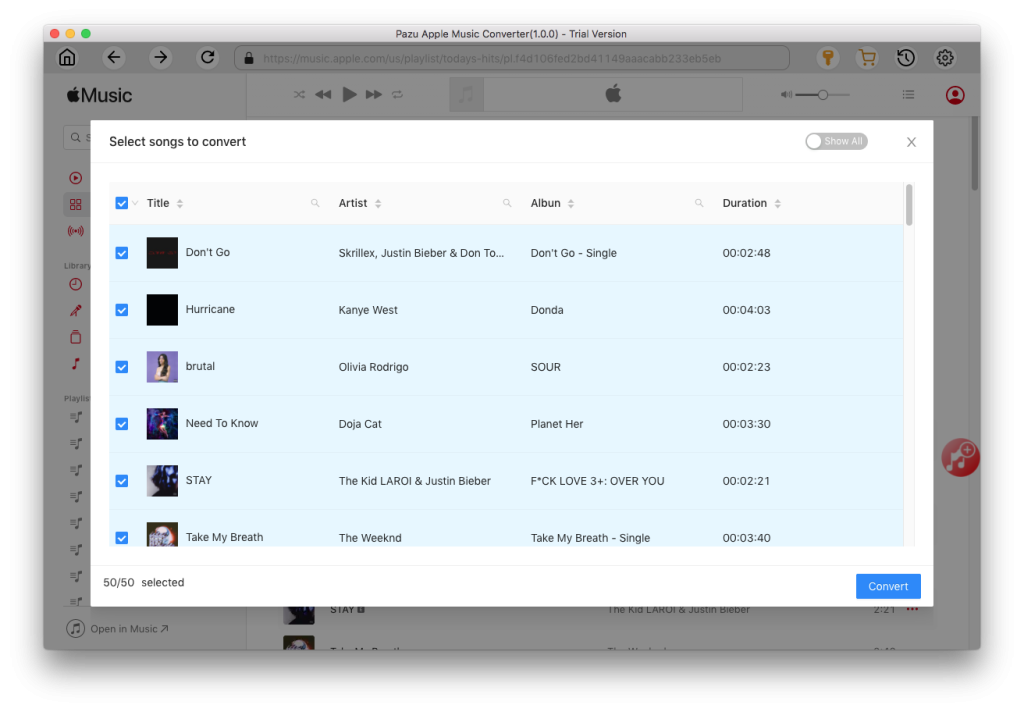
Click “Convert” button to start downloading Apple Music songs, albums and playlists to MP3. After that, you can share downloaded tracks with your family members without Family Sharing.

Download Apple Music to MP3, M4A, etc.