

While YouTube Music continues to grow rapidly, especially among Gen Z and younger Millennials who love its seamless integration with music videos, Spotify remains the clear global market leader with over 34% of paying subscribers worldwide. If you’re planning to switch from YouTube Music to Spotify but don’t want to lose your favorite playlists, the right migration tools make transferring your library effortless. Here are the best three ways to move your YouTube Music playlists to Spotify.
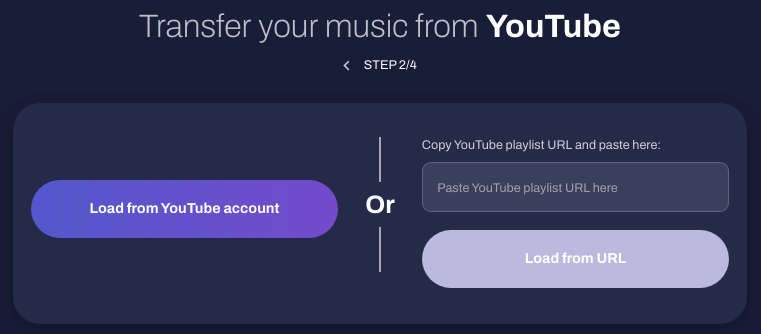
There are online tools and services that can help you transfer playlists between different music platforms, including YouTube Music and Spotify. One such service is “TuneMyMusic.” Here’s how you can use it:
Another online tool for transferring YouTube Music playlists to Spotify is Soundiiz.

Cons: Some songs may not be matched.

Keep in mind that while third-party services like Soundiiz can facilitate the transfer, the availability of songs on both platforms might differ due to licensing agreements. Some songs might not be available on Spotify, and vice versa.
The best way to transfer YouTube Music playlists to Spotify is to download YouTube Music Playlists to MP3 and then add them to Spotify as local songs.
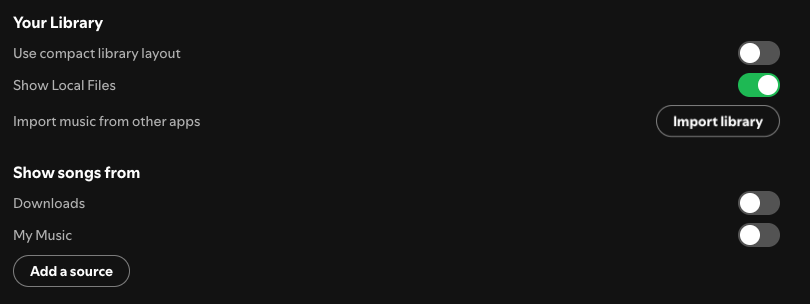
Besides the millions of tracks Spotify offers, you can also use the app to play any audio file on your device. To enable that feature, make sure the songs are stored on your device and turn on “Local audio files”. Spotify supports audio formats including MP3, M4A, AIFF, WAV, etc.
How to upload local music to Spotify?
So, the most important thing is to download YouTube Music Playlists to MP3; all you need is Pazu YouTube Music Converter.
The best way to download YouTube Music songs, albums and playlists is to use a professional downloader such as Pazu YouTube Music Converter. This smart tool has the YouTube Music web player built-in. You can easily browse or search for the songs, albums, and playlists you want to download and then download them to MP3, M4A, AAC, FLAC, WAV, and AIFF with one click.
If you want to download YouTube Music songs, albums and playlists without subscribing to YouTube Music Premium, then all you need is Pazu YouTube Music Converter.
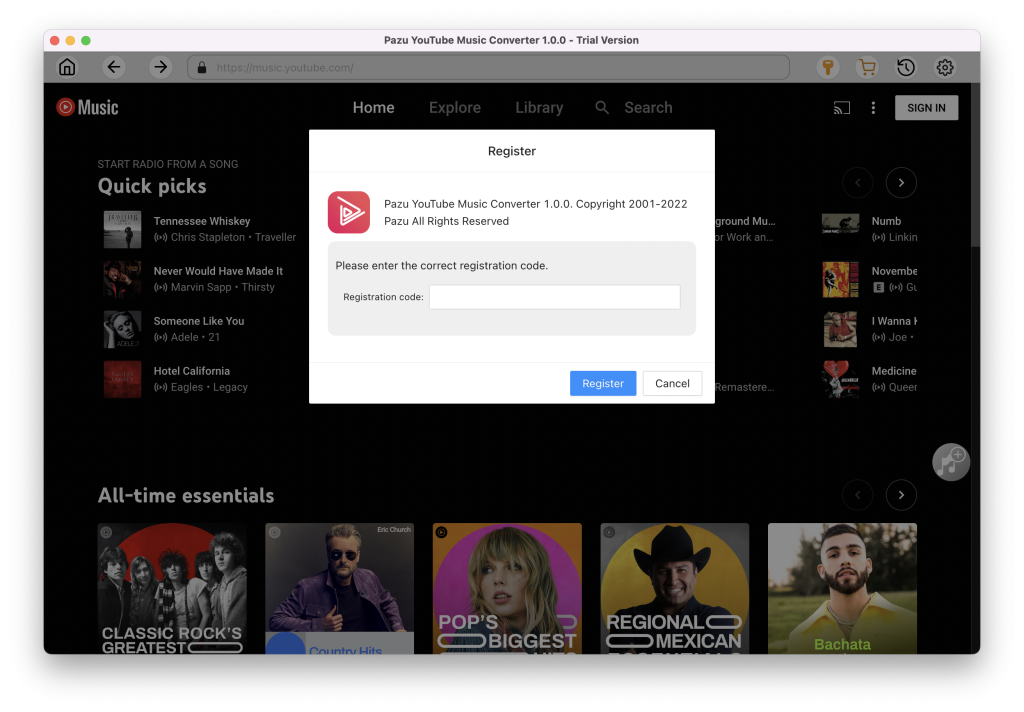
To get started, download, install and run Pazu YouTube Music Converter on your Windows PC, which features a built-in YouTube Music web player.
If you have already purchased a license, click the key icon to register the converter. If not, continue using the trial version.
You don’t need to sign in to your YouTube Music account.
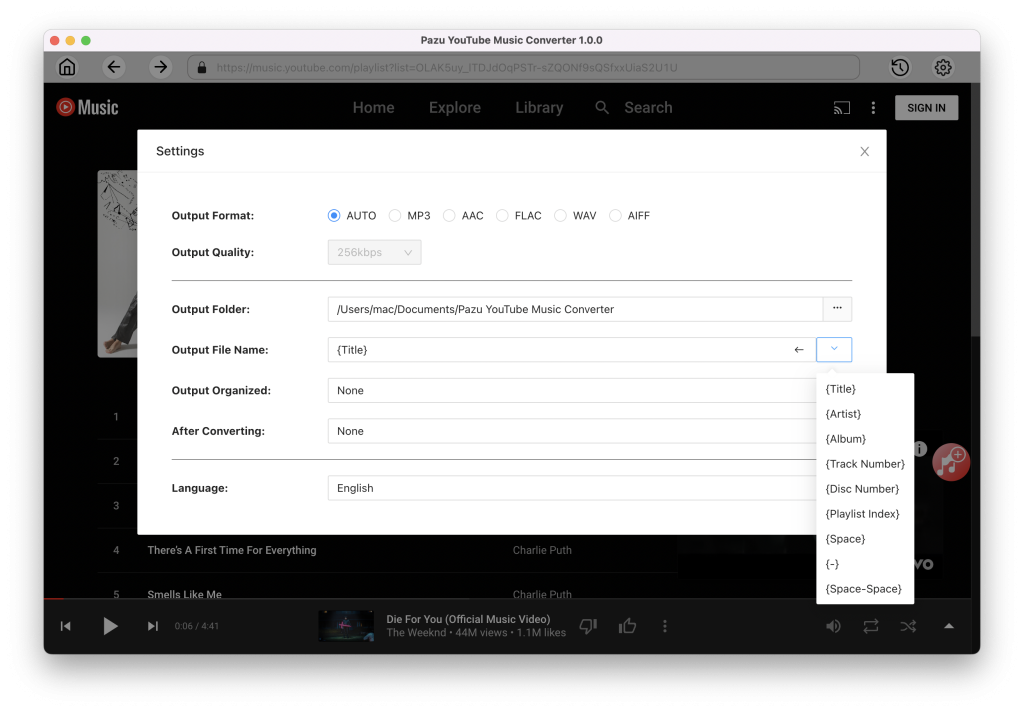
The default output format is M4A. Pazu YouTube Music Converter also supports MP3, AAC, FLAC, WAV, and AIFF. Click the gear button to change the output format or output folder if you need. You can also change the bitrate and sample rate according to your needs.
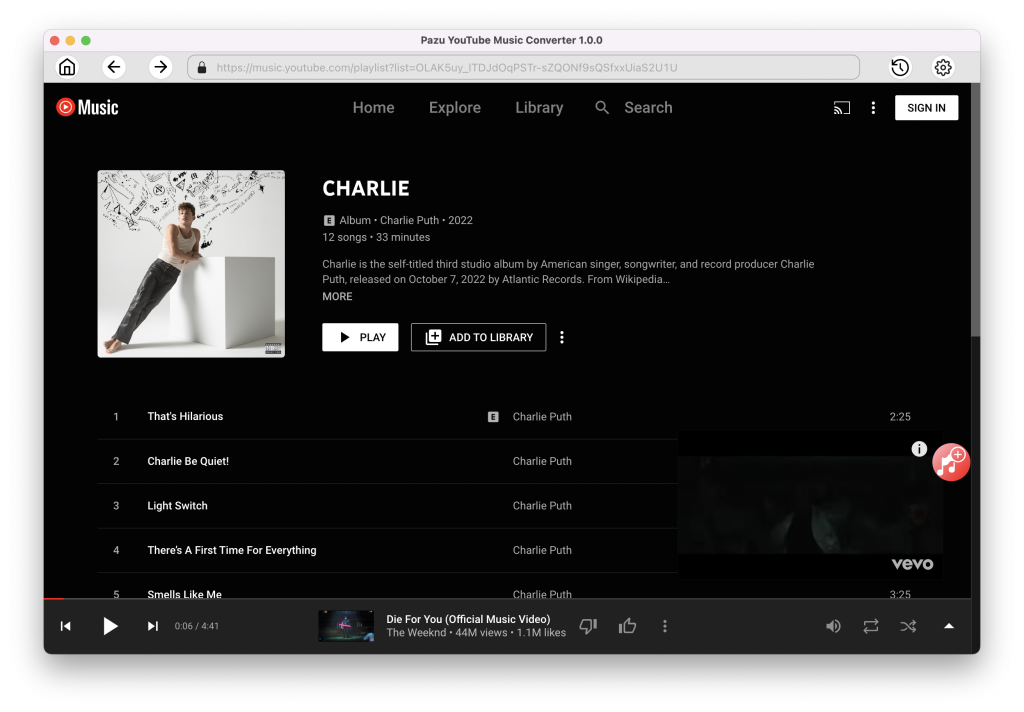
Browse or search to find the songs, albums, or playlists you want to download. Click the album or playlist you want to download. Then click the red icon to load songs.
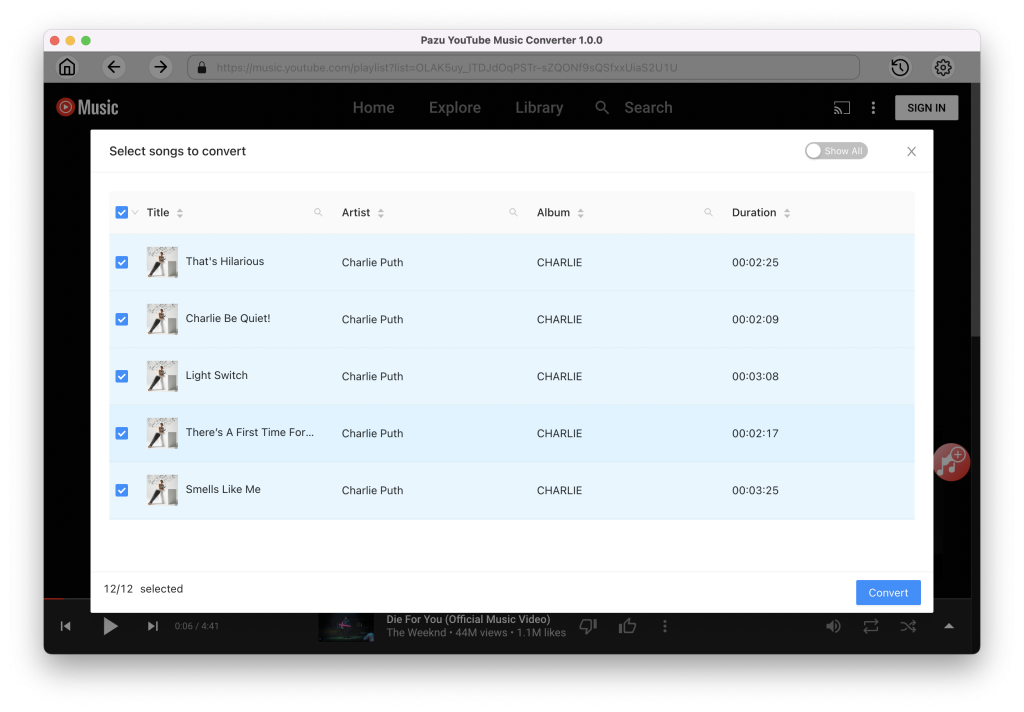
All songs in the playlist/album will be selected by default. You can uncheck the songs you don’t want to get.
After selecting the songs, click Convert to start downloading YouTube Music songs in the format you choose. You will see a progress circle indicating your music is downloading.
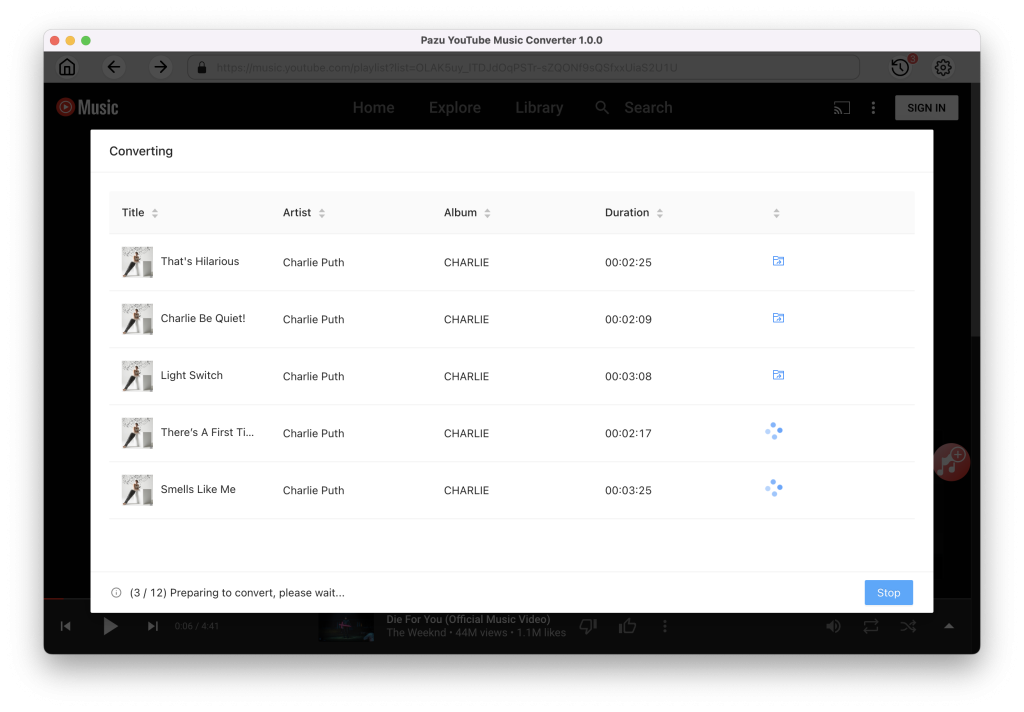
Once the songs have been downloaded, click the folder icon to quickly locate the DRM-free YouTube Music songs in the format you choose. You can then transfer and play them anywhere.
To view or manage all music you’ve downloaded, click the clock icon in the top-right corner of the YouTube Music Converter interface.
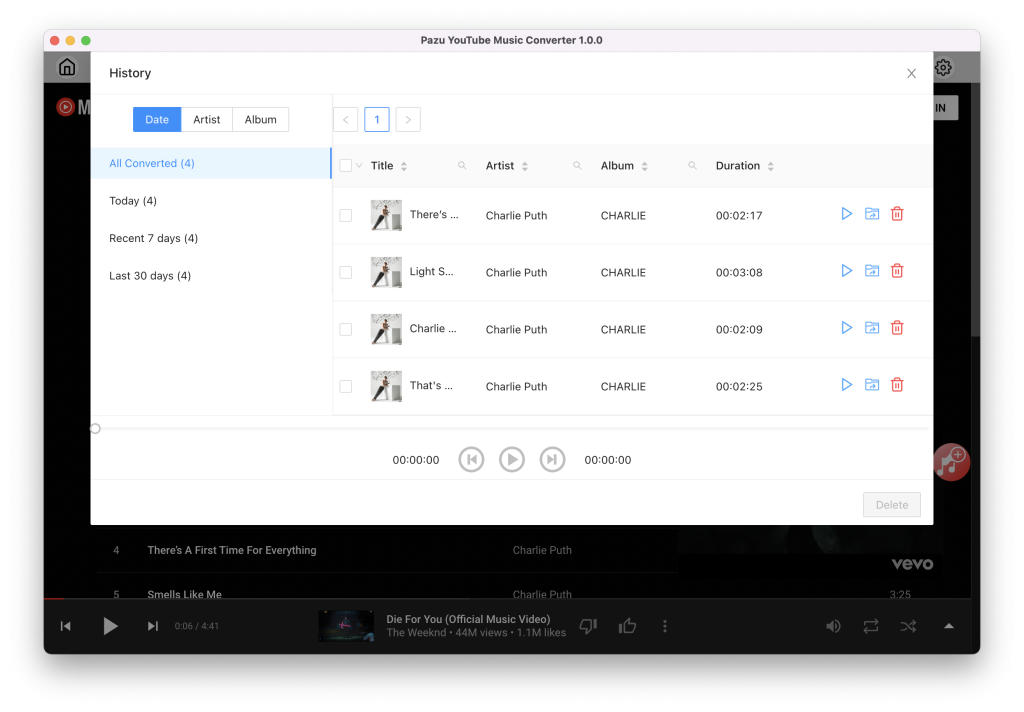

Download and convert YouTube Music to MP3, M4A, etc