

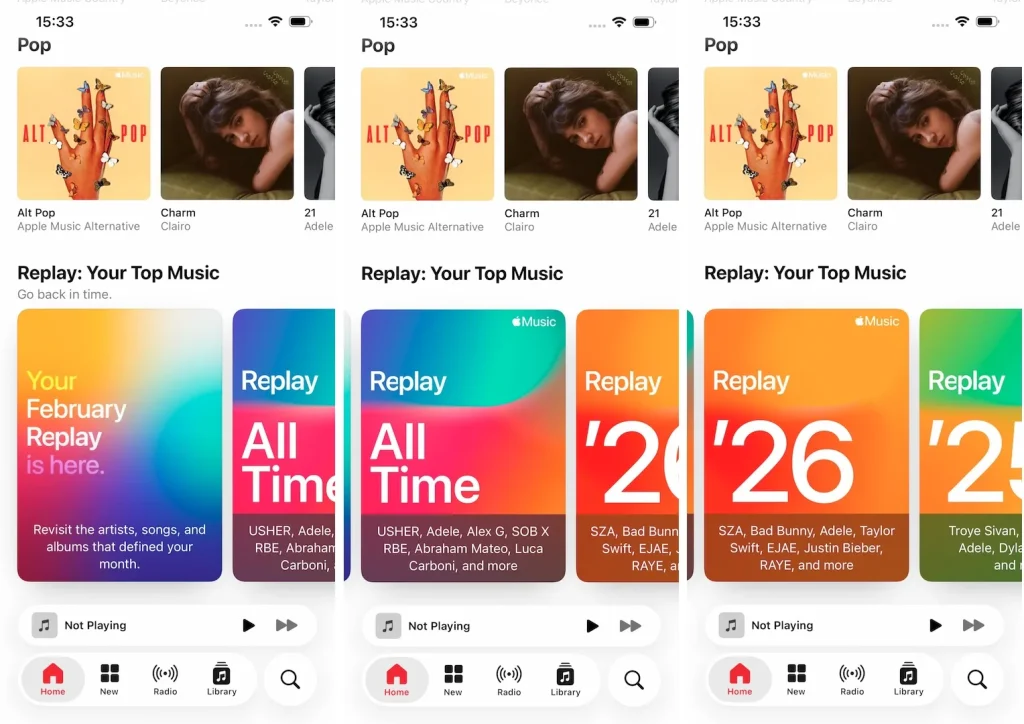
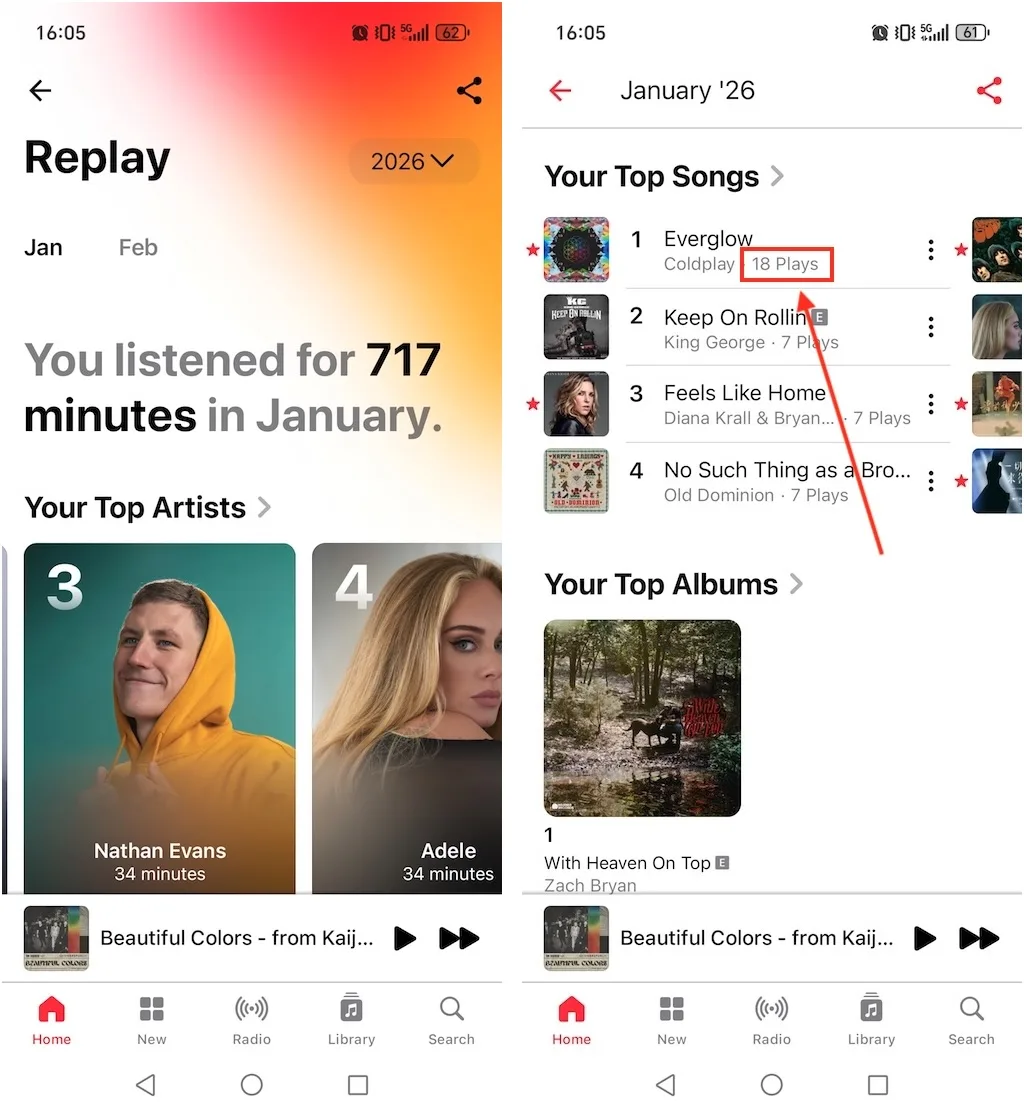
If you want to find your most-listened-to songs on Apple Music, Replay offers a fantastic way to review your listening data, showing your monthly and yearly top songs, artists, albums, and listening milestones. Furthermore, if you want to see exact play counts for your favorite tracks, you can find them directly in the Apple Music app or in iTunes on your Mac or Windows desktop. Here’s how to do both.
The Apple Music Replay playlist features your top songs of the year, up to 100. The playlist is usually released at the end of January or the beginning of February and updated weekly, while deep-dive monthly data sheets are available via the browser dashboard. It also offers your listening data from previous years.
Apple Music Replay is accessible on both mobile and desktop devices. Here’s how to find it:
Your Apple Music Library organizes all your music, including cloud streams, local files, and purchased tracks. With the Apple Music app or iTunes on Mac and Windows computers, you can easily arrange these songs by columns such as name, artist, album, and play counts.
To ensure that all songs you’ve listened to on Apple Music appear in your Library, go to “Settings > Advanced” and enable “Add songs to Library when adding to Playlists and Favorites.” This will automatically add music to your library and make it easy to find your most-played songs of all time.
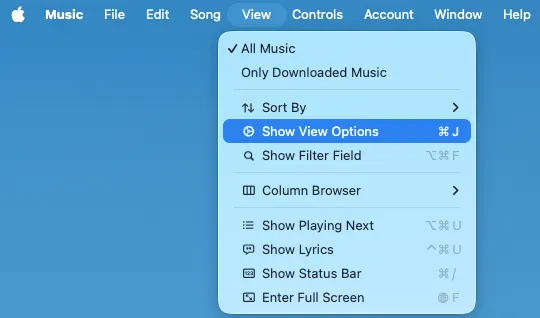
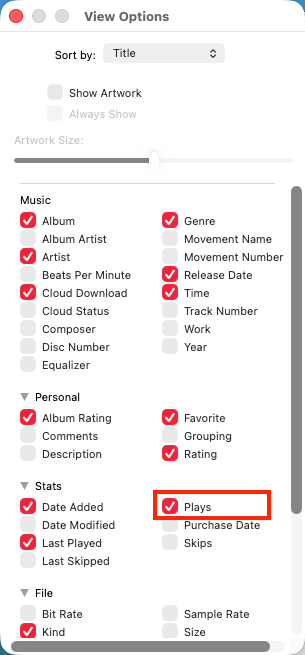
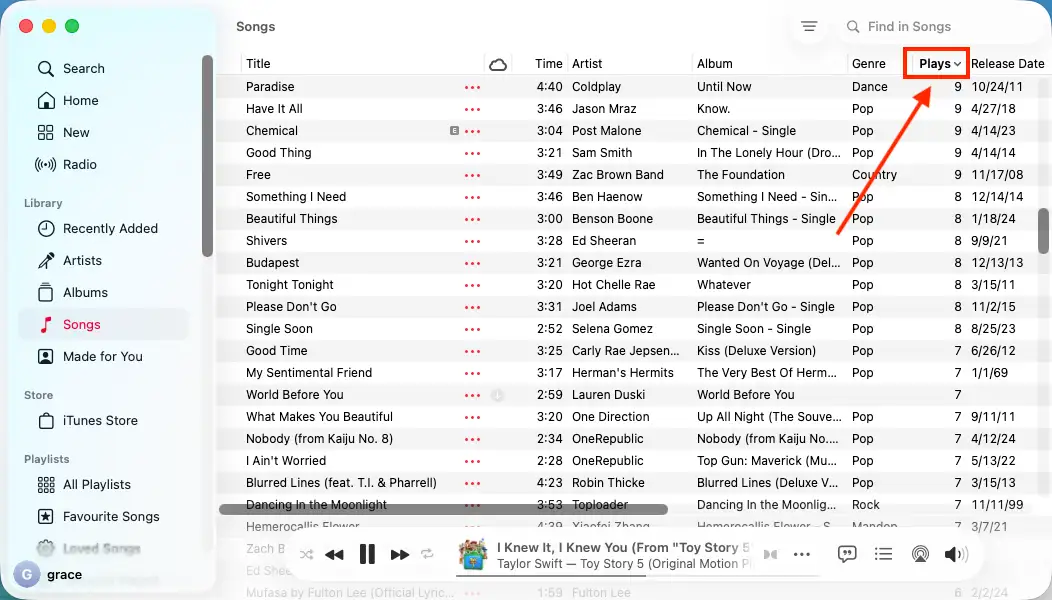
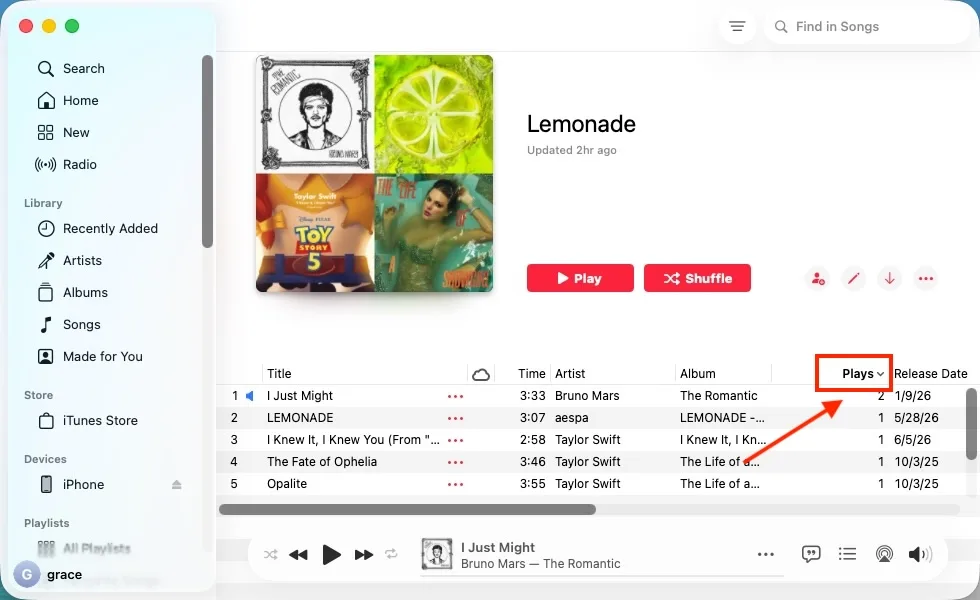
If your library is too cluttered, you can check play-count data inside a specific playlist with the Apple Music app on Mac/Windows or iTunes. Keep in mind that you need to add the playlist to Library before using this method.
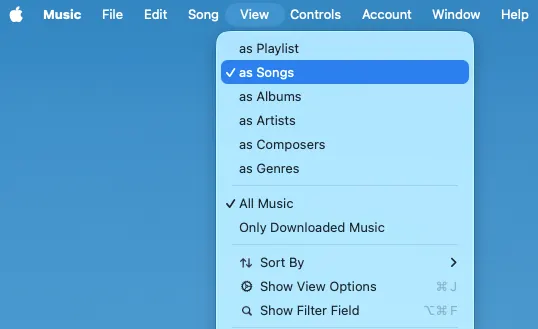
If you do not see the “Plays” column, right-click any column header (like Title or Time) and check Plays from the context menu.
With an active Apple Music subscription, you can download your most-listened-to songs for offline playback. However, once your subscription ends, you will lose access to the downloaded songs, except for your local music files and purchased tracks.
To keep your Apple Music top songs after your subscription ends, use Pazu Apple Music Converter. This safe and efficient tool helps you save Apple Music playlists, albums, or songs to popular formats such as MP3, AAC, and FLAC on Mac or Windows. It features a fast download speed – almost 10 times faster than similar software. Downloaded songs preserve the original audio quality, ID3 tags, and metadata. You can transfer the downloaded music to any supported device and listen to it offline even after your subscription ends.
Key Features of Pazu Apple Music Converter
The following tutorial will show you how to download Apple Music to MP3 with Pazu Apple Music Converter.
Download, install and run Pazu Apple Music Converter on your Mac or Windows.
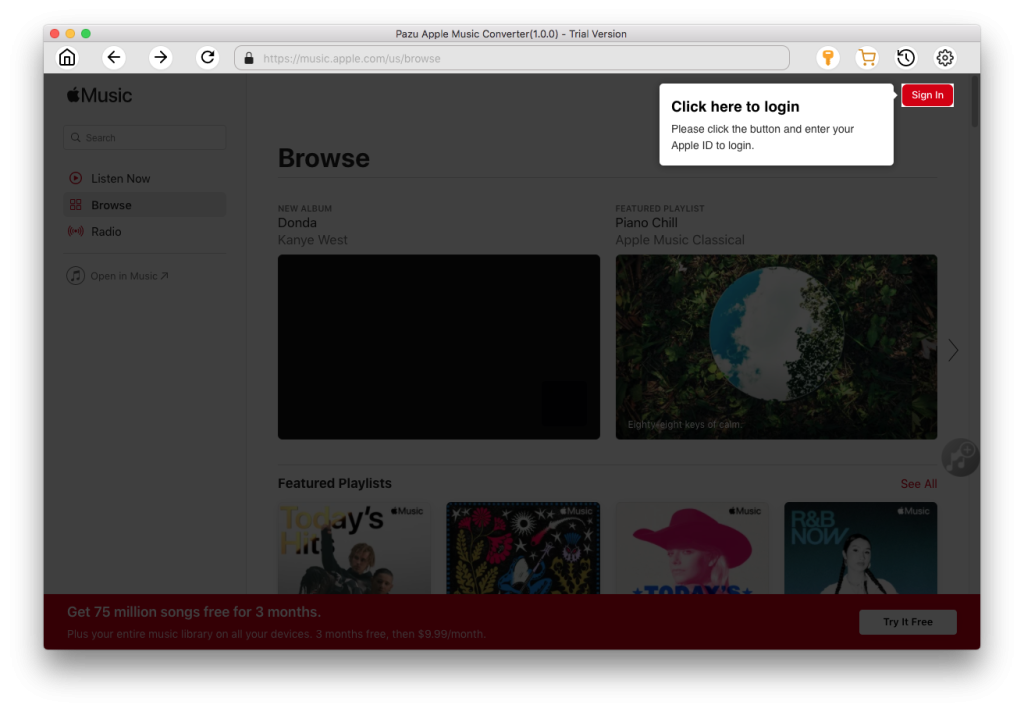
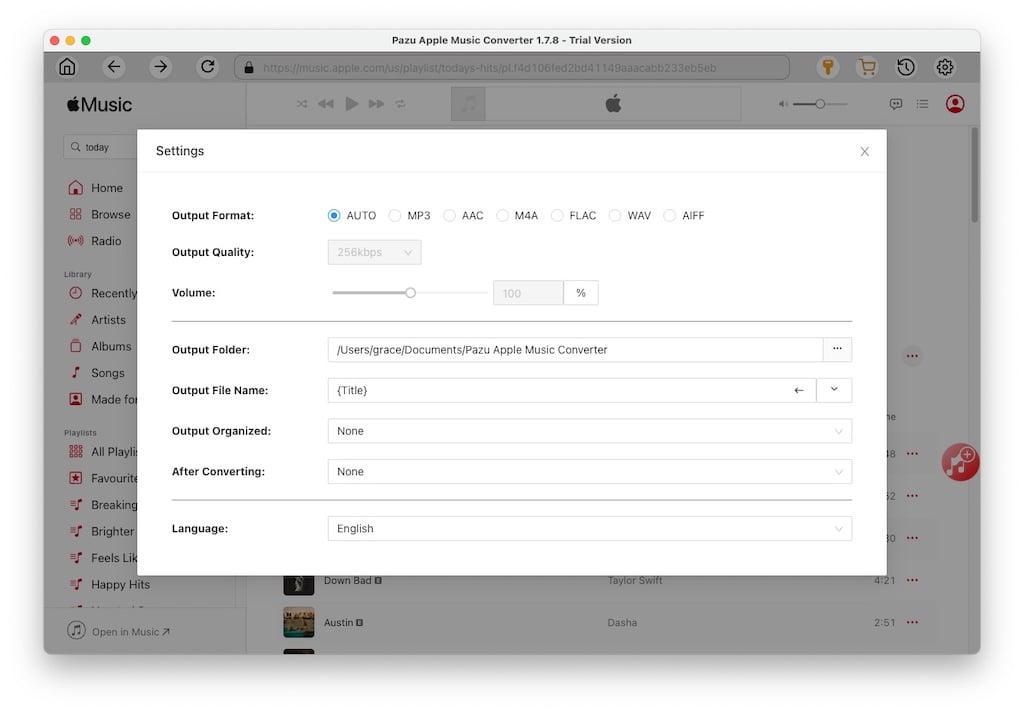
Click the gear icon to customize settings such as the output format and output folder. The default format is M4A. Apple Music Converter also supports MP3, AAC, FLAC, WAV, and AIFF.
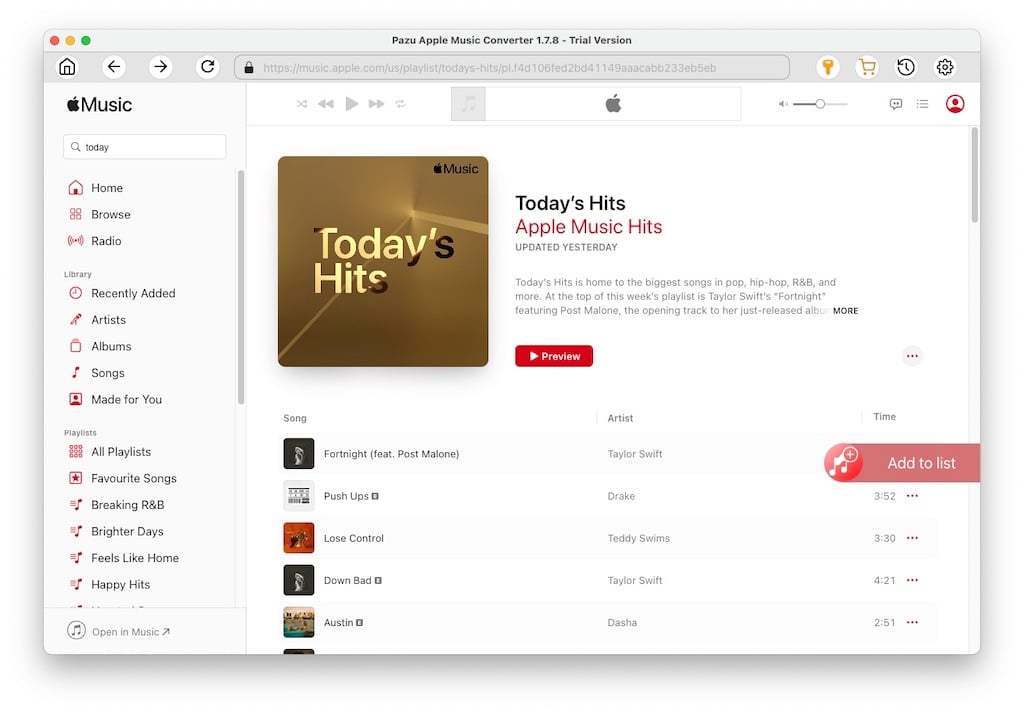
Search for a playlist, artist, or album you want to download. Click the “Add to List” button to load all songs in the album or playlist.
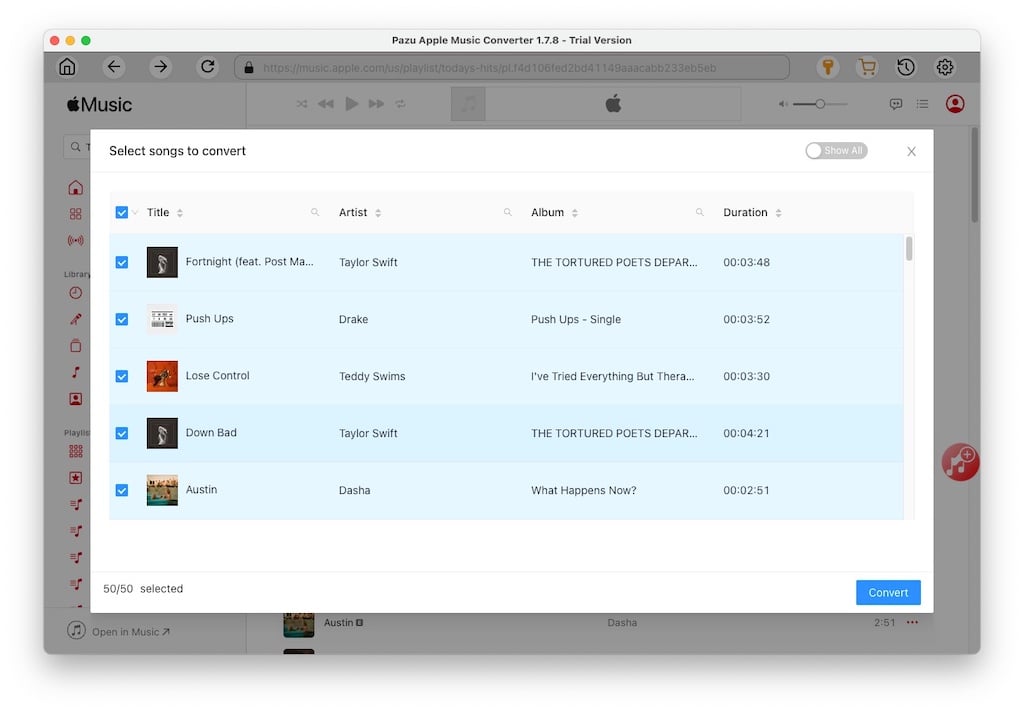
Uncheck the songs you don’t want. Click the “Convert” button to start downloading.
Once downloaded, click the clock icon in the upper right to view the converted Apple Music songs. Click the Folder button to locate them in the output folder. You can play them on any supported device, even after your subscription ends.

Download Apple Music to MP3, M4A, etc.