

If you’re tired of the old default ringtone and want to personalize your phone with a song you love, Spotify is a perfect place to find unique ringtones. However, even if you can download songs for offline listening with a Premium subscription, the DRM (Digital Rights Management) protection restricts you from using them outside the Spotify app. That means you cannot use the Spotify songs directly as your ringtones.
But don’t worry. There is a creative way to achieve this. Follow our guide to learn how to set Spotify songs as your ringtone on both Android and iPhone devices.
Related: Set Apple Music Song As Ringtone on iPhone/Android
Spotify allows Premium users to download music for offline listening, but they are encrypted and can’t be used as ringtones directly. You’ll need to download Spotify songs as local files to set them as your ringtones. For this purpose, you can use Pazu Spotify Converter.
Pazu Spotify Converter helps both Spotify Free and Premium users download songs, playlists, albums, and podcasts into popular formats such as MP3, M4A, AIFF, WAV, FLAC, and AAC. This smart tool supports both Windows and Mac computers. It saves Spotify tracks with lossless audio quality and preserves all ID3 tags. After downloading, you can transfer the songs to any device for offline listening, or use them as ringtones on your phone.
1. Install and launch the Pazu Spotify Converter on your Mac or Windows computer. Log in to your Spotify account.
Search for the songs, albums, playlists, or podcasts you want to download. Then click the Add to List button to add them to the download queue.

2. Click the gear icon in the top right corner and choose MP3 as the output format. You can also adjust the audio quality, output folder, and other settings if needed.

3. Uncheck the songs you don’t want to download, and click the Convert button to download the music to MP3.

Once the download is complete, click the folder button to locate the downloaded music files. Now you can transfer them to your Android for ringtones. If you want to set the songs as ringtones on iPhone, you’ll need to edit the song length to under 30 seconds.

On Android phones, you can directly set ringtones from local music files, as long as they are in MP3, M4A, or WAV formats. Follow these steps:

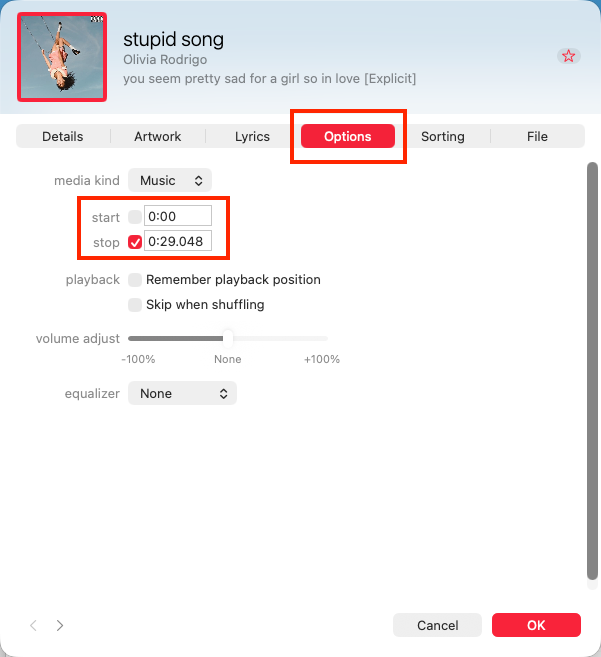
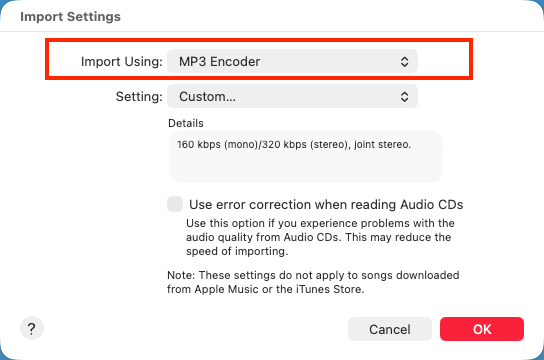
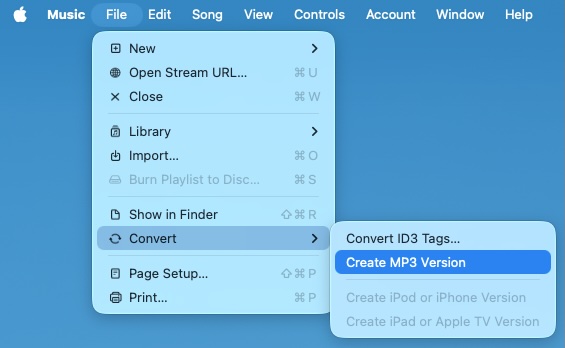
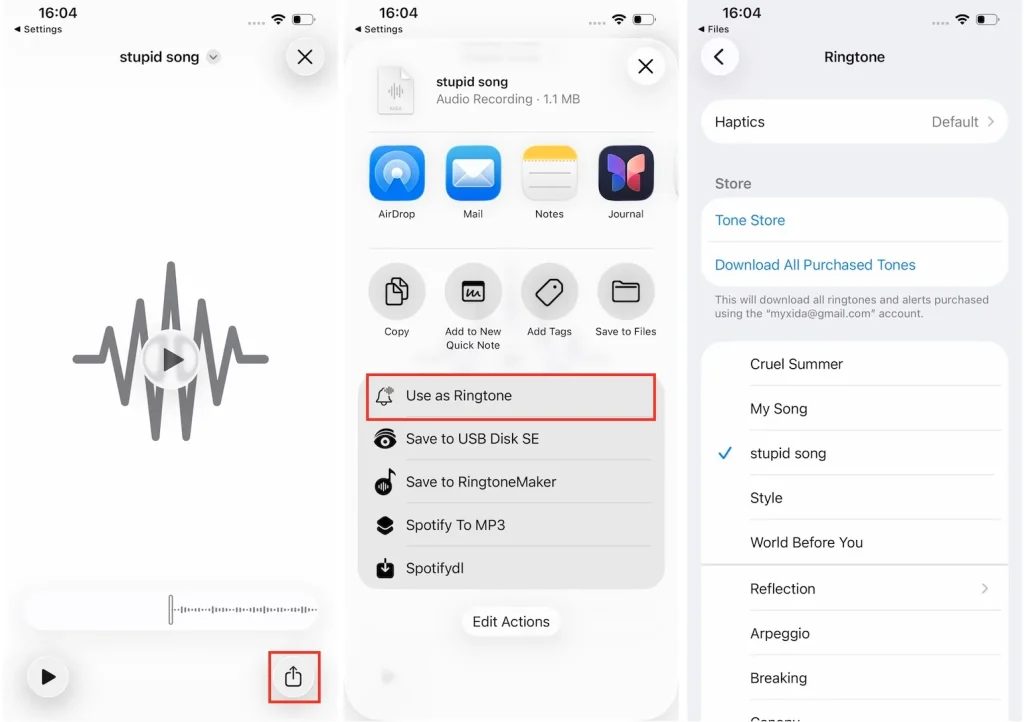
Since iOS 26, you can directly set a .m4r, .m4a, or .mp3 audio file under 30 seconds as a ringtone on iPhone. To convert the downloaded Spotify tracks to a compatible ringtone file, you can use the Apple Music app.
On iOS 17 and iOS 18, setting custom ringtones on iPhones becomes more restrictive. Apple requires ringtones to be under 30 seconds long and saved in the “.m4r” format. Also, you cannot set the music file directly as your ringtone. You’ll need GarageBand, a free app pre-installed on most iPhones, or third-party apps to customize ringtones on iPhone.
Here’s how you can set downloaded Spotify songs as your ringtones on iPhone with GarageBand. If you don’t find GarageBand, go to the App Store to download and install it.
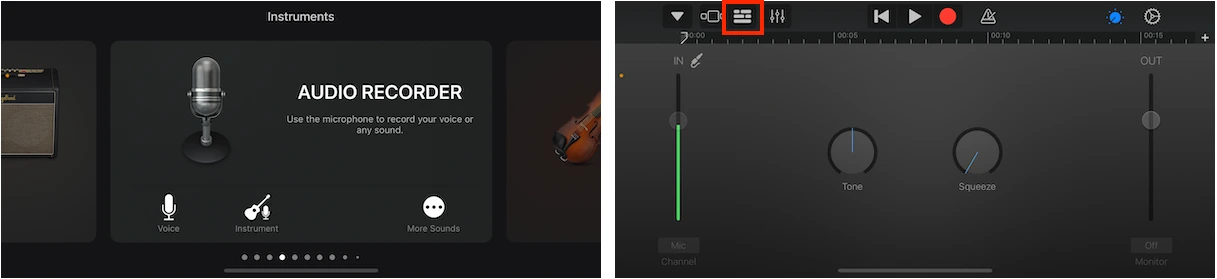
1. Launch the GarageBand app on your iPhone. Swipe left to select “AUDIO RECORDER” and tap the brick wall icon to create a new project.
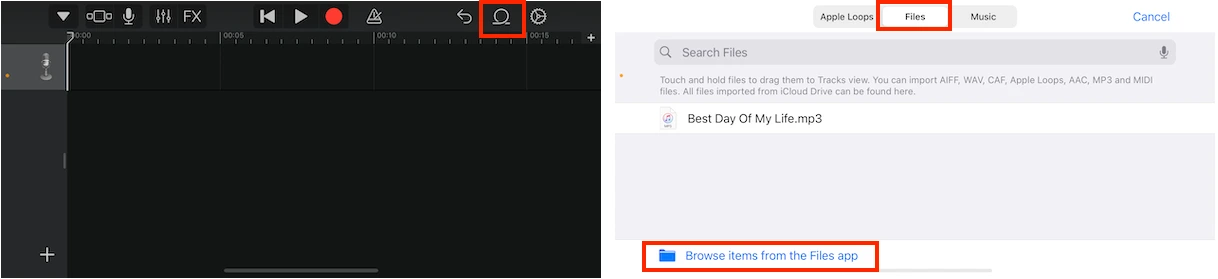
2. Tap the Loop icon and select the Files tab at the top. Browse to find the downloaded Spotify MP3 file on your device. Hold and drag the song to the timeline.
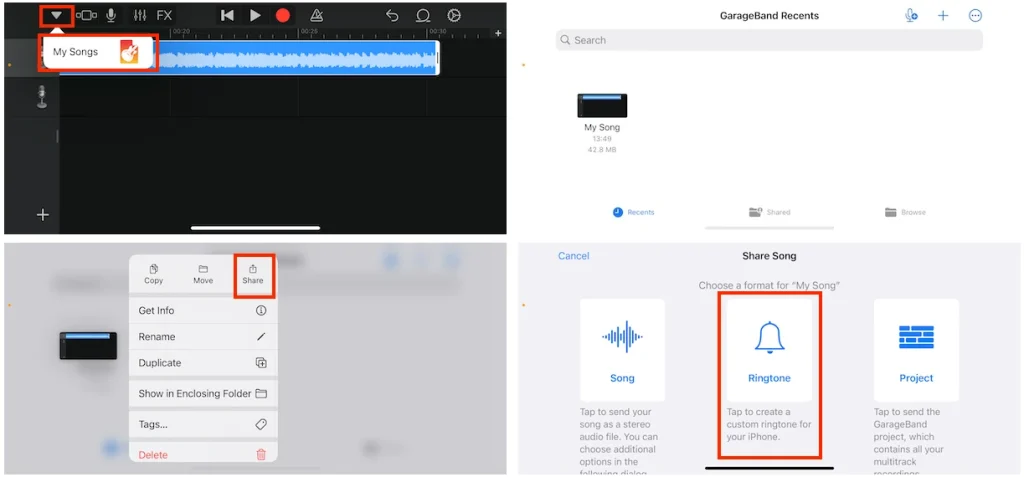
3. Select the downward arrow icon and “My Songs.” Tap the song and select “Share” > “Ringtone.”
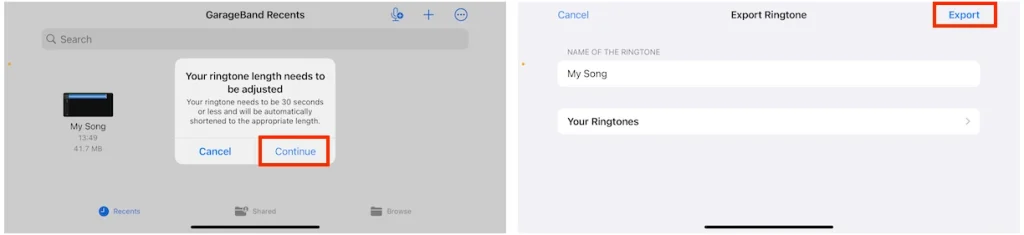
4. If your song is longer than 30 minutes, a notice will pop up to remind you. Select “Continue” and “Export” to let GarageBand adjust for you. Change the name of the ringtone if needed.
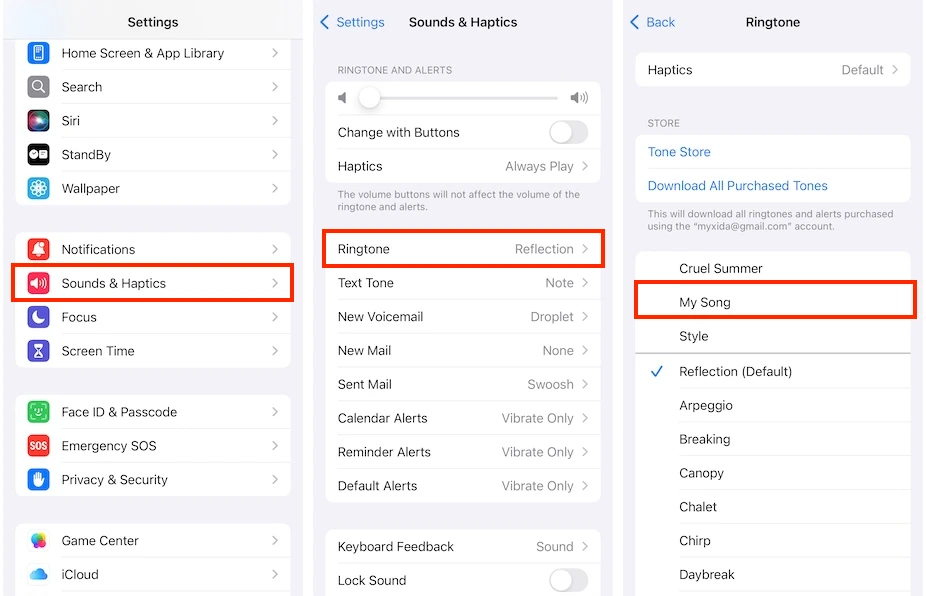
5. Go to Settings on your iPhone. Select “Sounds & Haptics” > “Ringtone” and select the customized ringtone.
This guide provides step-by-step instructions for making your favorite Spotify songs into ringtones on both Android and iPhone. The first step is to download the Spotify music as an MP3 file using Pazu Spotify Converter. On Android, simply transfer the MP3 to your device and set it as your ringtone. For iPhones, create a custom ringtone with the GarageBand app.

Download and convert any Spotify songs, albums, playlists to MP3/M4A etc.