

iMovie is user-friendly video editing software created by Apple for macOS and iOS devices. Popular for its simplicity and accessibility, iMovie is suitable for both beginners and experienced users. With iMovie, you can easily create and edit videos by importing clips onto a timeline and enhancing them with background music(BGM), sound effects, voiceovers, and editing tools.
Adding background music to your video projects in iMovie is a key feature, and you have several options:
While finding the right sound for a video can be challenging, YouTube emerges as a valuable resource to explore music, as it offers a vast library with many tracks in the public domain or non-copyrighted. Both YouTube and YouTube Music have free tiers that allow users to browse and enjoy music without any cost.
However, importing music from YouTube Music into iMovie can be tricky due to YouTube Music’s encrypted streams. To add YouTube Music tracks to your iMovie project, start by converting the YouTube music to MP3 using a professional YouTube Music downloader.
For the most efficient way to convert YouTube Music songs to MP3, use a dedicated YouTube Music Downloader like Pazu YouTube Music Converter. The tool comes with a built-in YouTube Music web player, making it simple to browse, search, and download your desired songs, albums, or playlists with just one click.
Pazu YouTube Music Converter is made for both Free and Premium YouTube Music users. You can convert YouTube Music content into various formats such as MP3, M4A, AAC, FLAC, WAV, and AIFF with ease. These converted files can be transferred and played on any compatible device, including adding them to your iMovie projects to enhance your videos.
If you want to download YouTube Music songs, albums, and playlists without a YouTube Music Premium subscription, Pazu YouTube Music Converter is all you need. Here are the detailed steps to download YouTube Music using Pazu YouTube Music Converter:
To get started, download, install and run Pazu YouTube Music Converter on your Mac or Windows, which features a built-in YouTube Music web player.
After installation, launch the YouTube Music to MP3 Converter. If you have already purchased a license, click the key icon to register the converter. Otherwise, continue using the trial version.
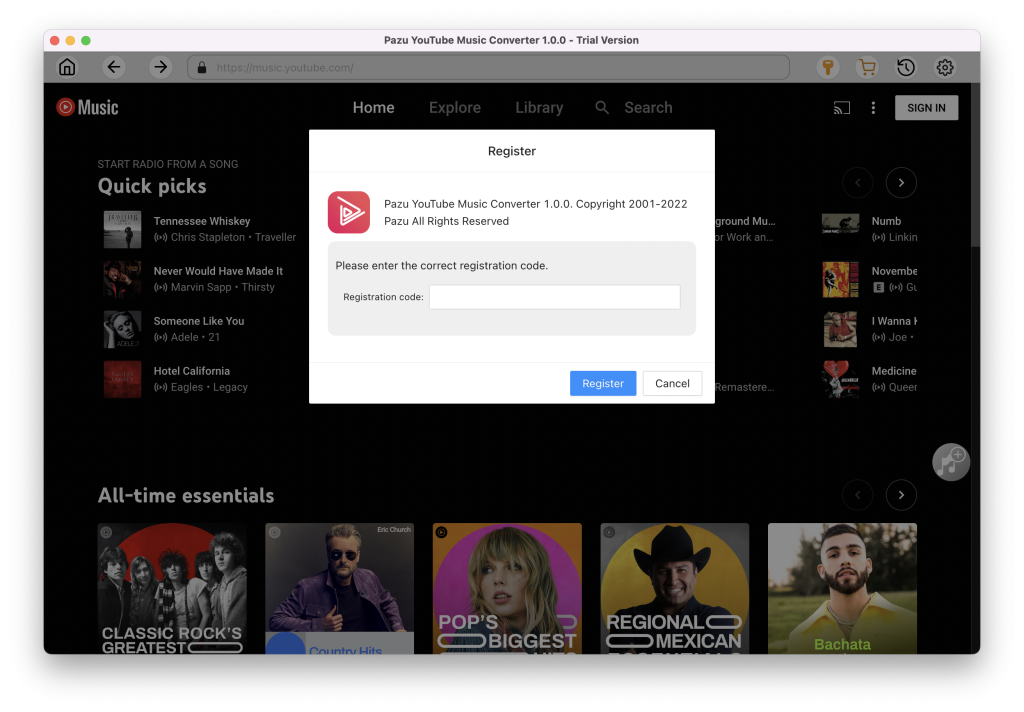
You don’t need to sign in to your YouTube Music account.
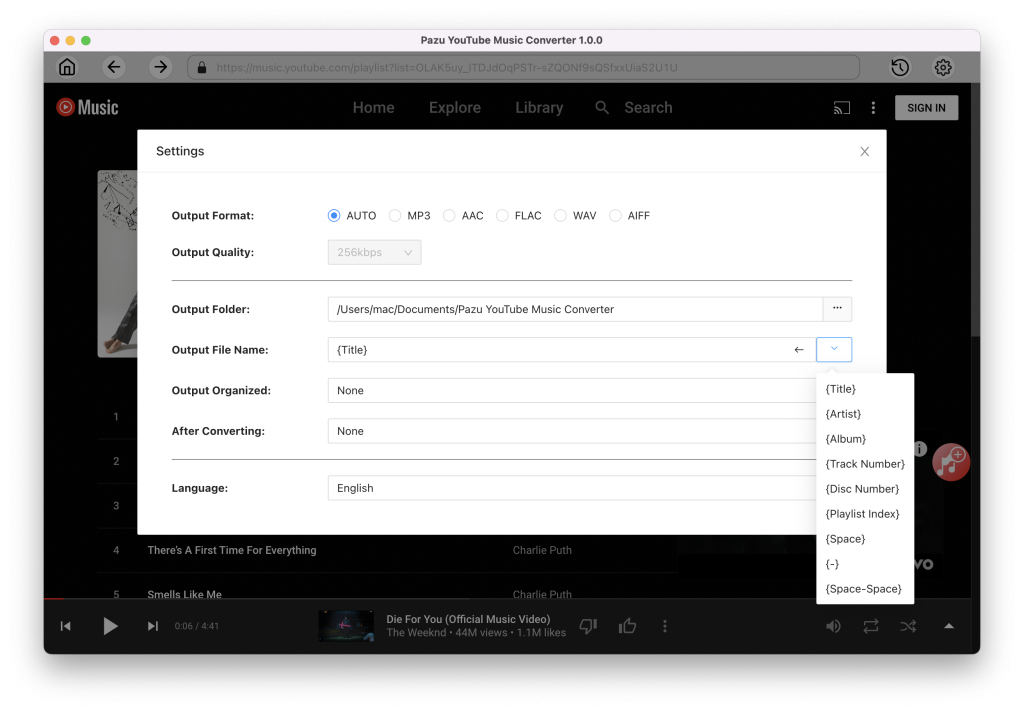
Click on Settings (the gear icon) in the upper right corner to customize the output format, quality, folder, file name, language, and more.
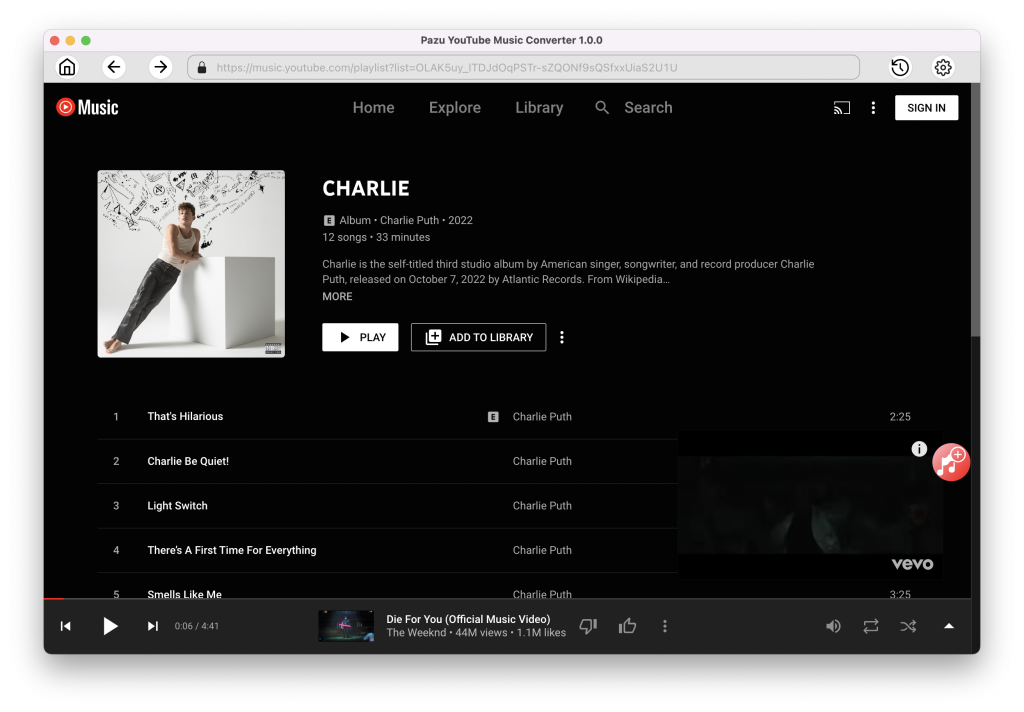
Browse or use the search function to find the songs, albums, or playlists you want to convert to MP3, then click the red Add to List icon to load the songs.
All songs in the playlist/album will be selected by default. You can uncheck the songs you don’t want to get.
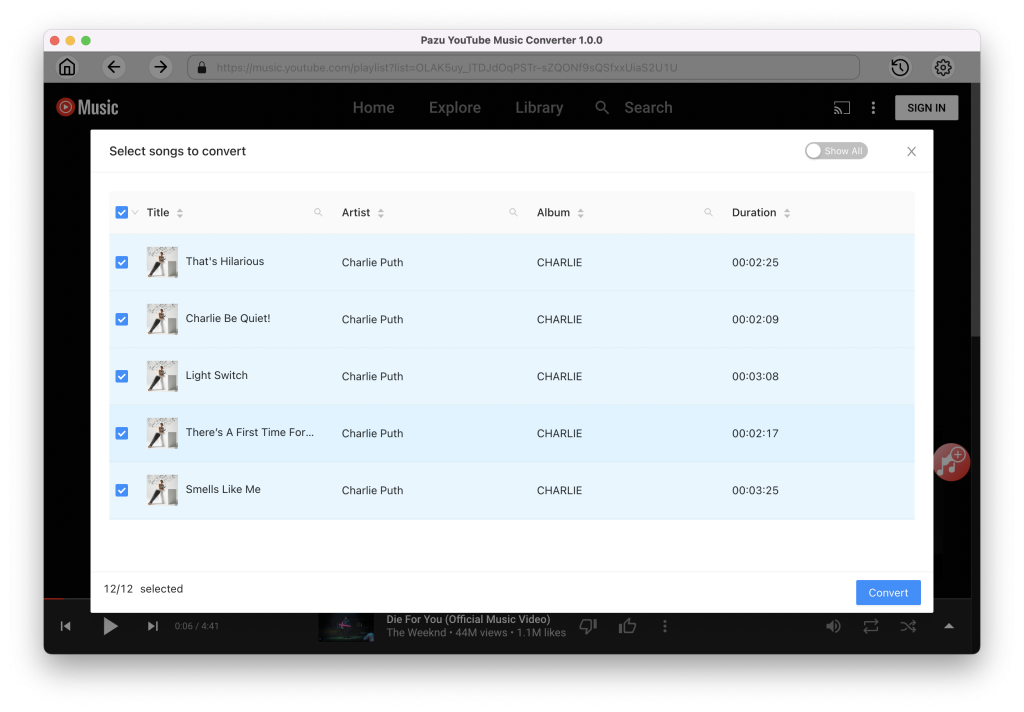
Click the Convert button and the program starts converting the YouTube Music songs.
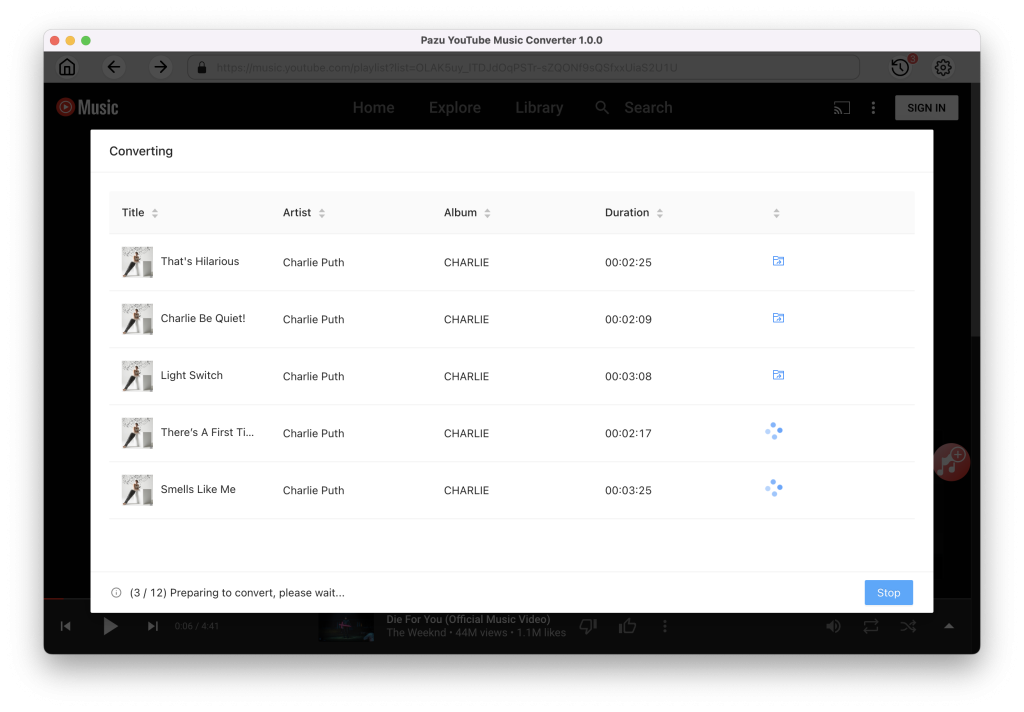
After the conversion process is complete, click on the clock icon in the upper right corner to access the converted YouTube Music songs. To locate the the converted YouTube Music songs:
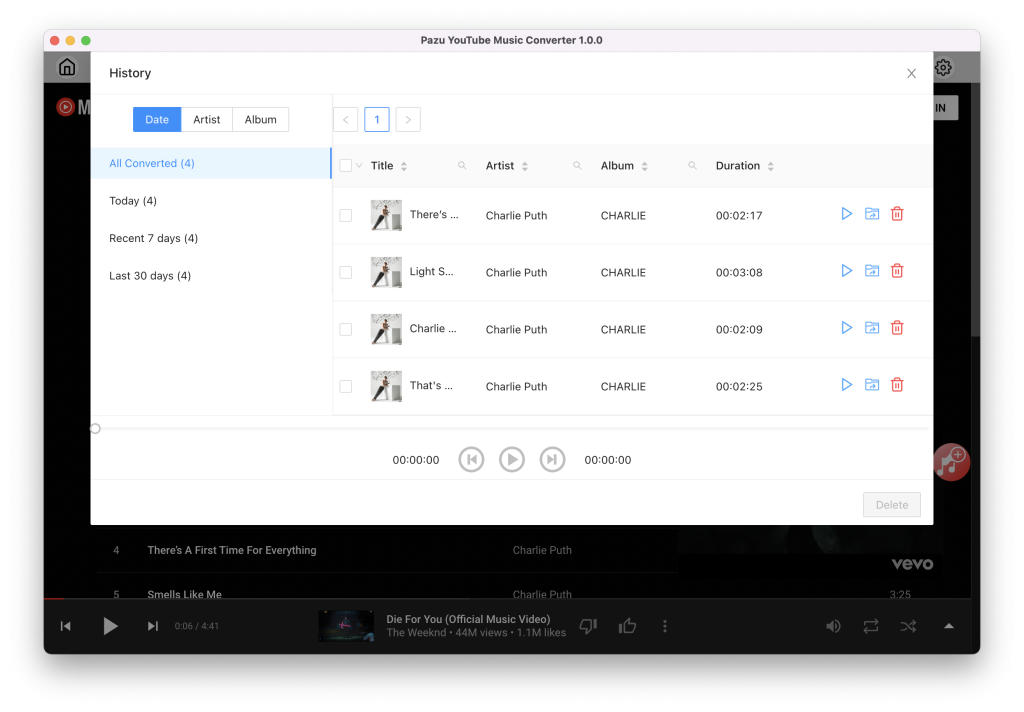
Now that you have successfully converted your YouTube Music songs to MP3, you can easily add them to your iMovie projects.
On macOS, iMovie is often included for free with Mac computers. To add the downloaded YouTube Music MP3 files to your iMovie project, follow the steps below.
Launch the iMovie app on your Mac. Click Create New to create a new project, or select an existing project to edit.

To import your video clip and the downloaded YouTube Music to your iMovie project, you can use any of the methods below:
Method 1. Simply drag and drop the video or track to the iMovie timeline at the bottom;

Method 2. Click the Import Media buttons on the left top. Then browse your Mac and choose the converted YouTube Music files.


Method 3. Go to the iMovie menu bar, click File, and select Import Media. After importing the YouTube Music MP3 file to the project, click the + button on the bottom right to add it as BGM.


You can easily edit your video clips on a timeline in iMovie. This includes actions like cutting, arranging, and adding transitions to clips. You can also edit background music, adjust audio levels, and improve audio quality.

Once you have done editing your project with the BGM, navigate to the iMovie menu bar, click File, then Share to save or share your project.

iMovie is available as a downloadable app from the App Store on iOS devices. Here is the step-by-step guidance on how to put the well-converted YouTube Music files to iMovie on your iOS devices.


If you’re looking to incorporate YouTube Music into your iMovie projects, Pazu YouTube Music Converter is a dependable software solution. It offers excellent stability and fast conversion speeds, allowing you to download YouTube Music content without limitations. Whether you have a free or premium YouTube Music account, Pazu can seamlessly transfer YouTube Music songs, albums, and playlists to various audio formats, including MP3, M4A, AAC, FLAC, WAV, AIFF, and more.

Download and convert YouTube Music to MP3, M4A, etc