

Apple Music offers a subscription-based service with features like ad-free listening, offline downloads, and Lossless quality with Spatial Audio. You can find the Apple Music pre-installed on many Apple devices including iPhone, iPad, Mac, Apple TV, and more. If you’re an Android user who hasn’t tried Apple Music yet, owns both Apple and Android devices, or holds an Apple Music family subscription and wants to share it with family members using Android devices, you may wonder whether you can use Apple Music on Android.
The answer is yes. Unlike other Apple services, Apple Music provides a dedicated application for Android phones and tablets. In fact, some Reddit users even find that the Apple Music app on Android is better than that for iOS. In this article, we will guide you through downloading and using Apple Music on your Android device, along with two additional methods to play Apple Music on your Android phone and tablet.
Here is a comprehensive guide on how to install the Apple Music app on your Android phone and tablet, along with instructions on subscribing to Apple Music and downloading songs, playlists, and albums to enjoy offline.


Apple Music allows users to download songs for offline listening. This feature is also supported on Android devices.
To download an individual song on Apple Music, you need to add it to the library first.


Instead of installing the Apple Music app on your Android phone or tablet, you can use the Apple Music web player for temporary listening. Please note that the web player allows streaming of music only, and does not support the download of songs or playlists for offline listening.


For an enhanced Apple Music experience on your Android phone and tablet, consider downloading Apple Music songs and playlists as MP3 files for offline playback. One efficient way to achieve this is by using Pazu Apple Music Converter, a professional and secure tool supporting both Mac and Windows. This converter allows you to download Apple Music playlists, albums, and songs to MP3, AAC, FLAC, and other popular formats without compromising on quality. This ensures that you can enjoy your favorite Apple Music tracks in lossless quality anywhere and anytime.
Pazu Apple Music Converter not only downloads your favorite playlists and songs but also preserves the original audio quality, ID3 tags, and metadata, ensuring you won’t lose any important information. Notably, the converter has a remarkably fast download and conversion speed—almost 10 times faster than comparable software. In addition, Pazu Apple Music Converter is integrated with the Apple Music web player, allowing you to batch convert any Apple Music playlist or album to your preferred format without iTunes or the Music app.
Follow the tutorial below on how to download Apple Music to MP3 and playback offline.
Download, install and run Pazu Apple Music Converter on your Mac or Windows.
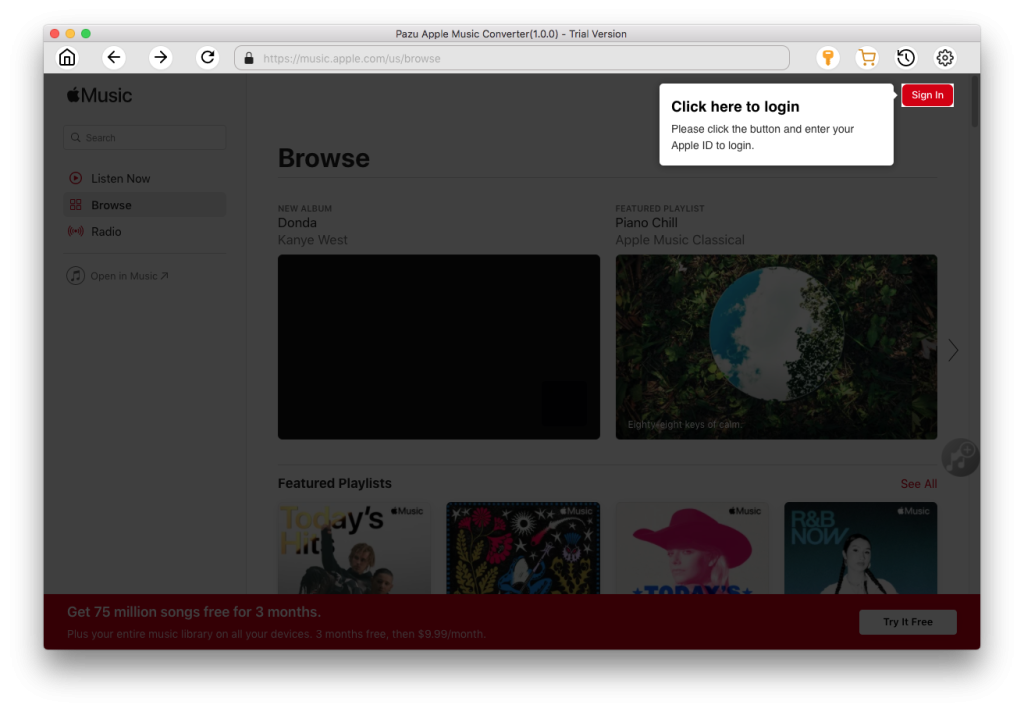
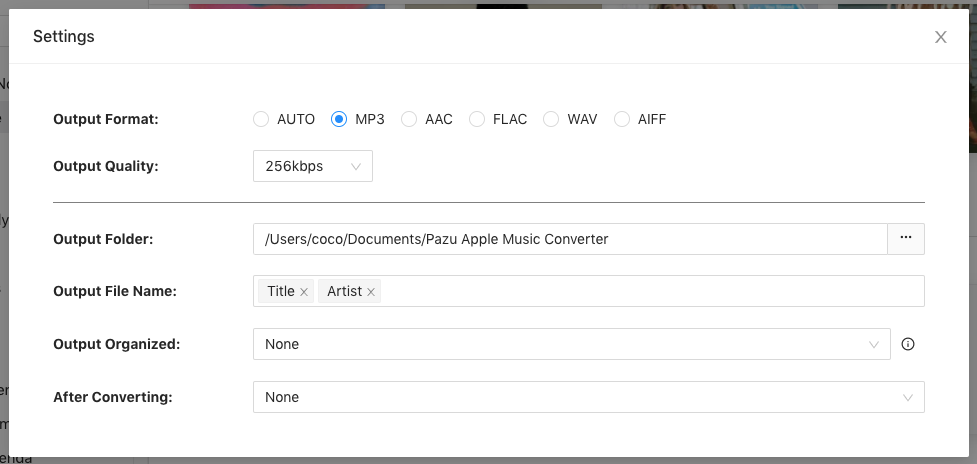
The default format is M4A in 256kbps. Apple Music Converter also supports MP3, AAC, FLAC, WAV, and AIFF. Click the gear icon if you want to change the output format or output folder.
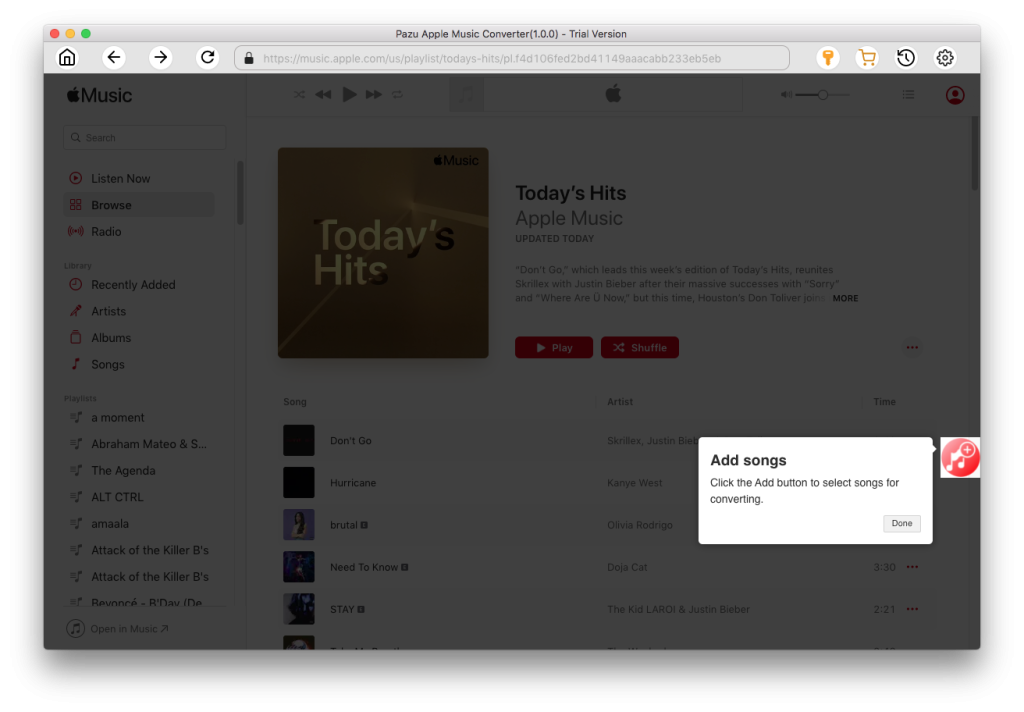
Follow the on-screen instructions to choose a playlist, artist, or album that you want to download.
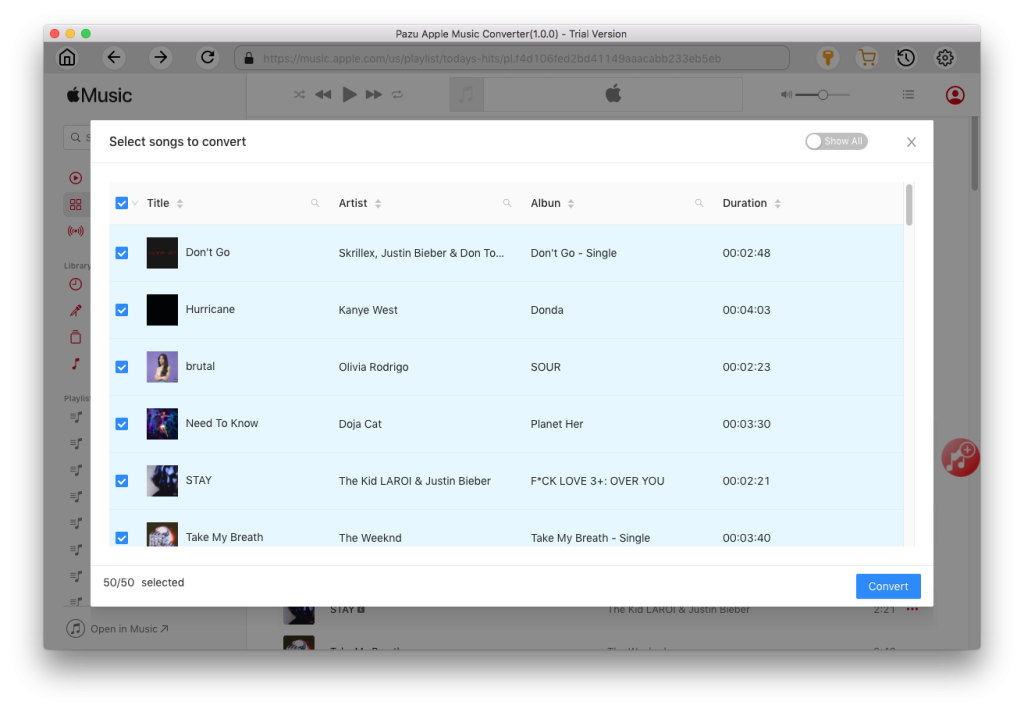
Click the “Convert” button to start downloading Apple Music songs, albums, and playlists to MP3, so you can play them anywhere you want, even after canceling your Apple Music subscription.
After the conversion process is complete, click on the clock icon in the upper right corner to access the converted Apple Music songs. To locate the converted Apple Music songs:

Now that you’ve successfully converted your Apple Music songs to MP3, you can easily transfer them to enjoy on your Android devices.

Download Apple Music to MP3, M4A, etc.