

Music streaming services are very popular nowadays, and many DJs look to these streaming platforms as a music resource for their performances. The most famous and extensive DJ-friendly music streaming services today are Tidal. Many apps work with the extensive library of Tidal. Some are Serato DJ, Algoriddim apps, and Rekordbox, etc.
To use Tidal with DJ software, you must have an active Individual or Student subscription or a current trial with Tidal Music. You’ll also need Tidal’s DJ extension add-on ($9 USD a month). Tidal Free is not supported. DJ Extension is unavailable to Tidal Family.
Contents
1. Open Serato DJ Lite/Pro.
2. Click the gear icon on the top right corner and go to the “Library + Display” tab.
3. Enable Show Streaming Services, then select Tidal under Music Streaming.
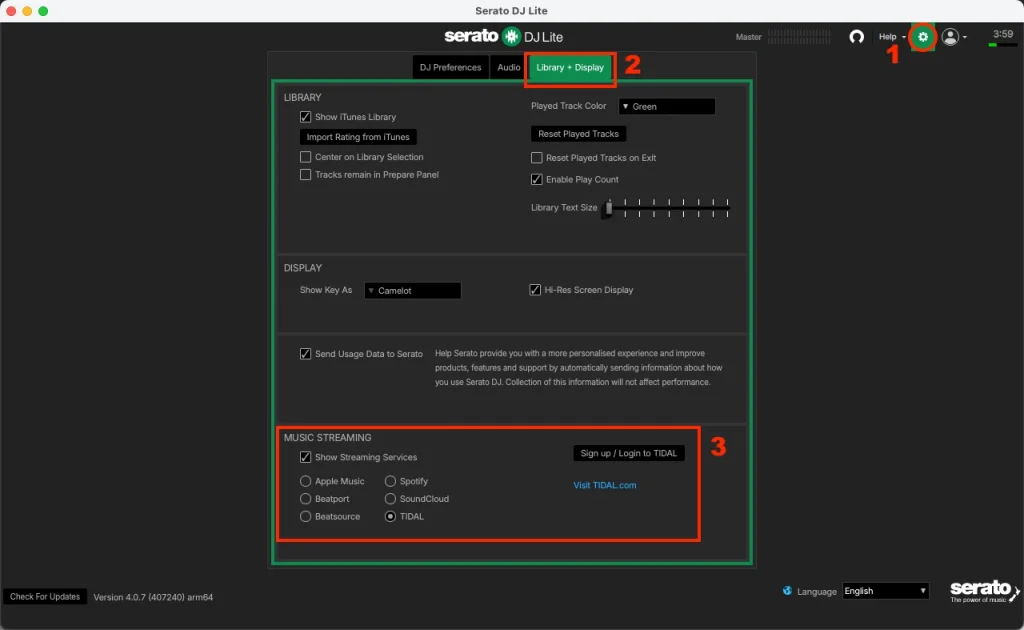
4. Finally, choose Sign up / Login to Tidal to redirect to your browser and log in, sign up, or ‘continue’ using your Tidal account (if you’re already signed in).
5. After confirming, you should be presented with a browser pop-up, asking to redirect you back to Serato DJ Pro. Click “Open Serato DJ Pro.”
6. Once back in Serato DJ Pro, you’ll now notice the music streaming section indicates a logged in account (you can also change your streaming quality option here – if using the HiFi Tidal Music subscription tier).
1. Create a playlist with Tidal.
2. Expand the Tidal option in the crates/playlists pane of Serato DJ to reveal your playlists:
3. Click the New Streaming Playlist button to create a new Tidal streaming playlist. You can add files to the playlist by dragging and dropping them onto it, as you would with regular Serato DJ Pro crates.
Related:
To use TIDAL Stems in Serato DJ, you need the DJ Extension add-on for your TIDAL subscription and Serato DJ Pro 3.1.3 or higher.
Tidal Stems allows DJs to isolate or separate specific parts of a track, such as vocals, drums, instruments, or basslines, in real time using compatible DJ software. Tidal used to block DJ software from separating stems in late 2023 due to copyright and licensing issues.
As of 2026, the current solution for using Tidal Stems in Serato DJ or other DJ software is the “DJ Extension” Add-On. You’ll need to subscribe to a Tidal Individual or Student plan and buy the DJ Extension add-on for an extra $9/month. Once active, the DJ Extension unlocks the legal licensing required to run the tracks through your DJ software’s real-time AI separation engines.
To play Tidal Music tracks in Serato DJ Pro, you will need a solid internet connection. Tidal Music offline playback is not supported here. Besides, once your Tidal subscription expires, you can’t use Tidal in Serato DJ.
When playing Tidal music from your Serato DJ streaming playlists, you may have encountered some tracks that either can’t be found or can’t be loaded. This is because Tidal’s music catalog always changes. These tracks may be removed by Tidal.
How to avoid the above issues? The best method is to download Tidal music to MP3 and import it to Serato DJ as local files. All you need is Pazu Tidal Converter, which allows you to download any Tidal songs, albums and playlists to M4A/MP3/AAC/FLAC/WAV/AIFF on your Mac and Windows. Follow the steps below to download Tidal music to MP3.
Download, install, and run Pazu Tidal Converter on your Windows, which features a built-in Tidal web player. Log in to your Tidal account.

If you have purchased a license, click the key icon to register the converter. If not, continue using the trial version.
The default output format is M4A. Pazu Tidal Music Converter also supports MP3, AAC, FLAC, WAV, AIFF. Click the Gear icon on the top right corner to change the output format or output folder if needed.
You can also customize the output song name with any combination of Title, Artist, Album, Track Number, and Playlist Index.

Click any playlist you want to download.

Then click the red icon to load songs. All songs in the playlist will be added by default. You can uncheck the songs you don’t want to get.

Click Convert button to start downloading Tidal music to the format you choose.

After conversion, click the folder icon to quickly locate the downloaded Tidal songs in the format you choose. You can then transfer and play it anywhere.

The easiest way to load music from your computer into your Serato DJ library is by using the Files button.
1. Click on the FILES tab to open the files panel. The left side of this window displays various locations on your computer’s hard drive (and external drives if you have one). Click on these locations to navigate your computer and find your music. By default, your music will usually be found in the “Music” folder inside your computer user folder.
2. Once you have located your music, drag the folder or files you want to import onto the “All…” icon on the left side.
If you wish to import all of your music, just drag your whole music folder onto this icon. This will import any compatible file contained in this master folder from your hard drive into the Serato DJ Pro Library.
TIP: You can also import by dragging files and folders directly from Windows Explorer (PC) or Finder (Mac) into the Serato DJ Pro library.
Loading a file to either deck from the files panel will automatically add it to your library.
TIP: Dragging a folder into the crates view will instantly create a crate.


Download Tidal songs/albums/playlists to M4A etc