

Tidal doesn’t have a built-in equalizer feature within its app. If having an equalizer is important to you, you might consider using a third-party equalizer app that is compatible with Tidal. There are several equalizer apps available for Android, iOS, Windows, and Mac platforms that can be used to adjust the audio output on your device globally, affecting all audio, including Tidal.
Contents
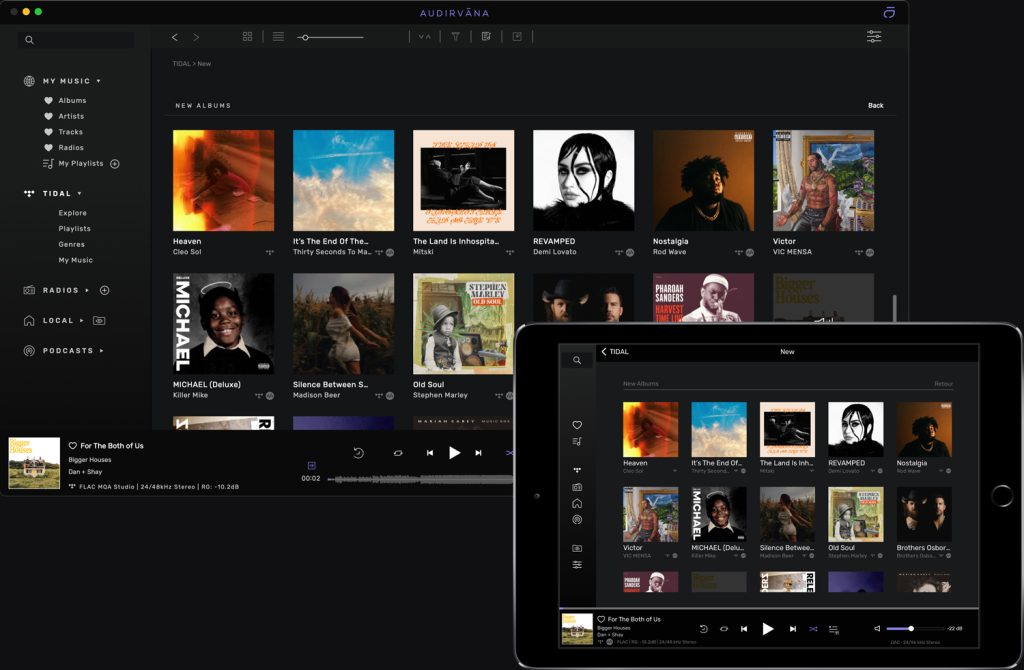
Audirvāna is a music player allowing you to play all your streaming and local music with the best playback sound quality from Mac (including Apple Silicon) and Windows 10 & 11. It also comes with a Remote mobile app to control your music wherever you are at home from your iOS/Android smartphones and tablets.
Wavelet is a popular equalizer app for Android devices oriented to earphone/earpod use. It is designed to improve the audio experience on smartphones and tablets by providing advanced equalization options. Users can customize the audio output based on their preferences and the specific characteristics of their headphones.

The profiles that come with the free version seem to work pretty well. You can also set up a custom curve, although the free version’s custom curve is a bit limited with regard to the ability to narrow EQ bands for greater ‘granularity.’
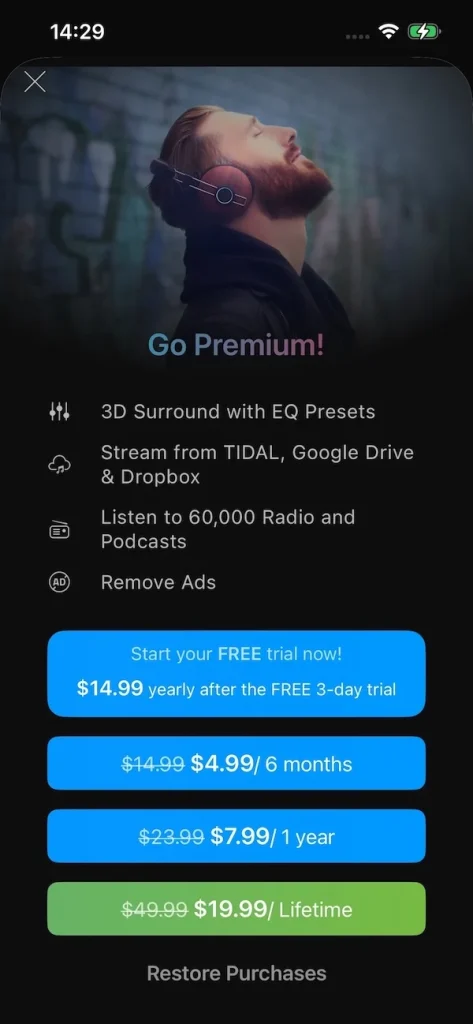
Boom: Bass Booster & Equalizer has native integration with Tidal, and is available on Android, iOS, and Windows/Mac (Boom 3D). The Boom App redefines the way you listen to music with Bass booster, a customizable 16-band equalizer & handcrafted presets. You can also experience the magic of 3D surround sound and feel your tunes come to life on any headphones.


Related:
If having an equalizer is a priority for you, you can also consider switching to music streaming services that provide built-in equalizer such as Spotify, Apple Music, etc.
Or download Tidal music to your computer and play it with local music player apps that come with an equalizer, like Poweramp (Android) and VOX (iOS), Windows Media Player, etc.
Here we will show you how to download Tidal songs, albums and playlists to M4A/MP3/AAC/FLAC/WAV/AIFF with Pazu Tidal Converter. After that, you can transfer the Tidal songs to Apple Music, Spotify, or play them with a local music player with an equalizer.
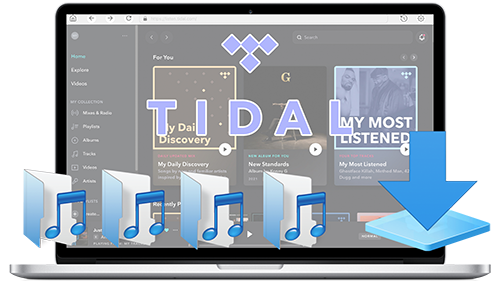
Download, install and run Pazu Tidal Converter on your Windows. The interface is like below:

If you have purchased a license, click the key icon to register the converter. If not, continue using the trial version.
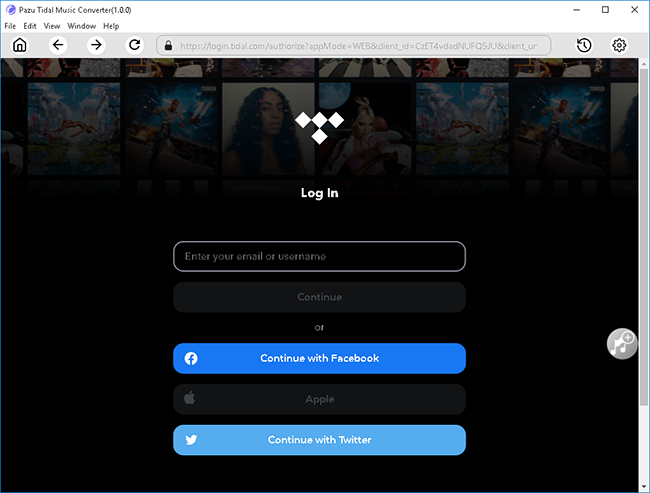
Follow the onscreen instructions to log in to your Tidal account.
The default output format is M4A. Pazu Tidal Music Converter also supports MP3, AAC, FLAC, WAV, AIFF. Click the Gear icon in the top right corner to change the output format or output folder if needed.
You can also customize the output song name with any combination of Title, Artist, Album, Track Number, and Playlist Index.

Click any playlist you want to download.

Then click the red icon to load songs. All songs in the playlist will be added by default. You can uncheck the songs you don’t want to get.

Click Convert button to start downloading Tidal music to MP3.

After conversion, click the folder icon to quickly locate the downloaded Tidal songs in the format you choose. You can then transfer the Tidal songs to Spotify, Apple Music, or play them with a local music player with an equalizer.


Download Tidal songs/albums/playlists to M4A etc