

Many users subscribe to TIDAL for its superior audio quality. However, due to the cost of TIDAL plans, some might consider discontinuing their services. Additionally, you might want to cancel your TIDAL subscription before a trial period ends to avoid any charges. Regardless of your reason for discontinuing your TIDAL subscription, this article provides step-by-step guidance on how to cancel it using the TIDAL website, as well as via mobile and desktop apps. Furthermore, we’ll introduce you to a helpful tip on how to keep your TIDAL downloads even after unsubscribing.
You can cancel your TIDAL subscription at any time. When cancelling, you can still access to the service until the end of your current billing cycle.
The most straightforward way to cancel TIDAL is through its website. Here’s how:


If you have installed the TIDAL desktop app on your Mac or Windows computer, you can also cancel your subscription through it. The desktop app will redirect you to the TIDAL website to complete the cancellation process.
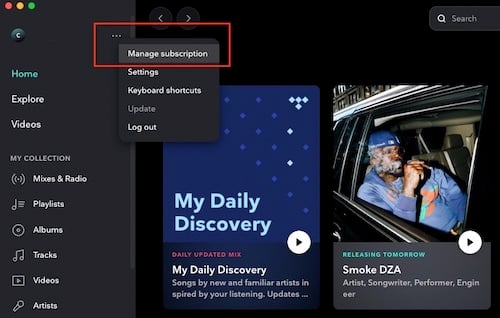
Similar to the desktop app, you can also cancel your TIDAL subscription through the Android app.


Cancelling your TIDAL service on iPhone or iPad is a bit different. You can complete the process through Apple or on the TIDAL website. TIDAL also provides the option to delete your account.
If you registered directly from your iPhone and your Apple Wallet shows an account, follow the steps below to cancel your TIDAL service.

If you cannot find TIDAL under the Subscription section of your iOS Settings, you can use the TIDAL website on your iPhone or iPad to unsubscribe.

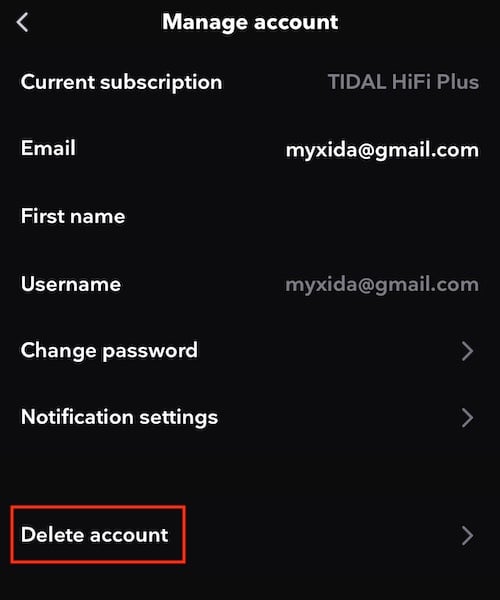
If you’ve downloaded TIDAL on an Apple device through the App Store, you have the option to delete your account within the TIDAL app. Please note the following important points before proceeding with this action:
To delete your TIDAL account:


Similar to other music streaming platforms, once you cancel your TIDAL subscription, you’ll lose access to your downloaded content. If you’re seeking a way to preserve your favorite Tidal tracks even after unsubscribing, the Pazu Tidal Converter is the best choice. This powerful tool enables you to convert any Tidal songs, albums, or playlists to a range of popular audio formats, including M4A, MP3, AAC, FLAC, WAV, and AIFF, on your Mac or Windows device. By following the simple steps outlined below, you can quickly and easily download Tidal music to MP3 or FLAC and enjoy your favorite tunes offline, anytime and anywhere.
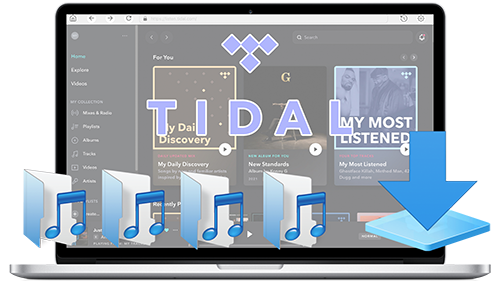
Download, install, and run Pazu Tidal Converter on your Windows or Mac, which features a built-in Tidal web player.

If you have purchased a license, click the key icon to register the converter. If not, continue using the trial version.
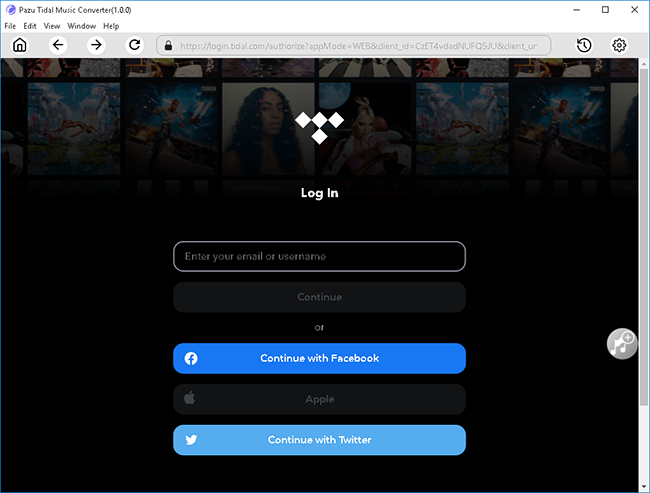
Follow the onscreen instructions to log in to your Tidal account. Enter the credentials and hit Log In to proceed.
In addition to MP3, the Pazu Tidal Converter lets you download Tidal songs to M4A, AAC, FLAC, WAV, and AIFF. Click the Settings option (the cog icon) located at the top right corner to change the output format or output folder if you need.
You can also customize the output song name with any combination of Title, Artist, Album, Track Number, and Playlist Index.

Click any playlist you want to download.

Then click the red icon to load songs. All songs in the playlist will be added by default. You can uncheck the songs you don’t want to get.

Click the Convert button to start downloading Tidal music to MP3.

After conversion, click the folder icon to quickly locate the downloaded Tidal songs in the format you choose.


Download Tidal songs/albums/playlists to M4A etc