

YouTube allows users to enjoy online music for free through its ad-supported plan, but the free version does not support downloading music for offline playback. If you prefer listening to YouTube Music without an internet connection, one option is to subscribe to a paid membership. With the Premium subscription, you can download songs, albums, playlists, and podcasts for offline playback.
However, there’s an alternative way to download YouTube Music content without Premium. You can enjoy YouTube Music offline with a Free account. In this article, we will guide you through how to download YouTube Music songs with both a Premium and a Free account. First, let’s begin by highlighting the differences between YouTube Music Free and Premium.
Contents
To listen to YouTube Music for free, all you need to do is sign up and start listening. If you want to become a paid member of YouTube Music, you can do so through either YouTube Music Premium or YouTube Premium. The table below provides an overview of the prices and features for the free and Premium plans of YouTube Music.
| YouTube Music Free | YouTube Music Premium | YouTube Premium | |
| Price | Free | – Individual: $11.99/month or $119.99/year – Family: $18.99/month – Student: $5.99/month | – Individual: $15.99/month or $159.99/year – Family: $26.99/month – Student: $8.99/month |
| Music Library | Almost all YouTube Music content | The entire YouTube Music Library | The entire YouTube Music library |
| Audio quality | Up to 128 kbps | Up to 256 kbps | Up to 256 kbps |
| Ads-Free | N/A | Yes | Yes |
| Background play on mobile devices | N/A | Yes | Yes |
| Download for offline listening | N/A | Yes | Yes |
| Audio-only music | N/A | Yes | Yes |
| Additional feature | – Ad-free YouTube videos – Other YouTube video features |
For uninterrupted listening experiences without ads and the option to play songs offline, YouTube Music Premium is an excellent choice.
If you’re also a regular YouTube video viewer, YouTube Premium is a compelling option, as it not only removes ads but also offers additional video-related features like offline downloads and Picture-in-Picture (PiP) mode.
Both YouTube Music Premium and YouTube Premium offer Family plans, allowing you to share your benefits with 5 additional household members (6 users in total). These plans offer cost-effective ad-free access to YouTube and YouTube Music for the entire family. Eligible students can also take advantage of discounted pricing with the Student plans.
However, if you don’t mind occasional ads during your music sessions and don’t prioritize offline playback, you can stick with the free YouTube Music plan to save money.
YouTube and YouTube Music Premium members can download playlists, songs, albums, or podcasts for offline playback, but only on mobile devices. Downloaded content can only be played within the YouTube Music app and cannot be transferred to other devices or used with other programs.
There are two ways to download YouTube content and listen offline on Android and iOS:
With Smart Downloads, the YouTube Music app will automatically download music based on your previous listening history, adding recommended content to your library for offline listening. To enable Smart Downloads on your mobile devices, follow these steps.
 .
.
 (the gear icon) at the top.
For any song, playlist, or album in the YouTube Music app that you want to download, follow these steps.
 from the pop-up menu.
To download albums and playlists, you can also click the Download Arrow on the album or playlist details page.

If you want to download YouTube Music with a free account, there’s a reliable software tool called Pazu YouTube Music Converter. This tool allows you to download YouTube Music songs, albums, and playlists, regardless of whether you have a free or premium account. Plus, you don’t need to manually copy and paste song links, as Pazu YouTube Music Converter features a built-in YouTube Music web player. With Pazu, you can search for your favorite songs within the YouTube Music catalog and download them in original quality with full ID3 tags.
Once you have converted songs from YouTube Music into standard formats, you can transfer and play them on any compatible device. Let’s take a look at the detailed steps.
1. Run Pazu YouTube Music Converter
To get started, download, install and run Pazu YouTube Music Converter on your Mac or Windows, which features a built-in YouTube Music web player.
After the installation is complete, launch the Pazu YouTube Music Converter on your computer. If you have already purchased a license, click the key icon to register the converter. If not, continue using the trial version.
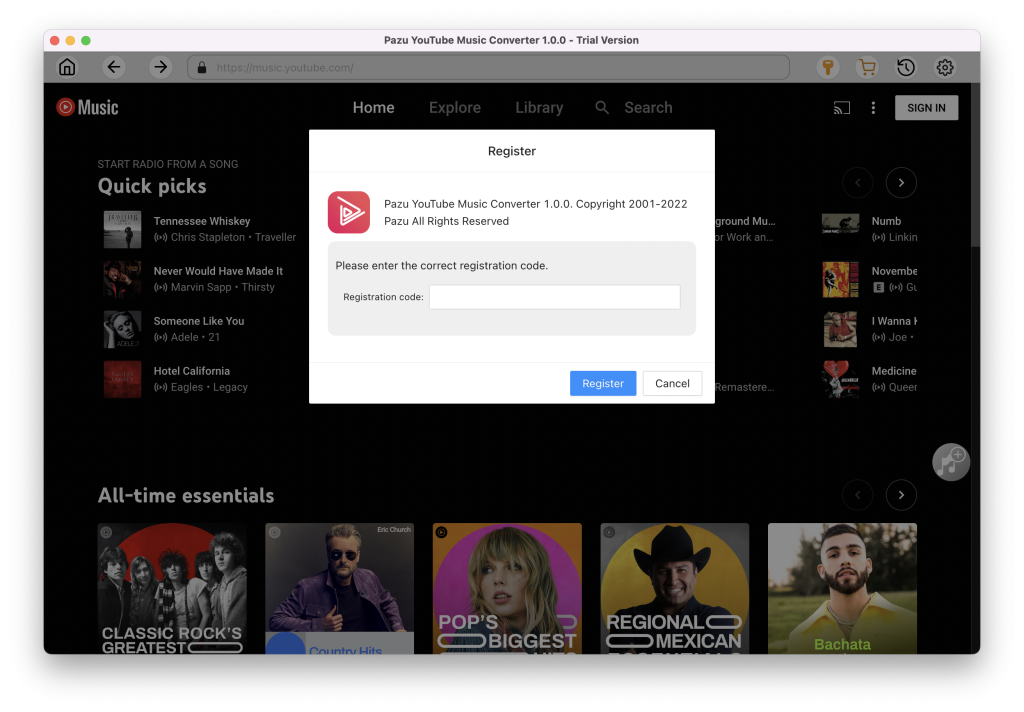
You can sign in to your YouTube Music account to access your playlists.
2. Customize the Output Settings
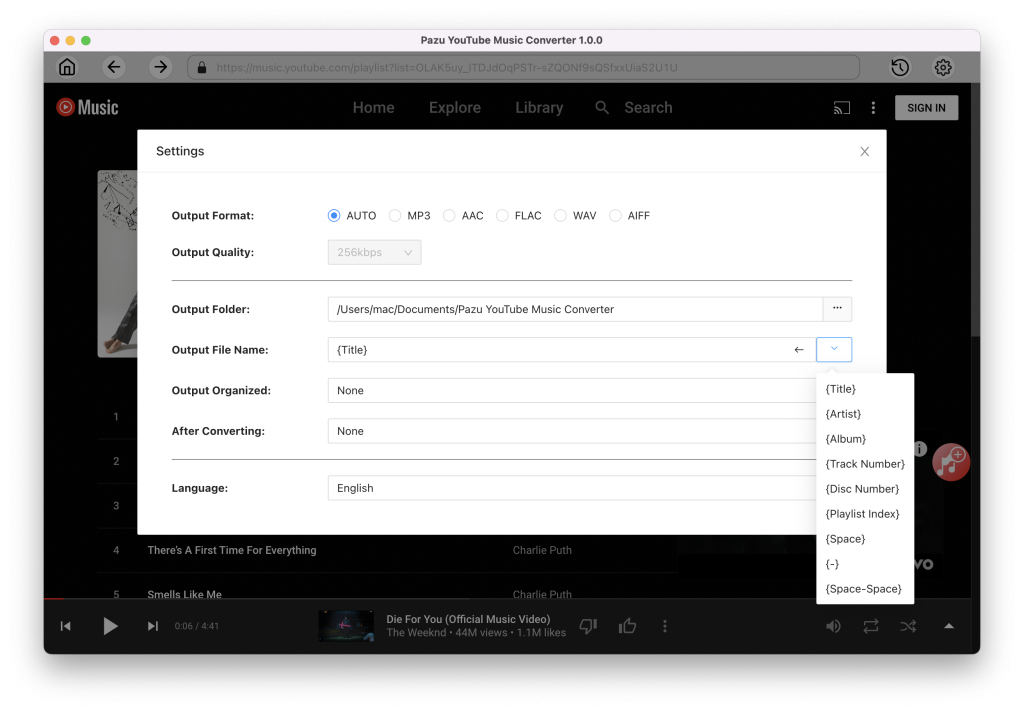
Click the “Settings” icon in the upper right corner to customize the output format, output quality, output folder, file name format, how output songs are organized, interface language, etc.
3. Add songs to Download
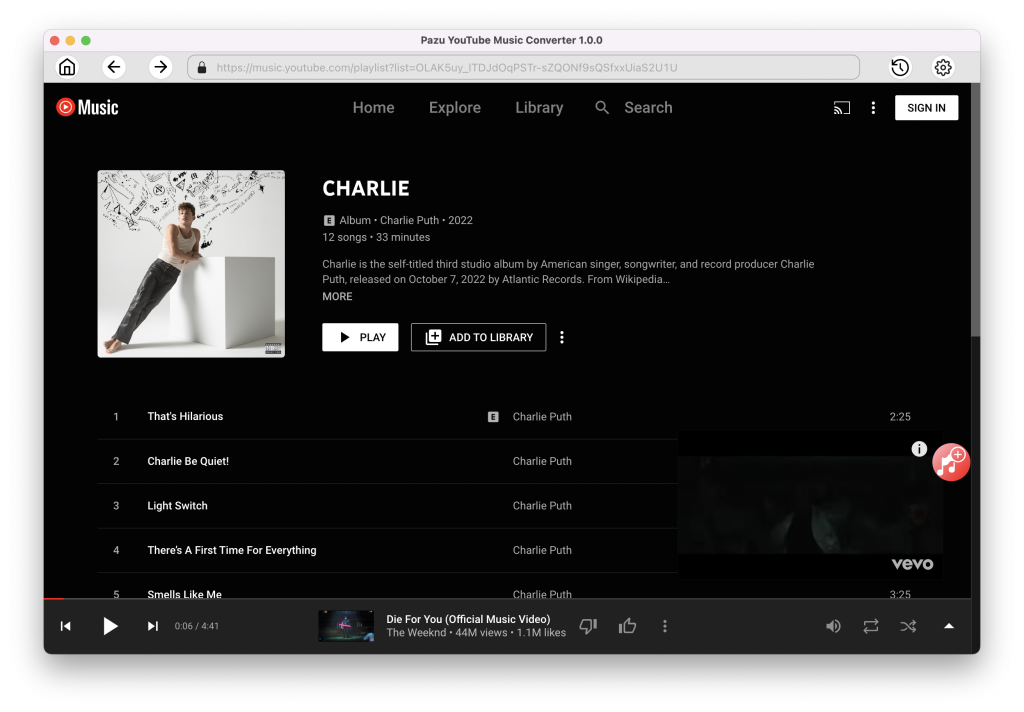
Browse or search to find the songs, albums, or playlists you want to download. Click the album or playlist you want to download. Then click the red icon to load songs.
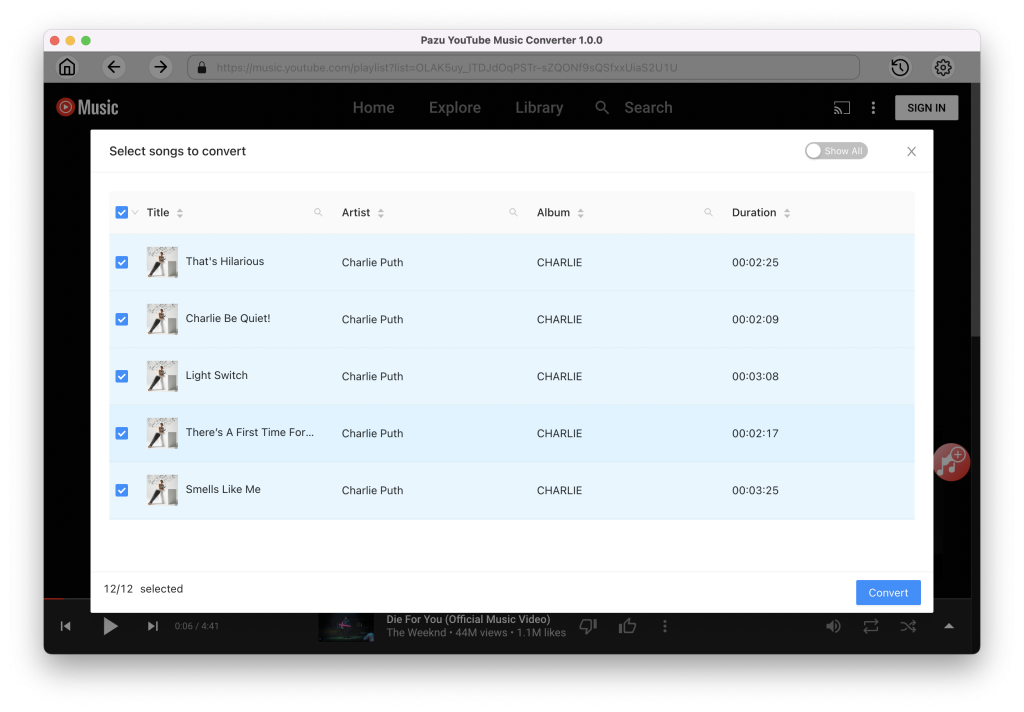
All songs in the playlist/album will be selected by default. You can uncheck the songs you don’t want to get.
4. Download Music from YouTube Music
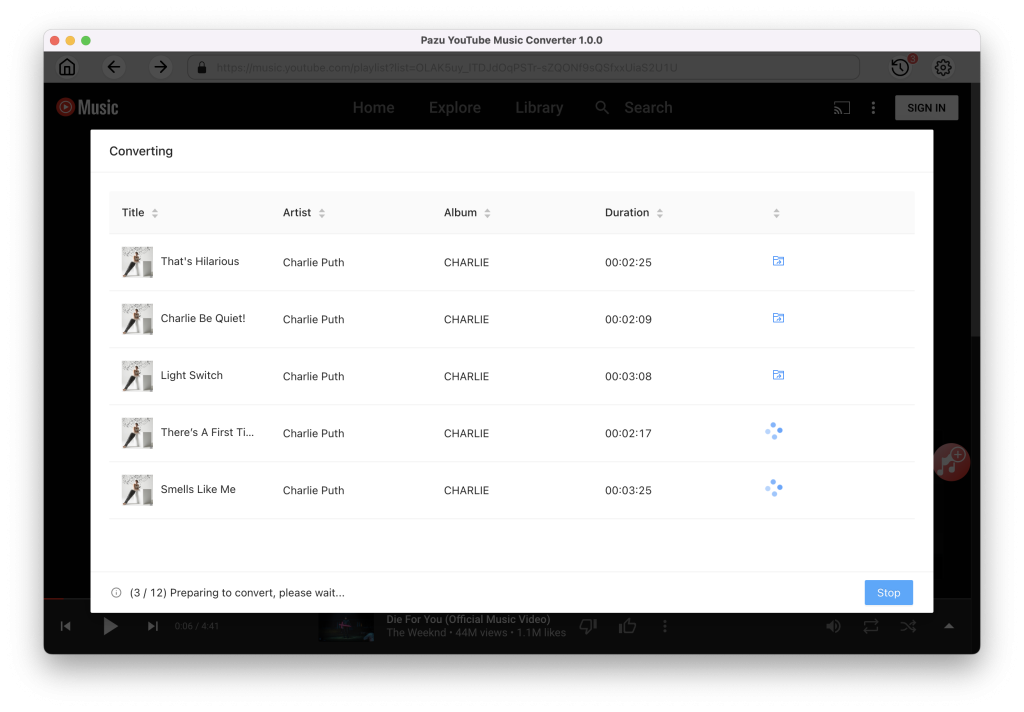
Click on the “Convert” icon and begin to download YouTube Music songs.
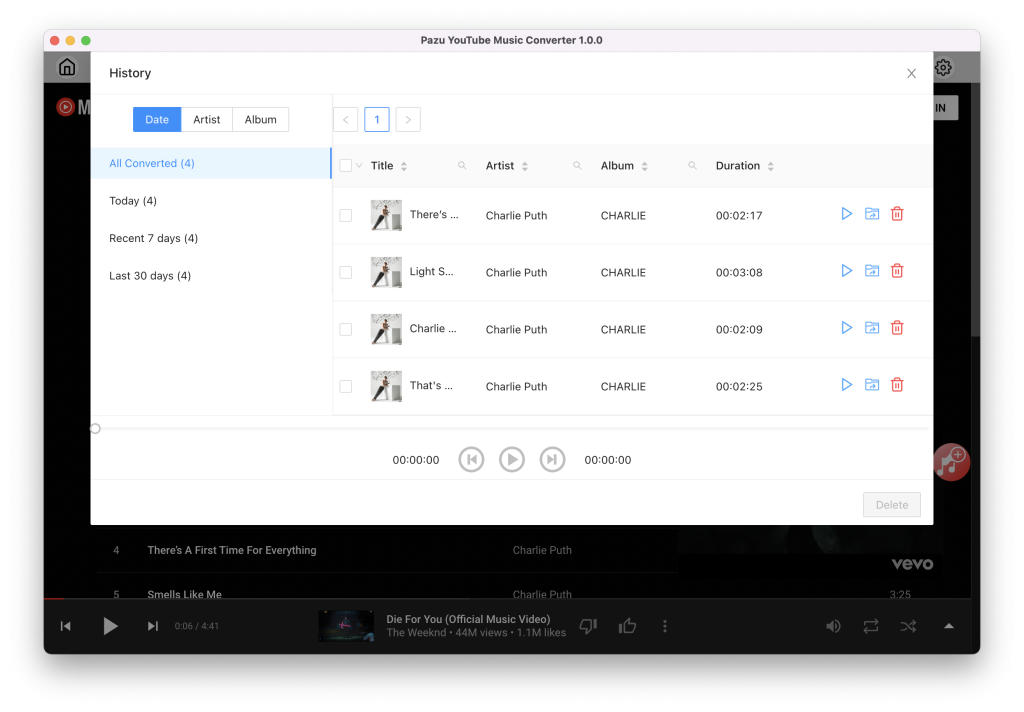
Once downloaded, click the “clock” icon in the upper right corner to find the converted YouTube Music songs in the local directory.

Download and convert YouTube Music to MP3, M4A, etc